

Creating a Subscription Upgrade offer
You build a Subscription Upgrade in the post-purchase funnel editor. The setup wizard walks you through four steps: connecting your subscription provider, picking the trigger product, configuring the upgrade, and choosing the offer product the customer sees. To open the wizard:- In your Aftersell dashboard, go to Post-purchase funnels.
- Click Add Funnel.
- Select the Subscription Upgrade template.
- Prepay for 3 months keeps monthly delivery but moves billing to every 3 months (prepaid). Not available on Loop stores, which bill on every delivery.
- Replace subscription product swaps the subscribed product for a different one.
- Upgrade to a 3-month supply swaps the product and moves both delivery and billing to every 3 months.
Step 1: Connect provider
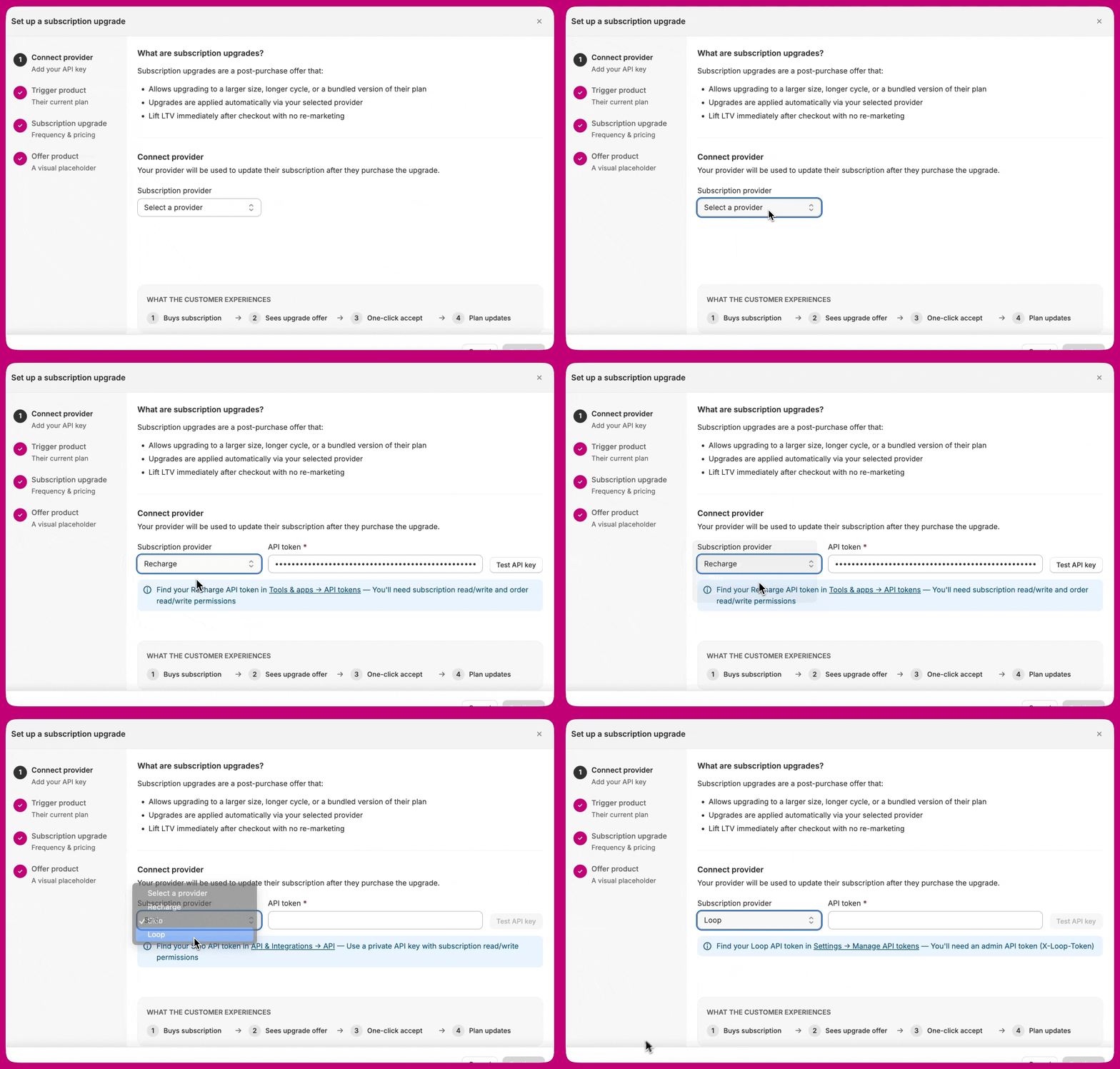
- From the Subscription provider dropdown, select Recharge, Skio, Loop, or Stay AI. The API token field and helper text update to match.
- Generate an API token in your subscription platform if you don’t have one. Each provider has different scopes and steps:
- Paste your token into the API token field and click Test API key.
- Once the test passes (green tick, “API key verified”), click Continue.
Loop prerequisite. Loop does not support prepaid subscriptions through this integration; billing frequency is locked to delivery frequency. When using Use an existing selling plan, the plan must already exist in your Loop dashboard. See Subscription upgrades with Loop.
Stay AI prerequisite. Stay AI cannot modify prepaid (pay-upfront) subscriptions - an upgrade accepted on a prepaid plan is cancelled and refunded. Create the API key with All permissions so Aftersell can also track cancellations (the Webhooks permission). See Subscription upgrades with Stay AI.
Step 2: Trigger product
Pick the subscription customers will be upgrading from.- Click Choose subscription product. Only products with active subscription plans appear.
- Select the product and variant.
- Click Select product.
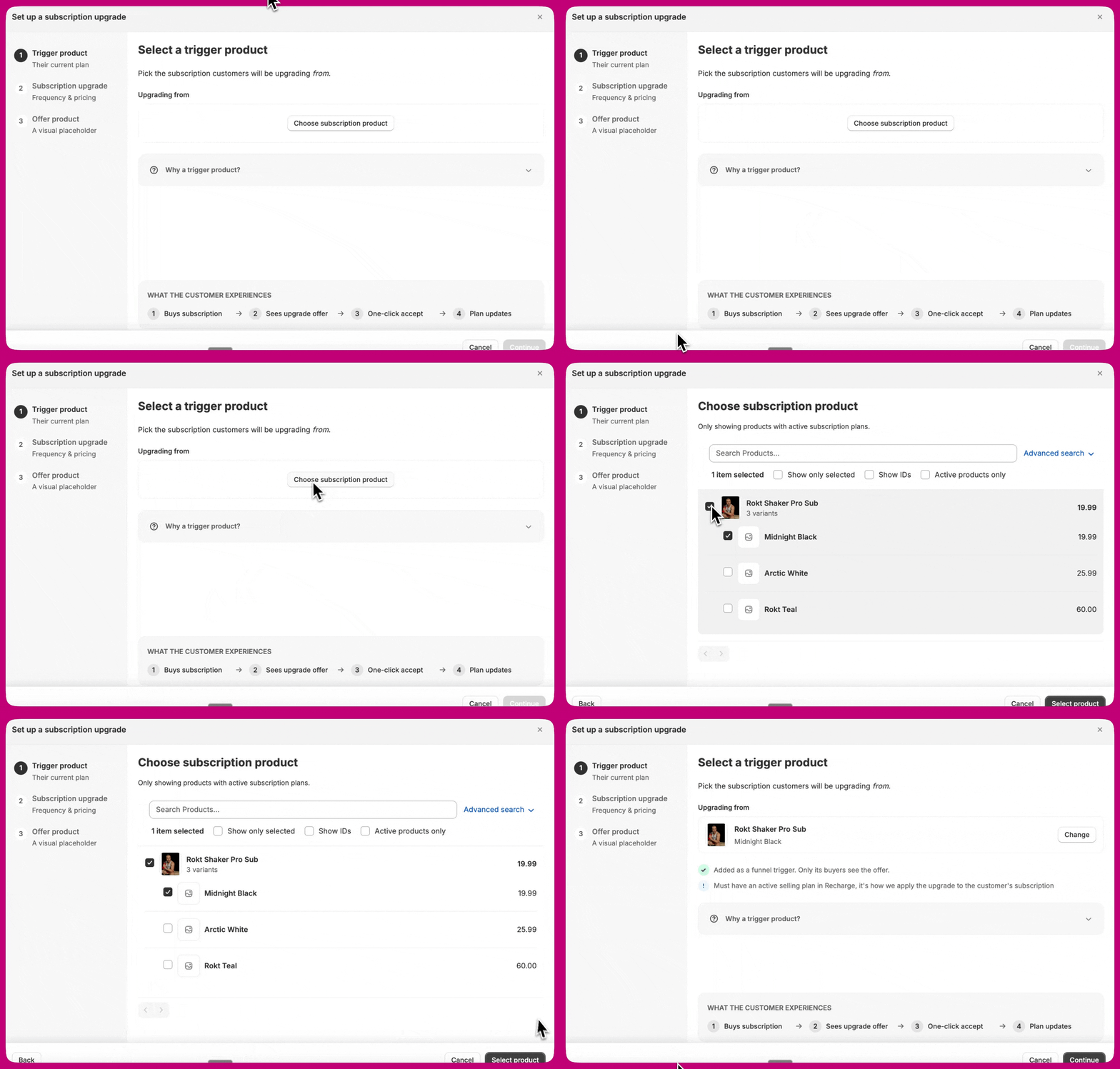
Subscription Upgrades target a single variant. The trigger and replacement pickers select one variant each, and the funnel fires on a variant-scoped trigger, so selling plans that differ per variant are handled directly, with no need for a funnel per variant.
Step 3: Subscription upgrade
Choose what happens when a customer accepts. Pick a Subscription upgrade type from the dropdown; the fields below it change with your choice.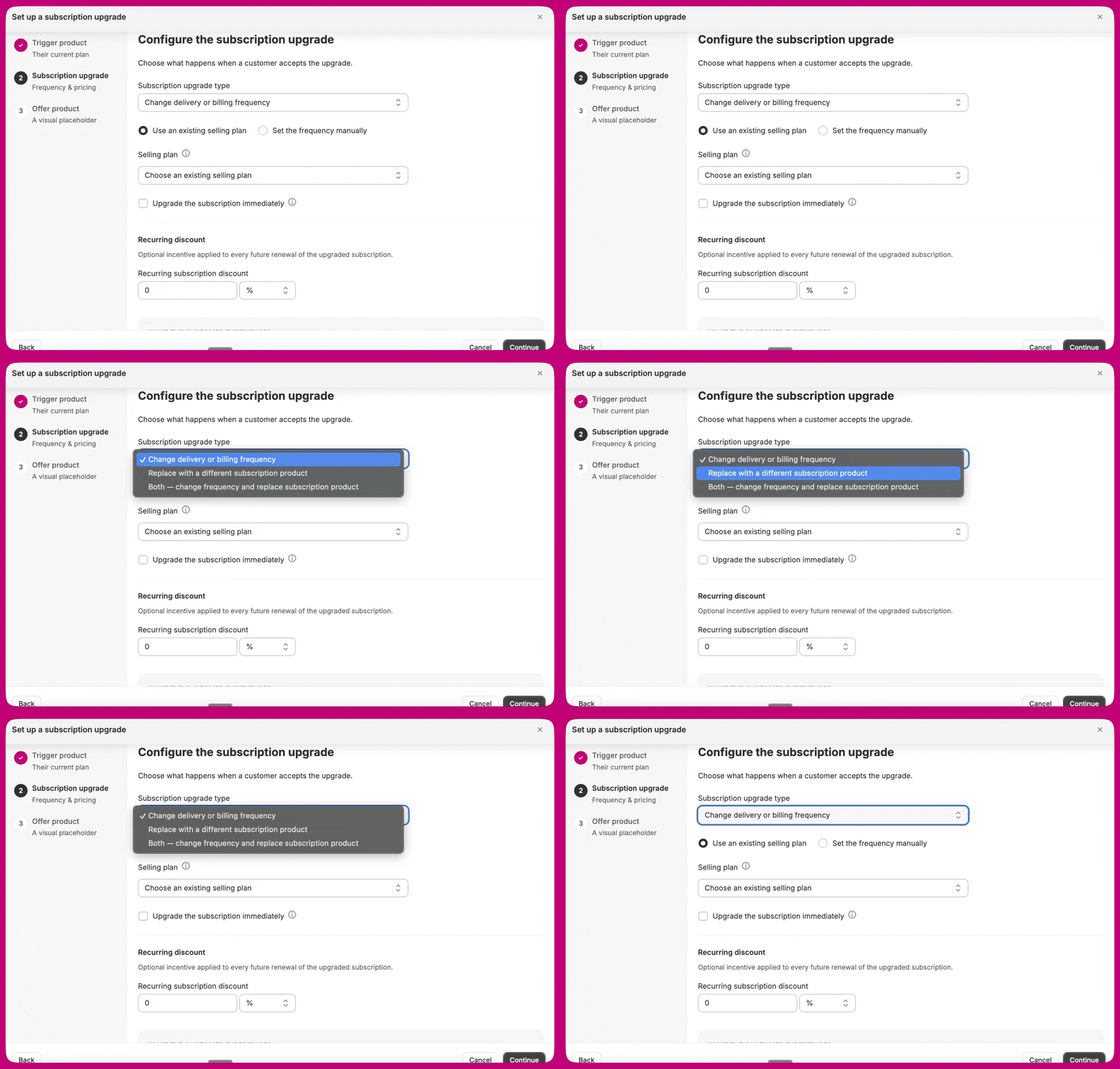
- Change delivery or billing frequency. Keep the product, change how often the customer is billed or shipped to. Then choose Use an existing selling plan (pick a plan already configured in your provider) or Set the frequency manually (enter delivery and billing frequencies yourself). For a prepaid upgrade, set billing longer than delivery (for example, bill every 6 months, deliver monthly). Loop does not support prepaid, so its billing frequency syncs to delivery.
- Replace with a different subscription product. Keep the frequency, swap the product. Click Choose replacement product (only products with active selling plans appear). Optionally enable Override subscription quantity to set the quantity applied on renewals (off by default keeps the existing quantity).
- Both, change frequency and replace subscription product. Both sets of fields appear; fill in both.
- Add another subscribable item to subscription. Leave the existing subscription as is and add a new product on its existing cadence. Click Choose item to add (only products with active selling plans appear). There are no frequency fields; the cadence is inherited. See Adding an item to an existing subscription for how this differs by provider.
The Recurring subtotal shown to the customer, the upgrade-timing checkbox, and the recurring-discount tiers each follow specific rules. See the Configuration reference before relying on the displayed prices.
Step 4: Offer product
The offer product is a visual placeholder only, not a real product the customer buys (Shopify won’t show a subscription product as a post-purchase upsell after a subscription order). A What changes on their subscription panel at the bottom shows a live before/after preview as you fill in the details. Choose one of two options:- Create new. Aftersell creates an unpublished placeholder product for you. Set the Product image, Product title, the One-time upgrade price (what the customer pays on this order), and an optional First-order discount.
- Pick existing. Choose a non-subscription product you already have in Shopify; the customer is shown it at its existing Shopify price. Subscription-only products are filtered out.
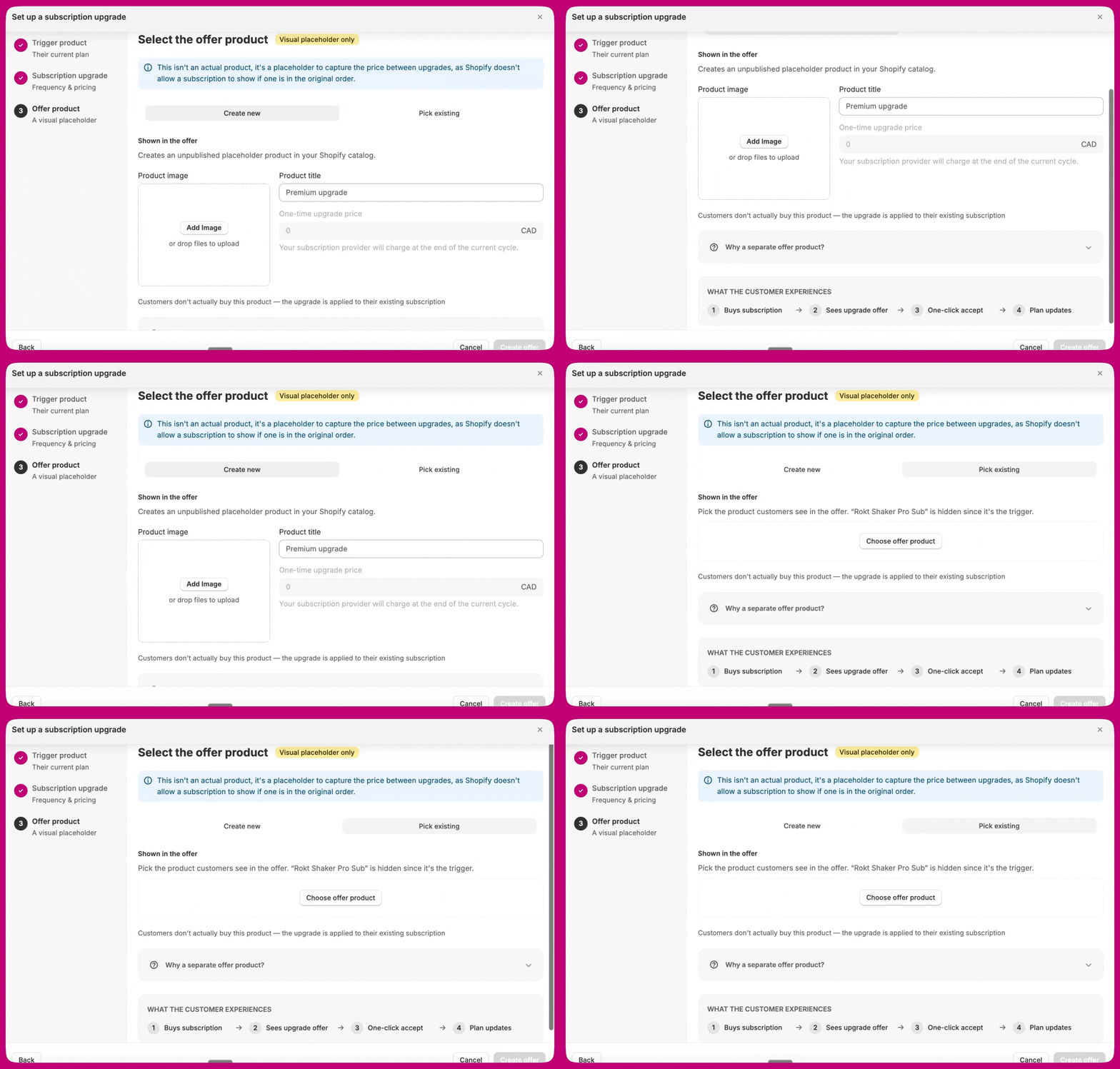
What to put in One-time upgrade price depends on the upgrade type (and it is locked at
0 for frequency/both upgrades unless upgrade-timing is on). See One-time upgrade price, by upgrade type.Additional triggers
The wizard automatically adds the eligibility trigger (a Variant on subscription trigger set to your target variant), so you don’t need to set it up by hand. After the wizard completes, you can layer optional triggers in the funnel editor’s Triggers step, grouped under a collapsible Additional triggers section.Editing an offer after it’s been created
A Subscription Upgrade funnel keeps a permanent Setup step in the funnel editor, which re-opens the same wizard pre-filled from the saved offer (its button reads Save offer). You can also edit the offer’s fields directly:- In your Aftersell dashboard, go to Post-purchase funnels.
- Open the funnel that contains your Subscription Upgrade offer.
- Select the offer to open its settings, then edit the fields inline: trigger product, upgrade type, frequency and recurring discount, and the offer product’s image, title, or price.
- Save.
If the offer uses an existing selling plan for its frequency, those fields are set by the plan and can’t be edited here (if the plan has stepped tiers, pick the tier for renewals). Switch to setting the frequency manually if you need a custom discount amount instead.