

What are Thank You Page widgets?
Thank You Page widgets allow you to display additional content and product recommendations to customers immediately after checkout. They are highly customizable and do not face the same Shopify limitations as post-purchase upsells. Thank You Page widgets enable you to:- Tailor offers to specific customer actions (funnel triggers)
- Showcase personalized product recommendations
- Engage customers in a non-intrusive way
- Add testimonials, FAQs, text content, and images to your Thank You page
Step-by-step setup guide
Step 1: Create or select a funnel
- Navigate to Post-purchase Funnels in your Aftersell admin.
- Click Add funnel, then pick a template or choose to create one manually — or select an existing manual funnel.
- Name your funnel (e.g., “Thank You Page Upsells - All Orders”).
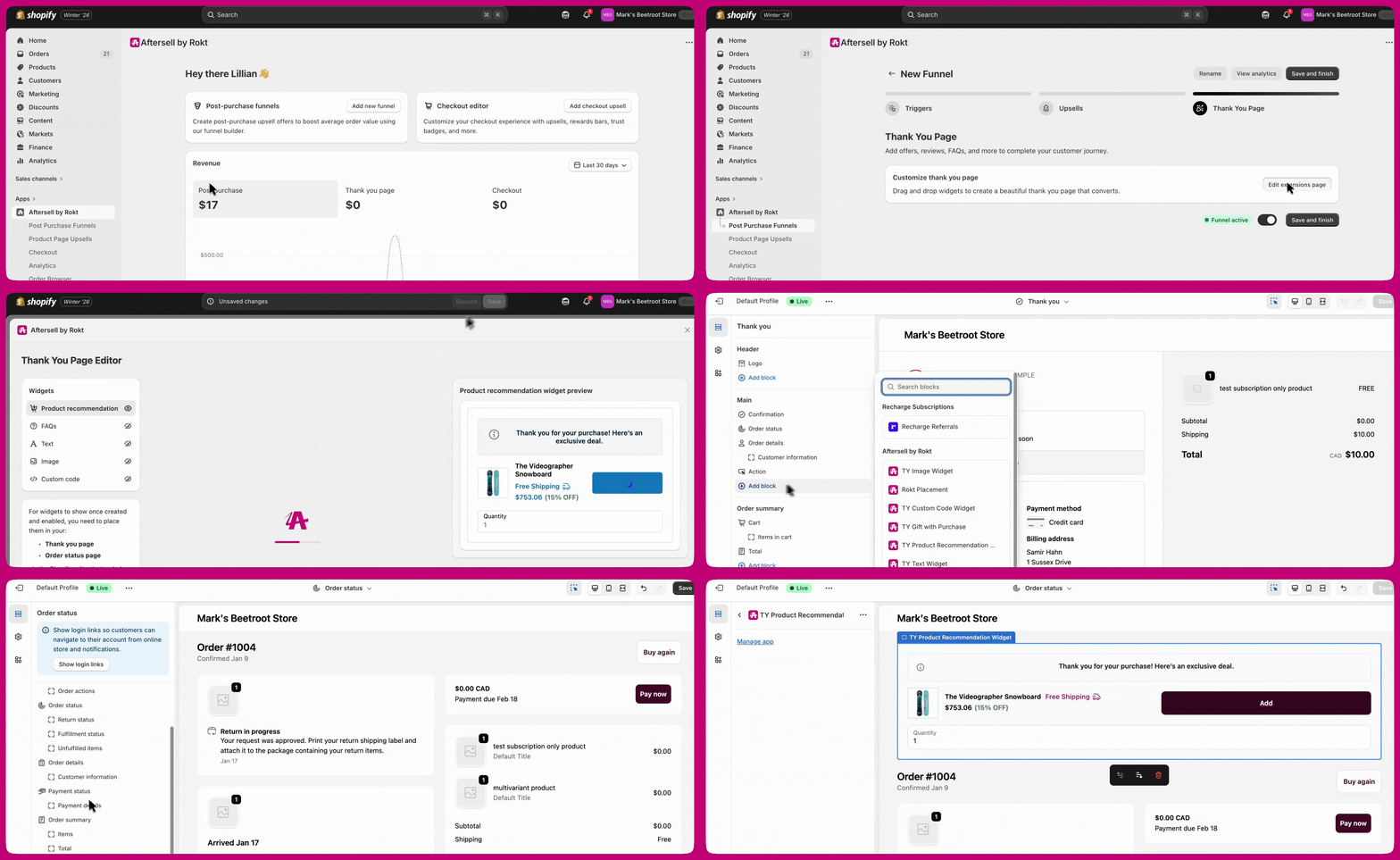
Step 2: Configure funnel triggers
Define when your funnel should run. The triggers you set here apply to the entire funnel, including both Post-Purchase offers and Thank You Page widgets. Thank You Page widgets do not have separate trigger settings. Whatever triggers are configured for the funnel will also determine when the corresponding Thank You Page widgets display.- In the funnel settings, click Triggers.
- Select trigger conditions based on:
- Customer tags
- Product purchased
- Cart value
- Order count
- Collection
- Discount codes used
- Click Save Triggers.
Step 3: Add TYP widgets to your funnel
- Scroll to the Thank You Page section in your funnel.
- Click Edit extensions page (or Edit scripts page, if your store has not yet migrated to Thank You page extensibility) to open the Thank You Page editor.
- Pick a widget type from the sidebar and click Enable to turn it on. Every widget type already has its own tab — there is no separate “add” step. The available types are:
- Product Recommendation - Display upsell product recommendations
- Testimonials - Show customer reviews to build trust and social proof
- FAQs - Answer common customer questions
- Text - Share messages, discount codes, or brand stories
- Image - Display a custom image or banner
- Gift with purchase - Offer a free gift alongside the order. This tab only appears once the feature has been enabled for your store; contact support if you would like it turned on.
Save your funnel configuration
- Review all widget settings.
- Click Save Funnel at the top of the page.
- Set funnel status to Active.
- Max reviews to show - How many reviews appear, from 1 to 3 (defaults to 3)
- Display type - Choose between horizontal carousel or vertical stack layout
- Minimum rating - Set the minimum star rating for reviews to display
- Truncate review text after (optional) - Set a maximum character length for review text
Enabling widgets in Shopify
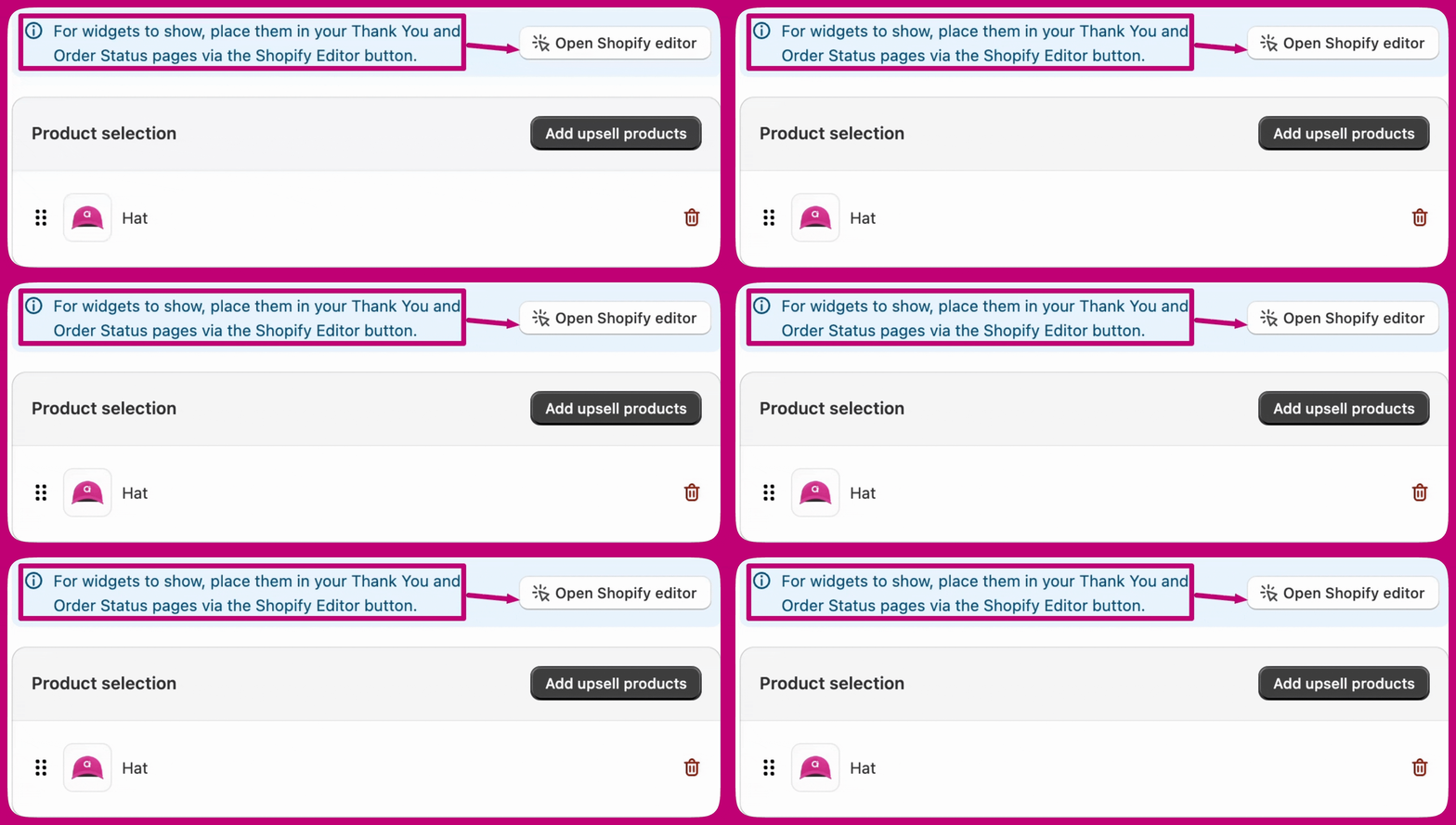
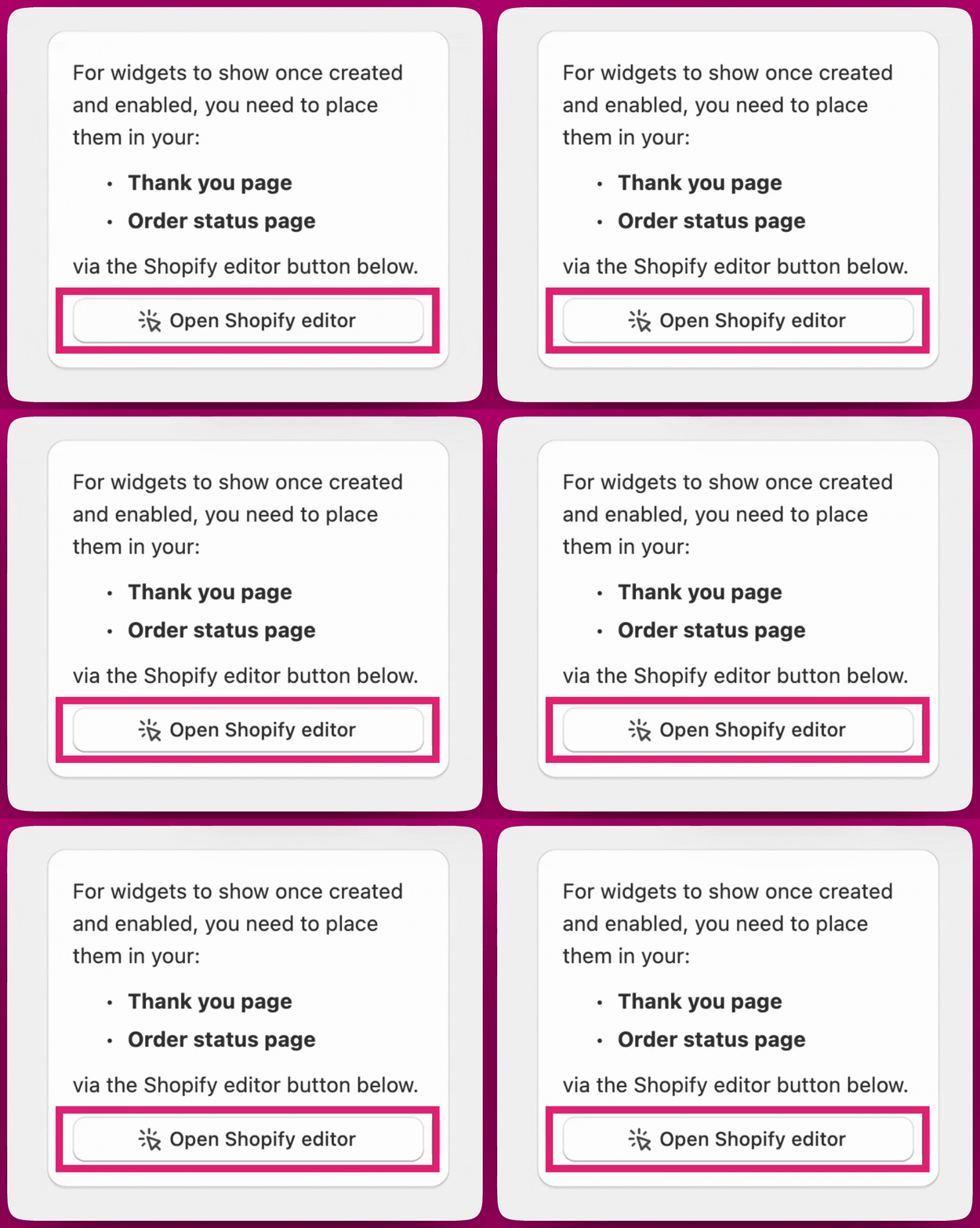
Widgets created in Aftersell must be added to your Thank You page or Order Status page in the Shopify editor, otherwise they will not display to customers. We recommend placing the app blocks on both pages.Step 1: Open Shopify editor
- In your Aftersell admin, click Open Shopify Editor.
- This opens the Shopify checkout customization editor.
Step 2: Add widgets to the Thank You page
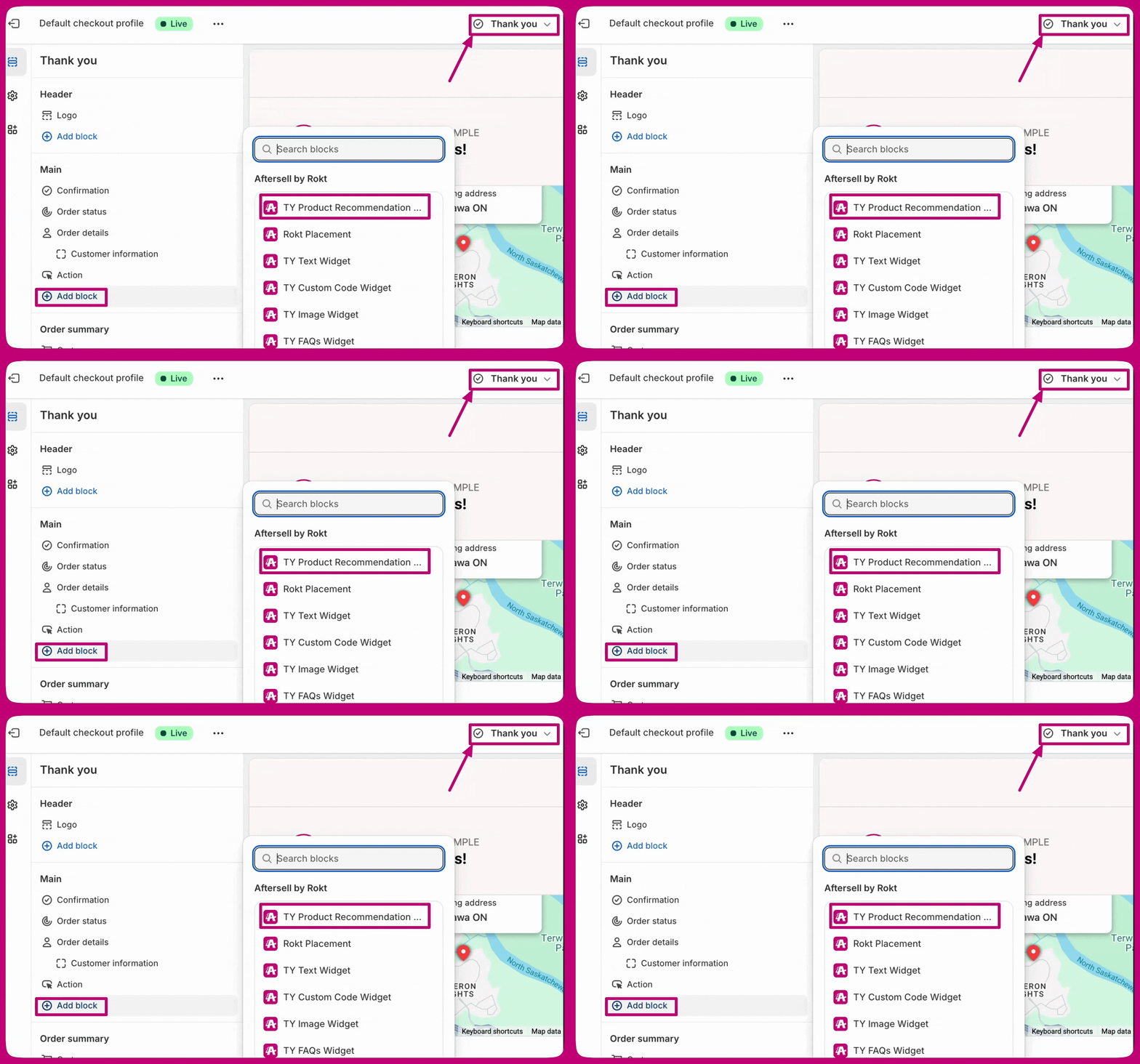
- In the Shopify editor, navigate to Thank You page.
- Click Add app block or Add section.
- Select the Aftersell block matching the widget you configured. Each widget type is published as its own app block: TY Product Recommendation Widget, TY Testimonials Widget, TY FAQs Widget, TY Text Widget, TY Image Widget, or TY Gift with Purchase.
- Position the widget block where you want it to appear.
- Repeat steps 2-4 for every widget you enabled, one block each.
- Click Save.
Step 3: Add widgets to the Order Status page
Repeat the same steps on the Order Status page in the Shopify editor so customers who return to their order confirmation still see your widgets.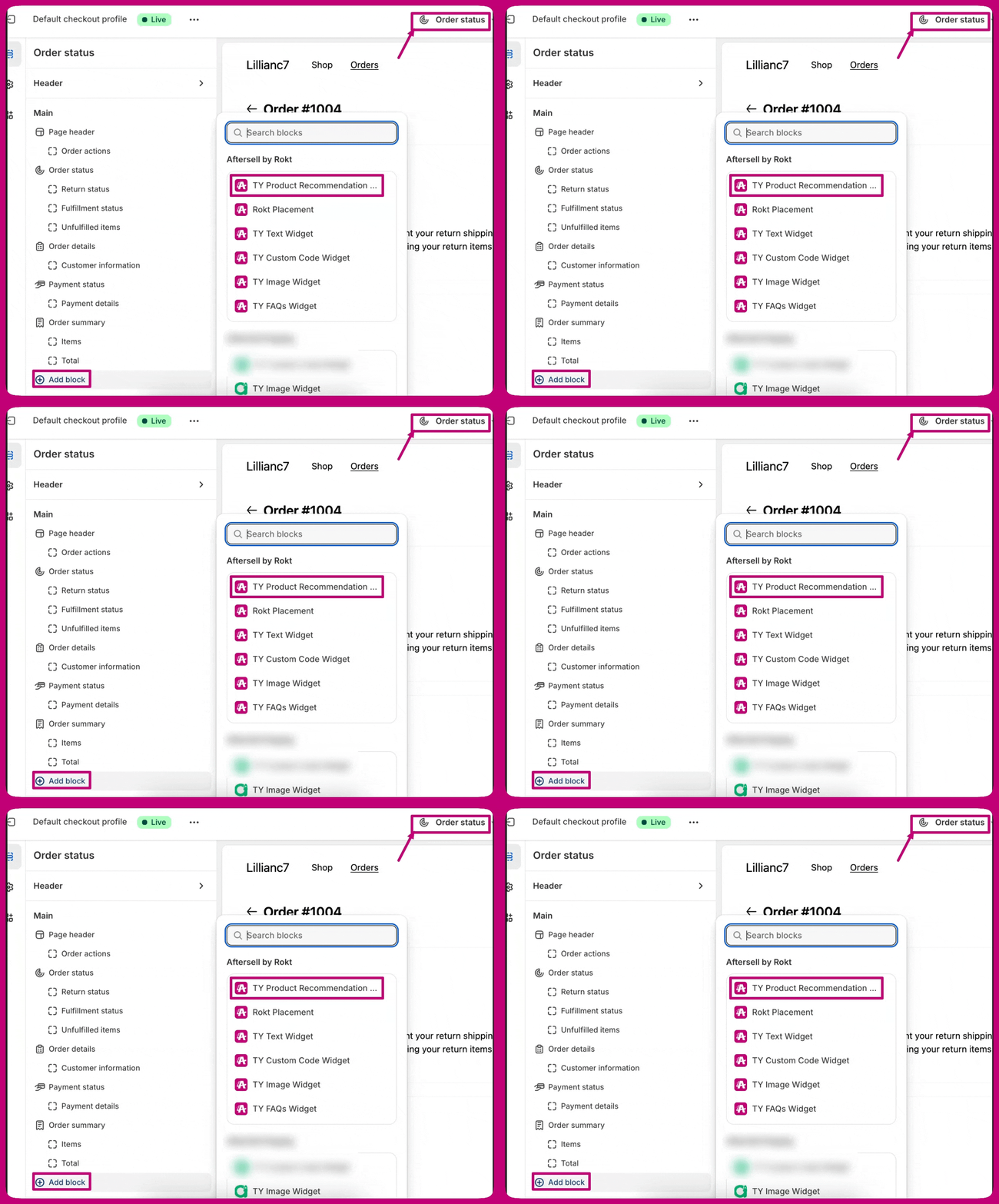
Step 4: Publish your changes
- Review the page in the preview.
- Click Publish in the top-right corner.
- Confirm the publication.
- Set the widget Title (it defaults to “FAQs”).
- Click Add FAQ.
- Enter your question text.
- Enter your answer text.
- Repeat for additional FAQ items. Each row has its own Remove button.
- Click Save.
Testing your widgets
Shopify’s checkout preview may not always display widgets correctly. Follow these steps to test:- Set triggers to “Show for all customers” (temporarily) to see widgets in preview.
- Place a test order using a real checkout flow:
- Use Shopify’s test payment gateway
- Create a free product for testing
- Use a discount code to make the order $0
- Verify widgets appear on the Thank You page immediately after checkout.
- Test widget functionality:
- Click product recommendations
- Verify checkout flow for upsells
- Confirm order handling works as configured
- Reset triggers to your desired targeting rules after testing.
FAQ items appear in the order you add them, and Add FAQ always appends to the bottom — you cannot insert one part-way up the list. There is no drag-and-drop reordering either, so to move an item you have to remove everything from that position onward and re-add them in the order you want.
Advanced configuration
Combining with post-purchase upsells
For maximum conversion, combine TYP widgets with post-purchase offers:- Add Post-purchase Offers to your funnel (before Thank You page).
- Configure TYP widgets as a second touchpoint.
- Customers who decline post-purchase offers will still see TYP widgets.
- This creates multiple conversion opportunities in the customer journey.
- Choose a Select style — Plain text or Banner. Choosing Banner reveals a Select type of banner option.
- Enter your Heading text (optional).
- Enter your Content.
- Click Save.
These are plain text fields, not a rich-text editor — there is no toolbar for bold, italics, lists, or links. Use the Banner style or an Image widget if you need more visual emphasis.
Troubleshooting
Widget not displaying
Widget not displaying
- Verify funnel status is set to Active.
- Check that funnel triggers match your test order conditions.
- Confirm widgets are enabled in the funnel configuration.
- Ensure the widget block is added to the Thank You page in the Shopify editor and positioned toward the top of the page.
Thank You page not triggering
Thank You page not triggering
- Customers sometimes skip the Thank You page if they close the browser immediately after purchase.
- Ensure Thank You page offers are correctly set up in the Shopify editor.
- Verify the widget block is positioned correctly on the page.
Limitations
Countdown timers are not available on the Thank You page. This is a Shopify platform restriction and cannot be changed within Aftersell.
Countdown timers on the Thank You page product recommendation widget are off by default and are not available on every store. Once the feature is enabled for yours, the widget’s banner section gains Enable timer, Timer duration, and Timer start (page load or order created) controls, and the remaining time is inserted wherever you place the
{TIMER} placeholder in your banner text. Contact support if you would like it turned on.- Post-Purchase Best Practices - tips to improve conversion across all your offers
- How to Configure Post-Purchase Offers - set up your full post-purchase funnel