

How language translation works
When you select a language on an offer in the funnel editor, Aftersell automatically translates all system-level text for that offer, including pricing labels, button text, subscription labels, quantity selectors, and other non-editable strings. You don’t need to configure anything else for the translation to take effect. For new V2 offers, Aftersell also seeds the default offer copy — headlines, subheads, timer headings, the “before you go” text, and the offer description — in the offer’s language at creation time. If you later change the language on an offer, any copy that is still the built-in default is automatically re-translated to the new language. Copy you have customized is left untouched. Settings > Translations is where you can set a store-wide default language for new offers and optionally customize or override auto-translated strings for any language. It doesn’t control which language an offer displays after creation. That’s set per offer in the editor.Setting a default offer language
You can set a default language that is applied to all new post-purchase V2 offers when they are created. This affects the language of the default offer copy (headlines, subheads, timer headings, and other default text) as well as the system text language.- Go to Settings
- Select Translations
- Under Post-purchase, find the Default post-purchase language section
- Select your preferred language from the Offer language dropdown
- Click Save
💡 If no default language is set, new offers are created in English.
Step 1: Set the language on your offer
To apply a language to an offer:- Open your funnel in the Aftersell editor
- Select the offer you want to translate
- Open the Language section
- Select a language from the Language dropdown
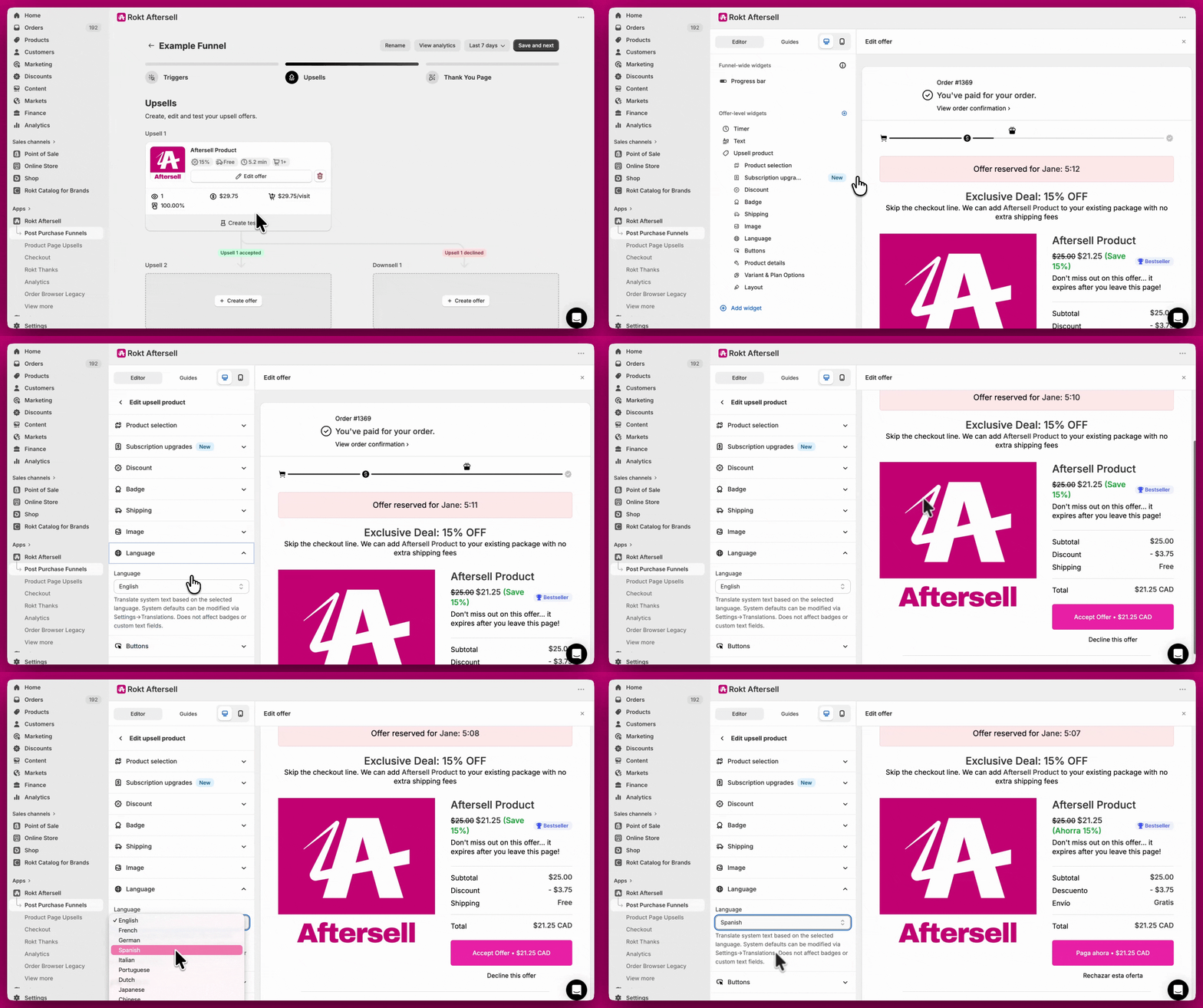
Step 2 (optional): Customize auto-translated strings
If you want to override any of the default translated strings for a specific language, you can do so in Settings > Translations.- Go to Settings
- Select Translations
- Under Post-purchase upsell translations, choose a language from the language dropdown
- Update any fields you want to override for that language
Fields available in Settings > Translations
The following button-text fields are available when custom button text is enabled for your account:
Translating product names, variants, and options
In addition to system text, you can translate the product-level strings that appear on your offer — including product titles, variant names, option names, and subscription plan names. These come from your store’s published translations in Shopify.How it works
When you configure a non-default product details language on an offer, Aftersell fetches translated strings from Shopify’s Storefront API using the translations you’ve set up in Shopify Admin > Settings > Languages (via the Translate & Adapt app or another translation tool). The translated strings are applied on top of the canonical product data, so inventory, pricing, and other product details are unaffected.Setting up product details translation
- Open your funnel in the Aftersell editor
- Select the offer you want to configure
- Open the Language section
- Under Product details language, choose one of the following options:
- Use default store language — no translation applied; product strings display as configured in Shopify Admin (default)
- Use selected locale language — product strings are translated to match the shopper’s checkout locale automatically
- Select specific language — product strings are always translated to a language you choose from the dropdown
- If you select Select specific language, choose the target language from the Language dropdown that appears below
⚠️ You must add the target language to your store in Shopify Admin > Settings > Languages before it can be used here. Aftersell reads translations from your store’s published languages.
Granting required permissions
When any offer is configured for product details translation, a banner appears on the Funnels page and in the funnel editor asking you to authorize Aftersell to read your store’s translations. Click Update App in the banner to grant the required permissions. The banner disappears automatically once the permissions are granted. Without these permissions, product strings display in the default store language regardless of your product details language setting.What gets translated
Multi-product offers
For multi-product offers, the product details language setting applies to the entire offer, not individual products. You can find it in the Language section at the offer level in the funnel editor.Step 3: Manually translate remaining content
Some content is not auto-translated and needs to be updated manually in the editor: Badges - Badge text (e.g. Best Seller, Trending) cannot currently be translated. FAQ and Text widgets - Replace the existing copy in each widget with your translated text. Image widgets - Text inside images cannot be edited. Upload a new version of the image in the target language. For multi-language support, use different images per language-specific funnel.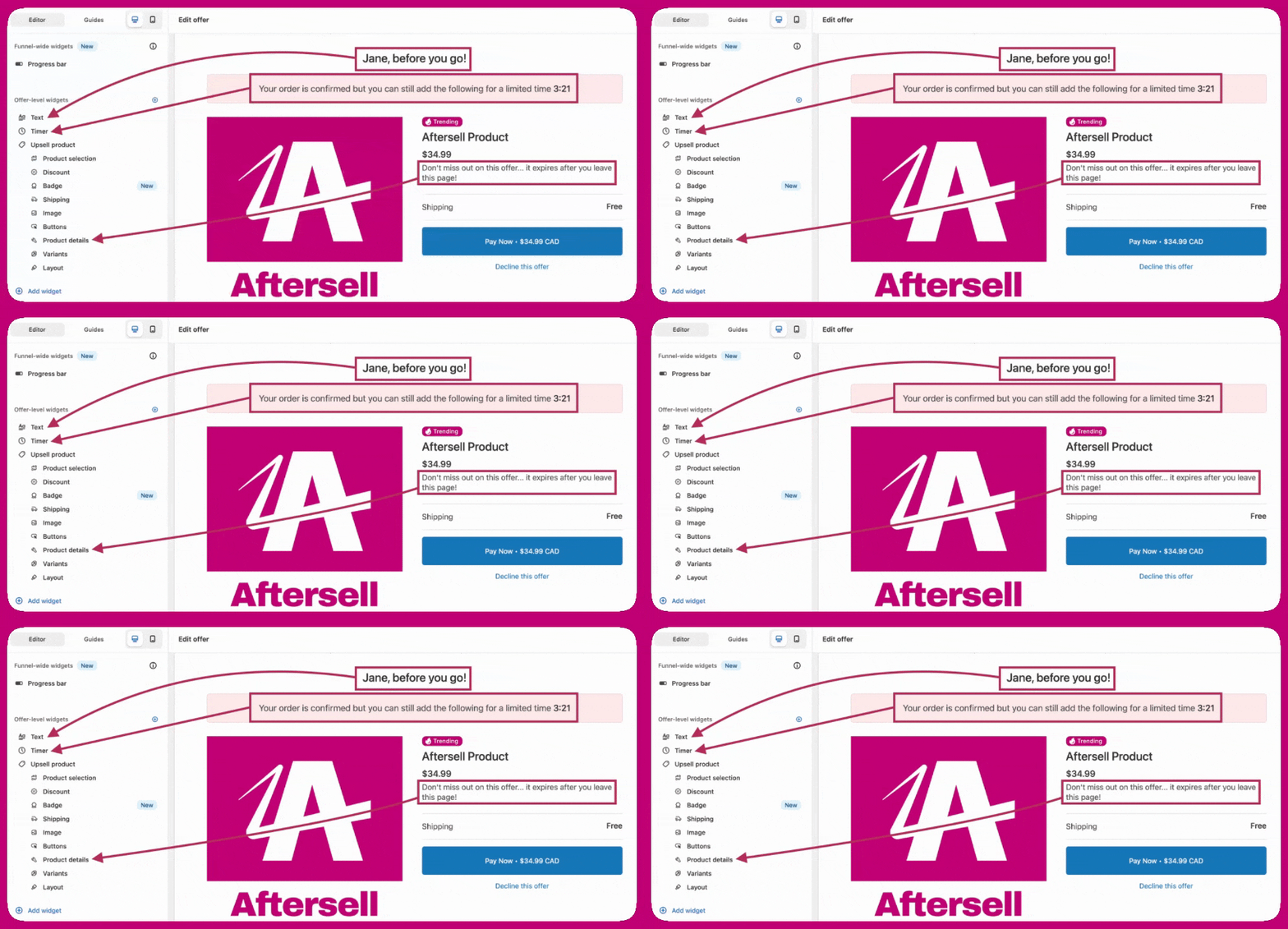
💡 For new V2 offers, the default offer copy (headlines, subheads, timer headings, and offer description) is automatically created in the offer’s language. You only need to manually update copy that you have customized or that falls outside the default offer copy.
Multi-language setups using language triggers
For fully localized experiences across multiple languages, the recommended approach is to create separate funnels per language using the Language trigger. For example:- Create one funnel targeting English customers, write all content in English, and set the offer language to English
- Create a second funnel targeting French customers, write all content in French, and set the offer language to French