

Getting started with triggers
When you create a new funnel, you’ll need to configure at least one trigger to control when it displays. You can combine multiple triggers to create precise targeting rules.Where to find triggers
Triggers are configured inside each funnel, not from a global menu. To open them:- In the Aftersell admin, go to Post-purchase Funnels.
- Click the funnel you want to edit (or click Create Funnel to start a new one).
- In the funnel editor, open the Triggers section.
- Click Add Trigger to add a new trigger, or click an existing trigger to edit it.
- After making changes, click Save Triggers.
How triggers work together
Post-purchase triggers use two levels of logic: AND between triggers and OR within triggers. AND logic (between triggers) All enabled triggers must be met for the funnel to display. If you add multiple triggers, every one must return a match. Example:- Customer Location = US
- Order Value > $50
Some triggers (like Product Quantity) allow you to switch this to AND logic.
Show for all customers trigger
A “Catch-All” funnel uses the Show for All Customers trigger. This funnel activates when an order does not meet the criteria for any other funnel. It serves as a safety net, ensuring no orders slip through without an upsell or Thank You page offer. To use it effectively, set this funnel to the lowest priority so it only appears if no other funnel triggers. Example use cases:- You have three funnels: one for orders over $100, one for specific products, and one with the Show for All Customers trigger. If a customer places an order that doesn’t meet the first two funnels’ criteria, the Show for All Customers funnel will activate as a fallback.
- You want to ensure every customer sees at least one offer. Create a funnel with the Show for All Customers trigger and set it to the lowest priority.
Product-based triggers
These triggers activate based on the products, collections, or variants in a customer’s cart.Ensure proper configuration to prevent hidden or wholesale-only products from appearing unexpectedly in recommendations. This includes reviewing Shopify’s Product Recommendation logic and restricting such products at the add-to-cart stage.
Product/Collection trigger
Product/Collection trigger
Use the Product/Collection trigger to display your funnel when specific products or collections are purchased.To configure:
- In your funnel settings, click Add Trigger.
- Select Product/Collection from the trigger type dropdown.
- Choose Contains or Does not contain.
- Search for and select the products or collections you want to target.
- Click Save.
- Show a protein powder upsell when customers purchase any product from your “Supplements” collection.
- You have a funnel set to products X, Y, and Z. If a customer buys products A, B, and Y, this funnel will activate. If they buy A, B, and C, it will not.
Product Quantity trigger
Product Quantity trigger
Use the Product Quantity trigger to display an offer based on how many of a specific product are in the cart.To configure:
- Click Add Trigger.
- Select Product Quantity from the trigger type dropdown.
- Choose Less than, More than, or Exactly.
- Enter the quantity threshold and select the product.
- Click Save.
- Set to “less than 3” for Product X. If a customer buys 2 units, the funnel activates. If they buy 3 or more, it does not.
- Set to “more than 1” for Product Y. If a customer buys 2 or more units, the funnel activates. If they buy only 1, it does not.
- Set to “exactly 2” for Product Z. The funnel activates only when the customer buys precisely 2 units.
Product Tag trigger
Product Tag trigger
Use the Product Tag trigger to display an offer when products with certain Shopify tags are included in the order.To configure:
- Click Add Trigger.
- Select Product Tag from the trigger type dropdown.
- Choose Include or Exclude.
- Enter the product tag(s) you want to target.
- Click Save.
- Exclude discontinued products from receiving upsell offers by setting the trigger to exclude products tagged “discontinued.”
- Show a special offer only for products tagged “summer-collection.”
Product Type trigger
Product Type trigger
Use the Product Type trigger to display an offer when purchased products belong to a defined Shopify product type.To configure:
- Click Add Trigger.
- Select Product Type from the trigger type dropdown.
- Choose Include or Exclude.
- Enter the product type(s) you want to target.
- Click Save.
Metafields trigger
Metafields trigger
Use the Metafields trigger to display funnels based on custom metafield data associated with products or variants. You can choose between product metafields or variant metafields, but only one type can be matched at a time.Each sub-trigger (Product or Variant) has a Match type dropdown:This trigger is especially useful if you use metafields to store detailed product information like materials, sizing, or special attributes.
- Value matches — match a specific metafield name and value. Choose Includes or Excludes, then enter the name and value (both are case-sensitive).
- Has any value — fires when the named metafield exists and has a non-empty value. Enter only the metafield name.
- Is empty — fires when the named metafield is absent or empty. Enter only the metafield name.
- Click Add Trigger.
- Select Metafields from the trigger type dropdown.
- Select Value matches from the Match type dropdown.
- Choose Includes or Excludes.
- Enter the metafield name and value exactly as they appear on the product page (both are case-sensitive).
- Click Save.
- Click Add Trigger.
- Select Metafields from the trigger type dropdown.
- Select Has any value or Is empty from the Match type dropdown.
- Enter the metafield name. You can use
namespace.key(e.g.custom.warehouse_location), the bare key (e.g.warehouse_location), or the definition name (e.g.Warehouse Location). - Click Save.
- Includes means there’s an overlap between the metafields in the order and those in the trigger list. For example, if the order metafields are
["color: red", "size: m"]and the trigger list is["color: red", "ship: warehouse"], the condition is satisfied becausecolor: redmatches. - Excludes means there’s no overlap between the metafields in the order and the trigger list. For example, if order metafields are
["color: red", "size: M"]and the trigger list is["color: blue", "size: L"], the condition is satisfied because there are no matching name:value pairs.
Switching the Match type clears any entries already added to that sub-trigger, since
name: value tags and bare-key tags mean different things per mode.Product/Collection Exclusion trigger
Product/Collection Exclusion trigger
Use the Product/Collection Exclusion trigger to prevent a funnel from displaying when excluded products or collections are present in the cart.To configure:
- Click Add Trigger.
- Select Product/Collection Exclusion from the trigger type dropdown.
- Search for and select the products or collections to exclude.
- Click Save.
Subscription trigger
Subscription trigger
Use the Subscription trigger to display an offer based on whether a subscription product is included in the order.To configure:
- Click Add Trigger.
- Select Subscription from the trigger type dropdown.
- Choose Contains or Does not contain subscription products.
- Click Save.
- Set to “Does not contain” subscription products to target one-time purchasers and offer them a subscription upsell.
- Set to “Contains” subscription products to show complementary one-time products to subscribers.
Shopify only supports one subscription product per order, so you cannot upsell a subscription if the original order already includes one.
Variant on subscription trigger
Variant on subscription trigger
Use the Variant on subscription trigger to display a funnel when the order includes any of the selected products purchased as a subscription. Unlike the Subscription trigger, this trigger matches on a specific product being purchased on a subscription line item — a one-time purchase of the same product does not activate the funnel.Managed by the subscription upgrade wizardWhen a funnel has a subscription upgrade offer configured, this trigger is managed automatically by the wizard and kept in sync with the upgrade’s source product. The trigger is read-only while the upgrade offer is present. It unlocks if the upgrade offer is removed.Manual configuration (funnels without a subscription upgrade offer)
- Click Add Trigger.
- Select Variant on subscription from the trigger type dropdown.
- Click Select to open the product picker (filtered to subscription products only).
- Choose the subscription product(s) you want to target.
- Click Save.
- Show a subscription upgrade offer only to customers who subscribe to a specific product, without triggering for one-time purchases of the same product.
- Target customers subscribing to any of several products by selecting multiple products in the trigger.
If a funnel has a subscription upgrade offer, the Variant on subscription trigger is read-only and managed by the wizard. To edit it manually, remove the subscription upgrade offer first.
Variant Name trigger
Variant Name trigger
Use the Variant Name trigger to display specific funnels based on the product variant selected by the customer at checkout (e.g., size, color, style).To configure:
- Click Add Trigger.
- Select Variant Name from the trigger type dropdown.
- Choose Include or Exclude.
- Enter the variant name(s) you want to target.
- Click Save.
- Set to include “Large.” If a customer purchases a t-shirt in size Large, the funnel activates. Size Small or Medium will not trigger it.
- Set to include “Red” and “Blue.” Either color variant will activate the funnel; Green will not.
Cart & discount triggers
These triggers activate based on cart value, contents, or discounts applied.Order Value trigger
Order Value trigger
Use the Order Value trigger to target customers based on their cart total.To configure:
- Click Add Trigger.
- Select Order Value from the trigger type dropdown.
- Choose Greater than or Less than.
- Enter the dollar amount threshold.
- Click Save.
- Show premium upsells to customers with orders over $100.
- Offer free shipping upgrades to customers with orders under $50.
- A funnel set to “less than $50.00” will activate for a $30.00 order but not a $60.00 order.
Quantity trigger
Quantity trigger
Use the Quantity trigger to show an upsell offer based on the total item count in a customer’s order. This trigger counts all items across every product in the cart, regardless of which specific products they are.To configure:
- Click Add Trigger.
- Select Quantity from the trigger type dropdown.
- Choose More than, Less than, or Exactly.
- Enter the item count threshold.
- Click Save.
- Set to “less than 3” - the upsell appears only when there are 1 or 2 total items in the cart.
- Set to “more than 1” - the funnel triggers for orders with 2 or more total items.
- Set to “exactly 3” - the funnel triggers only when there are exactly 3 total items in the cart.
Discount Code trigger
Discount Code trigger
Use the Discount Code trigger to include or exclude customers from seeing a funnel based on a discount code they applied. You can also exclude all orders that used any manually-entered discount code, without specifying individual codes.To configure:
- Click Add Trigger.
- Select Discount Code from the trigger type dropdown.
- Choose one of the three options:
- Includes — the funnel shows only when the order includes one of the specified codes.
- Excludes — the funnel shows only when none of the specified codes were applied.
- Excludes any manual discount code — the funnel shows only when no manually-entered discount code was used at checkout. Automatic and script discounts are ignored, so a site-wide automatic discount will not suppress the funnel.
- For Includes or Excludes, enter the discount code(s), pressing Enter after each one to save it. No codes are needed for Excludes any manual discount code.
- Click Save.
- Show a funnel only to email subscribers by including their specific discount code.
- Exclude all orders that used any manually-entered discount code to prevent upsell offers from showing to customers who already received a discount.
Be sure to press Enter after entering a discount code to save it in the funnel.
Discount Percent (%) trigger
Discount Percent (%) trigger
Use the Discount Percent trigger to display a funnel based on the line-item discount percentage applied to the order (this excludes shipping discounts).To configure:
- Click Add Trigger.
- Select Discount Percent (%) from the trigger type dropdown.
- Choose More than, Less than, or Exactly.
- Enter the discount percentage threshold.
- Click Save.
- Set to “more than 20%.” A customer with a 25% discount will see the funnel; one with 15% or no discount will not.
- Set to “less than 10%.” A customer with a 5% discount will see the funnel; one with 15% will not.
- Set to “exactly 10%.” The funnel only activates for orders with precisely a 10% discount applied.
Customer attribute triggers
These triggers use customer data to control funnel visibility.Customer Tag trigger
Customer Tag trigger
Use the Customer Tag trigger to include or exclude customers from seeing a funnel based on their associated Shopify customer tags.To configure:
- Click Add Trigger.
- Select Customer Tag from the trigger type dropdown.
- Choose Include or Exclude.
- Enter the customer tag(s) you want to target.
- Click Save.
- Set to include “VIP.” Only customers with the VIP tag will see the funnel.
- Set to exclude “Wholesale.” Wholesale customers won’t see retail upsells.
Customer Order History trigger
Customer Order History trigger
Use the Customer Order History trigger to create offers based on a customer’s past purchases of specific products.To configure:
- Click Add Trigger.
- Select Customer Order History from the trigger type dropdown.
- Search for and select the specific products to check for in past orders.
- Click Save.
This trigger reviews only past orders, not the current order. By default, it only looks back over the past 60 days of order history; checking further back requires additional permissions — reach out to support if you need a longer lookback window.
Customer Order Count trigger
Customer Order Count trigger
Use the Customer Order Count trigger to display a funnel specifically for new or returning customers based on how many orders they’ve previously placed.To configure:
- Click Add Trigger.
- Select Customer Order Count from the trigger type dropdown.
- Choose Equal to, Greater than, or Less than.
- Enter the order count threshold.
- Click Save.
- Set to “equal to 0” to target first-time customers only.
- Set to “greater than 3” to target loyal customers who have placed 4 or more previous orders.
- More than 0 orders = returning customer; 0 orders = new customer.
This trigger is based on past purchases, not the current order.
Customer Language trigger
Customer Language trigger
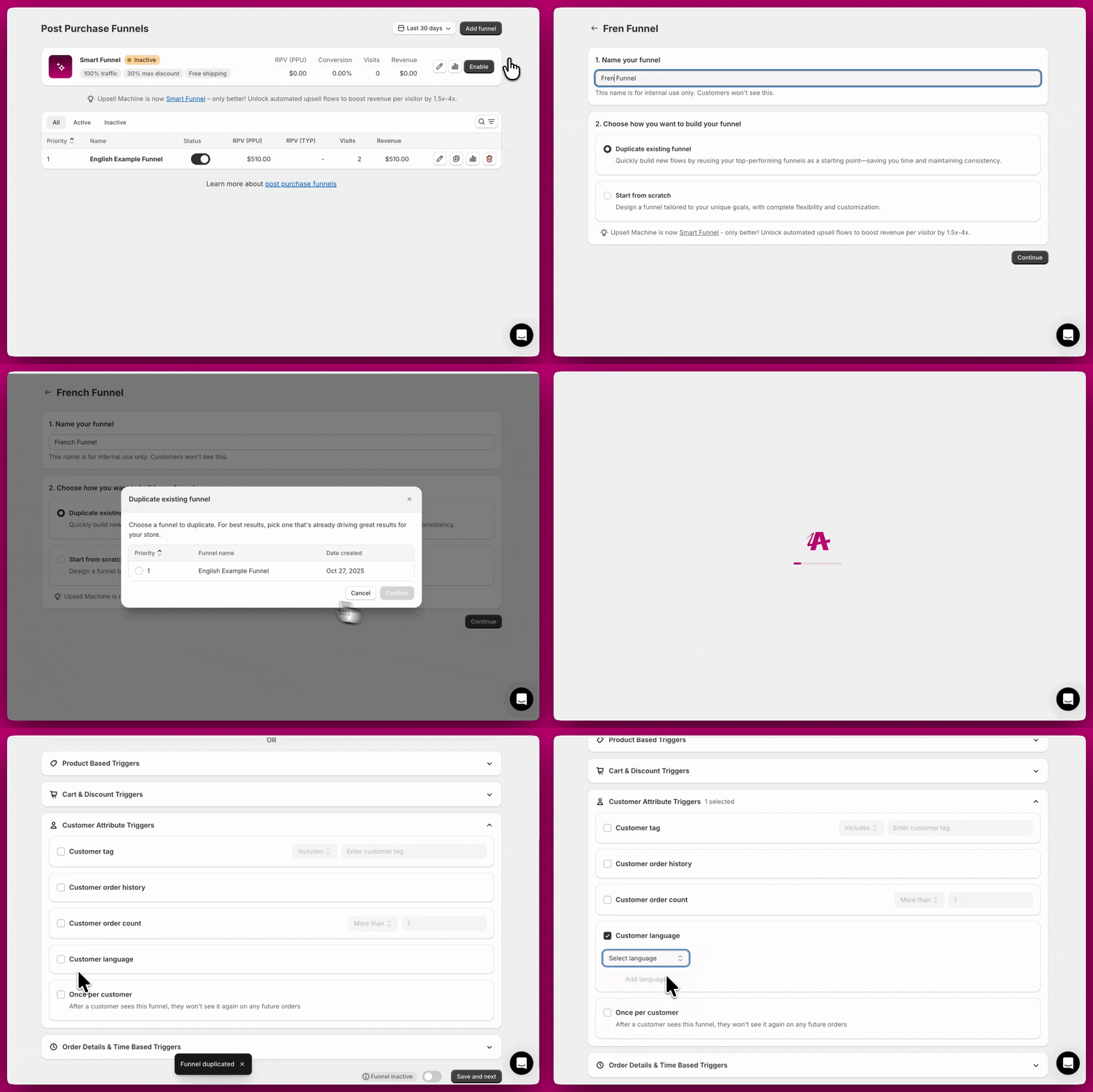
Use the Customer Language trigger to tailor offers based on the customer’s preferred language. If your store serves customers in more than one language, you can create a separate funnel for each one and display the right offer based on the language the customer checked out in.To configure: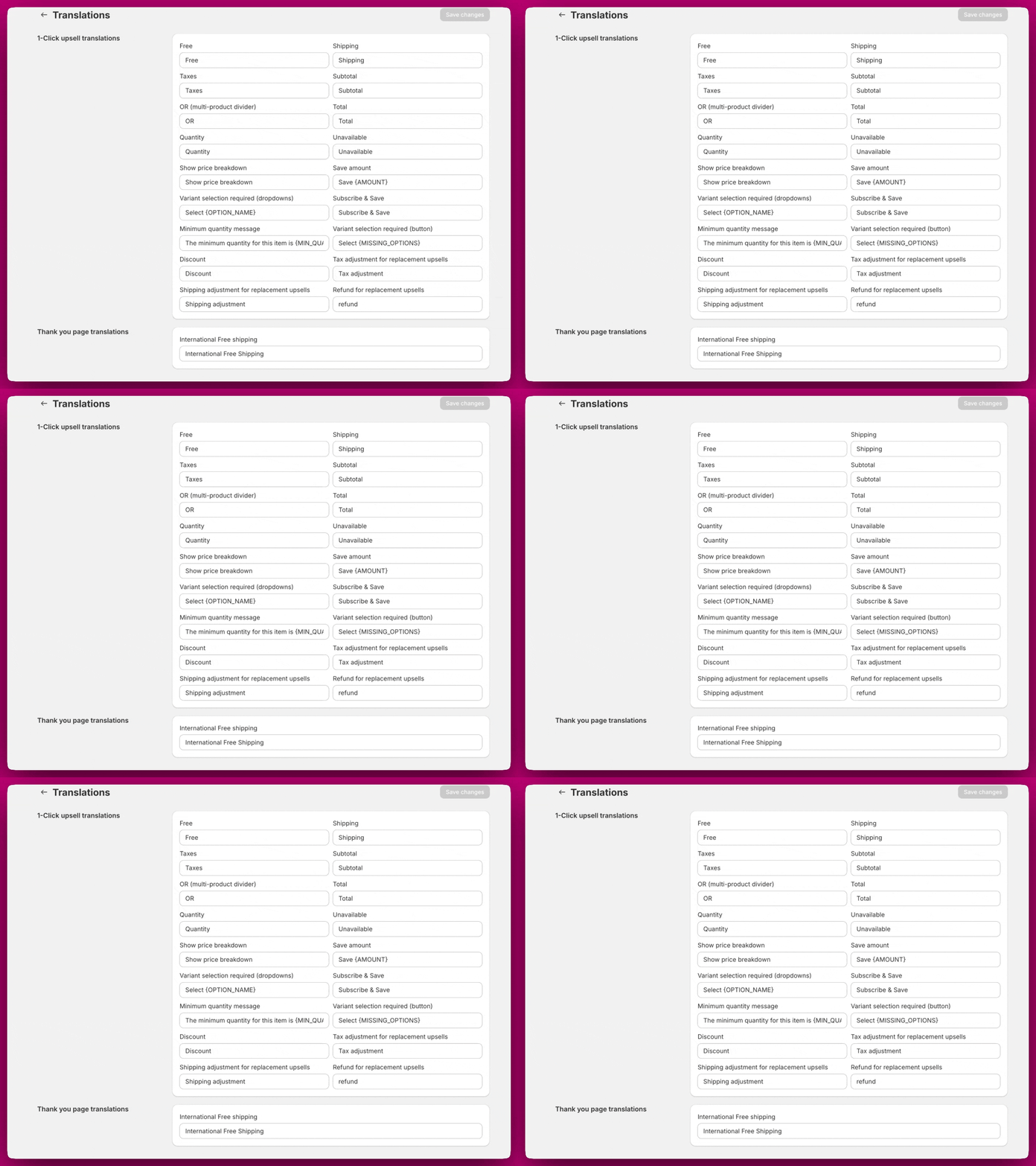
- Click Add Trigger.
- Select Customer Language from the trigger type dropdown.
- Select the language you want to target.
-
Click Save.
Once per Customer trigger
Once per Customer trigger
Use the Once per Customer trigger to ensure a funnel only shows once per customer across all of their orders.To configure:
- Click Add Trigger.
- Select Once per Customer from the trigger type dropdown.
- Click Save.
- A customer who sees this funnel after their first purchase will not see it again on any future purchases, even if all other trigger conditions are met.
- Use it to show a special “welcome offer” exclusively on a customer’s first purchase.
Order details & time-based triggers
These triggers depend on checkout details, marketing data, or timing.UTM Parameter trigger
UTM Parameter trigger
Use UTM Parameter triggers to display specific funnels based on marketing campaign parameters in the URL.To configure:
- Click Add Trigger.
- Select UTM Parameter from the trigger type dropdown.
- Choose the UTM parameter type (source, medium, campaign, term, content, or id).
- Enter the exact value to match.
- Click Save.
- Set to “utm_source = facebook.” Customers arriving via a Facebook link will see the funnel; others will not.
- Set to “utm_campaign = summer_sale” to show campaign-specific offers to customers from that campaign.
- Show exclusive offers to customers arriving from your email campaign by targeting
utm_source=email.
Currency trigger
Currency trigger
Use the Currency trigger to control whether customers see a funnel based on the currency they use at checkout.To configure:
- Click Add Trigger.
- Select Currency from the trigger type dropdown.
- Choose Include or Exclude.
- Select the currency or currencies you want to target.
- Click Save.
- Set to “USD.” Customers checking out in US Dollars will see the funnel; those in EUR, GBP, or others will not.
- Set to “CAD” and “USD.” Customers in either currency will see the funnel.
- Thank You Page offers automatically adjust to the customer’s checkout currency, making a single funnel viable across markets.
- Post-purchase upsells do not support multi-currency. Customers will not see upsell offers unless your store currency matches their checkout currency. Use Thank You Page offers for universal visibility.
- If your store uses Shopify Markets, Aftersell integrates seamlessly to display products in the correct local currency.
Device Type trigger
Device Type trigger
Use the Device Type trigger to scope a funnel to customers on a specific device — Desktop only or Mobile only.To configure:
- Click Add Trigger.
- Select Device Type from the trigger type dropdown.
- Choose Desktop only or Mobile only.
- Click Save.
- Set to Desktop only to show an offer that works best on larger screens, such as a detailed product comparison or multi-image layout.
- Set to Mobile only to target customers browsing on their phone with a mobile-optimized offer.
- Combine with other triggers (e.g., Order Value) to show a desktop-only offer to high-value customers.
If a customer’s device type cannot be detected, the trigger fails closed and the funnel will not display. This matches the behavior of other triggers when required data is unavailable.
Shipping Country trigger
Shipping Country trigger
Use the Shipping Country trigger to include or exclude customers based on their shipping destination.To configure:
- Click Add Trigger.
- Select Shipping Country from the trigger type dropdown.
- Choose Include or Exclude.
- Select the countries you want to target.
- Click Save.
- Exclude international shipping for products only available domestically.
- Show region-specific products to customers in certain countries.
- Create country-specific Thank You Page offers (since Post-purchase upsells don’t display for non-default currencies).
Random Sample trigger
Random Sample trigger
Use the Random Sample trigger to control funnel visibility for a random subset of customers. This is ideal for A/B testing new funnels or surprising a select group with special offers.To configure:
- Click Add Trigger.
- Select Random Sample from the trigger type dropdown.
- Enter the percentage of customers who should see the funnel.
- Click Save.
- Set to “25%.” The funnel randomly activates for approximately 25% of qualifying customers.
- For A/B testing, create two funnels each with a Random Sample trigger set to “50%.” Each funnel will show to roughly half your customers.
Date/Time trigger
Date/Time trigger
Use the Date/Time trigger to schedule funnel visibility based on specific dates and times, ideal for time-sensitive promotions, seasonal campaigns, or limited-time deals.To configure:
- Click Add Trigger.
- Select Date/Time from the trigger type dropdown.
- Use the date picker to select your start date, end date, or both.
- Use the timezone dropdown to select the timezone your schedule should follow (for example, “GMT-07:00 - (MST) America/Phoenix”).
- Click Save.
- Set to activate “between December 1 and December 25” for a holiday promotion.
- Set to activate “after January 1, 2026” to launch a new year promotion.
- Set a start and end date in your store’s local timezone to run a weekend flash sale from Friday 12:00 AM to Sunday 11:59 PM.
The timezone you select determines when the trigger starts and stops. Choose the timezone that matches your store’s primary market or promotion schedule.
Shipping Method trigger
Shipping Method trigger
Use the Shipping Method trigger to control funnel visibility based on the customer’s chosen shipping option at checkout (e.g., standard, expedited, international, pickup).To configure:
- Click Add Trigger.
- Select Shipping Method from the trigger type dropdown.
- Choose Include or Exclude.
- Select the shipping method(s) you want to target.
- Click Save.
- Show an expedited delivery upgrade upsell only to customers who selected standard shipping.
- Exclude “Local Pickup” customers from seeing shipping protection or delivery-related upsells.
- Target customers who chose international shipping with a customs-friendly product bundle.
Matching is case-insensitive and checks whether your Shopify shipping rate name contains the text you enter in the trigger — it doesn’t need to be an exact, full match. For example, a trigger value of “express” will match shipping rate names like “Express Shipping” or “2-Day Express.”
Managing funnel priority
When you have multiple funnels, priority determines which funnel displays when multiple funnels’ triggers are met. How funnel priority works:- Funnels are evaluated in priority order: Priority 1 → Priority 2 → Priority 3, etc.
- The first funnel whose triggers are all met will display.
- Lower priority funnels are only checked if higher priority funnels don’t match.
- Smart Funnel (if enabled) is evaluated at Priority 0, before all manual funnels.
Viewing funnel priority
You can see each funnel’s current priority number on the left side of the funnel table in the Post-purchase Funnels section.Reordering funnels
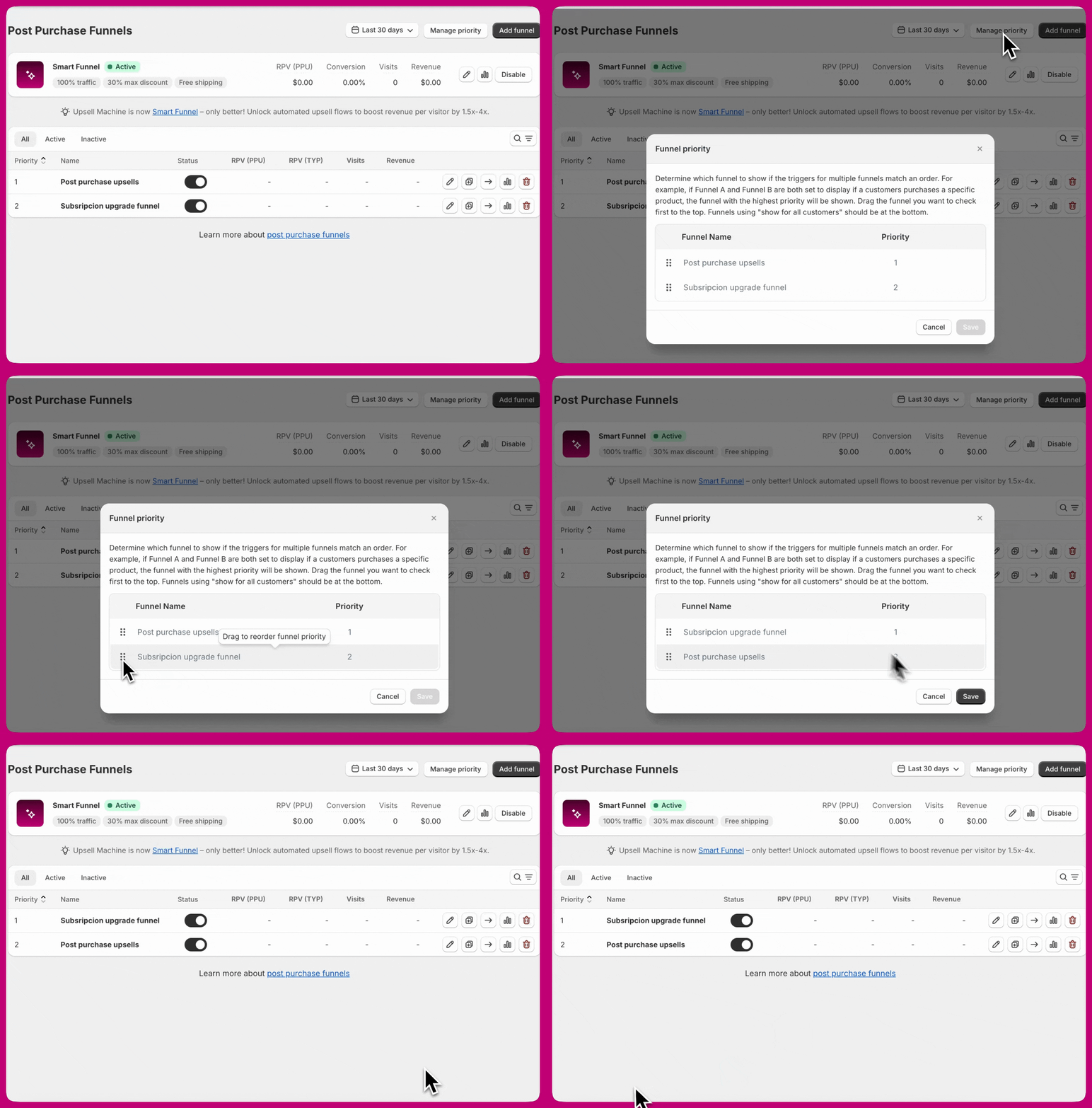
- Go to Post-purchase Funnels in the Aftersell admin.
- Click the Manage Priority button at the top right of the funnel table.
- Drag and drop funnels to reorder them.
- Click Save to apply the new priority order.
- Place specific funnels first - Put funnels with narrow targeting (specific products, high-value orders) at higher priority.
- Place broad funnels last - Put funnels with general targeting (collections, low order values) at lower priority.
- Set Catch-All funnel to lowest priority - If you have a “Show for All Customers” funnel, make it the last priority so it only displays when no other funnel matches.
- Test your priority order - Place test orders to verify the correct funnel displays for different scenarios.
- Priority 1: High-value orders ($200+) with specific product
- Priority 2: Orders containing products from premium collection
- Priority 3: Orders with any product from main category
- Priority 4: Catch-All funnel (Show for All Customers)
Combining multiple triggers
You can add multiple triggers to a single funnel to create precise targeting rules. Remember: all triggers must be met for the funnel to display.Example: targeting high-value supplement customers
Add these triggers to the same funnel:- Product/Collection trigger: Contains products from “Supplements” collection
- Order Value trigger: Greater than $75
- Customer Order Count trigger: More than 0 orders (returning customers only)
Example: targeting customers who haven’t purchased specific upgrades
This is useful when you sell products with optional upgrades and want to show different upsells depending on what the customer has and hasn’t already purchased. Scenario: You sell a base product with two optional upgrades - “Premium Rotor” and “Water Resistance.” Funnel 1 - Customer bought neither upgrade (highest priority)- No product exclusions needed
- Set to highest priority so it is evaluated first
- This funnel shows both upgrades as upsell options
- Add a Product/Collection trigger set to Contains “Premium Rotor”
- Add a Product/Collection Exclusion trigger set to exclude “Water Resistance”
- This funnel shows only the Water Resistance upsell
- Add a Product/Collection trigger set to Contains “Water Resistance”
- Add a Product/Collection Exclusion trigger set to exclude “Premium Rotor”
- This funnel shows only the Premium Rotor upsell
Next steps
- Learn about all available trigger types in the Post-purchase Triggers reference
- Understand how triggers work together with Understanding Conditional Logic
- Set up your first funnel with the Quickstart Guide
- Review Best Practices for optimizing your funnel strategy