Overview
The Aftersell dashboard provides a visual interface for building and managing Strategies. You can create strategies, define targeting rules with triggers, assign products to recommend, and configure catch all behavior — all without writing any code. This guide walks through the end-to-end process of creating a Strategy in the UI.Navigating to Strategies
- Log in to Aftersell.
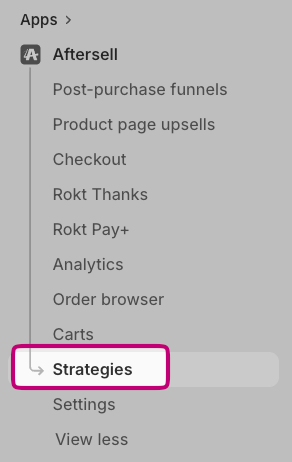
- Click Strategies in the left sidebar navigation.
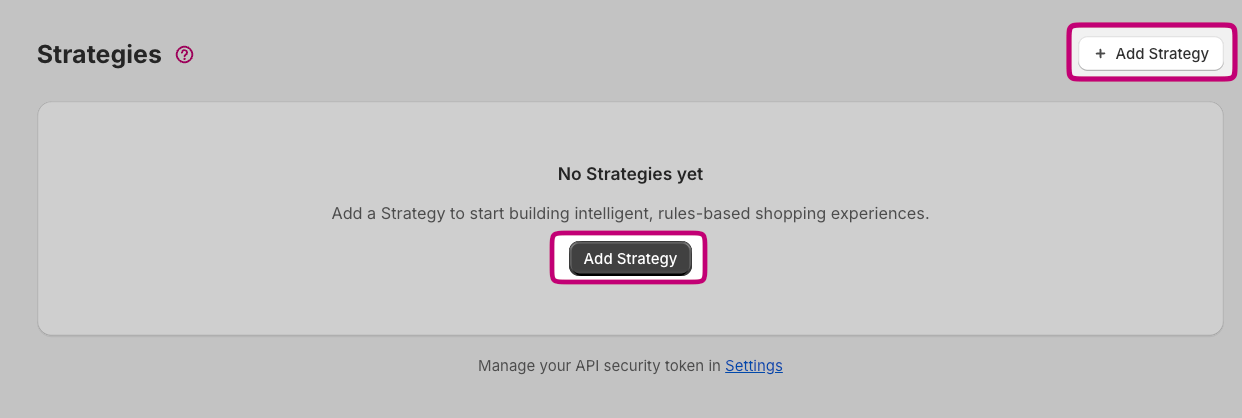
- You’ll see a list of your existing Strategies, or an empty state prompting you to create your first one.
Creating a New Strategy
- Click Add Strategy.
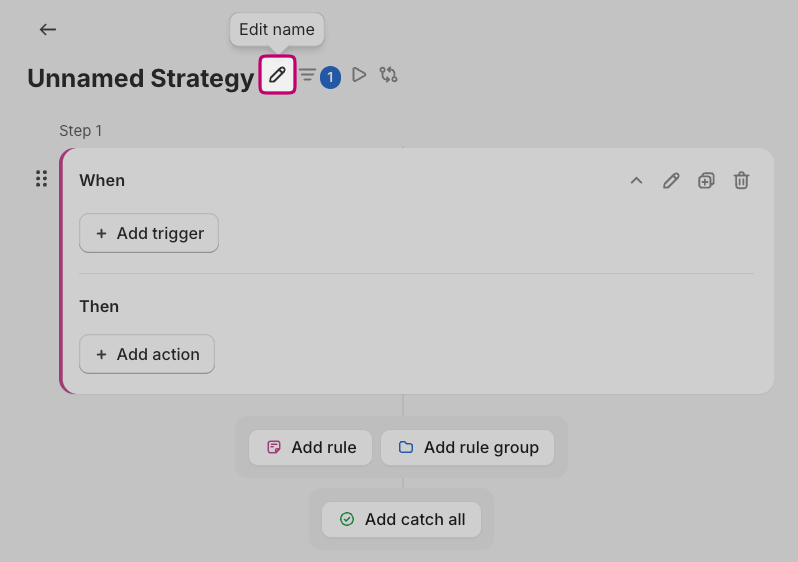
- You’ll be taken to the Strategy editor where you can add rules.
Adding Rules
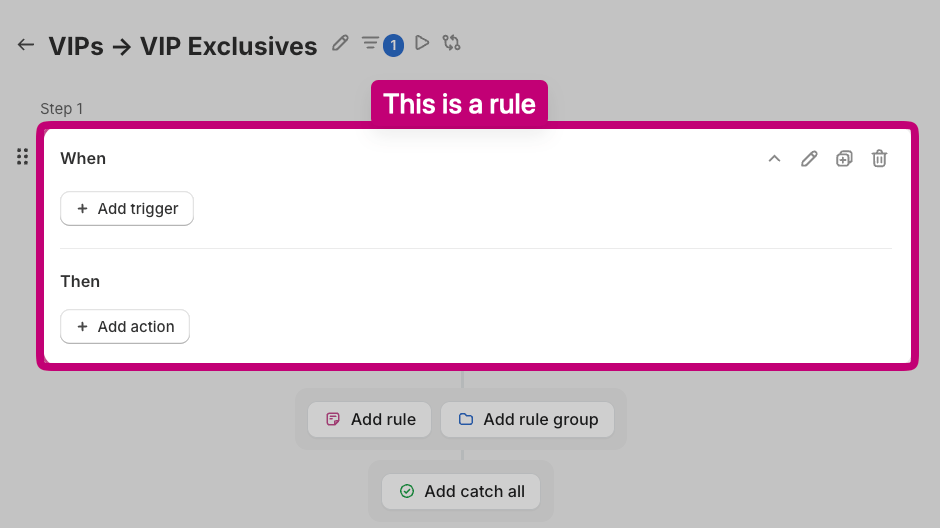
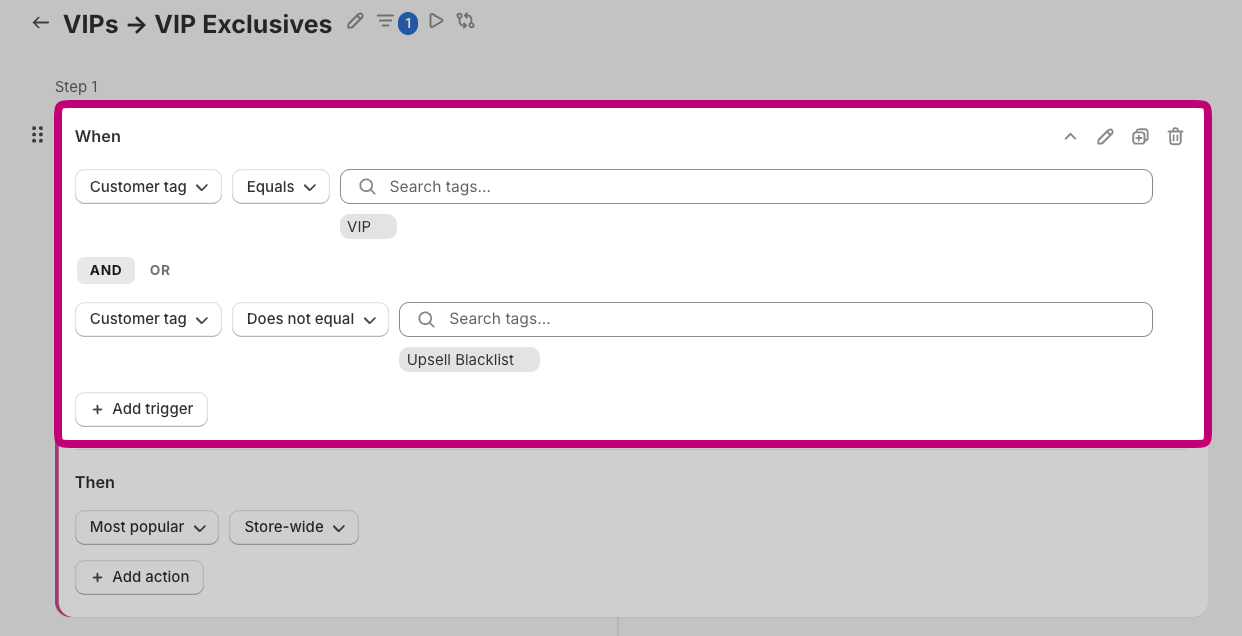
Each Strategy contains one or more rules. A rule consists of:- Triggers — the “when” — criteria that must be met for the rule to match.
- Actions — the “then” — the experience returned when the rule matches.
Defining triggers
Triggers determine when a rule fires. You may combine up to two triggers using AND or OR logic. Available trigger types include:Product triggers
Target based on what’s in the shopper’s cart or what they’re viewing:- Product ID — matches specific Shopify products
- Product type — matches the product type field (e.g., “Apparel”, “Electronics”)
- Product vendor — matches the vendor/brand name
- Product tags — matches products with specific tags (e.g., “sale”, “summer”)
- Product collections — matches products belonging to specific collections
- Product handle — matches the product URL slug
- Selling plan — matches “subscription” or “one-time” products
- Product metafields — matches on custom metafield namespace/key/value pairs
Cart triggers
Target based on the overall cart state:- Cart subtotal — e.g., subtotal greater than $50
- Cart item count — total quantity of items in the cart
- Cart line count — number of distinct line items
- Cart attributes — custom cart attributes set via Shopify’s cart API
- Cart notes — the cart note field
Customer triggers
Target based on who the shopper is:- Customer tags — e.g., “VIP”, “loyalty-gold”
- Country / province — billing location
- Locale — customer locale (e.g., “en-US”)
- Order count — number of previous orders
- Total spent — lifetime spend
- Accepts marketing — marketing opt-in status
Session & UTM triggers
Target based on how the shopper arrived or session attributes:- UTM source / medium / campaign / content / term — attribution parameters
- Currency code — store currency
- Shipping country / province — shipping destination
- Shipping method — selected shipping method
Operators
Each trigger uses an operator to define how the value is matched. The operators available depend on the trigger type.| Operator | Description |
|---|---|
| Equals | Matches when the field is exactly the value you specify — e.g., vendor equals “Nike”. |
| Does not equal | Matches when the field is anything other than the value you specify — useful for excluding a specific product type or vendor. |
| Contains all | Matches when the field includes every value in your list — e.g., a product must have both the “sale” and “summer” tags. |
| Contains any | Matches when the field includes at least one value from your list — e.g., a product has any one of several collection memberships. |
| Does not contain | Matches when the field includes none of the values in your list — e.g., exclude products tagged “final-sale”. |
| Greater than | Matches when a numeric field exceeds your value — e.g., cart subtotal is greater than $75. |
| Less than | Matches when a numeric field is below your value — e.g., order count is less than 2 (first-time buyers). |
| Greater than or equal to | Matches when a numeric field meets or exceeds your value — e.g., total spent is at least $500. |
| Less than or equal to | Matches when a numeric field is at or below your value — e.g., cart item count is no more than 3. |
Defining Actions
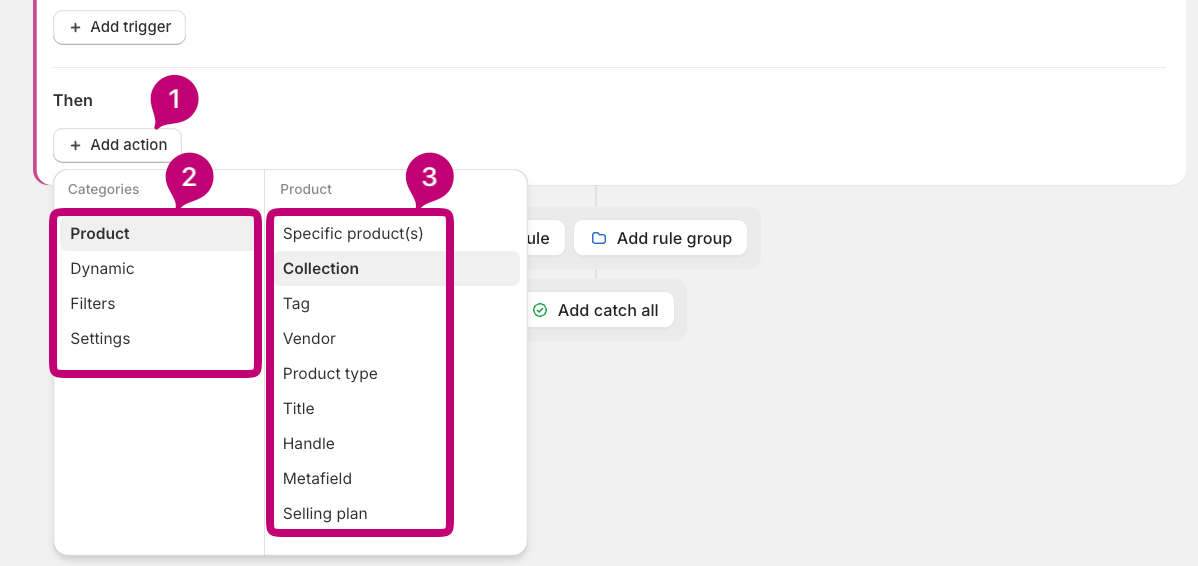
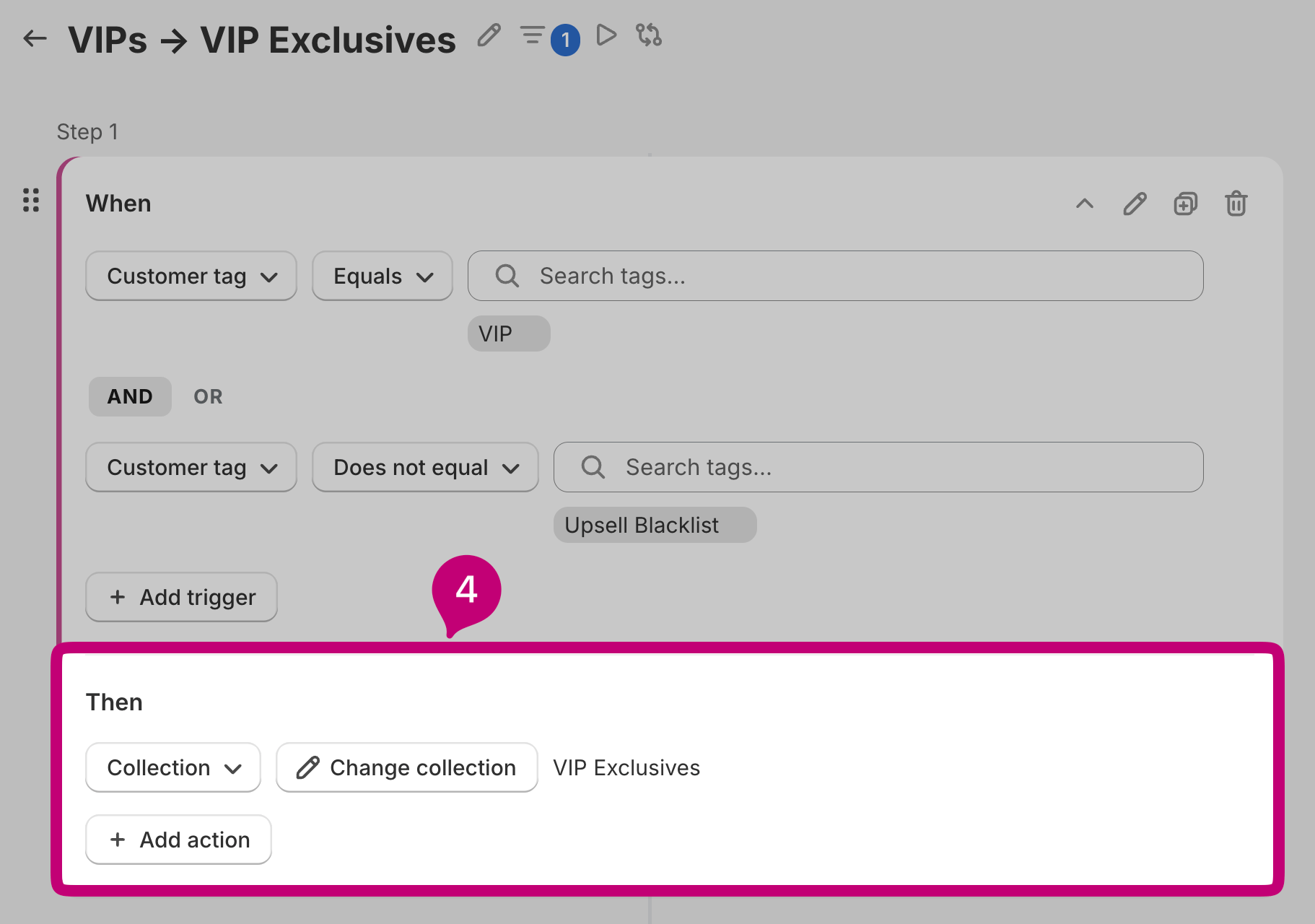
Actions create the experience you want to deliver to the customer. This is where you decide what products to surface, how to surface them, and any additional data to pass alongside them. A rule can have multiple actions configured together to build out the full experience. Per rule, all configured actions contribute to one combined pool. For example, a rule with a specific product action, a collection action, and a tag-based action will return products from all three sources together. If a product matches multiple sources, it is deduplicated.Product actions
The same product attributes available on the trigger side are also available when defining actions. You can return products based on:- Specific products — hand-pick individual products from your Shopify catalog.
- Collection — return all products belonging to a specific collection.
- Product attributes — return products matching criteria like tags, vendor, product type, or metafields — the same attribute types used in triggers.
Dynamic actions
Dynamic actions change what is returned based on real-time session data or store-wide signals. Available dynamic action types include:- Recently purchased — products recently purchased (by other customers).
- Top sellers — your store’s best-performing products by sales volume.
- AI recommendations — personalized suggestions generated by Aftersell’s recommendation model.
Filtering actions
Once the product pool is assembled, you can configure how many products are returned and in what order:- Sort — control which products are selected:
- Random — a random selection.
- Highest price first — most expensive products are returned first.
- Lowest price first — least expensive products are returned first.
- Amount/Limit — set the maximum number of products to return.
Sort is applied first, then Amount/Limit. For example, if your sort is set to Random, the full product pool is randomized before the limit is applied — so you always get a random slice, not the same products in a random order.
Key-value actions
Optionally, attach key-value pairs to a rule. When the rule matches, these are returned inmeta.data in the API response alongside the product results. Common uses include:
- Promotional banner text
- Campaign labels for analytics
If multiple rules match and emit the same key, the value from the first matching rule wins — later rules cannot override it.
Rule Priority and Evaluation Order
Rules within a Strategy are evaluated in hierchal, sequential steps. Step 1 will be evaluated first, and so on. You can reorder rules by dragging and dropping them in the Strategy editor. The evaluation engine:- Evaluates each rule’s triggers against the provided context.
- Collects products from all matching rules.
- Deduplicates and limits the result to the configured maximum (default: 20 products).
Configuring a Catch all
Catch all is a special rule that acts as the final step in every Strategy evaluation. It has no trigger, it fires automatically if no other rule in the Strategy matches the current request. When enabled, the Catch all ensures your recommendation slot is never empty. Its action can be configured using any of the same action types available to regular rules — specific products, collections, dynamic actions, etc.- Enable/disable — toggle the Catch all rule on or off for the Strategy. When disabled, requests that match no rules will return empty.
- Configure actions — define what to return using any combination of available action types, the same as any other rule.
resolution.fallbackUsed: true.
Global Filters
Global filters apply across every rule in a Strategy. Any product removed by a global filter will be excluded from results regardless of which rule matched. You can access global filters via the filter icon next to the strategy name pencil at the top left of the Strategy editor. Available global filters:- Out of stock products — automatically exclude any product that is currently unavailable for purchase.
- Input products — exclude the product(s) that triggered the rule (e.g., the product a shopper is currently viewing on a PDP), so you never recommend the same product the shopper is already looking at.
- Product attributes — exclude products matching specific attributes such as tags, vendor, product type, collection, or metafields.
Validation and Error States
A Strategy cannot be saved if any rule is incomplete. If a rule is missing a trigger, an action, or both, errors will appear directly on the rule in question highlighting what needs to be resolved. To clear the error and save the Strategy, either:- Complete the rule — add the missing trigger and/or action.
- Delete the rule — remove it entirely if it is no longer needed.