

Replacement Upsell is currently a Beta feature. To use it on your store, message support via the in-app chat and we will enable it on your account. The Replace item in original order with upsell toggle will not appear in the offer editor until it has been enabled.
Which feature do you need?
Three subscription-adjacent post-purchase features do three different jobs. Use this flow to pick the right one.Does the customer’s order already contain a subscription?→ Yes → Use Subscription Upgrade. It modifies the customer’s existing subscription contract in Recharge, Skio, Loop, or Stay AI (change frequency, swap product, or both).→ No → continue below.Do you want the customer to keep what they bought AND get a recurring subscription, or replace what they bought entirely?→ Keep what they bought + add a new subscription on top → Use Subscription Upsell.→ Replace what they bought with something else → Use Replacement Upsell (this guide).
Before you build
A Replacement Upsell only fires when a few conditions are met.- The item you’re replacing must be a one-time purchase. To change an existing subscription, use Subscription Upgrade instead.
- The feature must be enabled on your account by support (it is in Beta).
- The same post-purchase limitations apply. Since Replacement upsells are post-purchase upsells, the Shopify limitations for post-purchase upsells still apply.
- Set up a downsell as a fallback. Whenever a replacement is skipped, Aftersell tries to show the funnel’s downsell instead, so the shopper still gets an offer.
Creating a Replacement Upsell offer
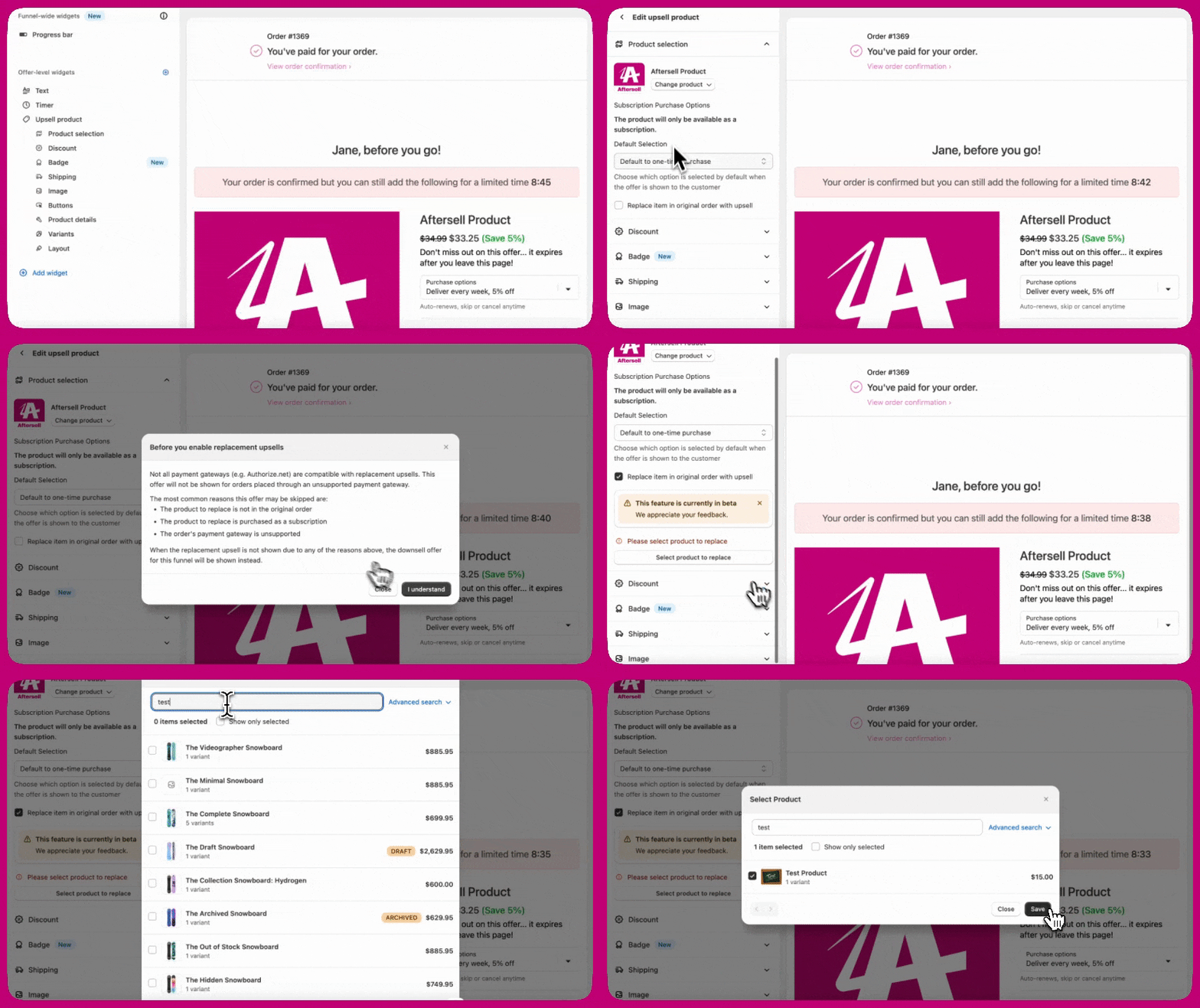
- In your Aftersell dashboard, go to Post-purchase funnels.
- Open an existing funnel or click Add Funnel.
- Add an upsell offer and configure it using the steps below.
- Funnel trigger (funnel level) determines which orders see the offer.
- Upsell product (the offer’s Upsell Products section) is what gets added when the customer accepts.
- Product to replace (inside Replace item in original order with upsell) is the exact product and variant that gets refunded and removed.
Step 1: Configure the funnel trigger
- Product trigger. Set to the one-time product you want to replace. Without this, the offer can fire on unrelated orders.
- Subscription trigger. Set to do not include a subscription, so the offer only shows to orders that do not already contain a subscription.
Step 2: Pick the upsell product
- Click Add Upsell and search for the product the customer should receive instead.
- If the replacement is a subscription, select Subscription only as the purchase option and pick the selling plan.
- If the replacement is a one-time purchase, select One-time purchase only.
- For a variant or quantity swap of the same product, pick the same product and adjust the variant or quantity controls.
Step 3: Enable Replacement Upsell
In the offer’s advanced settings, enable Replace item in original order with upsell. This is the toggle that turns a standard upsell into a Replacement Upsell.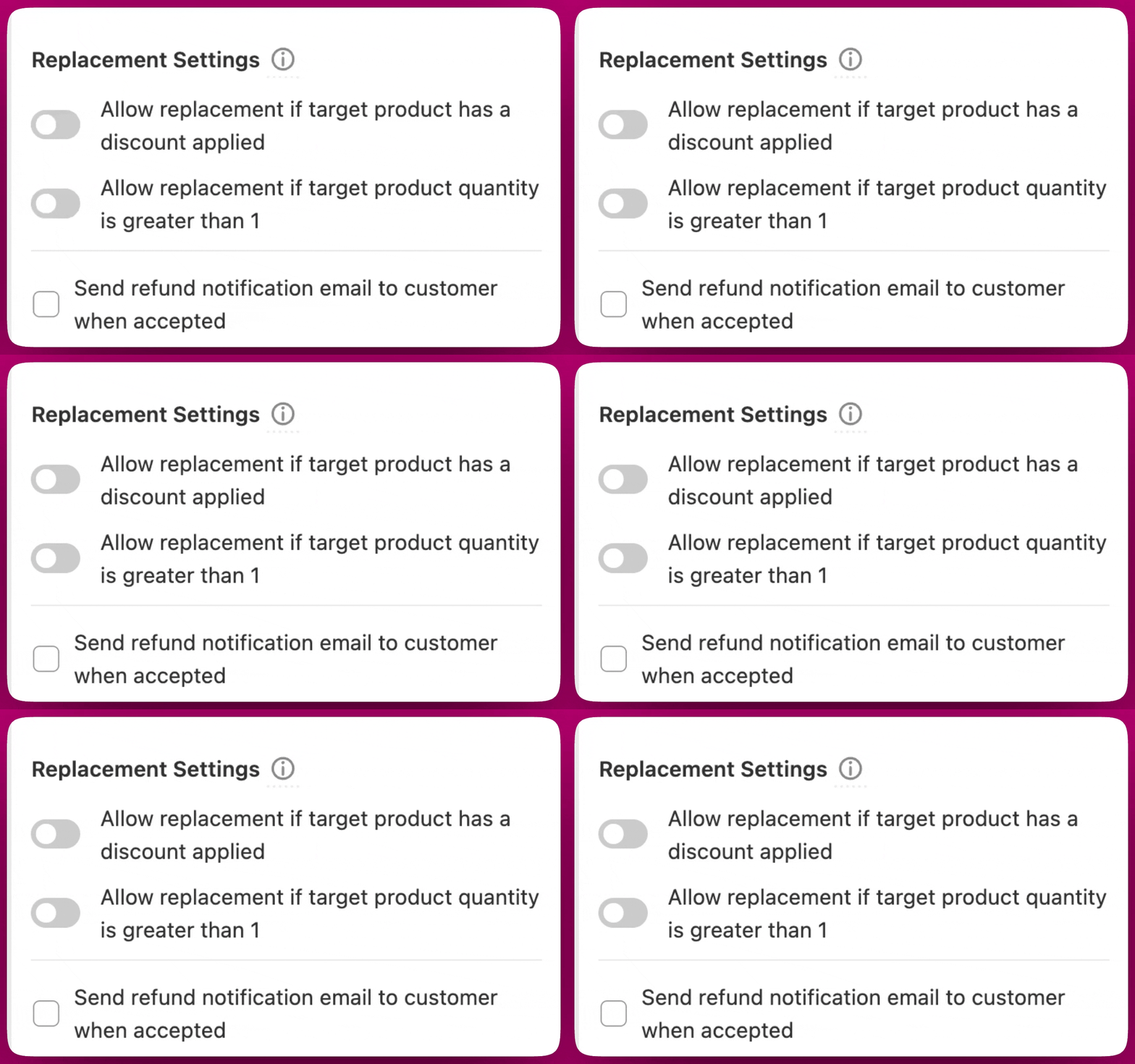
- Allow replacement when target has a discount. Off by default, which skips orders where the trigger line carries an order-level discount. Turn it on to let the replacement fire anyway (see Discount handling).
- Override quantity. Set a specific quantity for the replacement line, useful when swapping a single unit for a multi-pack.
- Refund shipping fee. When on, the replacement refund also returns the shipping the customer paid at checkout. The shipping refund is included in the same refund as the replaced item, and the order’s shipping line shows as refunded in Shopify. Off by default. When this is on, the offer’s Shipping adjustment line shows “Shipping fee refunded” instead of $0.00.
Step 4: Set the product to replace
Click Edit product to replace and pick the exact product and variant that should be removed when the offer is accepted. This must match what the customer actually has in their cart. For variant swaps of the same product (Small → Large), point Product to replace at the Small variant specifically. If you point it at Large or any variant the customer did not buy, the offer skips with no error.Step 5: Add an optional discount
If the replacement is a subscription, you can apply a first-cycle discount to make the offer more attractive. It applies to the first billing cycle of the new subscription; future renewals charge at the regular subscription price. For one-time replacements, the discount applies to the one-time charge on this order.Step 6: Customize the offer copy
Make the refund-and-replace mechanic explicit in the copy:- Title: clearly describe the swap (for example, “Upgrade to the 3-pack and save”).
- Description: explain that the original is refunded and the replacement is charged.
- Accept button: defaults to the net price; customize to “Switch to subscription” or “Upgrade my order” if you want a verb-based CTA.
Testing a Replacement Upsell
Before going live:1
Place a real test order in Shopify
Place a real low-price test order with the one-time product as the trigger. Do not rely on Preview Mode for this step. Preview Mode renders the funnel visually and lets you click through Accept and Decline, but it is sandboxed: no order is created, no refund is applied, no subscription is created, no charges happen, and no emails or webhooks fire. Use Preview Mode for layout and copy review, and a real test order for end-to-end verification.
2
Accept the upsell on the post-purchase page
After checkout, the post-purchase offer will appear. Accept the Replacement Upsell to trigger the real changeset.
3
Check Shopify
In Shopify Admin → Orders, find the test order. You should see the original line item with a refund applied, and the replacement line item added.
4
Check the customer's statement
On a real card, verify that both transactions (the refund of the original and the charge for the replacement) post correctly. The net should match the displayed Accept Offer button.
5
Check your subscription provider (if replacement is a subscription)
Find the customer’s new subscription in your provider’s dashboard. Confirm the cadence, the next charge date, and the product. There is no automatic retry on Aftersell’s side if enrollment fails; contact your subscription provider’s support if the subscription is missing.
Worked examples
Scenario 1: One-time Coffee purchase to a monthly Coffee subscription
The scenario
The scenario
You have a “Regal Roast” coffee product on your store, priced at $25 for a one-time purchase, and $20 as a monthly subscription.Your customer bought one tin as a one-time purchase. You want to offer them an upgrade to a monthly subscription, with a $5 discount on the first order.
What you set in the offer
What you set in the offer
- Funnel trigger: Product trigger → Regal Roast
- Upsell product: Regal Roast
- Purchase option: Subscription only.
- Discount: $5 with the “Apply discount to subscriptions” checkbox enabled
- Product to replace: Regal Roast
What the customer sees
What the customer sees
- Price: $10
- Discount: (Save $10)
(Original Price - Subscription Price) + Discount = Total Savings
($25 - $20) + $5 = $10 Total Savings - Accept button: Upgrade - $10 Refund
- Recurring subtotal: $20.00 every month
On accept
On accept
- Original $25 one-time pack is refunded and restocked.
- A new subscription line is added at $20 for the first cycle.
- Your subscription app detects the new item and starts the subscription.
Scenario 2: Single Coffee to 3-pack Coffee
The scenario
The scenario
You have a “Regal Roast” coffee product on your store, priced at $25. It comes in single packs ($25) and a 3-pack ($65) that’s $10 cheaper than purchasing three single-packs.Your customer bought 1 pack of Regal Roast coffee. You want to offer them an upgrade to a 3-Pack of Regal Roast coffee instead, with an additional $5 discount.
What you set in the offer
What you set in the offer
- Funnel trigger: Product trigger → Regal Roast → Single Pack
- Upsell product: Regal Roast → 3-Pack
- Purchase option: One-time purchase only
- Product to replace: Regal Roast → Single Pack
What the customer sees
What the customer sees
- Price: $60
- Discount: (Save $5)
- Accept button: Upgrade $35
New Product - Original Product - Discount = Net Cost
$65 - $25 - $5 = $35 Net Cost
On accept
On accept
- Original $25 single pack is refunded and restocked.
- The new $65 3-pack product is added to the order.
- Customer pays the net $35
How Replacement Upsell works
For the full mechanics behind the feature, see the Replacement upsells reference:- How a replacement is processed (the refund-and-replace changeset).
- Supported and blocked scenarios.
- What the customer sees and Payment method requirements.
- Discount handling and Per-variant funnels.
- The Beta failsafe and Troubleshooting.