

The Custom code block adds your own HTML or React to the cart. Put it in any section of the drawer, or nest it inside Cart items as a sub-block so it repeats for each line. Unlike other blocks, it has no Content settings and no Design section: the block is the code, so you work entirely in its Code tab.
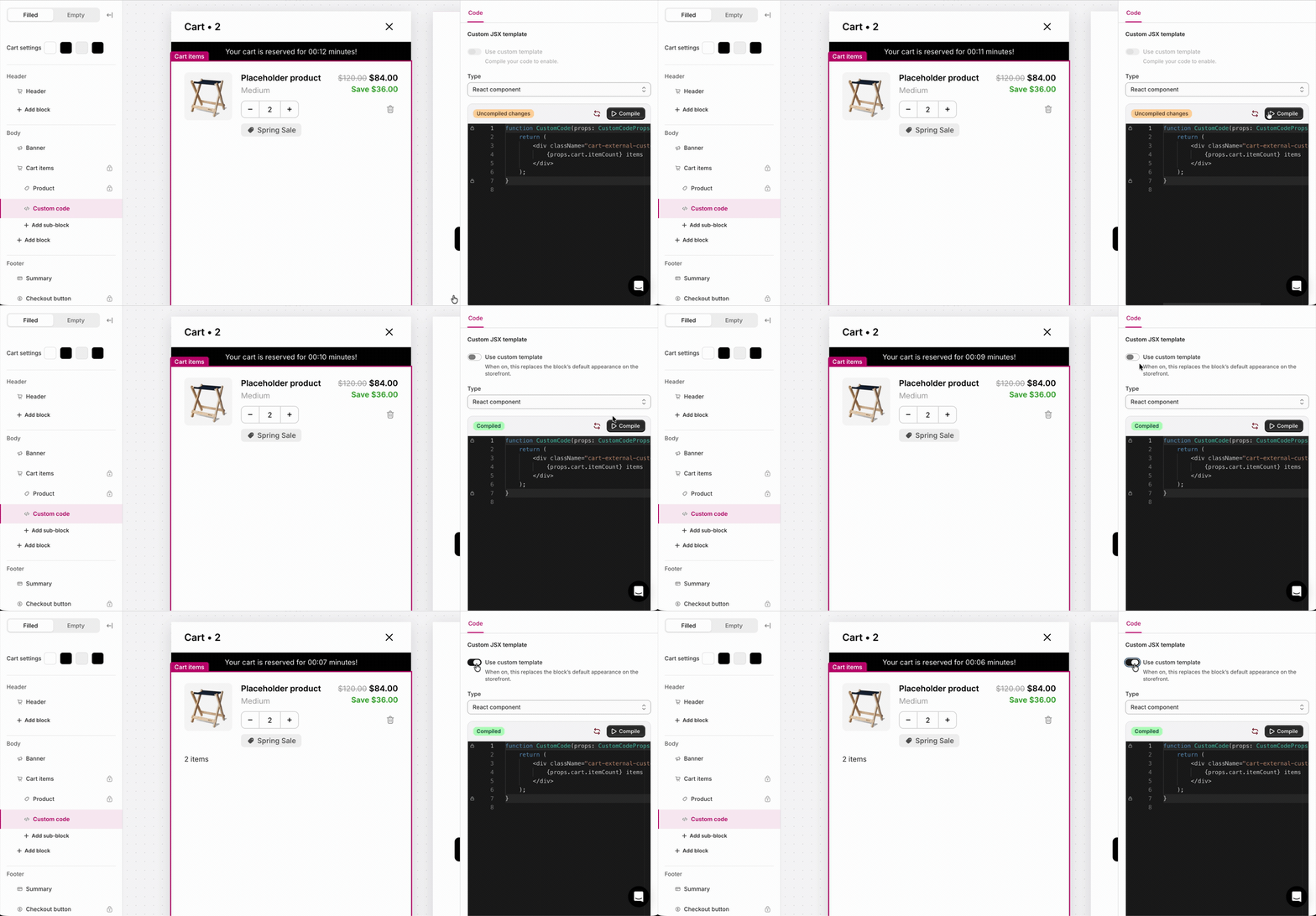
Add and turn on a Custom code block
- Add a Custom code block to any section, or as a sub-block under Cart items.
- Select it and open the Code tab.
- Choose HTML or React component. New blocks default to HTML.
- Write your code.
- If you chose React, click Compile.
- Turn on “Use custom template”. For this block, that switch means “show my custom code”, and it defaults off, so nothing renders until you enable it.
- Keep the sidebar eye toggle on so the block stays visible to shoppers.
Behavior
- The block renders nothing until the cart has loaded.
- It also renders nothing when the sidebar eye is off, “Use custom template” is off, the code is empty, or React fails to compile or render. Because a failure is silent, check your block in preview before publishing.
HTML mode
HTML mode substitutes a small set of tokens into your markup. It’s for static or token-driven content, not for running logic.- Inline
<script>tags do not run, and HTML mode has no access to the SDK orwindow. - For logic, use React mode or Custom scripts with the Cart SDK.
Tokens
Token values are formatted strings (shop money format, a percentage with%, or a quantity), ready to drop into markup:
Example
React mode
React mode compiles a component and passes it as cart data plus anadd-to-cart action.
- The editor locks the wrapper to
function CustomCode(props: CustomCodeProps) { … }, and you edit only the body between those lines. - You must click Compile then turn on “Use custom template”, before the block shows.
- Your component can use
useState,useEffect,useMemo,useRef, anduseCallback. - Unlike HTML mode, React runs in the page context, so it can call
windowand the Cart SDK when those are available. - If your component throws errors at runtime, the block renders nothing and the rest of the cart keeps working.
Props
Totals and savings amounts are integers in the currency’s minor unit (cents for USD), so$12.50 is 1250, not 12.50. They’re not formatted money strings like the HTML tokens.
The cart and line shapes
cart and line are the same objects the SDK exposes everywhere else, so they’re documented once in the cart object reference: every field on the cart, on a line, and on a bundle.
The ones you’ll reach for most: cart.items, cart.itemCount, cart.totalPrice, line.title, line.quantity, line.finalLinePrice.
Three things specific to this block:
lineis only set on a Cart items sub-block, where your component renders once per line. Placed as a section,lineisnulland you readcart.itemsinstead.- Bundle children aren’t in
cart.items. When lines are grouped into a bundle, only the anchor line appears; its children live online.bundle.children. - Lines hidden by a line transform aren’t there either, though they still count toward
cart.totalPrice.
Examples
Show the item count:props.line for per-product content. The block renders once per line, tagged with that line’s product and variant:
Reading enrichment metadata
Each item incart.items carries a metadata field: an empty object {} until a cart enricher populates it. Once populated, it is keyed by the enricher’s id and contains the Storefront data for that line’s product or variant:
metadata is always present and defaults to an empty object {} until the enricher’s async fetch completes (the “not yet enriched” test is Object.keys(item.metadata).length === 0). Use optional chaining (item.metadata?.enricherId) when reading a specific enricher’s key, since that key is absent until enrichment lands.
Reading discount codes and line discounts
cart.discountCodes lists the discount codes applied to the cart, and each line’s discountAllocations lists the discounts applied to that specific line:
Placement and limits
- Region: any (top, body, or bottom). Also available as a Cart items sub-block.
- Maximum: unlimited.
- State: filled and empty cart (as a section block). As a Cart items sub-block, it only renders when the cart has lines, one instance per line.
- Not locked, so you can remove or hide it.
- There is no per-block Design section. Style through your own markup, Custom CSS, and your global Design settings.