

The Cart items block is the list of line items in the cart, rendering each product the shopper has added with its image, title, variant, price, quantity stepper, and remove control. It’s a required block, and it’s the container that hosts the cart’s sub-blocks (the Product row, Subscription upgrade, and Custom code), providing the structure that per-line sub-blocks attach to.
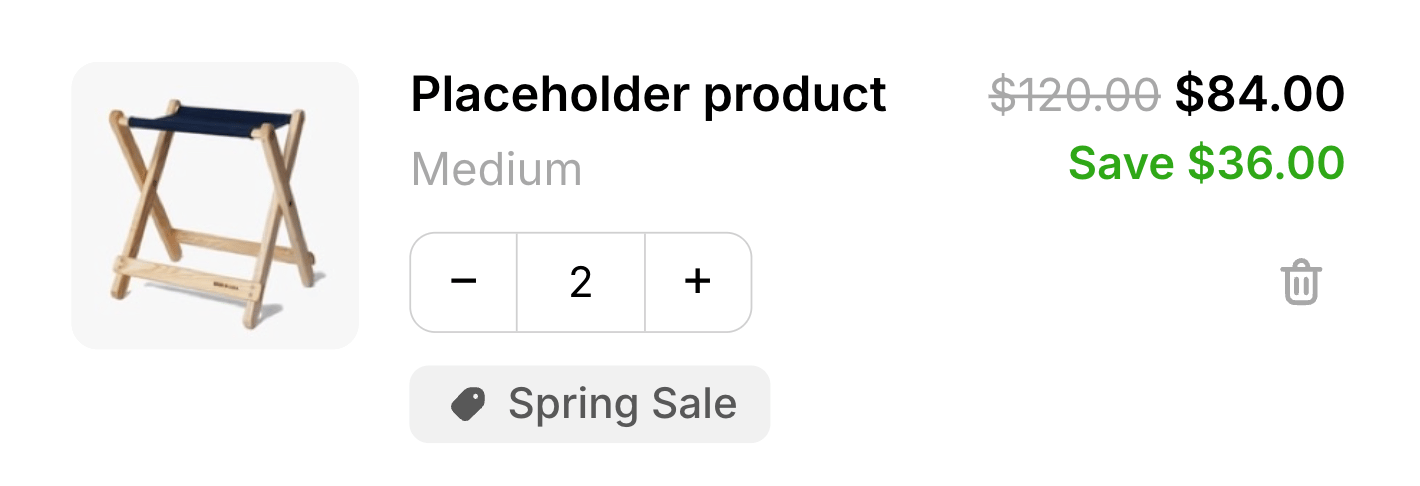
The Product row
Inside Cart items sits the Product sub-block: the actual line-item row. It’s locked and added automatically, so every Cart items block always has exactly one Product row that you can’t remove; you reposition other sub-blocks around it. Its settings control how each line’s pricing is displayed:
The row itself renders the product image (linking to the product page when available), title, variant, price and any struck compare-at price, a quantity stepper, and a remove button. Bundle lines show a disclosure list of their components.
Text styling
The Product row includes a Text section in its Design settings. Use it to control the typography of individual text elements in each line item. Select a text element from the picker to adjust its settings:
The text elements you can style are grouped by category:
Product
- Product title — the product name on each line. Also supports a custom font family.
- Variant — the variant label (for example, Size: Medium).
- Subscription plan — the read-only plan label shown on subscription lines.
- Price — the line’s current price.
- Compare-at price — the struck-through original price.
- Savings — the savings label (for example, Save $5.00). Size and line height only — bold and color are set in the Rich Text Editor above.
- Bundle toggle — the disclosure header that expands a bundle’s component list.
- Bundle item title — the title of each component inside a bundle.
- Bundle item variant — the variant label for each bundle component.
Discount tags design
The Product row includes a Discount tags section in its Design settings. Use it to style the discount tag pills that appear on each line item:
These settings apply only to line-item discount tags in the Cart items block. Discount code tags in the Summary block are styled separately.
Sub-blocks and how they position
Cart items is the only block that hosts sub-blocks. Sub-blocks render once per line, inside every product row, positioned relative to the pinned Product row:- Sub-blocks ordered before the Product row appear above the product content in each line.
- Sub-blocks ordered after the Product row appear below the product content in each line.
Behavior
- When the cart has no items, the drawer switches to the empty state and this block isn’t shown.
- One cart change runs at a time. While a quantity update or removal is in flight, the row’s controls are disabled to keep the cart consistent, then re-enabled once the change settles.
- Lowering a line’s quantity below 1 removes it. A quantity the store rejects (for example, beyond available stock) re-syncs to the last valid value.
- Bundles change as a unit. Adjusting the quantity on a bundle’s anchor line scales the whole bundle in one operation — if a child is included at 3 per anchor, taking the anchor from 1 to 2 takes that child to 6. Removing the anchor removes every member of the bundle at once.
- Some bundles can’t be re-quantified. If any of a bundle’s children is included at a fractional rate (1.5 per anchor, say), the quantity stepper on that bundle is locked: the +/− buttons and the quantity field are both disabled, and typed quantities aren’t accepted. The bundle can still be removed.
- Subscription lines show their plan. When a line has a selling plan and the Subscription upgrade sub-block is turned off or not added, the Product row shows a read-only plan label beneath the variant — for example, Delivers every month (save 30%). When that sub-block is enabled it presents the plan in its own picker, so the read-only label is suppressed rather than duplicated.
Placement and limits
- Region: body.
- Maximum: 1 per cart state.
- State: filled cart only.
- Locked and added by default. Cart items can’t be removed or hidden, only repositioned.
Custom template
Supports a custom template from its Code tab, which replaces this block’s built-in markup with your JSX. These are the props it receives. The Cart items container has no custom template. The Product row inside it does, and it’s the richest surface in the cart: your template renders once per line.Line content
Quantity and removal
Rendering a bundle
On a bundle’s anchor line,bundle.children holds its contents. Children never appear as their own rows, so if you don’t render them the shopper won’t see what’s in the bundle:
key is null for a Shopify native bundle component, so fall back to the index as above.