

The Upsells block shows product offers in the cart drawer, chosen by a Strategy you select. When a shopper opens the cart, the block surfaces the products your Strategy returns based on the current cart contents and any targeting rules you’ve configured.
Grow average order value by surfacing relevant product offers at the moment shoppers open their cart, using a Strategy that picks what to show based on cart contents and your targeting rules.
Unlike the Product add-on block, which always shows one product you pick, Upsells is driven by a Strategy that decides what to show.
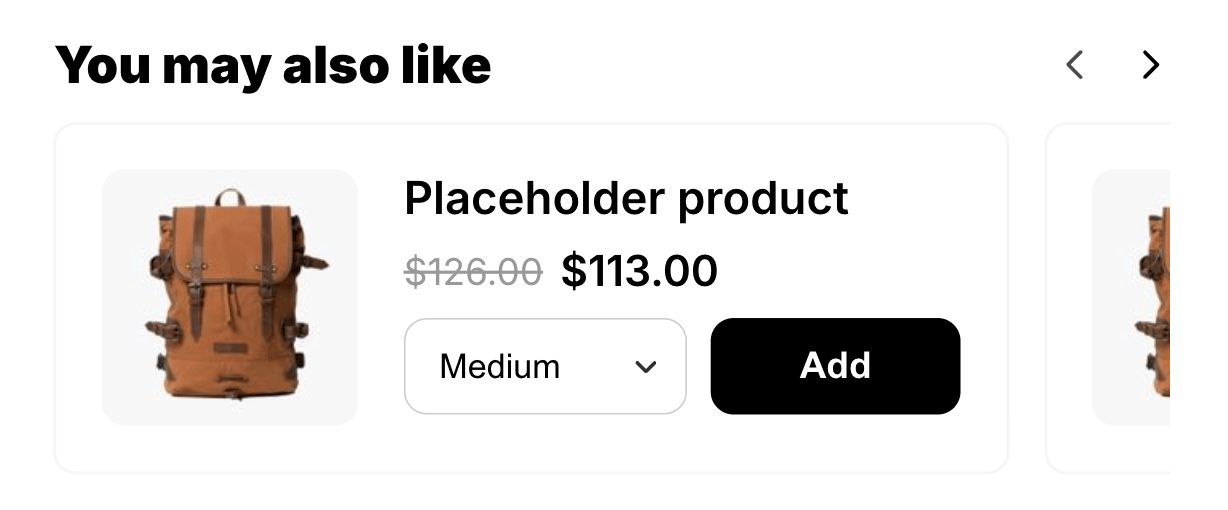
Behavior
- Products are fetched live based on the shopper’s current cart, so the offers reflect what’s actually in the cart.
- The whole section hides when no products resolve — no Strategy attached, the Strategy returns nothing, or none of the returned products are purchasable. Shoppers never see an empty Upsells section.
- If a returned offer carries a discount, the shopper sees an honest strikethrough and a discount badge, and the discount is applied at checkout.
Settings
Supported review apps
The following metafield-based review apps are supported: Shopify Product Reviews, Junip, Okendo, Growave, Fera, Stamped, Loox, REVIEWS.io, Automizely Reviews, Judge.me, Ali Reviews, Trustoo, Rivo, Rivyo, and Vitals. Yotpo is not supported because it uses a separate API rather than product metafields.Design
The Upsells block has per-block design overrides in its Design panel. These override the cart’s global design settings for this block only. Leaving a value blank inherits the global setting.Text styling
The Upsells block includes a Text section in its Design settings. Use it to control the typography of individual text elements on each upsell card. Select a text element from the picker to adjust its settings:
The text elements you can style are grouped by category:
Heading
- Heading — the section heading above the upsell cards (for example, You may also like). Also supports a custom font family. Bold and color are set in the Rich Text Editor above.
- Product title — the product name on each upsell card.
- Review count — the review count shown when Show product reviews is enabled.
- Price — the current price on each card.
- Compare-at price — the struck-through original price.
- Discount — the discount label (for example, 20% off).
Tile colors
Reviews
When Show product reviews is enabled, you can customize the star colors from the Reviews section of the Design panel.Placement and limits
- Region: body or bottom.
- Maximum: 1 per cart state — the filled cart and the empty cart each get their own.
- State: both filled and empty cart.
- Not added by default. Not locked — you can remove or hide it.
Selecting a strategy
An Upsells block doesn’t arrive empty: if no Strategy is set, Aftersell resolves your store’s Shopify AI strategy — creating it if you don’t have one yet — and fills it in, so the block works straight away. Open the Strategy picker to change it. The picker has two groups: Quick start- Create strategy from selected products — pick specific products directly and a Strategy is created for you automatically.
- Create strategy from scratch — opens the Strategy editor so you can build rules without leaving the cart editor.
- Shopify AI recommendations — creates a Strategy backed by Shopify’s own recommendations, named Shopify AI recommended products wherever it appears afterwards. This entry disappears once you have one, since a store only ever needs a single Shopify AI strategy.
- Your existing Strategies, listed by name. Type in the search field to filter them.
Managing a selected strategy
After a Strategy is attached, a ••• (ellipsis) button appears on the strategy row. Click it to open the actions menu:- Edit strategy — opens the Strategy editor in a new tab, so your cart editor session and any unsaved changes stay intact. This option isn’t available for the Shopify AI-recommended strategy, which is managed automatically and has no editable rules.
- Remove from upsell — detaches the Strategy from this block. The Strategy itself isn’t deleted; it stays available in your Strategies list.
Custom template
Supports a custom template from its Code tab, which replaces this block’s built-in markup with your JSX. These are the props it receives.Block content
Adding to cart
Carousel controls
Only relevant whenlayout is 'carousel'.
The upsell card
Each entry inupsells:
Each entry in
variants carries id, title, price and compareAtPrice (raw, unformatted, in the currency’s major unit as strings), availableForSale, imageUrl, sku, and selectedOptions ([{ name, value }]).
priceLabel and compareAtLabel are already formatted for display, while variants[].price and variants[].compareAtPrice are raw strings in the currency’s major unit. Don’t mix the two: show the labels, and use the raw values only for comparisons.