

Show for all customers trigger Product-Based Triggers
- Product/Collection Trigger
- Product Quantity Trigger
- Product Tag Trigger
- Product Type Trigger
- Metafields
- Product/Collection Exclusion Trigger
- Subscription Trigger
- Variant on Subscription Trigger
- Variant Name Trigger
- Customer Tag Trigger
- Customer Order History Trigger
- Customer Order Count Trigger
- Customer Language Trigger
- Once per Customer Trigger
- UTM Parameter Trigger
- Currency Trigger
- Device Type Trigger
- Shipping Country Trigger
- Random Sample Trigger
- Date/Time Trigger
- Shipping Method Trigger
Show for All Customers Trigger
A “Catch-All” funnel uses the “Show for All Customers” trigger. This funnel activates when an order does not meet the criteria for any other funnel. It serves as a safety net, ensuring no orders slip through without an upsell or thank-you page offer. To use it effectively, set this funnel to the lowest priority so it only appears if no other funnel triggers. Here are some examples:- You have three funnels: one for orders over $100, one for specific products, and one with the Show for All Customers trigger. If a customer places an order that doesn’t meet the first two funnels’ criteria, the Show for All Customers funnel will activate as a fallback.
- You want to ensure every customer sees at least one offer. Create a funnel with the Show for All Customers trigger and set it to the lowest priority. This funnel will catch any orders that don’t match your other targeted funnels.
Product-Based Triggers
These triggers activate based on the products, collections, or variants in a customer’s cart. Additionally, ensure proper configuration to prevent hidden or wholesale-only products from appearing unexpectedly in recommendations. This includes reviewing Shopify’s Product Recommendation logic and restricting such products at the add-to-cart stage, mitigating unintended visibility issues.Product/Collection
The Product/Collection Trigger displays the funnel when a customer purchases a specific product or a product from a particular collection. Here are some examples:- You have a funnel with a Product/Collection Trigger set to products X, Y, and Z. If a customer buys products A, B, and Y, this funnel will activate, showing the upsells within that funnel to the customer.
- You have a funnel with a Product/Collection Trigger set to products X, Y, and Z. If a customer buys products A, B, and C, this funnel will not activate since none of the specified products (X, Y, or Z) were purchased.
Product Quantity
The Product Quantity Trigger displays the offer based on how many of a specific product are included in the cart. Unlike the Product/Collection Trigger (which checks whether a product is present at any quantity), the Product Quantity Trigger lets you set a quantity threshold for a specific product. To configure a Product Quantity trigger:- Check the Product quantity box in your trigger settings.
- In the condition row, choose an operator from the dropdown: More than, Less than, or Exactly.
- Enter the quantity threshold in the number field.
- Use the product selector to choose which product the condition applies to.
- Click Save.
- Set to “more than” 2 of Product A (the upsell only appears when a customer has 3 or more of Product A in their cart).
- Set to “exactly” 1 of Product A (the upsell fires only for single-unit orders of that product).
- Set to “less than” 3 of Product A (the upsell appears when there are 1 or 2 of that product in the order).
- Row 1: “more than” 1 of Product A AND Row 2: “exactly” 1 of Product B (the upsell only appears when both conditions are met simultaneously).
- Row 1: “exactly” 2 of Product A OR Row 2: “more than” 3 of Product B (the upsell appears when either condition is met).
Product Tag
The Product Tag Trigger displays the offer when products with certain Shopify tags are included in the order. Here are some examples:- You want to exclude discontinued products from receiving upsell offers. Set the Product Tag Trigger to exclude products tagged “discontinued.” If a customer purchases a product with this tag, the funnel will not activate.
- You want to show a special offer only for products tagged “summer-collection.” Set the Product Tag Trigger to include products with this tag. If a customer purchases any product tagged “summer-collection,” the funnel will activate.
Product Type
The Product Type Trigger displays the offer when the products belong to a defined Shopify product type.- For example, if you set the Product Type Trigger to “Shoes,” then any time a customer purchases a product that belongs to the Shoes product type, the funnel will display. For instance, if the customer adds a pair of running sneakers (type: Shoes) to their cart, the funnel will activate. However, if the customer adds a t-shirt (type: Apparel), the funnel will not display because the product type does not match the trigger.
Metafields
The Metafields trigger displays funnels based on custom metafield data associated with products or variants. You can choose between product metafields or variant metafields, but only one type can be matched at a time. Each sub-trigger (Product or Variant) has a Match type dropdown with three options:- Value matches — the existing behaviour. Enter a metafield name and value (
name: value), then choose Includes or Excludes. Both the name and value are case-sensitive and must match exactly as they appear on the product page. - Has any value — fires when the named metafield exists and has a non-empty value. Enter only the metafield name; the value input is hidden.
- Is empty — fires when the named metafield is absent or has an empty value. Enter only the metafield name; the value input is hidden.
- For example, if the order metafields are
["color: red", "size: m"]and the trigger list is["color: red", "ship: warehouse"], the condition is satisfied becausecolor: redmatches.
- For example, if the order metafields are
["color: red", "size: M"]and the trigger list is["color: blue", "size: L"], the condition is satisfied because there are no matching name:value pairs.
namespace.key— for example,custom.warehouse_location- bare key — for example,
warehouse_location - definition name — for example,
Warehouse Location
Switching the Match type clears any entries already added to that sub-trigger, since
name: value tags and bare-key tags mean different things per mode.Product/Collection Exclusion
The Product/Collection Exclusion Trigger prevents the funnel from displaying when excluded products or collections are present in the cart.- For example, if a customer has purchased from a heavily discounted product or collection, you may prefer not to show further offers to that customer. This trigger allows you to skip all offers if those specific products or collections are in the customer’s cart.
- Additionally, you can combine this trigger with the Product/Collection Trigger to ensure that only selected products or collections activate the funnel, while any others are excluded.
Subscription
The Subscription Trigger displays the offer based on whether a subscription product is included in the order. Here are some examples:- You have a funnel with a Subscription Trigger set to “do not include a subscription.” If a customer purchases only one-time products, the funnel will activate, allowing you to offer them a subscription upsell.
- You have a funnel with a Subscription Trigger set to “include a subscription.” If a customer purchases a subscription product, the funnel will activate, allowing you to show them complementary one-time products.
Variant on subscription
The Variant on Subscription trigger displays the funnel when the order includes any of the selected products purchased as a subscription. Unlike the Subscription trigger (which checks whether any subscription is present), this trigger matches on a specific product being purchased on a subscription line item — so a one-time purchase of the same product does not activate the funnel. This trigger is used automatically by the subscription upgrade wizard. When a funnel has a subscription upgrade offer configured, the trigger is managed by the wizard and kept in sync with the upgrade’s source product. The trigger is read-only while the upgrade offer is present; it unlocks if the upgrade offer is removed. On funnels without a subscription upgrade offer, you can configure the trigger manually. The product picker is filtered to subscription products only. Here are some examples:- You have a subscription upgrade funnel targeting customers who subscribe to Product A. The Variant on Subscription trigger is set to Product A. If a customer purchases Product A as a subscription, the funnel activates. If they purchase Product A as a one-time item, the funnel does not activate.
- You have multiple subscription upgrade offers in the same funnel. The trigger is set to the union of all upgrade source products, so the funnel activates when any of those products is purchased as a subscription.
Variant Name
The Variant Name Trigger allows you to display specific funnels based on the product variant selected by the customer at checkout. By using this trigger, you can include or exclude customers from certain offers depending on the exact variant they choose, such as size, color, or style. Here are some examples:- You have a funnel with a Variant Name Trigger set to include “Large.” If a customer purchases a t-shirt in size Large, the funnel will activate. If they purchase size Small or Medium, the funnel will not activate.
- You have a funnel with a Variant Name Trigger set to include “Red” and “Blue.” If a customer purchases a product in either Red or Blue color variant, the funnel will activate. If they purchase Green, the funnel will not activate.
Cart & Discount Triggers
These triggers activate based on the cart value, contents, or discounts applied.Order Value
The Order Value Trigger is used to display an offer if an order meets a specified dollar value requirement, which can be set as greater than or less than a chosen amount. When an order meets your set criteria, the offer will be shown to the customer. Here are some examples:- Your funnel has an Order Value Trigger set to activate when orders total less than $50.00. If a customer places an order totalling $30.00 with various products, the offer will display, as the order meets the “less than $50.00” requirement.
- Your funnel has an Order Value Trigger set to activate when orders total less than $50.00. If a customer places an order totalling $60.00 with various products, the offer will not display since the order value does not meet the “less than $50.00” requirement.
Quantity
The Quantity Trigger shows an upsell offer based on the total item count in a customer’s order. It looks at the overall number of items across all products in the cart, regardless of which specific products they are. To configure a Quantity trigger:- In the Cart & Discount Triggers section, check the Quantity box.
- In the condition row, choose an operator from the dropdown: More than, Less than, or Exactly equals.
- Enter the item count in the number field.
- Click Save.
- Set to “less than 3” - the upsell appears only when there are 1 or 2 total items in the cart.
- Set to “more than 1” - the funnel triggers for orders with 2 or more total items.
- Set to “exactly 5” - the funnel triggers only when there are exactly 5 total items in the cart.
- Set to “exactly 0” or “less than 1” - useful for targeting new customers who have no previous items. For example, combine this with the Customer Order Count trigger to show a welcome offer to first-time buyers with a single-item cart.
Discount Code
The Discount Code Trigger lets you include or exclude customers from seeing a funnel based on a discount code they use. A third option, Excludes any manual discount code, lets you exclude all orders where a manually-entered discount code was applied — without needing to list individual codes. Here are some examples:- You’re running two promotions: 25% off for new customers and 10% off for email subscribers. Use the Discount Code trigger set to Includes with the email subscription discount code to display the funnel only to email subscribers.
- You want to prevent upsell offers from showing to any customer who used a discount code at checkout. Set the trigger to Excludes any manual discount code. The funnel will only fire for orders with no manually-entered discount code. Automatic and script discounts (such as a site-wide automatic discount) are not counted, so they will not suppress the funnel.
Discount Percent (%)
The Discount Percent (%) Trigger displays a funnel based on the line-item discount percentage applied to the order (this excludes shipping discounts). Choose More than, Less than, or Exactly, then enter the percentage threshold. Here are some examples:- You have a funnel with a Discount Percent Trigger set to “more than 20%.” If a customer receives a 25% discount, the funnel will activate. If they receive a 15% discount or no discount, the funnel will not activate.
- You have a funnel with a Discount Percent Trigger set to “less than 10%.” If a customer receives a 5% discount, the funnel will activate. If they receive a 15% discount, the funnel will not activate.
- You have a funnel with a Discount Percent Trigger set to “exactly 10%.” The funnel only activates for orders with precisely a 10% discount applied.
Customer Attribute Triggers
These triggers use customer data to control funnel visibility.Customer Tag
The Customer Tag Trigger allows you to include or exclude customers from seeing a funnel based on their associated tags. Here are some examples:- You have a funnel with a Customer Tag Trigger set to include “VIP.” If a customer has the VIP tag, the funnel will activate. If they don’t have this tag, the funnel will not activate.
- You have a funnel with a Customer Tag Trigger set to exclude “Wholesale.” If a customer has the Wholesale tag, the funnel will not activate, preventing retail upsells from showing to wholesale customers.
Customer Order History
The Customer Order History Trigger lets you create offers based on a customer’s past purchases. Important: You must select specific products or collections when using this trigger. The default match mode is Include, and if you leave products/collections unselected while using Include, the trigger can never be satisfied — this permanently blocks the funnel from firing, not just leaves it inactive with no effect. Always select at least one product or collection. If your goal is simply to check whether a customer has ordered before, use the Customer Order Count Trigger instead:- More than 0 orders = Returning customer
- 0 orders = New customer
Customer Order Count
The Customer Order Count Trigger enables you to display a funnel specifically for new or returning customers. Here are some examples:- You have a funnel with a Customer Order Count Trigger set to “equal to 0.” If a customer has never placed an order before (first-time customer), the funnel will activate. If they have placed any previous orders, the funnel will not activate.
- You have a funnel with a Customer Order Count Trigger set to “greater than 3.” If a customer has placed 4 or more previous orders, the funnel will activate. If they have placed 3 or fewer orders, the funnel will not activate.
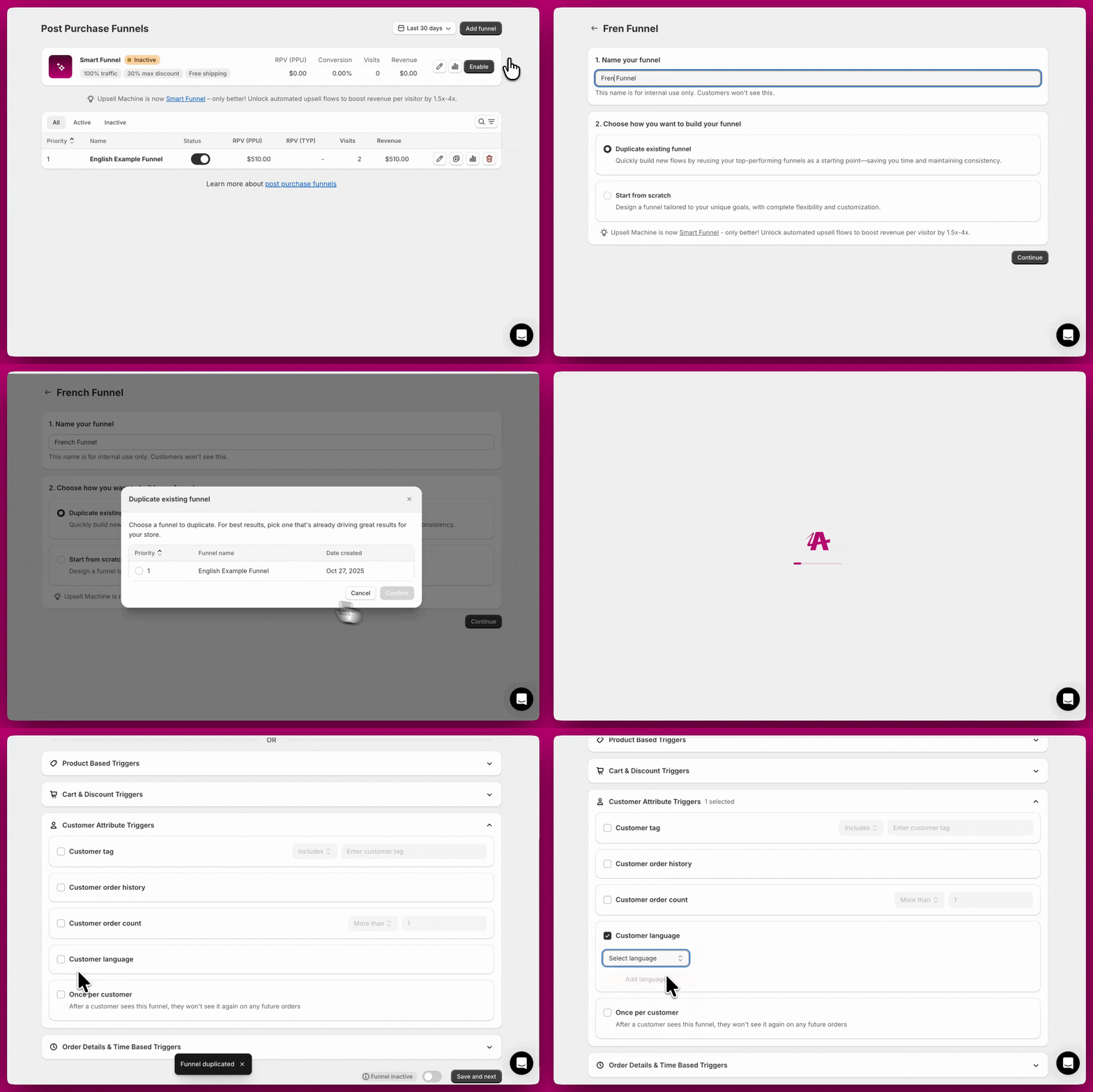
Customer Language
The Customer Language trigger enables you to display specific offers based on the language a customer checked out in, creating a more personalized and engaging experience. Here are some examples:- You have a funnel with a Customer Language trigger set to “English.” If a customer checks out in English, the funnel will activate. If they check out in any other language, the funnel will not activate.
- You have a funnel with a Customer Language trigger set to “French.” If a customer checks out in French, the funnel will activate. If they check out in any other language, the funnel will not activate.
Once per Customer
The Once per Customer trigger ensures a funnel only shows once per customer across all orders. Here are some examples:- You have a funnel with the Once per Customer trigger enabled. If a customer sees this funnel after their first purchase, they will not see it again on any future purchases, even if all other trigger conditions are met.
- You want to show a special “welcome offer” only to new customers on their first purchase. Enable the Once per Customer trigger to ensure the offer appears only once per customer, preventing it from showing on repeat purchases.
Order Details & Time-Based Triggers
These triggers depend on checkout details, marketing data, or timing.UTM Parameter
A UTM Trigger is a marketing tool that activates specific actions based on UTM parameters in a URL. UTM parameters (Urchin Tracking Module) help track the effectiveness of online campaigns by providing details about the source, medium, and campaign name. Here are some examples:- You have a funnel with a UTM Parameter Trigger set to “utm_source = facebook.” If a customer clicks a link with
?utm_source=facebookin the URL, the funnel will activate. If they arrive from a different source or no UTM parameter, the funnel will not activate. - You have a funnel with a UTM Parameter Trigger set to “utm_campaign = summer_sale.” If a customer clicks a link with
?utm_campaign=summer_salein the URL, the funnel will activate, allowing you to show campaign-specific offers.
- Displaying tailored offers or content based on specific campaigns.
- Segmenting visitors by their entry points to analyze marketing channel effectiveness.
- Creating personalized experiences with customized messages or redirects.
Currency
The Currency Trigger allows you to control whether customers see a funnel based on whether they check out in your store’s default currency or in an international (non-default) currency. It does not let you target individual named currencies — instead, you choose between two options: Default store currency only or International currencies only. Here are some examples:- You have a funnel with a Currency Trigger set to “Default store currency only.” If a customer checks out in your store’s default currency, the funnel will activate. If they check out in any international (non-default) currency, the funnel will not activate.
- You have a funnel with a Currency Trigger set to “International currencies only.” If a customer checks out in a currency other than your store’s default, the funnel will activate. If they check out in your store’s default currency, the funnel will not activate.
General Rules for Currency Display
- Thank You Page offers and upsells adjust to the customer’s currency, offering a seamless experience for shoppers in various markets. This means all prices are displayed in the same currency as the market chosen by the customer or their browsing session.
Shopify Markets Integration
- If your store uses Shopify Markets to display different currencies based on customer location, Aftersell integrates seamlessly to ensure products are displayed in the correct local currency.
- Shopify Markets automates the process of showing localized currencies and pricing for upsell offers.
- For details on setting up Shopify Markets, refer to Shopify’s official documentation: Shopify Markets Documentation.
Important Considerations
- Always ensure that your store’s default currency settings align with your operational requirements and customer expectations.
- For post-purchase upsell offers, check currency configurations to ensure compatibility with your target markets.
Thank You Page Offers
- Localized Pricing: All Thank You Page upsells automatically adjust to the customer’s currency. This ensures that a single funnel can offer localized pricing to all customers.
- Currency Conversion: Thank You Page upsells display in the checkout currency, even if the order currency differs from the store’s default currency.
Post-purchase upsell offers
- Multi-Currency Limitation: Post-purchase upsell offers do not support multi-currency. For this reason, customers will not see offers unless your store currency matches the expected currency.
Device Type
The Device Type Trigger allows you to scope a funnel to customers on a specific device type — Desktop only or Mobile only. When enabled, the funnel only displays if the customer’s device matches your selection. Here are some examples:- You have a funnel with a Device Type Trigger set to Desktop only. If a customer completes checkout on a desktop browser, the funnel will activate. If they check out on a mobile device, the funnel will not activate.
- You have a funnel with a Device Type Trigger set to Mobile only. If a customer checks out on a mobile device, the funnel will activate. If they check out on a desktop, the funnel will not activate.
Shipping Country
The Shipping Country Trigger allows you to include or exclude customers from viewing a funnel based on their shipping destination country. For example, you can configure a funnel to exclude products restricted to the US when the shipping address is from outside the United States. This ensures geographical restrictions are respected, aligning the funnel offers with region-specific product availability. As a reminder, Post-purchase upsells won’t display to customers checking out in a currency different from your store’s default currency; however, everyone will still see the Thank You Page. By using the Shipping Country Trigger, you can create targeted Thank You Page offers for specific countries, allowing you to provide tailored product recommendations and offers based on the customer’s shipping location. This also means adjusting your shipping costs for different countries.Random Sample
The Random Sample Trigger enables you to control funnel visibility for a random subset of customers. This trigger is ideal for testing new funnels with a small percentage of your customer base or surprising a select group of customers with special offers. Here are some examples:- You have a funnel with a Random Sample Trigger set to “25%.” The funnel will randomly activate for approximately 25% of customers who meet all other trigger conditions. The remaining 75% will not see the funnel.
- You want to A/B test two different upsell offers. Create two funnels, each with a Random Sample Trigger set to “50%.” Each funnel will show to approximately half of your customers, allowing you to compare performance.
Date/Time
The Date/Time Trigger allows you to schedule the visibility of a funnel based on specific dates and times. With this trigger, you can activate or deactivate offers according to a set schedule, making it ideal for time-sensitive promotions, seasonal campaigns, or exclusive, limited-time deals. Here are some examples:- You have a funnel with a Date/Time Trigger set to activate “between December 1 and December 25.” The funnel will only activate for orders placed during this date range, perfect for holiday promotions.
- You have a funnel with a Date/Time Trigger set to activate “after January 1, 2026.” The funnel will only activate for orders placed on or after this date, useful for launching new year promotions or product releases.
Shipping Method
The Shipping Method Trigger enables you to control funnel visibility based on the customer’s chosen shipping option at checkout. This trigger allows you to include or exclude customers from specific offers depending on their selected shipping method. Here are some examples:- You sell a perishable product that requires overnight shipping. Set the Shipping Method Trigger to include “Overnight” or “Express” so the upsell only appears to customers who chose fast shipping and will receive their order quickly.
- You want to offer an expedited shipping upgrade. Set the trigger to include “Standard Shipping” so only customers who chose the slower option see the upsell to upgrade.
- You offer local pickup. Set the trigger to exclude “Local Pickup” so that shipping-dependent offers (like shipping protection) do not appear to customers collecting in-store.
Conditional Logic
Post-purchase triggers work together using simple logic: all triggers must be met (AND logic), and within each trigger, only one condition needs to match (OR logic). For more details on how our trigger logic is applied, check out this article: Understanding Conditional LogicCombining product conditions. A funnel has a single Product/Collection block, and everything inside it uses OR logic — the trigger fires when any one of the listed products or collections is in the order. There is no AND setting between separate products or collections in that block.If you need the order to contain product A and product B, use the Product Quantity trigger instead. It has a Condition Logic setting you can set to AND, with one row per product. It is the only product-based trigger that supports AND across rows.