

- Precision targeting. Uses AI to tailor offers for individual customers.
- Performance optimization. Can outperform standard manual funnels.
- Ease of use. Fully automated once set up.
Set up Smart Funnel
- Enable the Smart Funnel. In Aftersell’s funnel settings, activate the Smart Funnel option and follow the on-screen prompts to begin setup.
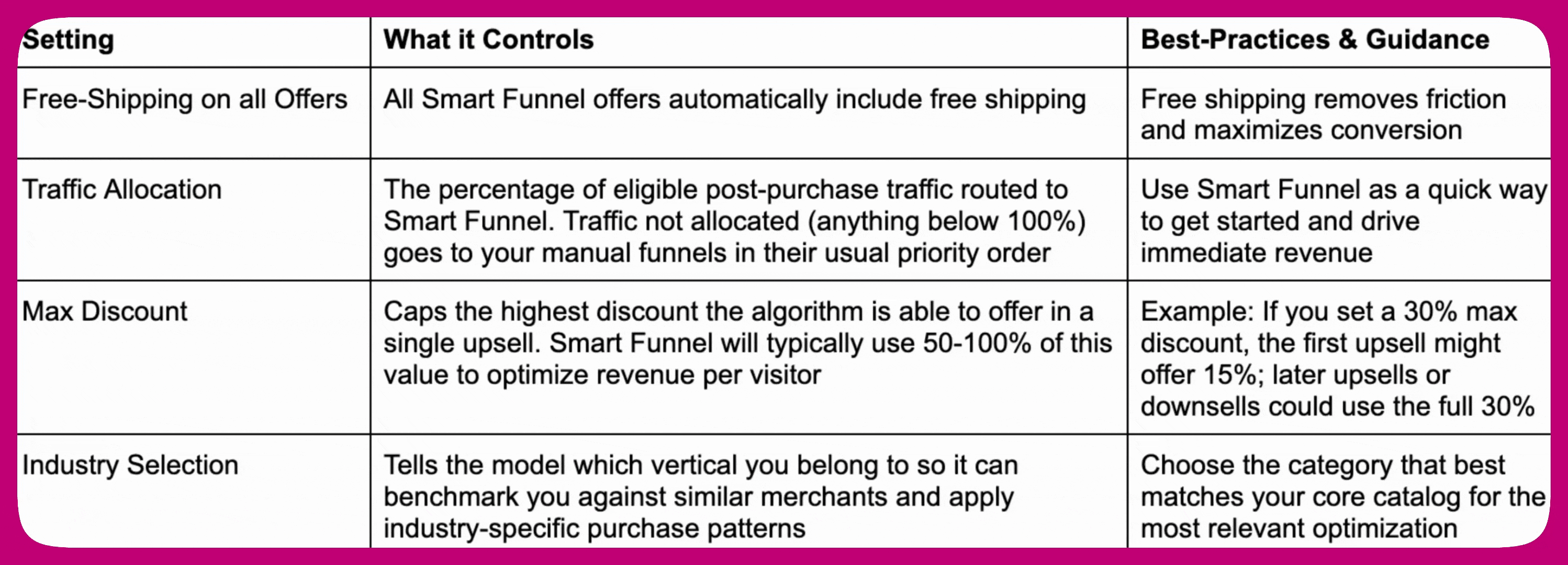
- Adjust allocation. To have Smart Funnel handle all eligible customers, set its allocation to 100%. To compare it against a manual funnel, give each a share of traffic.
- Define offer parameters. Choose the maximum discount amount you are comfortable offering. Set a non-zero Max Discount for best performance (see the reference).
- Select industry. Pick the industry that best matches your business, for example Apparel and Fashion.
- Highlighted product (optional). Leave this blank unless you have a single, high-performing product you want to promote (see Highlight a product below).
- Require confirmation click (optional). Enable this if you want customers to confirm twice, once to indicate intent and once to complete the purchase. This reduces accidental purchases.
- Save and test. Complete the setup and test the Smart Funnel to make sure it aligns with your upsell strategy.
Highlight a product (optional)
In the Smart Funnel settings, choose a product under Highlighted product. Smart Funnel then favors that product when it builds offers, which is useful for promoting overstock inventory or proven best sellers while still benefiting from Smart Funnel optimization. A highlighted product is a preference, not a guarantee. For which offers show it and when it is skipped, see Highlighted product in the reference.Preview how Smart Funnel works
The Smart Funnel banner on the Funnels page includes a ? (question mark) button. Clicking it opens an interactive sample preview that shows how a Smart Funnel flows in practice. The preview uses a representative funnel shape drawn from the current active cross-store experiment, with products resolved against your own catalog. Click Accept or No thanks on each offer card to walk through the branching logic, the same logic your live funnel uses: accepting advances to the next upsell, declining softens the offer to a downsell.The products, prices, and discounts shown in the preview are placeholders. After checkout, the AI builds a personalized funnel for each shopper based on their profile and purchase history.
Best practices
- Combine Smart Funnel with manual funnels to support features like Thank You Page widgets.
- Verify Shopify’s eligibility rules for post-purchase upsells to understand targeting limitations.
- Use the customization options to align offers with your business goals.
Frequently asked questions
Can I run Smart Funnel alongside existing funnels?Yes. You can operate both Smart and manual funnels at once. Each has a predefined priority, and the system determines which funnel to display based on eligibility. How does automation improve upselling?
Smart Funnel uses machine learning to analyze customer behavior and store data, so the most relevant offers are displayed automatically. This reduces manual effort and increases conversion potential. Why doesn’t the Smart Funnel appear for every customer?
Smart Funnel relies on Shopify’s post-purchase upsell feature, which is not available for all orders (for example, some payment methods). See Eligibility and low or zero visits. Will using Smart Funnel remove Thank You Page upsells?
No. Smart Funnel does not serve TYP upsells directly, but TYP widgets can still appear through an eligible manual funnel. Smart Funnel post-purchase offers take priority over manual funnel post-purchase offers. See Thank You Page behaviour. Can I A/B test the Smart Funnel?
Smart Funnel does not use the Layout A-E post-purchase A/B testing or multivariate testing tools, which are built for manual funnels. To compare Smart Funnel against a manual funnel, run both at the same time and split traffic between them using each funnel’s allocation setting. Aftersell tracks performance separately for each funnel, so you can compare results in your analytics.