

For a complete overview of all Order Browser statuses, see the Order Browser Overview. Use this guide when you’re investigating a specific status or unexpected gap.
Why are so many orders showing as Ineligible?
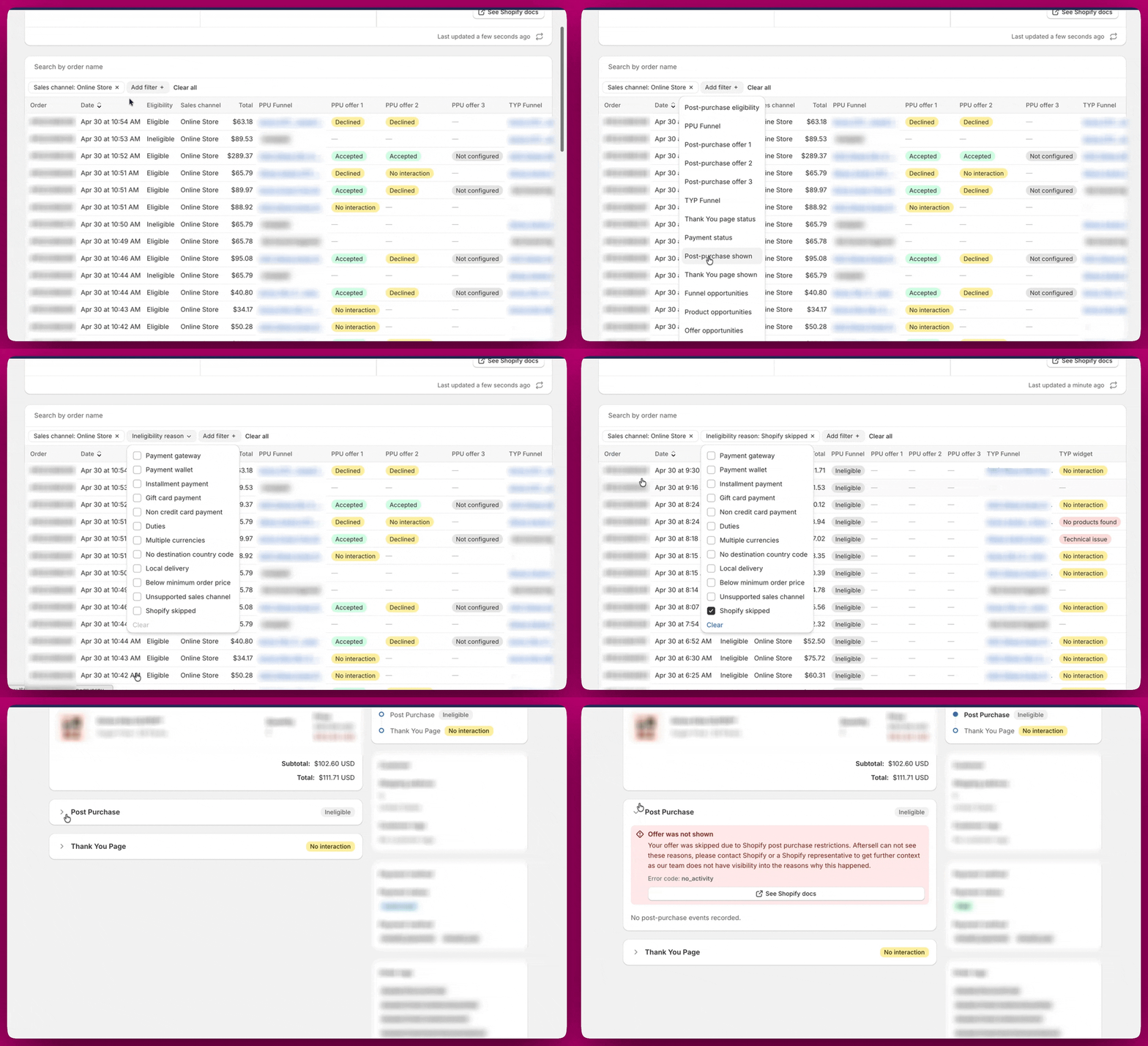
Ineligible orders are controlled entirely by Shopify, not Aftersell. The most common causes are unsupported payment methods (digital wallets, BNPL, full gift card), orders under $0.50, multi-currency, and duties or landed costs. To investigate: use the Ineligibility reason filter in the order table to group orders by the specific reason. Then click into an individual order to confirm the payment method or order details behind it. For a full breakdown of every ineligibility reason and what to do about each one, see the Order Browser Overview. For supported and unsupported payment methods specifically, see Payment Methods.Tip: If a large share of your orders are ineligible due to payment method, setting up Thank You Page upsells is the best way to recover that traffic since TYP is not subject to Shopify’s post-purchase restrictions.
What does “Not configured” mean?
Not configured means a funnel has an offer slot (e.g., Offer 2) that exists but has no offer set up in it yet.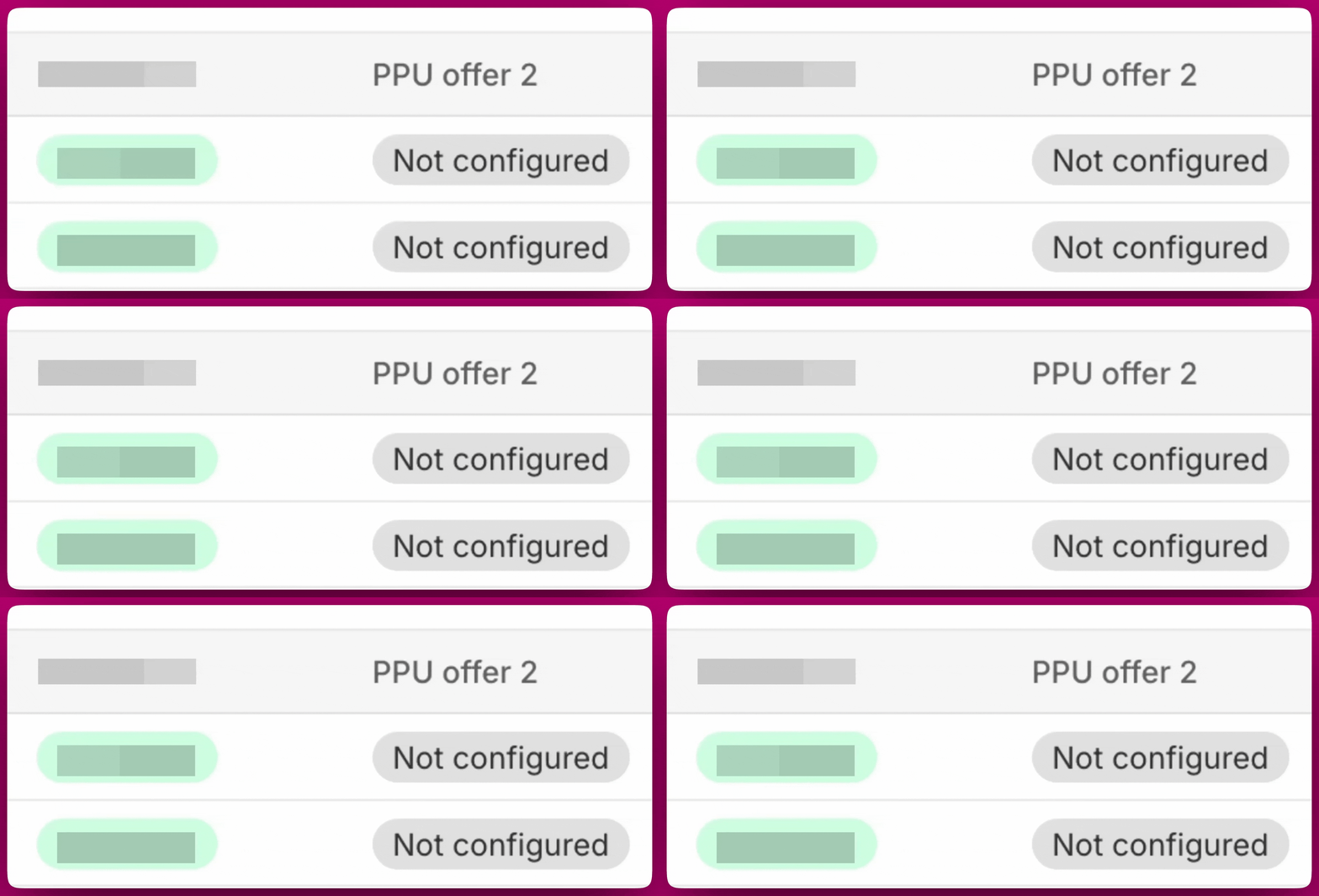
What does “Products excluded” mean and how do I fix it?
Products excluded on a PPU offer slot means every product in your offer was excluded at the time of that order. Click into the order and open the PPU tab, the timeline will show a Products excluded warning with the specific reason listed below.- Product already in order: the offer product was already in the customer’s cart. Turn off “Hide offer if already purchased” in your offer settings, or add different products to the offer.
- Product OOS: the offer product was out of stock. Add more products so there’s always something available to show.
- Product Inactive: the offer product was unpublished or deactivated in Shopify. Republish the product or swap it for an active one.
- All products filtered: every product was excluded by a combination of rules. Review your offer’s filter settings and expand the eligible product pool.
Tip: To reduce this over time, add more products to each offer as fallbacks and periodically check that your offer products are in stock and published.
A lot of orders are showing No interaction. What can I do?
No interaction means the offer was shown but the customer left without clicking Accept or Decline. Some of this is normal behavior, but a consistently high rate can point to offer design issues. A few things that help:- Fewer products per offer. More than four items in a single offer can cause decision paralysis. Keep it focused and relevant to what the customer just bought.
- Enable Require Confirmation Click to Accept in your offer settings. This makes the Accept/Decline action more intentional and typically drives cleaner conversion data.
- Check offer relevance. If the offer doesn’t feel connected to the original purchase, customers are more likely to ignore it.
Orders are showing Customer skipped. Is something broken?
Not necessarily. Customer skipped means the customer closed their browser or left before the post-purchase page had a chance to load. Common causes:- The customer navigated away immediately after checkout
- The browser was closed before the post-purchase redirect completed
- The checkout completed through an accelerated flow that bypassed the post-purchase step
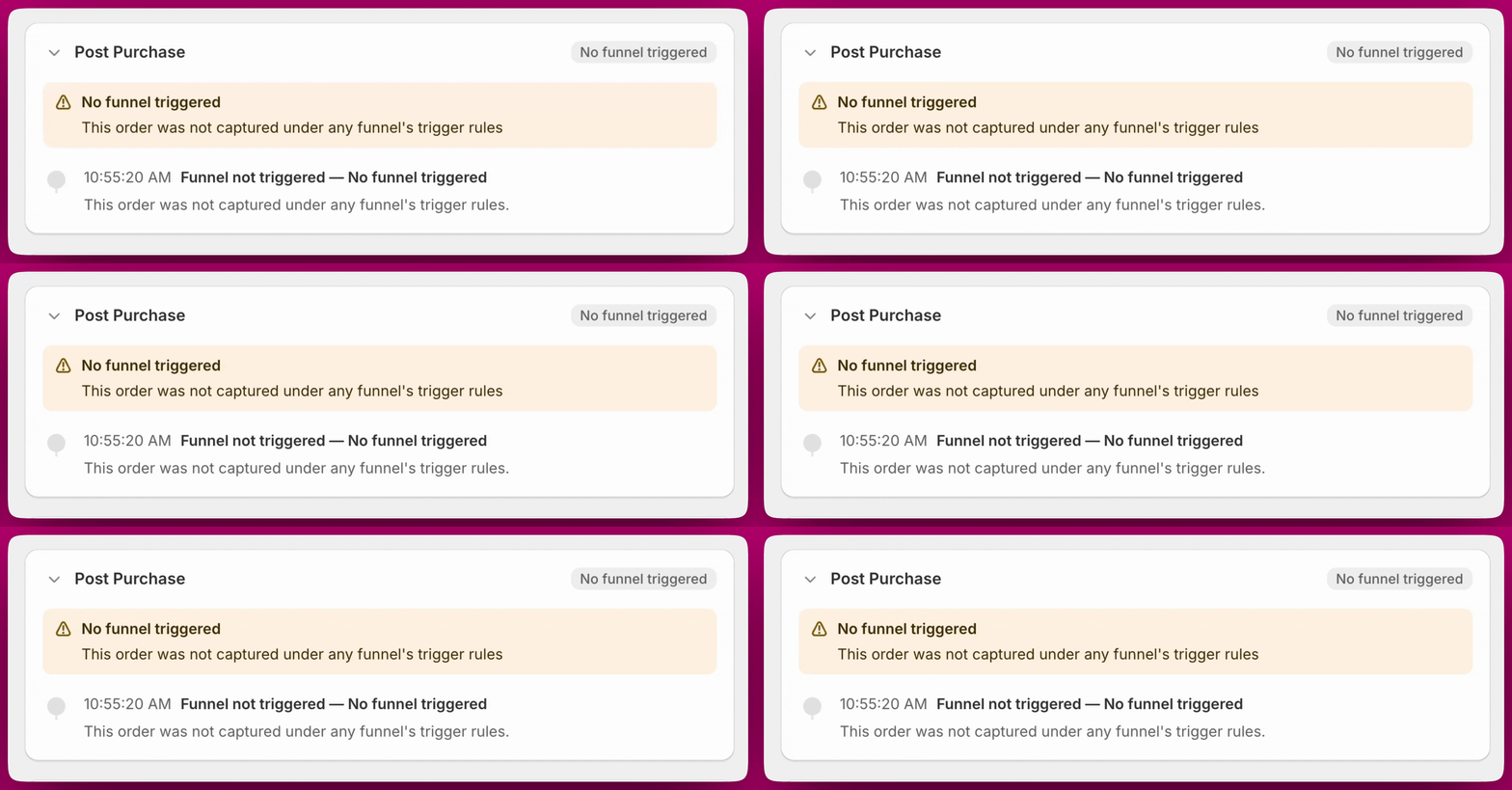
PPU Funnel is showing “No funnel triggered.” How do I fix it?
No funnel triggered means the order was eligible but no funnel matched its trigger conditions. Common causes:- No funnel has a trigger set to “All orders” as a catch-all fallback
- Funnel trigger conditions (product tags, customer tags, order value) no longer match the incoming orders
- Multiple funnels are competing and the expected one lost priority
The Improvement Opportunities panel is flagging gaps. What should I do?
Funnel & Offer opportunities means one or more of your funnels has an unconfigured or missing offer slot. Use the Offer opportunities filter in the order table to find the specific orders, then click through to the funnel to set up the missing offer. Product opportunities means an offer is configured but its products are frequently being filtered out or are unavailable. Use the Product opportunities filter to surface those orders, review which products are causing the gap, and either replace them or loosen the filter settings.I’m seeing “Timer expired” on PPU offers
Timer expired means the post-purchase session clock ran out while the offer was on screen. Shopify’s post-purchase page has a time limit, and if the customer was on the page too long without interacting, the session expires. This is expected for a small percentage of orders. If you’re seeing it frequently, check whether your offer has an unusually large number of products or steps that might be slowing down load or review time.My test order’s PPU timeline is empty or incomplete
If you placed a test order and the PPU tab shows no events or partial data, it’s likely because the order ID wasn’t available when the earliest events fired. This resolves automatically as the order completes - give it a few minutes and refresh.The PPU timeline is showing “Technical issue”
Technical issue means the post-purchase experience failed to load for this order. This is different from Ineligible (where Shopify blocked it) — the session started but something prevented the page from rendering.“Not loaded” is a Rokt Thanks status only. It never appears on the PPU timeline, where the same underlying condition is reported as Technical issue.
I’m seeing “Shopify skipped” - what does that mean?
Shopify skipped means Shopify bypassed the post-purchase page for this order at a platform level. When you click into the order and open the PPU tab, you’ll see:Shopify skipped can occur in a wider range of situations than just extreme platform load - including on development stores. If you’re testing on a dev store and seeing this status, that is expected behavior. If you’re seeing it at high volume on a live store with no clear cause, raise it with Shopify directly as it may indicate a Shopify platform issue.
I’m seeing “Pending conversion” on TYP widget
Pending conversion means the Thank You Page offer was displayed but a final decision hasn’t been recorded yet. The most common cause is that the page is still open in the customer’s browser. It typically resolves to Accepted or No interaction once the session closes.If you’re seeing a persistent volume that never resolves, reach out to support.
I’m seeing “No products found” on TYP widget
No products found means the Thank You Page experience couldn’t load any products to display. This is different from Products filtered out (where products exist but were excluded by a rule), Out of stock / unavailable (where variants were returned but all are unavailable), and Selected variant unavailable (where a configured variant no longer resolves from Shopify). No products found usually points to a configuration issue with the TYP offer itself, such as all products being unpublished or unavailable. To fix it: review your TYP offer product selection and make sure at least one product is published and in stock.I’m seeing “Technical issue” on TYP widget
Technical issue means there was a problem loading the Thank You Page experience for that order. This appears as a badge in the TYP tab of the order detail view. Like Not loaded on PPU, this is usually caused by a transient rendering or platform error rather than a configuration issue. If it’s affecting a small number of orders, no action is needed. If you’re seeing it consistently, reach out to support with the affected order numbers.Order Browser shows “no products recommended” for a Smart Funnel order
If an order that ran through Smart Funnel is showing no products in the Order Browser, the AI had no eligible candidates to display at the time the offer fired. Smart Funnel does not have its own product catalog — it pulls candidates from the recommendation source you have configured under Settings → Automatic Upsells, then applies Shopify eligibility and your exclusion rules on top. Common causes:- All candidate products were filtered out. Any SKUs you have excluded under Settings → Automatic Upsells are removed from the pool. If your exclusion list is broad, the remaining pool may be empty for some orders.
- Candidate products were out of stock or unpublished. Products that are OOS, inactive, or not published to the Online Store sales channel are dropped before the offer renders. If your highlighted product is unavailable, Smart Funnel tries to substitute — but if no fallbacks are eligible either, nothing displays.
- Non-English checkout locale. Smart Funnel only runs when the shopper’s checkout locale is English — it reads the locale Shopify sends with the order, not your store’s primary language. An English store still skips Smart Funnel for a shopper who checked out in another language, and those orders fall through to your regular funnels instead.
- 0% max discount. A max discount of 0 does not stop Smart Funnel from running — the field accepts 0–99 and the value only scales the offer’s percentage discount. Set to 0, the product is still offered, just at full price, which usually converts poorly. Raise the max discount if Smart Funnel offers are being shown but rarely accepted.
- Order was ineligible at the Shopify level. Confirm the order isn’t tagged with a Shopify ineligibility reason (payment wallet, multi-currency, gift card, BNPL, etc.) — if it is, the post-purchase page never had a chance to load. See the ineligibility reasons in the Order Browser Overview.
I’m seeing “Out of stock / unavailable” on TYP widget
Out of stock / unavailable means the Thank You Page product recommendation widget found variants for the offer product, but every variant came back unavailable for that buyer. This is usually genuine out-of-stock, but it can also be caused by region, market, or sales-channel availability restrictions. To fix it: check that the offer product is in stock and published to the sales channel your store uses. If the product is available in your Shopify admin but still showing this status, it may be restricted to a specific market or sales channel that doesn’t match the buyer’s context.I’m seeing “Selected variant unavailable” on TYP widget
Selected variant unavailable means the specific variant configured in your offer no longer resolves from Shopify — it was likely deleted or replaced after the offer was set up. To fix it: open the offer in Aftersell, go to the product selection for that offer, re-select the product and variant you want to show, and save. This refreshes the offer’s product configuration and clears the stale reference.I’m seeing “Products filtered out” on TYP widget
Products filtered out on the TYP widget means the Thank You Page offer had products configured but all of them were excluded before the widget could display anything. This is distinct from No products found (where no products could be loaded at all). Products filtered out specifically means the products exist but your offer settings excluded them all. To fix it: review your TYP offer’s filter settings - check for “hide if already purchased,” out-of-stock exclusions, or tag-based filters that may be eliminating all available products. Add more fallback products to the offer so there’s always something eligible to show.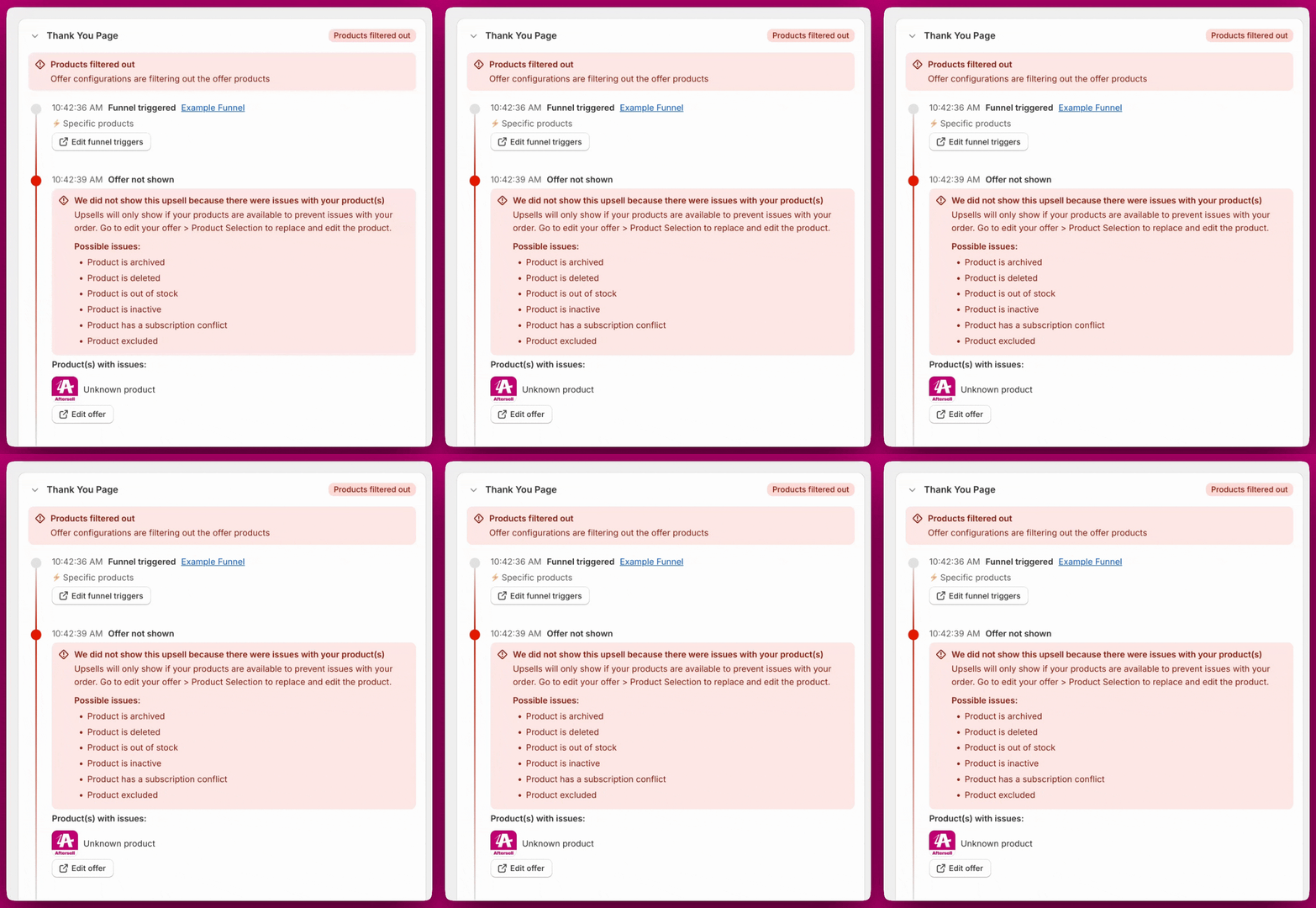
Still stuck? Reach out via chat or email us at support@aftersell.app.