

What are you experiencing?
- My Thank You Page widget is not showing
- My Thank You Page analytics have dropped to zero
- My post-purchase offer is not appearing on the Thank You Page
Widget Not Displaying
If your Thank You Page widget is not showing, work through the following checks in order.1. Check the Display Sequence
Understanding the upsell display flow can help identify where issues might occur. The sequence follows this order: Customer completes checkout → 1-Click Upsell Offers are presented (if eligible) → Customer proceeds to the Thank You Page where additional upsells and widgets may display 1-Click Upsell Offers appear in a layer between checkout and the Thank You Page. If a 1-Click offer fails to load or is misconfigured — for example, if the product is unavailable or the funnel has no active offers — the customer may be sent directly to the Thank You Page without seeing the upsell, which can make it appear as though Thank You Page widgets are also missing when they are not.2. Check Funnel Priority
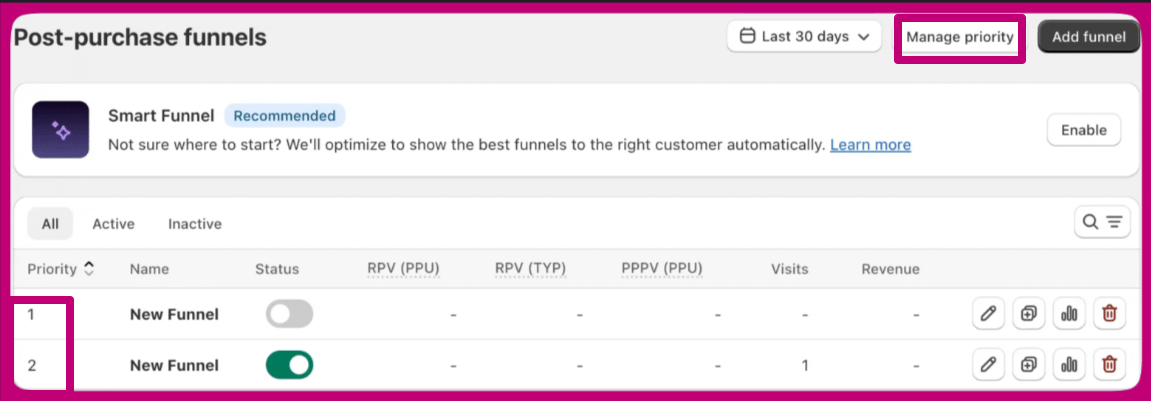
Another funnel might be displaying instead of the one you’re trying to test due to having a higher priority.- View the priority of your funnel on the left side of the funnel table.
- To adjust priority levels, use the Manage Priority button at the top right of the funnel table.
3. Check Funnel Triggers
The order you’re placing may not be meeting the trigger requirements set for your funnel. Review your triggers carefully to ensure they are configured correctly. For example, if your trigger is set to show the widget for orders less than $50.01, an order with a $50 item may not qualify once shipping is added, pushing the total above that threshold. Adjusting the trigger value to better reflect real order totals including shipping should resolve this.4. Check Product Availability
The product you’re trying to upsell may not be available for purchase. For Thank You Page offers to display correctly:- Ensure the product is included in the Online Store sales channel and set to Active status
- Verify the product is in stock - out-of-stock items will not be shown
- Check that the product variants you want to offer are properly configured
5. Re-Select Upsell Products
Aftersell may lose connection to a product if significant changes are made in Shopify, such as a handle change or the removal of variants. To restore the connection, simply reselect the product in the offer settings. This prompts Aftersell to update with the new product information.6. Check Thank You Page Extensibility
If you have upgraded to Shopify’s Thank You Page extensibility, make sure you are using the Extensions version of the widgets, not the Scripts version.- Scripts widgets only work with the Legacy version of the Thank You Page
- Extensions widgets are required for stores that have upgraded to Thank You Page extensibility
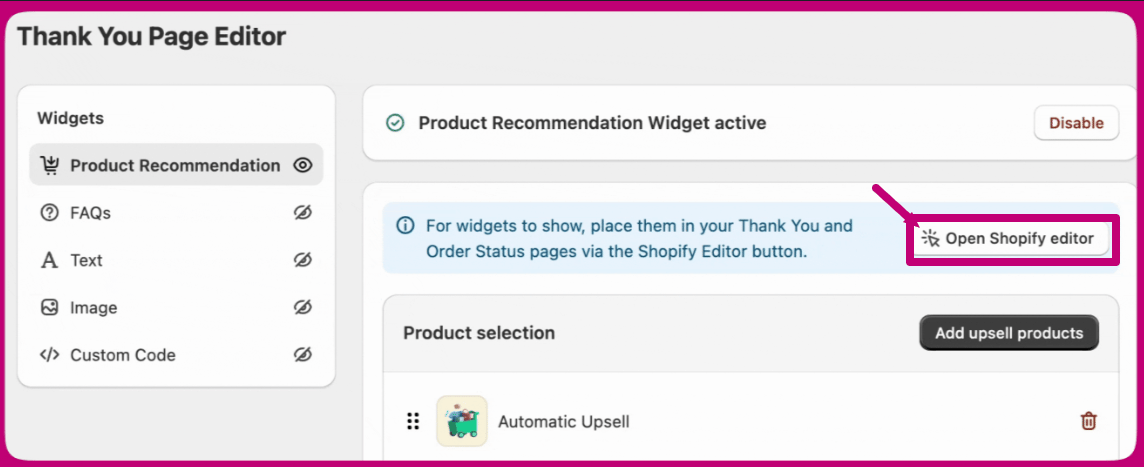
1-click upsell offers are automatically integrated and do not need to be manually added to the Thank You Page. Only Thank You Page widgets require manual app block setup.
Analytics Dropping to Zero
If your Thank You Page analytics have suddenly dropped to zero or are showing no impressions, work through the following checks.1. Check the App Block is Still Active
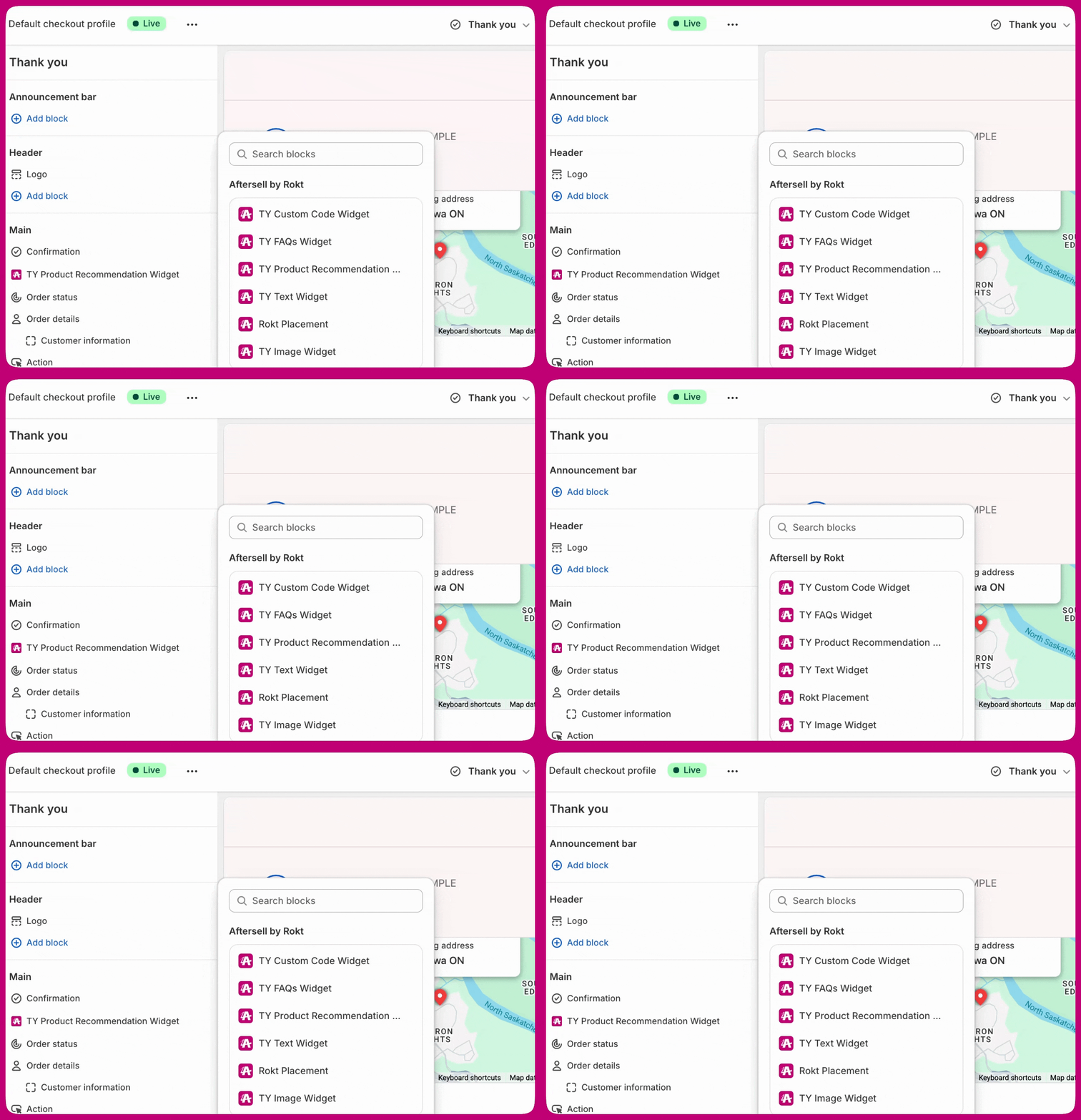
The most common cause of analytics dropping to zero is the Thank You Page app block being removed or disabled in the Shopify Checkout Editor.- Go to your Shopify Admin and open the Checkout Editor
- Navigate to the Thank You page
- Confirm the app block for each widget you use is present and enabled — every widget type is a separate block (TY Product Recommendation Widget, TY Testimonials Widget, TY FAQs Widget, TY Text Widget, TY Image Widget, or TY Gift with Purchase)
- If it is missing, re-add it and save
2. Check Funnel Status
Confirm your funnel is still set to Active in the Aftersell dashboard. If it was accidentally paused or disabled, no widgets will display and no impressions will be tracked.3. Check Trigger Conditions
If your funnel triggers have been updated recently, they may no longer be matching orders. Review your trigger conditions and place a test order that should qualify to confirm whether the widget appears.4. Check the Date Range
Make sure the date range in your analytics dashboard is set correctly. If the range was accidentally changed, it may appear as though analytics have dropped when they are actually being filtered out.5. Check for Shopify Updates
If Shopify was recently updated or your checkout settings were changed, one or more app blocks may have been removed as part of the update. Each widget type is a separate block, so check every one you use (TY Product Recommendation Widget, TY Testimonials Widget, TY FAQs Widget, TY Text Widget, TY Image Widget, or TY Gift with Purchase), re-add any that are missing to the Thank You page in the Shopify Checkout Editor, and save.Post-Purchase Offers Not Appearing
A post-purchase offer is any upsell or cross-sell that a customer sees after they have completed payment. In Aftersell, there are two types:- 1-Click Upsell offers — appear between the checkout confirmation and the Thank You Page. These use Shopify’s native post-purchase extensibility.
- Thank You Page widgets — appear on the Thank You Page itself, after the customer has already arrived there.
1. Confirm the Offer Type
Make sure you have the correct offer type configured for what you’re trying to achieve. If you are expecting a Thank You Page widget but have only set up a 1-Click offer, it will not appear on the Thank You Page.2. Check the Smart Funnel
The Smart Funnel does not support Thank You Page upsells. If you are relying on the Smart Funnel to show Thank You Page offers, they will not appear. You need a manual funnel with Thank You Page widgets configured. See How to Configure Thank You Page Widgets for setup instructions.3. Check Payment Method Compatibility
Unlike 1-Click offers, Thank You Page widgets are not subject to Shopify’s payment method restrictions. If your offer is not appearing and you suspect a payment method issue, confirm you have set it up as a Thank You Page widget rather than a 1-Click offer.4. Check Funnel Triggers and Priority
Follow the same trigger and priority checks outlined in the Widget Not Displaying section above.Need help? If you have worked through all the steps above and the issue persists, reach out to our support team via the live chat in the bottom right corner of the app.