

This article demonstrates how to modify the background and text colours for the post-purchase call-to-action button.The background colour of the post-purchase upsell button always matches the button colour of your Shopify Checkout page. This is enforced by Shopify to keep the checkout experience consistent for your customers. For the full picture of how post-purchase styling works — including what else your checkout branding controls and where to edit it on your plan — see Post-purchase branding settings.
Changing the button colour
Go to your Shopify Admin > Settings > Checkout, then click the “Customize” button on your live checkout profile: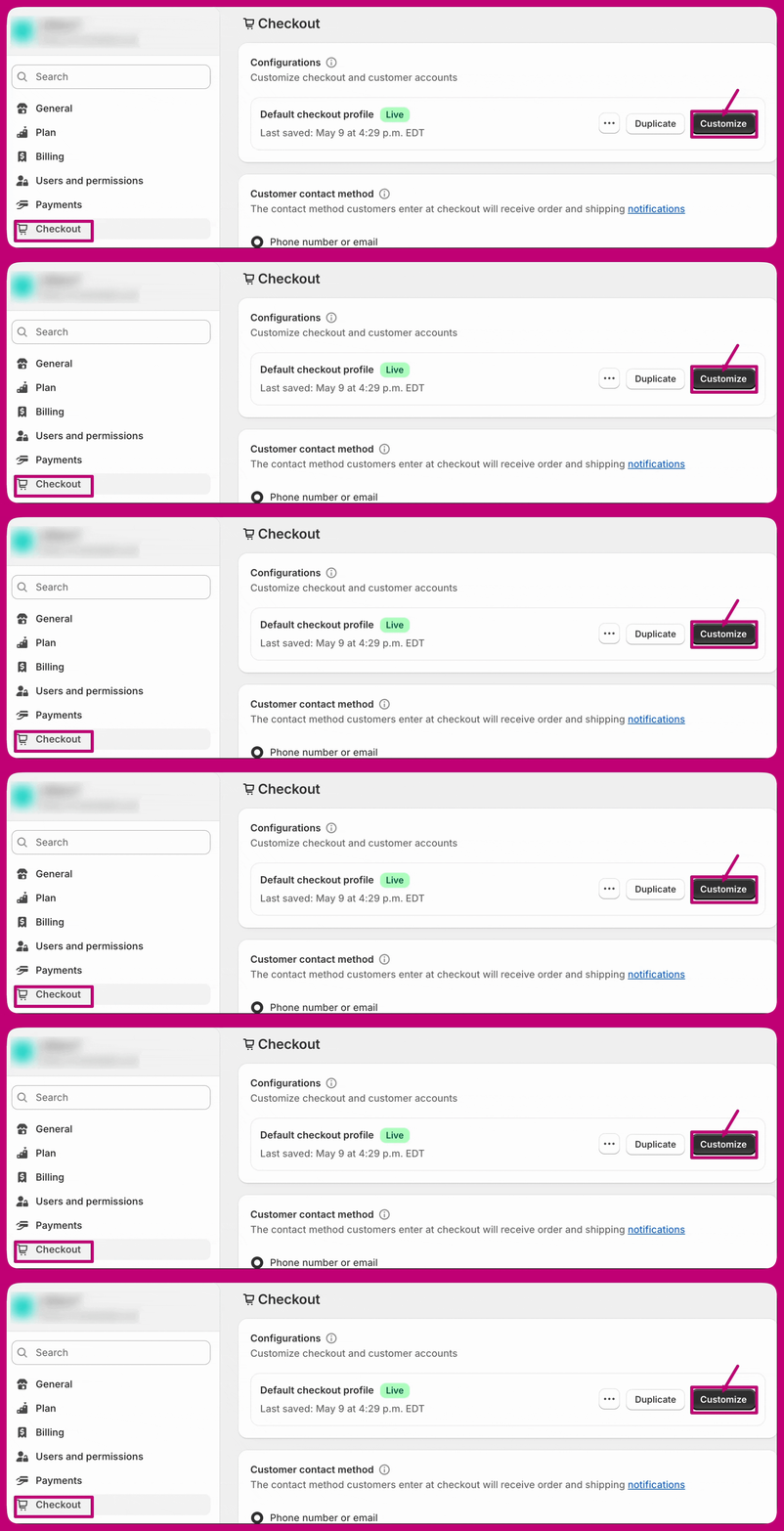
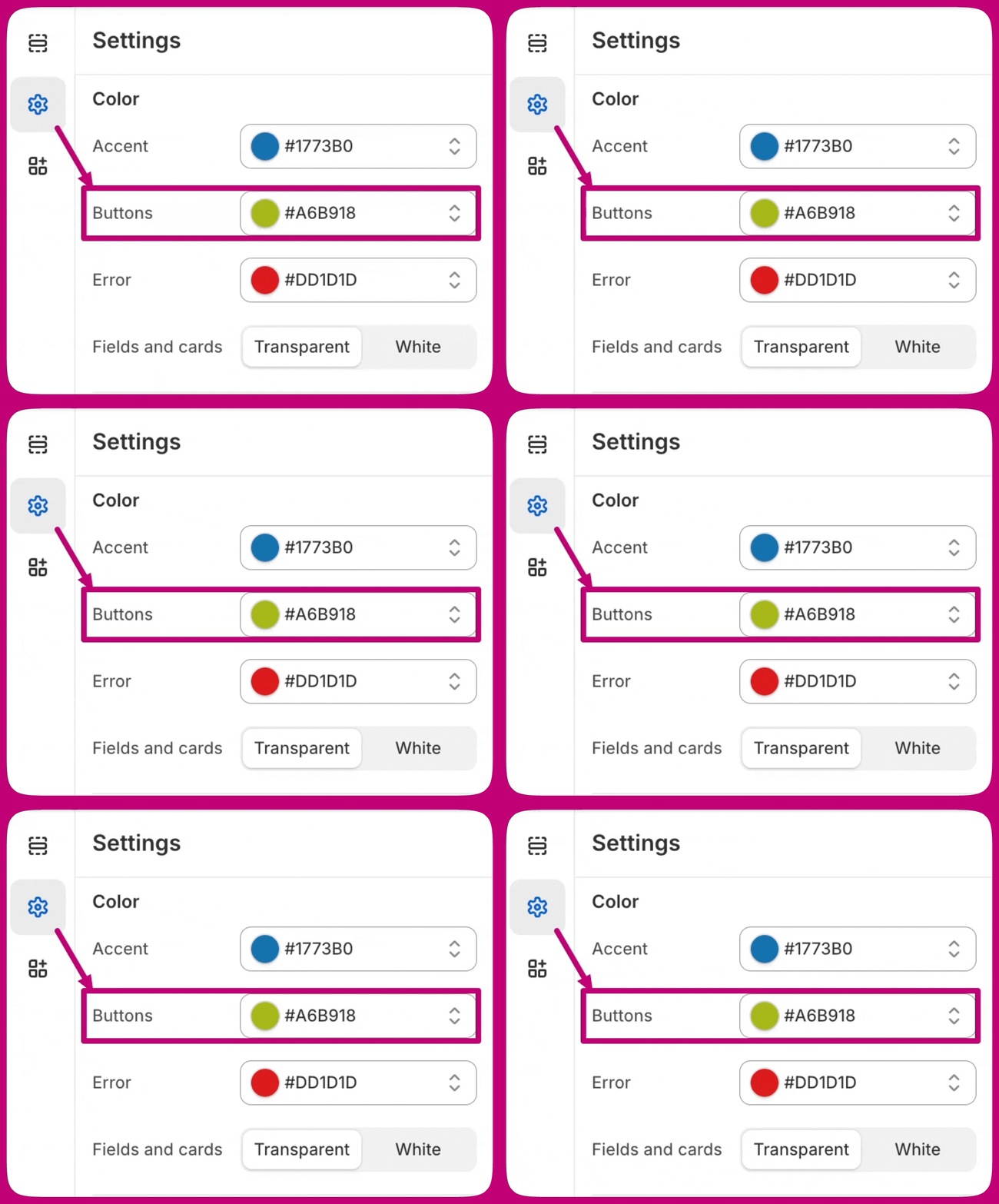
Understanding the button text colour
The text on the button is automatically determined by Shopify according to the button background colour. This ensures the text stays visible and easy to read.If the button in the Aftersell editor preview does not match what you set here, that is expected on non-Plus plans — Post-purchase branding settings explains why, and how to verify with a test order. If you have any issues or further questions, please don’t hesitate to reach out to our support team via the chat option in the bottom right corner of the app.