

The cart appears on the right side or overlays the product page interface.
This issue typically appears as shown on desktop (highlighted on the right):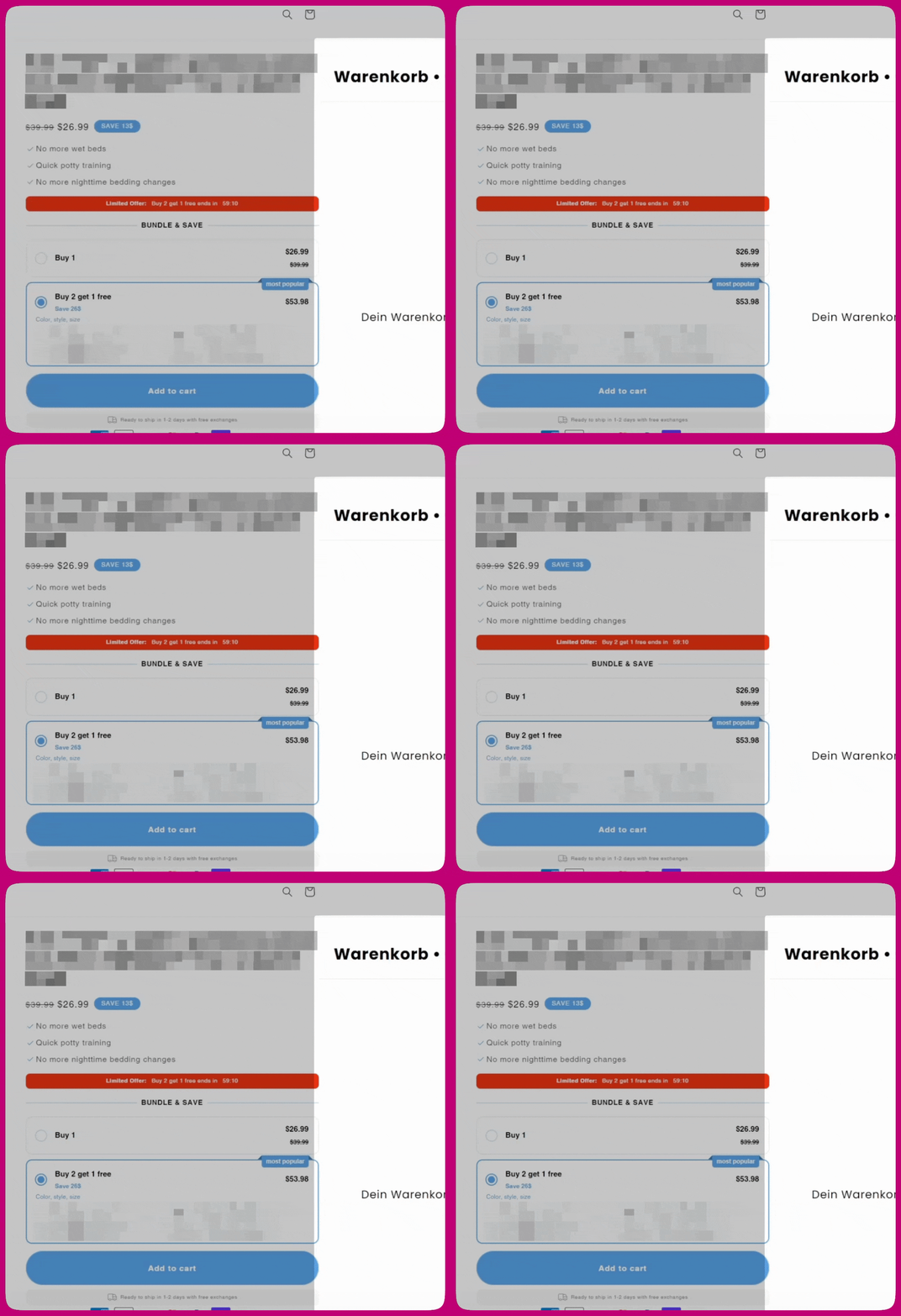
- In your Shopify Admin, go to Upcart > Cart Editor > Settings
- Under Custom HTML, Select HTML Location dropdown > Scripts (Before load)
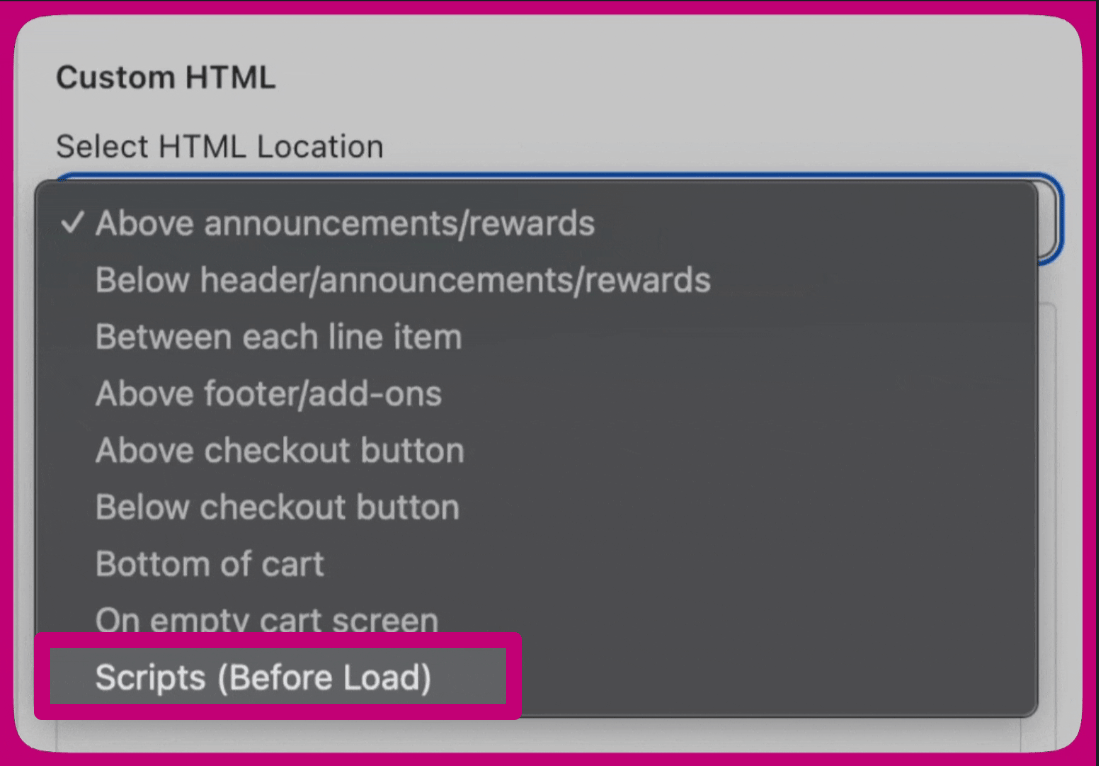
- Copy and paste the following code:
This is how your custom HTML settings should look like in Upcart:
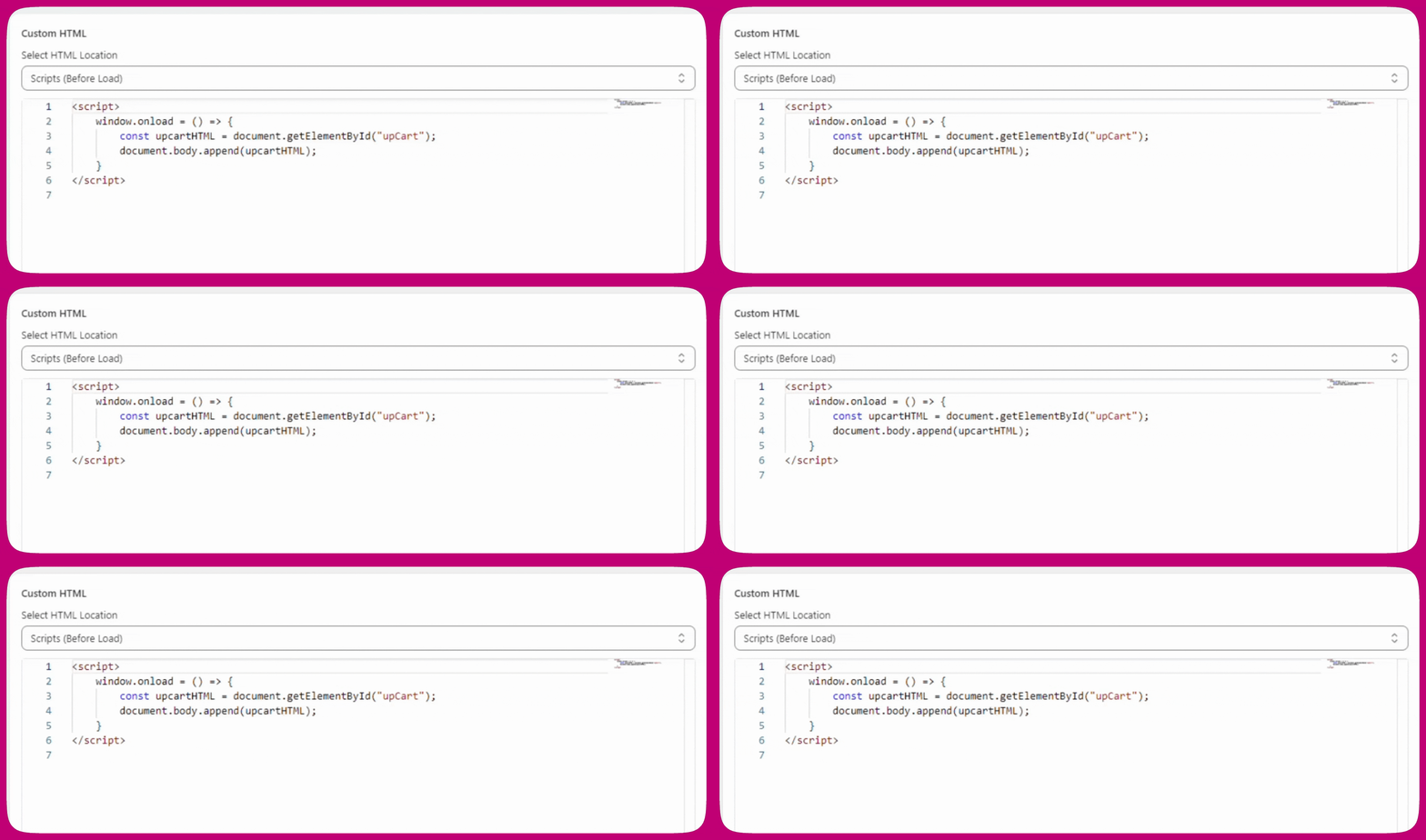
- Scroll to the top and click Save. Saving Upcart changes will require up to a minute for the changes to take place.
Why does this happen?
When Upcart loads, we expect it to appear off-screen to the right of the store page. However, certain store themes and third-party Shopify apps may alter the page layout, including Upcart’s placement. As a result, Upcart may load in a different position, leading to a visual bug where it’s visible at all times. Implementing the above code changes will reposition Upcart, restoring its original behavior.Additional Steps
If you’re experiencing any flickering during the page loading stage by Upcart, you can also try applying some CSS changes to hide the cart drawer. Please keep in mind, this will hide Upcart on the preview page as well.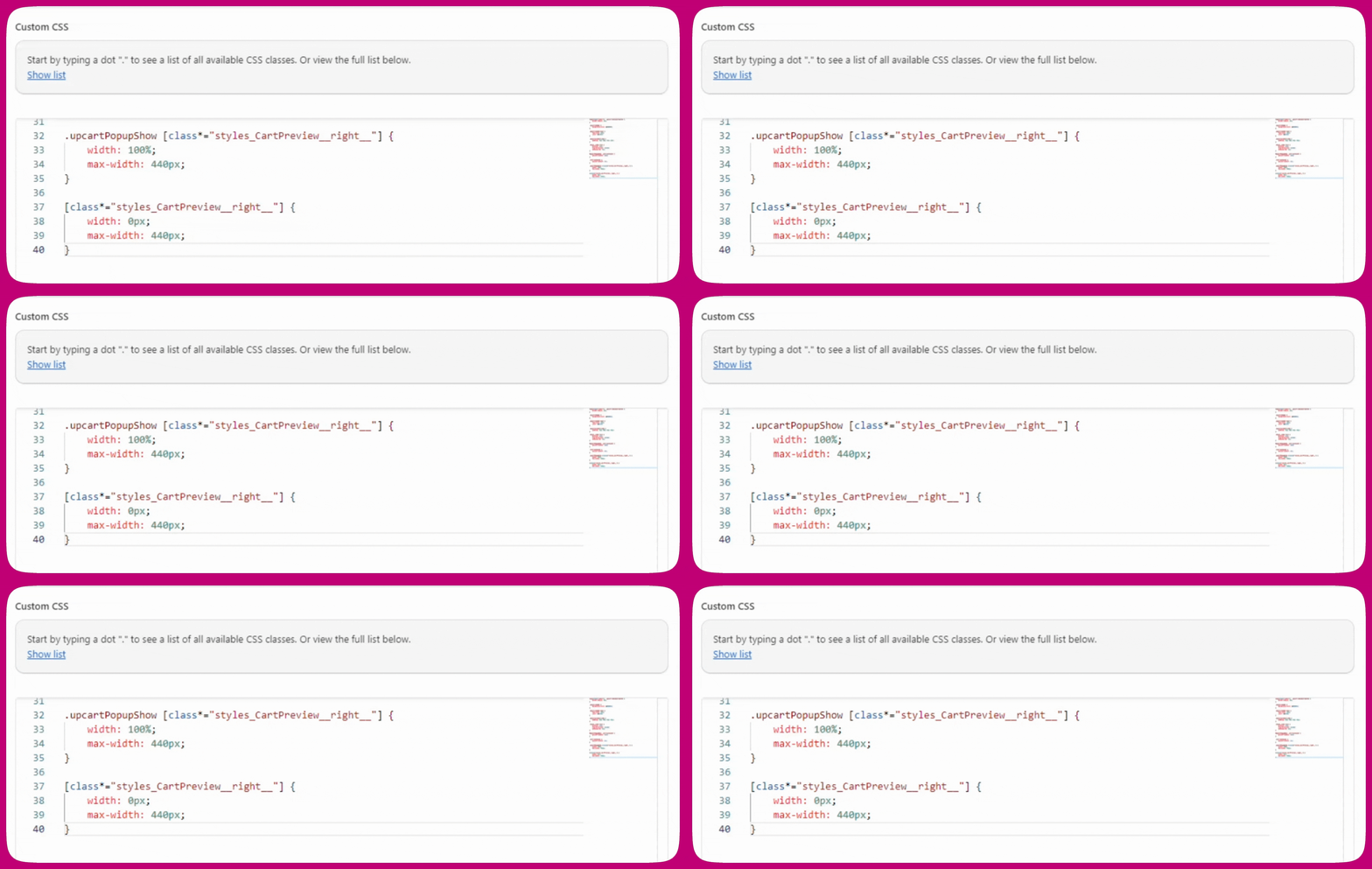
Cart is stuck on the left
This is usually caused by a translation app translating Upcart settings that should stay in English. Upcart stores certain settings as English words in Shopify metafields. For example, the cart position setting is stored as “right” or “left.” If a translation app changes “right” to “droite” in French, Upcart can’t understand the instruction and defaults to the top left of the screen, staying open permanently. Not all metafields should be translated There are two types of Upcart metafields:- Text fields like button labels or reward messages are safe to translate
- Behavior settings like cart position or upsells direction must stay in English
- Open your translation app and find the store metadata or metafields section
- Look through the Upcart metafields and remove any translations on behavior-related fields such as
cartPositionandupsellsDirection - Refresh your storefront and the cart should return to its correct position