

Overview
While Upcart includes a built-in preview feature that lets you view the cart on your live theme without publishing it (found in the top-left corner next to Cart Status), there are cases where you may need to test it directly within the theme editor.Steps to Follow
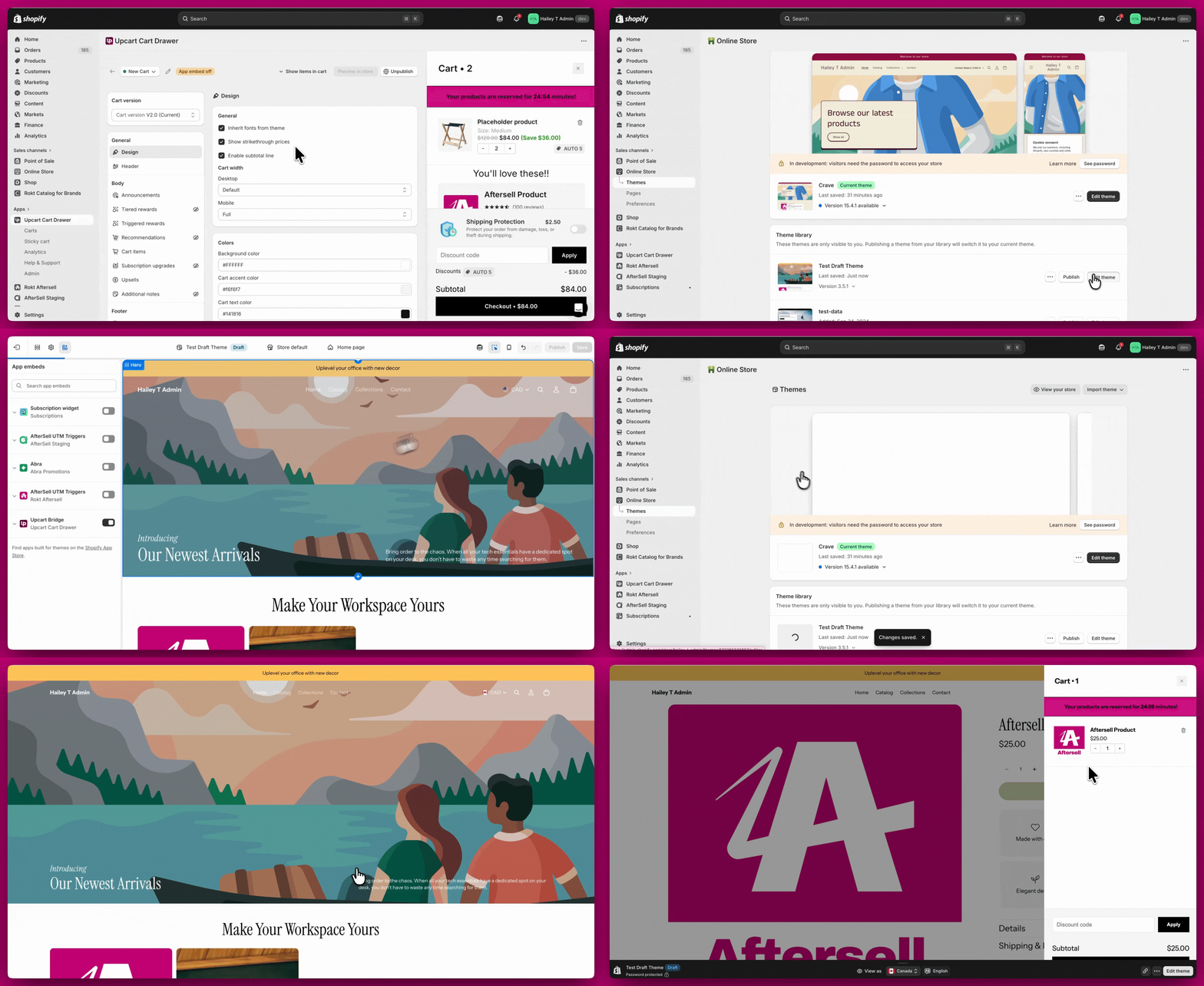
- In the Upcart Cart Editor, ensure your cart is published.
- In your Shopify Admin, go to Online Store → Themes.
- On your Live Theme, click Customize → App embeds and confirm the Upcart embed is disabled. Save if you made any changes.
- On your Draft Theme, click Customize → App embeds, enable the Upcart embed, and click Save.
- Click the three-dot menu in the top-left corner of the theme editor and select Preview.
Important Notes
- As outlined in the Quickstart Guide to Upcart, showing the cart to shoppers takes two parts:
- Publishing a cart in the Upcart interface.
- Enabling the Upcart app embed on the theme you want it to appear on.
- If you have Discounts configured in your cart, those rules will remain active via Shopify’s discount system even when the app embed is disabled.