

Overview
This guide helps you troubleshoot situations where Upcart does not open or customers are redirected to the cart page instead of seeing the Upcart drawer. Most of these issues are caused by theme cart type settings, Enhanced AJAX API Compatibility configuration, third-party app redirects, or checkout button routing.If Upcart is not opening at all or redirecting to the cart page, see Troubleshooting Upcart Not Opening or Redirecting to Cart Page for a more comprehensive troubleshooting guide.
What Cart Type to Choose
Before diving into troubleshooting, check your theme’s cart type setting first as this is the most common cause.- Page - This is usually the best option since Upcart intercepts requests to the /cart page.
- Drawer - Select this if Upcart fails to launch and the /cart page is being triggered instead.
- Confirmation Popup - Use this if your theme supports it and the other options do not resolve the issue.
How to Change Cart Type in Your Theme
- Go to Online Store > Themes > Customize in your Shopify admin.
- Open Theme Settings > Cart > Cart Type.
- Choose either Page or Drawer based on the behavior you are troubleshooting.
- Save your changes and test the cart on your storefront.
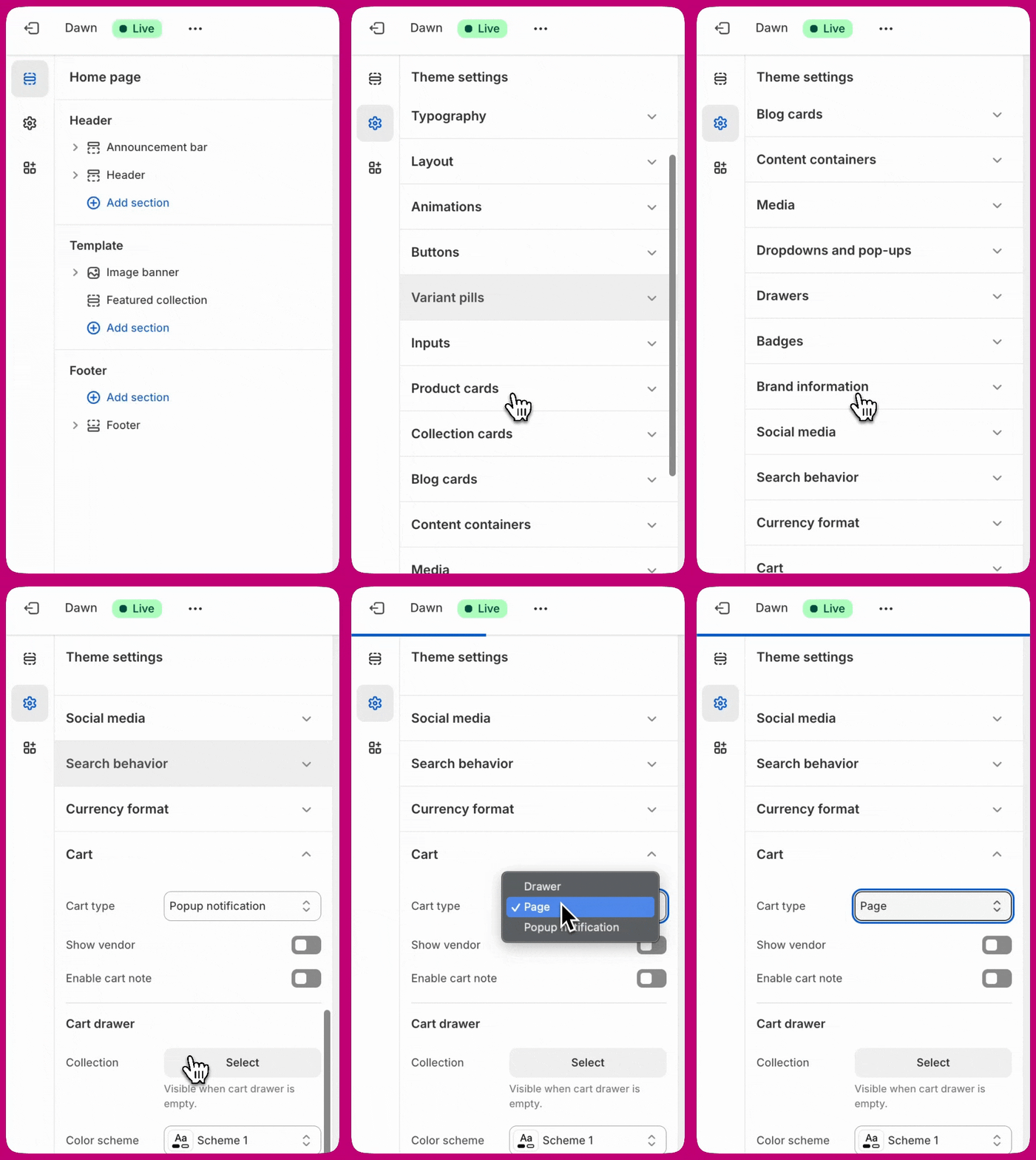
If you cannot locate this setting, contact your theme developer. This setting is controlled by your theme and Upcart cannot modify it directly.
Troubleshooting Steps
If changing the cart type does not resolve the issue, work through the following steps in order.1. Check Enhanced AJAX API Compatibility
This setting controls how Upcart handles Add to Cart events and is one of the most common causes of redirect issues.- Go to Upcart > Cart Editor > Settings > Cart settings, then expand Advanced Settings.
- Locate Enhanced Ajax API compatibility.
- This setting is disabled by default for most stores. When disabled, Upcart intercepts Add to Cart calls and prevents redirects.
- If it is enabled, other apps can take control of cart behavior and redirect customers to the cart page. Try disabling it and test.
- If disabling it causes other issues, re-enable it and use the manual Upcart API (
upcartRegisterAddToCart) instead.
2. Check for Third-Party App Redirects
Many third-party apps override cart behavior and can redirect customers away from the Upcart drawer. If your Add to Cart button is specifically sending customers to the cart page, see Why Does ‘Add to Cart’ Go to the Cart Page Instead of Upcart? for more detail. Open the settings of any cart-related apps and look for options such as:- Redirect to cart
- Go to cart after add
- Automatically open cart page
- Action after product is added
- PageFly - Disable redirection rules in the PageFly app settings.
- Globo Product Options - Deactivate auto-redirection to Shopify’s cart.
- Replo - Adjust the “go to page” settings to enable the cart drawer.
- Zepto Product Personalizer - Go to Zepto > Settings > Add to Cart Settings and change “Action after a product is added to the cart” to “Stay on the product page and show a success message.”
3. Check Checkout Button Routing
If customers click the checkout button inside Upcart and are redirected to the cart page instead of checkout:- Go to Upcart > Cart Editor > Settings > Cart settings.
- Locate “Go to cart page when pressing checkout button”.
- Turn this OFF.
- Save and test.
Custom checkout page redirection requires advanced coding and is not directly supported by Upcart. If you need to route customers to a custom checkout page, you will need to work with a developer.
4. Check Theme Cart Redirect Settings
Some themes automatically redirect customers after adding a product, bypassing Upcart entirely.- Go to Online Store > Themes > Customize.
- Open Theme Settings > Products (or Cart).
- Look for settings like:
- Enable cart redirection
- Redirect to cart after add
- Go to cart after add
- Turn these OFF.
- Save and test.
5. Clear Browser Cache
Old cached scripts can retain previous cart behavior and prevent Upcart from loading correctly.- Open your browser settings.
- Go to Privacy and Security.
- Select Clear Browsing Data.
- Clear cached images, files, and cookies.
- Refresh your store and test.
6. Test With a Default Shopify Theme
If the issue persists, temporarily switch to a default Shopify theme such as Dawn to rule out a theme-specific conflict.- Go to Shopify Admin > Online Store > Themes.
- Add and enable a free theme like Dawn.
- Test Upcart on the default theme.
Preventative Measures
- Review configurations after updates - Theme and app updates can reset or override cart settings. Check your cart type and app configurations after any major update.
- Test app compatibility before installing - Before adding new third-party apps, confirm they are compatible with Upcart.
- Use a Draft theme for testing - Test changes on a Draft theme before publishing to avoid disrupting your live store. See Enabling Upcart in a Draft Theme Only for instructions.
Frequently Asked Questions
Why does the cart still redirect to Shopify after enabling Upcart?
Why does the cart still redirect to Shopify after enabling Upcart?
Make sure Upcart is active and published in the Cart Editor. Also clear your browser cache to ensure the updated behavior takes effect. If the issue persists, check for third-party app conflicts using the steps above.
How do I fix a product add-on app causing a redirect?
How do I fix a product add-on app causing a redirect?
Open the add-on app’s settings and look for any auto-redirection or “go to cart” configurations. Disable them if they conflict with Upcart. See Step 2 above for app-specific examples.
Need help? If you have worked through all the steps above and the issue persists, reach out to our support team via the in-app chat or by emailing support@upcart.app.