Overview
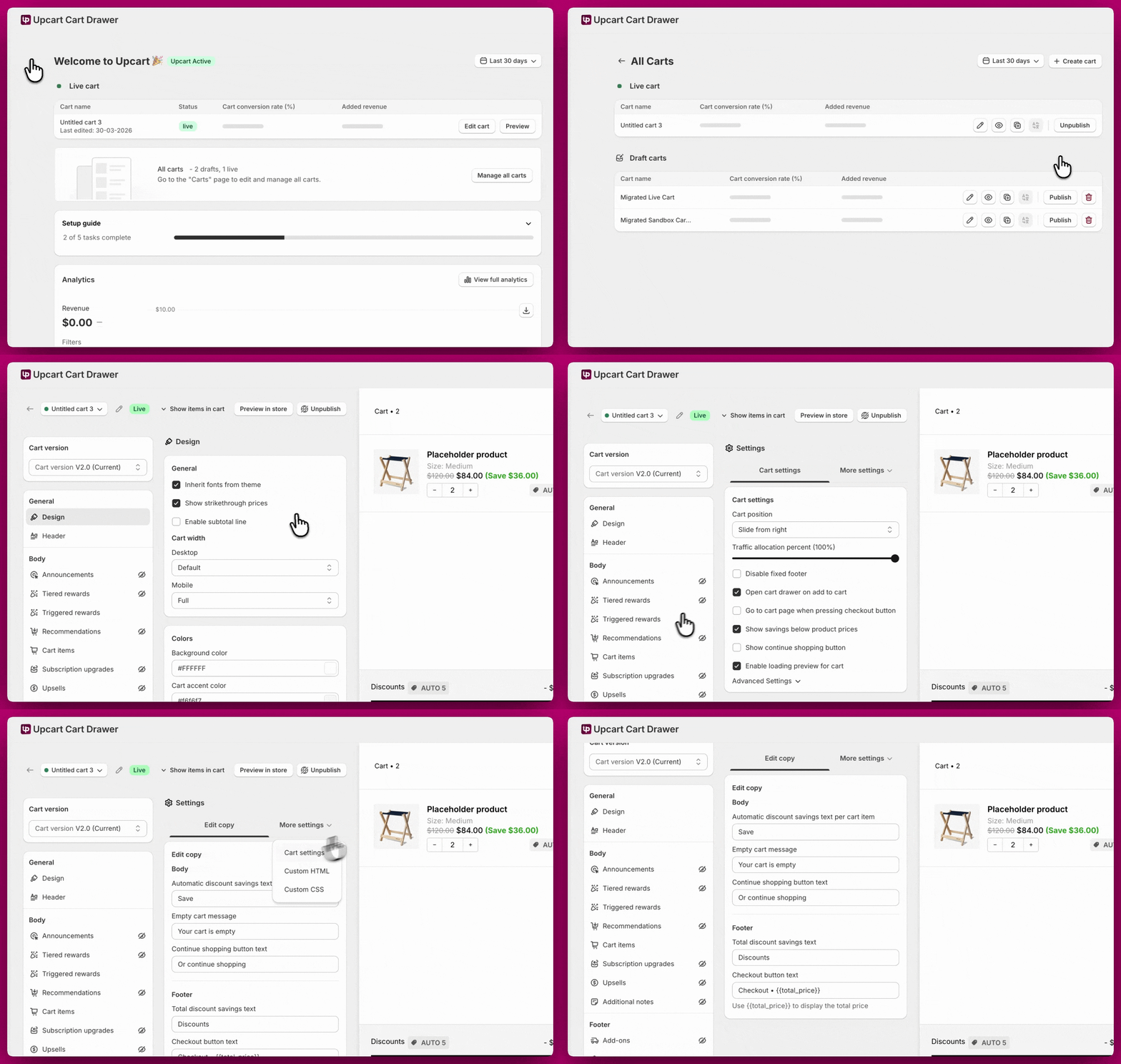
Upcart’s Translations feature lets you change the phrasing and language of your cart’s interface elements. Whether you want to adjust default wording or serve customers in multiple languages, everything can be managed directly inside Upcart. If you need to support multiple languages, you’ll first need to set them up in your Shopify admin language settings. Once that’s done, all translation editing happens inside Upcart.How the customer’s language is chosen
Upcart follows the active Shopify storefront locale for the current session. That’s the same locale Shopify uses to render the rest of the storefront, and it’s set by whichever of these Shopify determines for the shopper:- The language chosen from your storefront’s language switcher (if you’ve added one to your theme).
- The locale-prefixed URL the shopper is on (for example,
/fror/de). - Your Shopify Markets language and country routing rules for the shopper’s market.
- Your store’s Default language in Settings > Languages, used as the fallback.
Step 1 - Add Languages in Shopify Admin
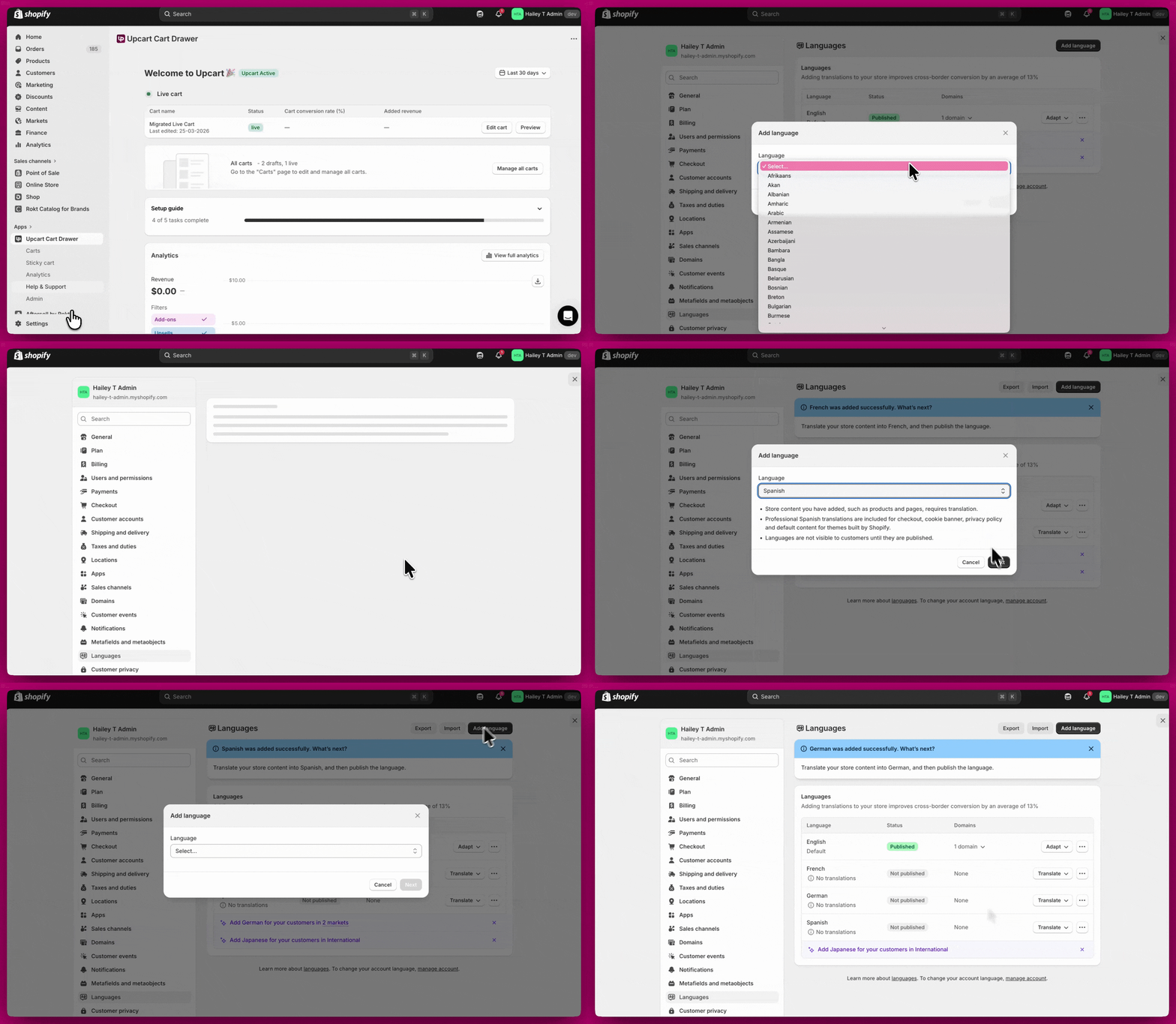
Before a language can be used in Upcart, it must be added in your Shopify admin settings.- In Shopify, go to Settings > Languages
- Add each language you want your store and cart to support
- All languages must be added here first if you want your cart to display in multiple languages
- Once added, they will appear in Upcart’s language dropdown
Step 2 - Translate Your Cart in Upcart
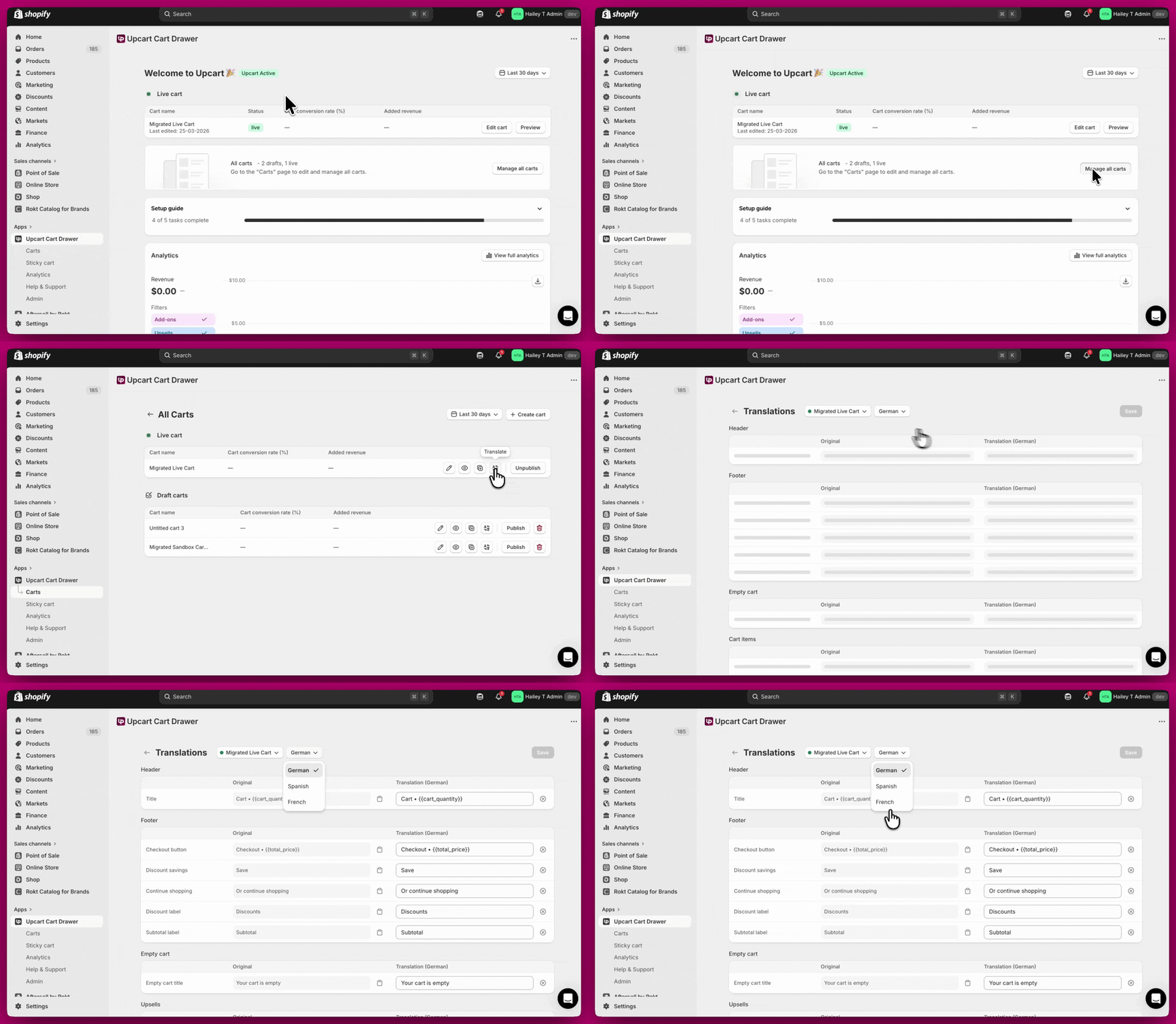
- Go to Upcart > Manage all carts
- Select the cart you want to translate
- Click the Translate button
- Choose a language from the dropdown
- Add or update your translations
How the Translations Editor Works
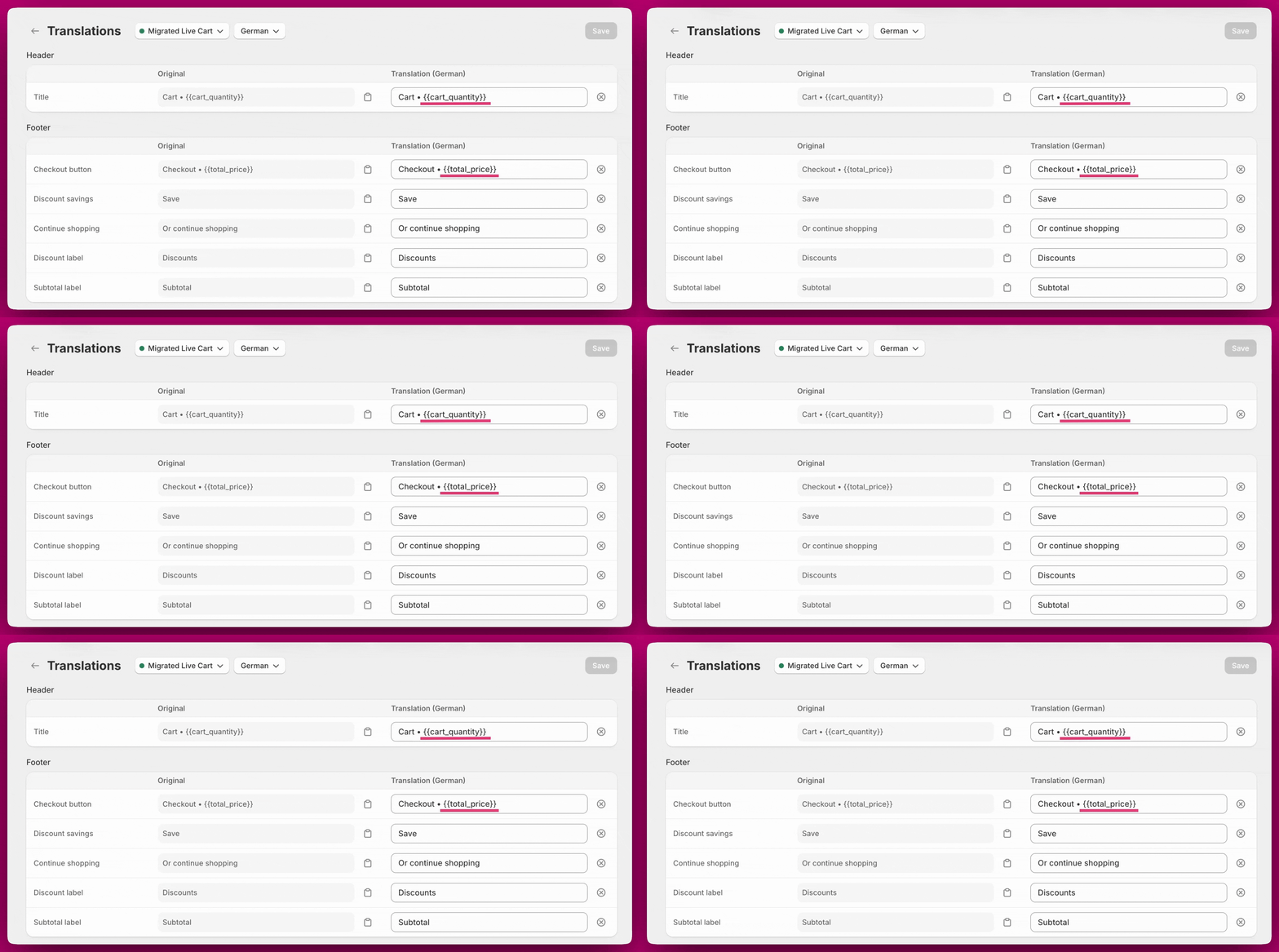
The editor has two columns:- Original
The default text currently used in your cart - Translation
Where you enter your translated or customized text
- Click Save to apply changes
- Click the × icon to clear a field. It empties the box rather than restoring the original, and an empty translation fails validation (“Translation cannot be empty”) and blocks Save — so retype something before saving, or reload to discard the change.
What You Can Translate You can customize all customer-facing text in your cart, including:
- Cart title and header text *
- Checkout button and footer labels *
- Empty cart messages
- Cart item labels — the show/hide bundle contents links
- Upsell content and buttons
- Upsell review count text *
- Tiered rewards messaging *
- Tiered rewards tier descriptions (e.g., “Free Shipping”, “20% Off”)
- Product recommendations
- Notes and special instructions
- Discount code fields — the input placeholder and the apply button
- Subscription options *
- Announcement banners *
{{cart_quantity}}, {{total_price}}, {{amount}}, and {{review_count}}.
Editing Cart Text for a Single Language
If you only want to rename or rephrase specific cart elements without setting up multiple languages, you can do this through the Edit Copy panel.- Go to Manage Carts > Edit
- Open Settings — it’s a row of tabs; anything that doesn’t fit sits behind More settings
- Choose the Edit copy tab
- Automatic discount savings text (e.g. “Save”)
- Empty cart message (e.g. “Your cart is empty”)
- Continue shopping button text (e.g. “Or continue shopping”)
- Total discount savings text (e.g. “Discounts”)
- Subtotal text (e.g. “Subtotal”)
- Checkout button text (e.g.
Checkout • {{total_price}})
- Show bundle items text, singular and plural
- Hide bundle items text, singular and plural
Secure Checkout • {{total_price}} and click Save.