

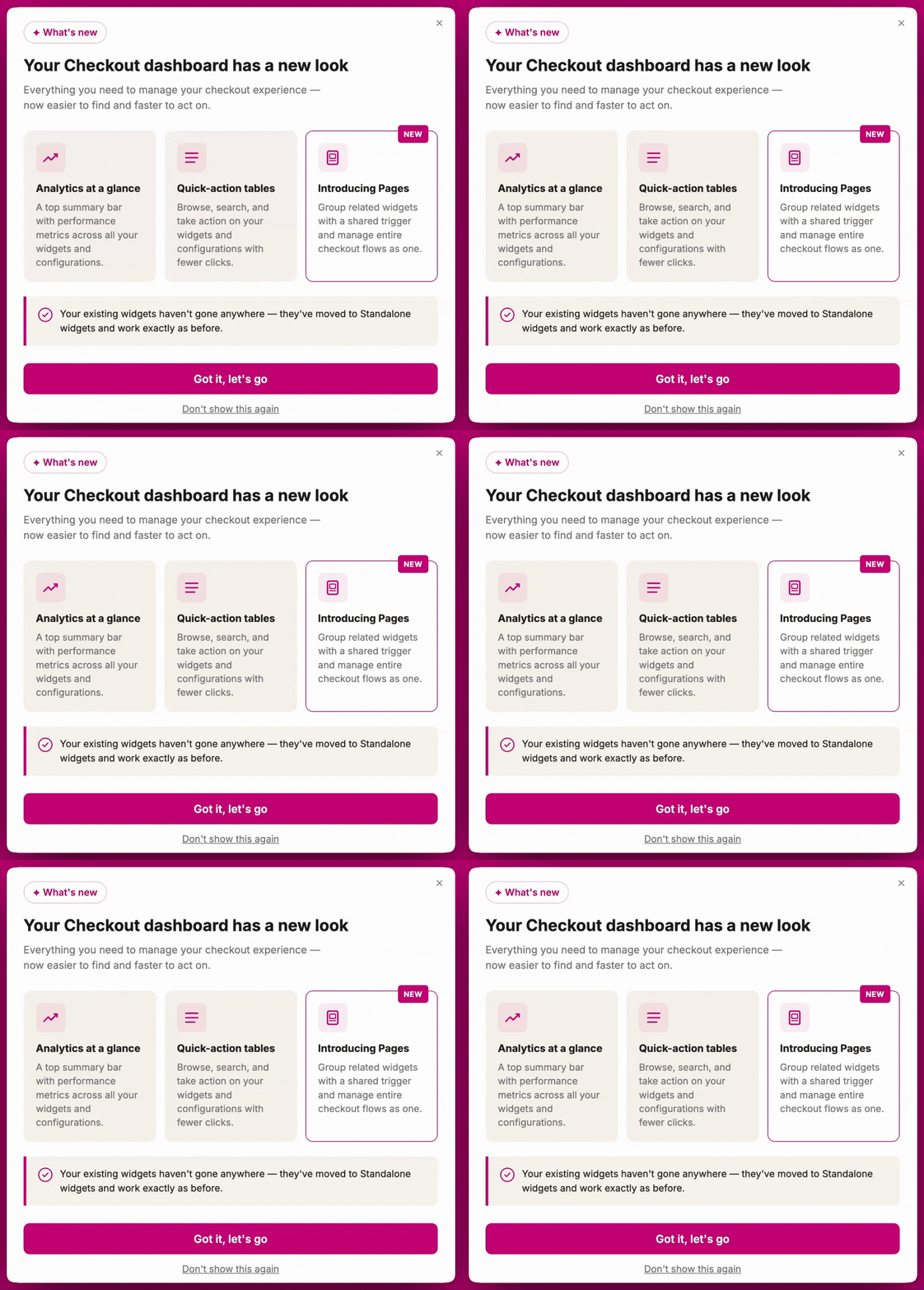
Dashboard metrics
At the top of the Checkout dashboard, you’ll find a summary of your checkout performance across four key metrics:- Revenue: Total revenue attributed to your Checkout upsells widgets
- AOV: Average order value of orders that included a Checkout widget
- Impressions: Total number of checkout sessions where at least one widget was displayed. Several widgets shown in the same session still count once
- Conversion: The Percentage of checkout sessions with widget impressions that resulted in a completed purchase
Pages
A Page is a group of related widgets that are displayed together on your checkout based on a shared set of trigger conditions (which can include multiple conditions). While widgets are grouped within a Page and triggered at the same time, each widget still needs to be configured individually and requires its own app block placement. This setup helps coordinate when widgets appear, but does not eliminate the need to manage each widget separately. The Pages section displays the following information for each page:
Each page has action buttons on the right:
- Edit (pencil icon): Open the page editor
- View analytics (bar chart icon): View analytics for this specific page
- Duplicate (duplicate icon): Create a copy of the page, including all its widgets and trigger configuration. The duplicated page is created in an inactive state with the name prefixed by “(Duplicated)” so it doesn’t conflict with the original’s display rules. You can then rename and activate it when ready.
- Active toggle: Turn the page on or off without opening it. This is the only control on the row that changes whether the page is live.
Standalone widgets
Standalone widgets are individual widgets that function independently, each with their own triggers and priority configured at the variant-level. The Standalone widgets section shows the following for each widget:
Each standalone widget also has:
- Edit (pencil icon): Open the widget editor
- View analytics (bar chart icon): View analytics for this specific widget