

Height
The Height setting controls how thick the announcement bar appears. It offers three options: Slim, Normal, and Thick. Slim keeps the drawer more compact, making room for cart content—especially helpful on smaller screens. Normal sits between the two. Thick provides greater visual emphasis, helping your message stand out to customers.Position
Use the Position setting to choose whether the announcement bar appears Before products or After products inside the cart drawer.- Before products puts the bar at the top of the cart body, directly beneath the header.
- After products puts it at the bottom of the cart body, just above the footer — below the notes and upsells modules if those are also placed there.
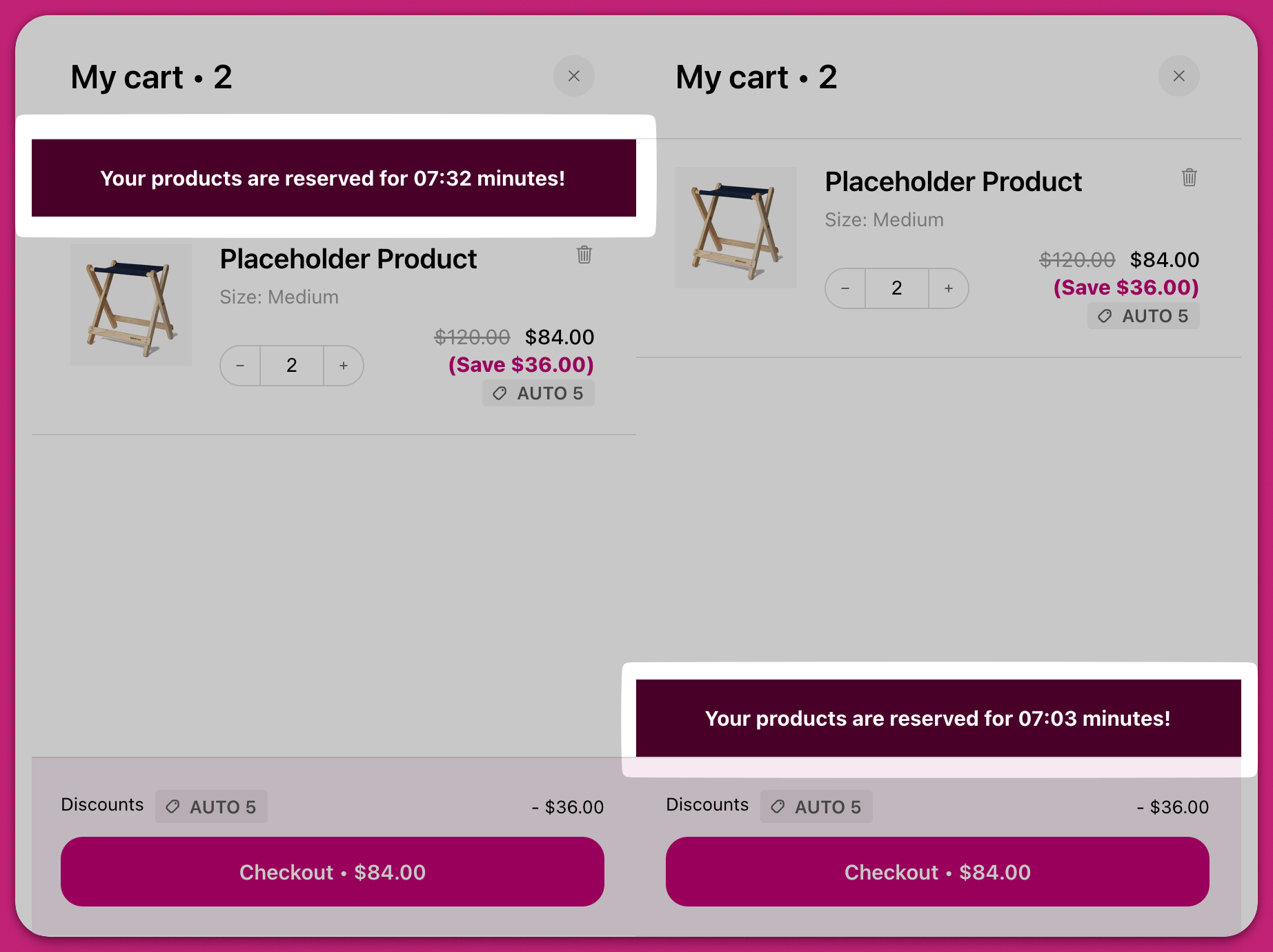
Timer duration
If you’d like the announcement to expire after a set time, set a countdown in the Timer duration field. It takesMM:SS — 05:00 for five minutes, 00:30 for thirty seconds. Seconds must be 00–59; the field rejects anything higher.
The countdown only runs if your announcement text contains the timer variable. Once it runs out, the entire announcement bar is automatically removed from the cart.
The built-in countdown timer is session-based and counts down from a set number of minutes. It does not support recurring or daily countdowns that reset at a specific time (for example, counting down to 2:00 PM every day). This functionality is not currently available in Upcart.
Announcement Text
This section lets you enter and format the message displayed in the announcement banner. You can style specific portions of the text using the formatting bar above the input field, which includes options for bold, italics, underline, and color. When applying a color, you can use the color picker swatch or type or paste a hex code (for example#DDDDDD) into the text field below the picker.
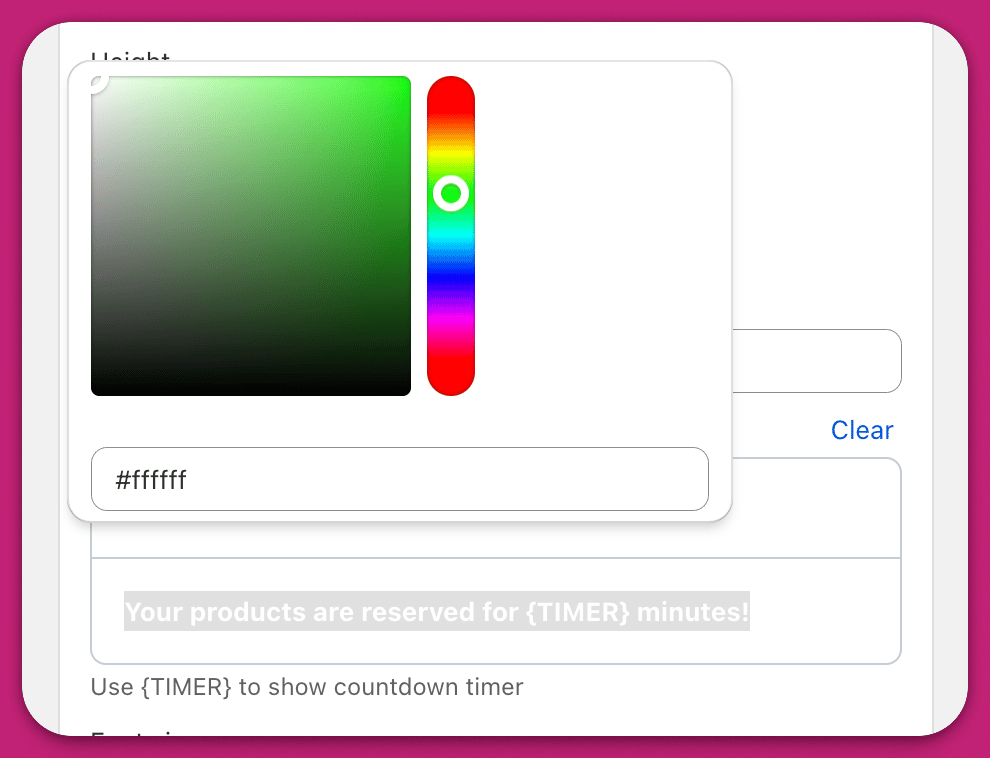
The Announcement Text field does not support hyperlinks—there is no link or URL button in the formatting toolbar, and pasted
<a> tags or Markdown links are stripped on save. To make the announcement clickable or include a link, use the Custom HTML module instead (see below).Adding a link or URL to the announcement
Because the built-in Announcement Text field does not render hyperlinks, you can either replace or supplement the announcement bar by injecting a link with Custom HTML:- Go to Upcart > Cart Editor > Settings > Custom HTML.
- Set HTML Location to Above announcements/rewards (to appear above the announcement bar) or Below header/announcements/rewards (to appear directly under it).
-
Paste a snippet with your link, for example:
- Click Save, then test in your live cart.
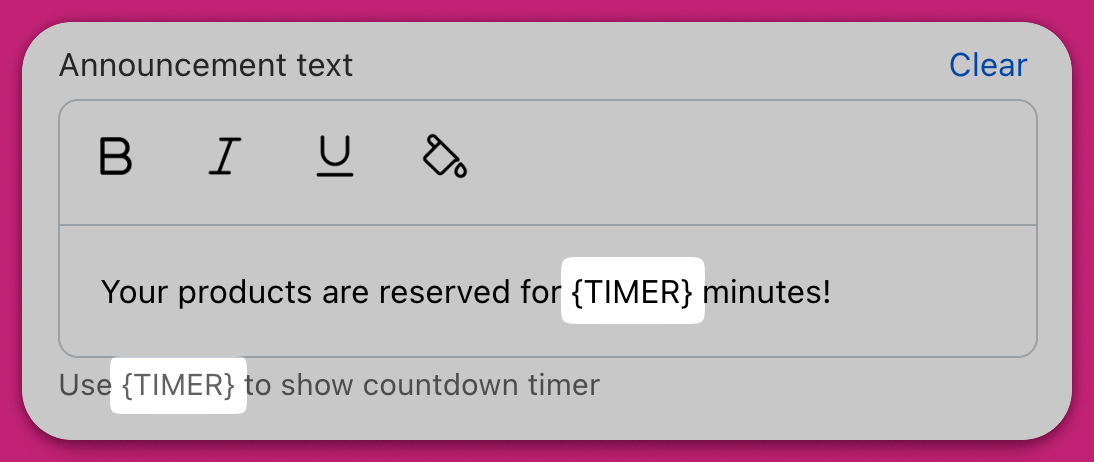
{{timer}} for V2 carts or {TIMER} for V1 carts.
Important
Make sure to manually type the timer variable ({{timer}} for V2, {TIMER} for V1) rather than copy-pasting it. This avoids hidden formatting issues that could prevent the timer from displaying correctly in your live cart.
Font size
You can control the size of the announcement text using the slider, with options ranging from 10px to 24px. This helps ensure readability across both mobile and desktop experiences.Colors
Background Color allows you to define the overall fill color of the announcement bar. Border Color lets you adjust the horizontal lines above and below the banner for a styled container look.Advanced Timer Configuration
For additional functionality, JavaScript can be used to customize the countdown timer. Add your script in the “Scripts (Before Load)” section rather than the Custom HTML module. This is a load-timing requirement, not a security restriction—Custom HTML does execute scripts, but they run too late to hook into the cart’s load event reliably. The “Scripts (Before Load)” section runs your code before the cart loads, so callbacks likeupcartSubscribeCartLoaded fire correctly. Example code: