

See also:
General Settings | Advanced Settings
Managing Reward Tiers
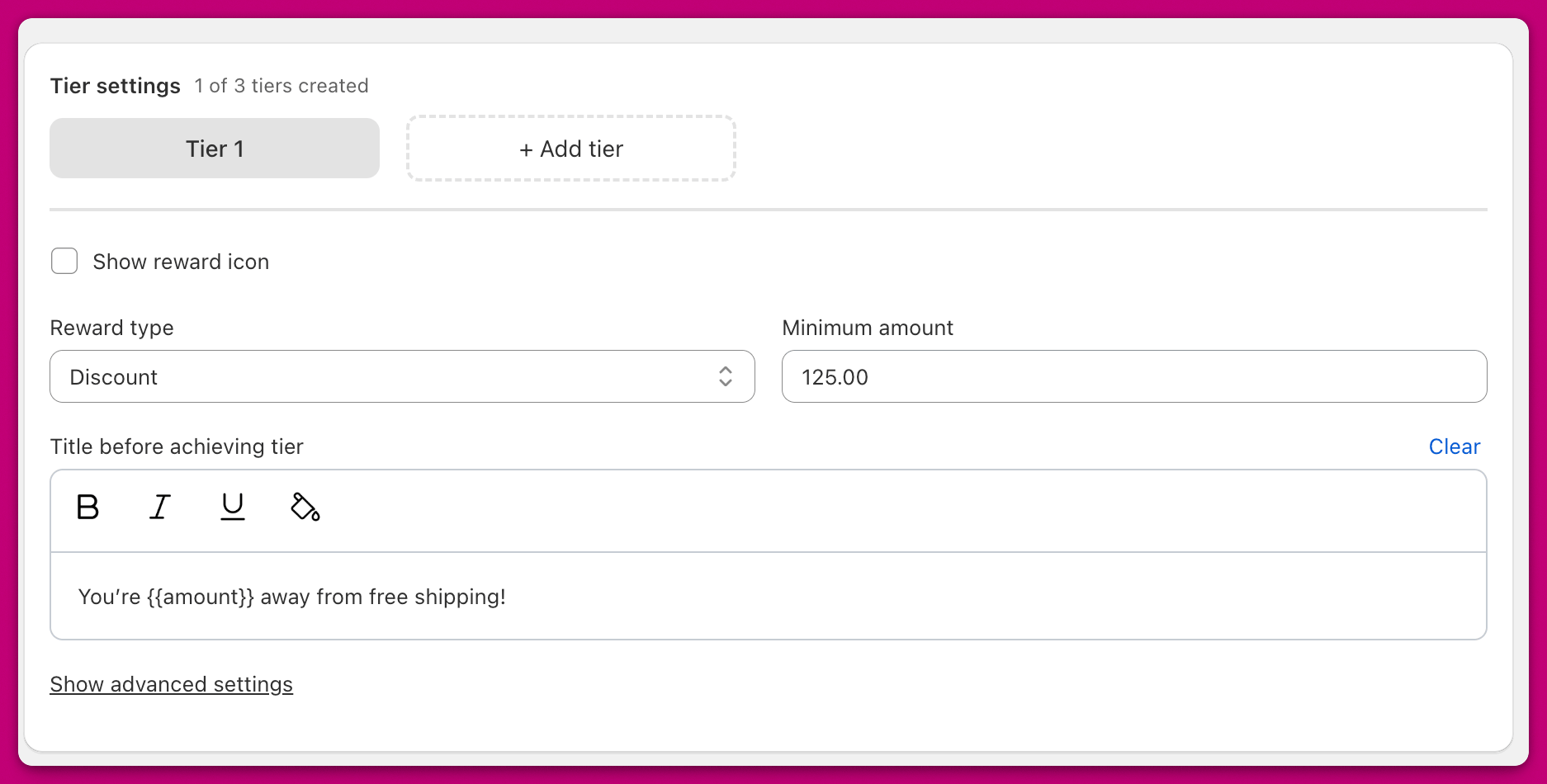
Show Reward Icons
Enable this toggle to display an icon alongside your reward tier. Icons are shown automatically if you have more than one tier.Reward Types
The Reward Type dropdown determines what kind of reward you’re offering. The Tiered Rewards module is a visual progress bar and does not apply the underlying discount or shipping on its own. To activate the actual reward when a customer reaches a tier, create a matching rule in the Discounts module inside Upcart (the simplest option), set up an automatic discount in Shopify Admin, or use a discount management app like Abra.Shipping

Discount

Advanced Discount Code Option
With the Discount reward type, you can optionally assign a manual discount code that automatically applies when the tier is reached.- This overrides any manually applied code
- The code stays applied even if the tier is no longer met
- This behaves like a standard Shopify discount once triggered
Product

Duplicate Product Setup
- Duplicate the product in Shopify
- Set the duplicated version’s price to $0
- Add “Free” to the title to differentiate it
- Use that product as the reward in Upcart
Discount Method
You can also create an automatic discount in Shopify to apply a 100% discount to the reward product. This approach supports inventory tracking, but note that only one automatic discount can be applied per checkout. If another is already active, it may override the product reward discount. For more info, refer to Shopify Discount Documentation. 🛍️ Multiple Product Reward:You can add up to three products to a single reward tier.
When the tier is reached, all products are added to the cart, customers cannot choose just one.
Reward Configuration Fields
Reward Description
Set the display title shown below the reward icon in the cart drawer.Minimum amount
(Shown when Rewards calculation = Cart total ($))The cart’s total (in your store’s primary currency) required to unlock the reward.
Minimum quantity
(Shown when Rewards calculation = Cart quantity (#))The number of cart items required to unlock the reward.
Title before achieving tier
Customize the message shown above the reward bar when the customer hasn’t yet reached the reward.- Format text using bold, italics, underline, or color. When applying a color, use the color picker swatch or type or paste a hex code (for example
#DDDDDD) into the text field below the picker. - Insert the remaining amount (Cart total calculation) or the remaining count (Cart quantity calculation) with a variable