
Documentation Index

Fetch the complete documentation index at: https://docs.aftersell.com/llms.txt

Use this file to discover all available pages before exploring further.

The Discounts feature lets you build flexible reward rules that automatically apply discounts, gifts, or free shipping when specific cart conditions are met. It is designed to help boost conversion and average order value with real-time, personalized rewards.
Discounts are the renamed version of what was previously called Triggered Rewards. All existing Triggered Rewards have been migrated automatically. The functionality is identical, just managed from a new top-level section in the app.
Discounts operate through Shopify’s native discount system, meaning they apply at checkout regardless of whether the Upcart cart drawer is active or visible on your storefront.
Discounts are not the same as the Discount Codes module or upsell discounts. These are separate features.
Discounts vs. Tiered Rewards Not sure which to use? Here is the key difference:
  • Tiered Rewards guide customers toward milestones using a visible progress bar in the cart.
  • Discounts activate automatically based on specific cart conditions, with no additional visual elements required.
Use Discounts when you want rule-based promotions that fire silently in the background. Use Tiered Rewards when you want customers to see their progress toward a reward.

How to Access Discounts

There are three ways to access the Discounts module:
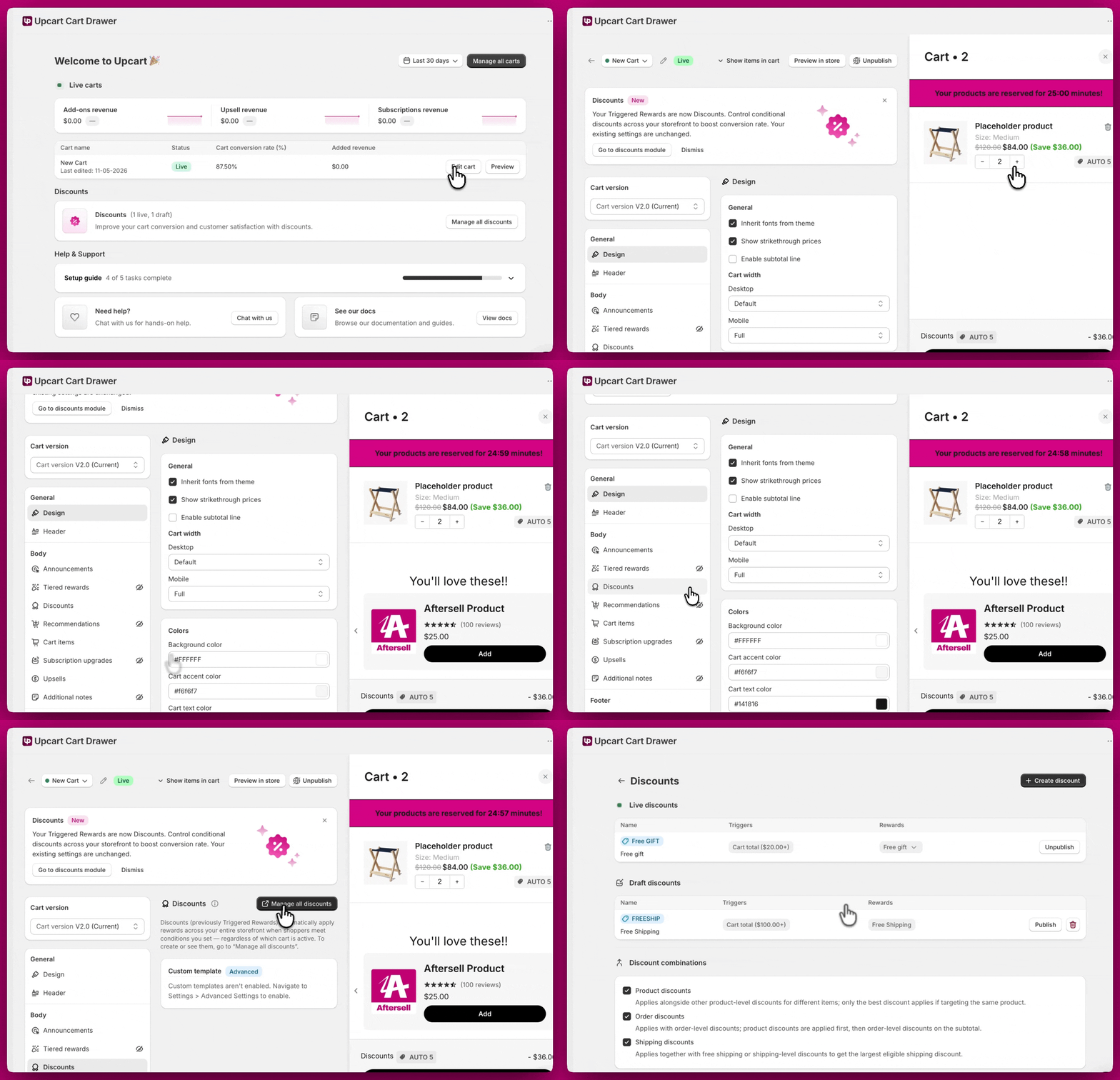
  • From the Upcart homepage - The Discounts section is visible on the homepage. Click Manage all discounts to open the module.

Discounts
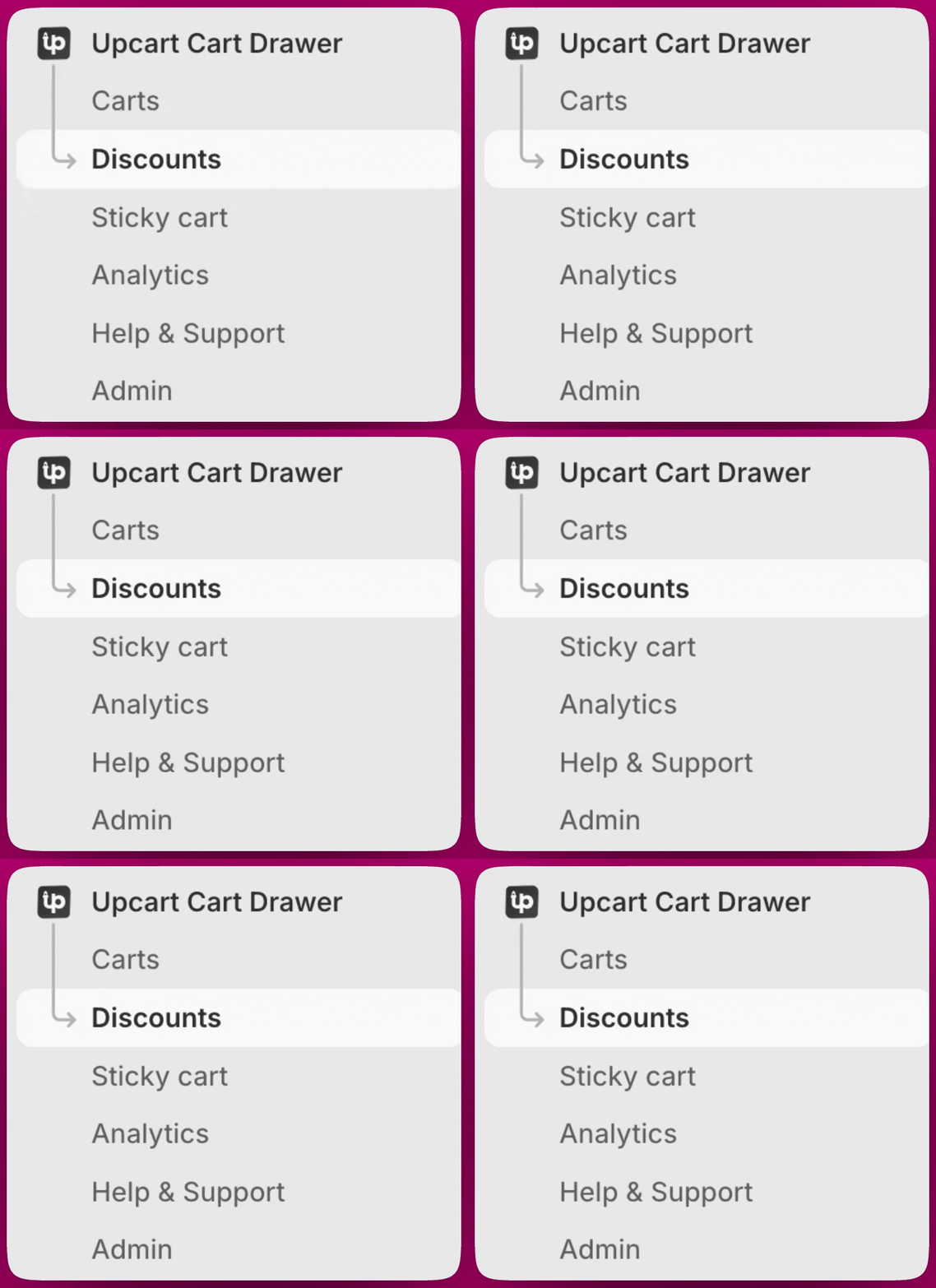
  • From the Upcart sidebar - Go to Upcart Cart Drawer > Discounts in the left sidebar.
Discounts3
  • From the Cart Editor - Click Edit Cart, then find the Discounts module in the Body section and click Manage all discounts.
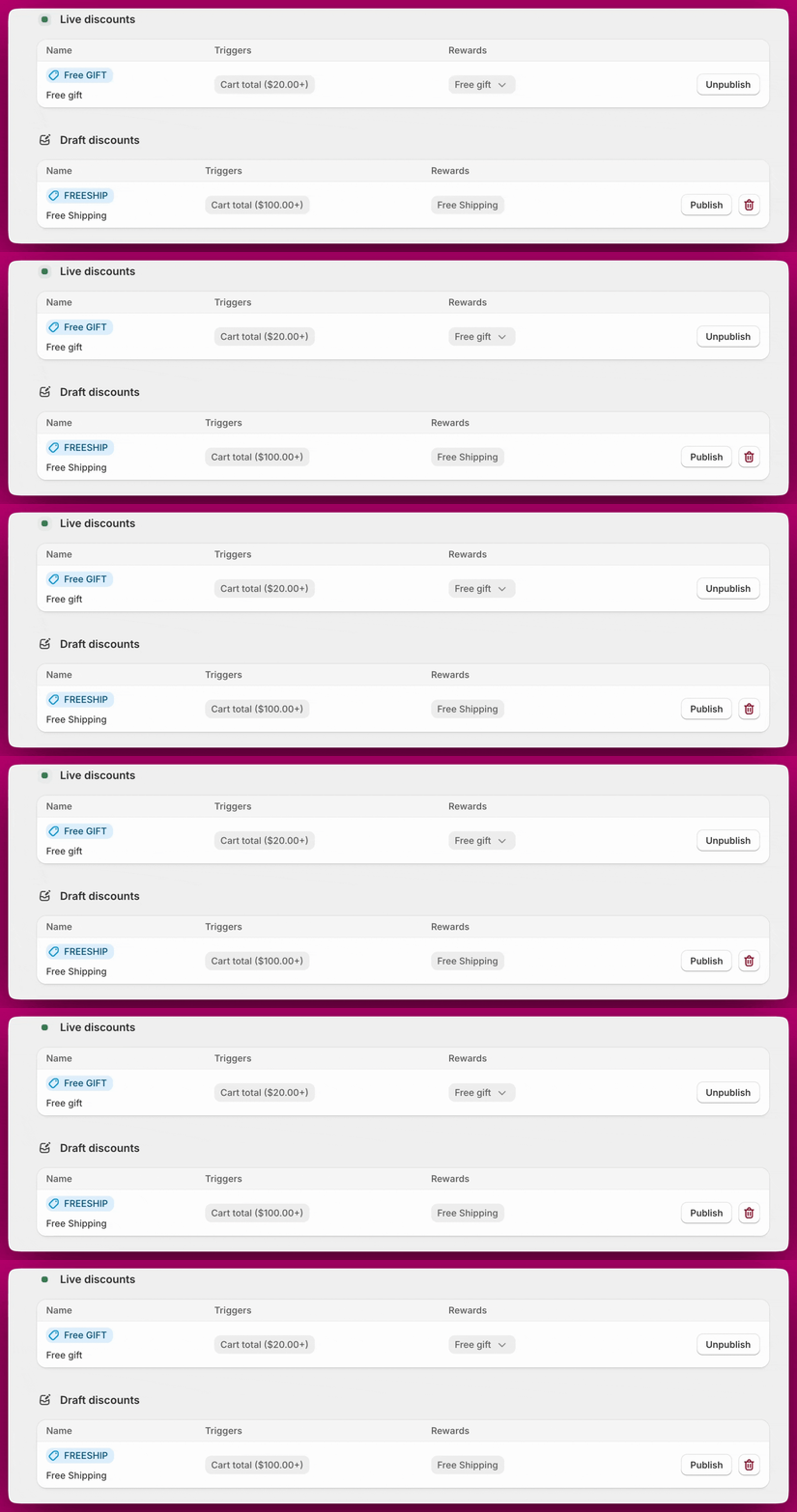
Discounts4 From the Discounts page you will see two sections:
  • Live discounts - rules that are currently active and applying to qualifying carts
  • Draft discounts - rules that have been created but not yet published
Discounts2

How Discounts Work

Each discount rule is made up of:
  • One or more trigger conditions that must all be met for the reward to activate
  • A reward type that is automatically applied when conditions are met
When your customer’s cart meets all the conditions in a rule, the discount is applied through Shopify’s discount system and reflected at checkout. Example use cases:
  • “Get 10% off when you add a snowboard and spend $500+”
  • “Get a free gift when you subscribe to any product”
  • “Free shipping for logged-in customers”

Creating a Discount Rule

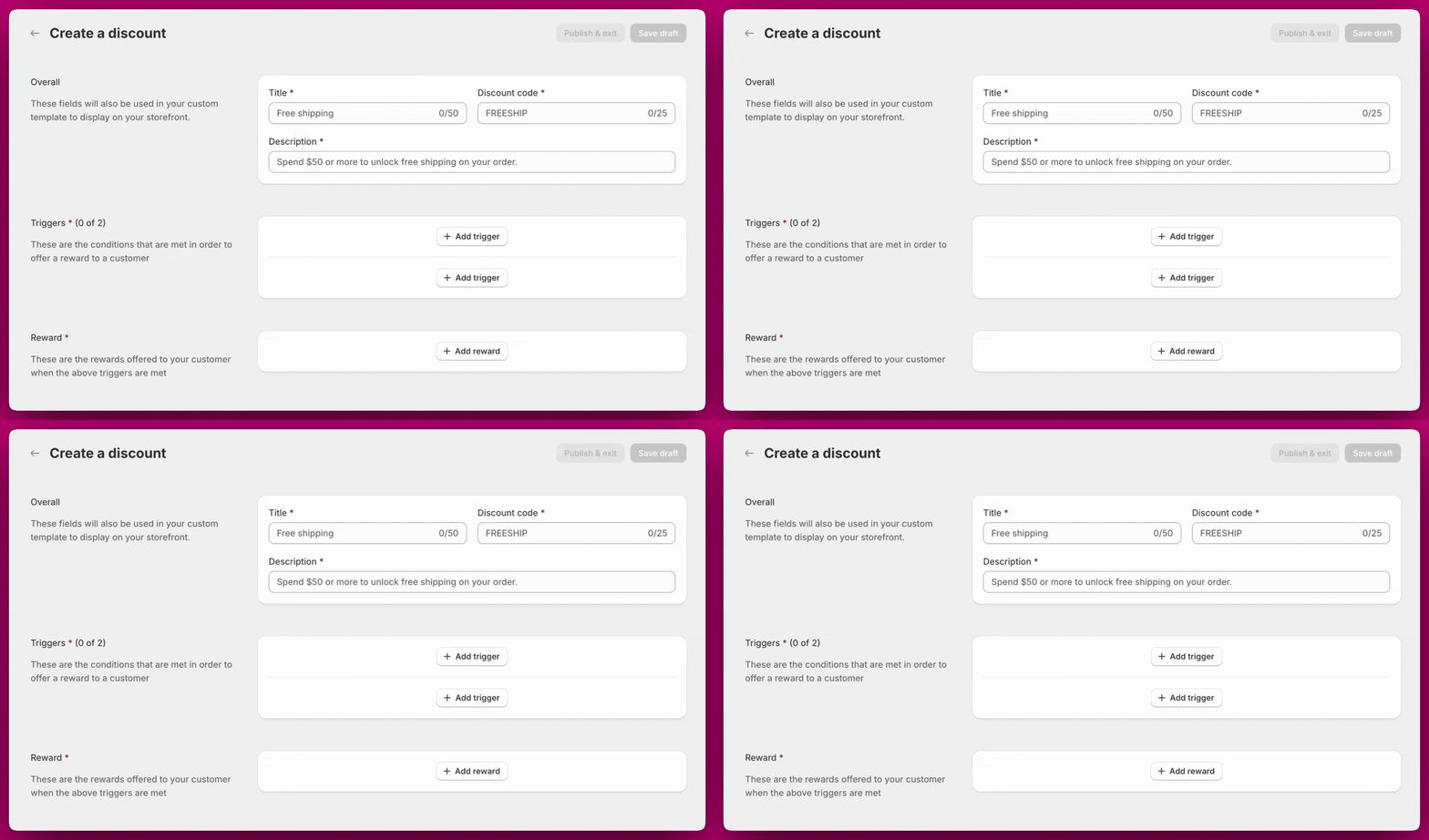
Click Create discount from the Discounts page. Each rule has three sections to configure. Discounts5
Overall

  • Title - Internal label for the rule (up to 50 characters). This also appears in your custom template if you are using one to display discounts on your storefront.
  • Discount Code - Optional customer-facing promo code (up to 25 characters). Rules can also fire automatically based on cart conditions alone without a code.
  • Description - Customer-facing explanation of the rule (for example, “Spend $50 or more to unlock free shipping on your order”).

Triggers

Add up to 2 trigger conditions. All conditions use AND logic - both must be true for the reward to activate. See the Trigger Conditions section below for a full breakdown of available triggers.

Reward

Select the reward type to apply when conditions are met. See the Reward Types section below for a full breakdown of available rewards. Once configured, click Publish & exit to make the rule live immediately, or Save draft to save it without activating.

Trigger Conditions

Each rule can contain up to 2 triggers. All conditions use AND logic - both must be true for the reward to activate.
Triggers when any selected product or variant is in the cart.
  • Supports full products or specific variants
  • Multiple selections use OR logic
  • Set a minimum quantity match (defaults to 1)
Use this for “Add iPhone 15 Pro” or “Add any featured item” style triggers.
Triggers when any cart item belongs to a selected collection.
  • Supports multiple collections
  • OR logic across collections
  • Set a minimum quantity match (defaults to 1)
Ideal for collection-based promotions like “Buy from Winter Sale.”
Triggers when the pre-discount cart total meets a set dollar amount. The threshold is calculated before any discounts (including other discount rules) are applied.
This trigger only supports your store’s main currency. It does not perform automatic currency conversion for international markets. Thresholds are always evaluated in your store’s base currency regardless of the customer’s checkout currency.
Great for rewards like “Spend $100, get a free gift.”
Triggers when the total number of items (not unique SKUs) in the cart reaches a set number. For example, 2 of one product and 1 of another equals 3 total items.Perfect for promotions like “Buy 4 or more items, get 20% off.”
Triggers when the cart includes any item with a subscription (checks for a Shopify selling plan ID).Useful for rewards like “Free shipping with any subscription” or “Free gift for subscribers.”
Triggers when the customer is logged in. Supports both email/password and social login.Great for member-only rewards or loyalty perks.

Reward Types

Once your trigger conditions are met, one of the following rewards is automatically applied.
Applies a discount to the entire cart. Supports:
  • Percentage discounts (e.g. 20% off)
  • Fixed dollar discounts (e.g. $5 off)
Maximum: 99.99% or $9,999.99 per rule.
Automatically adds a specific product to the cart at 100% off when conditions are met.Requirements:
  • The gift product must be published on the Online Store sales channel
  • The product must be in stock
  • The discount applies only to the exact product or variant selected
If the customer removes the free gift from their cart, the discount is also removed.
Removes the shipping cost by discounting the cheapest available shipping method to $0. No additional configuration needed.

Discount Combinations

When creating a discount rule, you can control how it combines with other discounts at checkout. The following combination types are available:
  • Product discounts - Applies alongside other product-level discounts for different items. If two discounts target the same product, only the best discount applies.
  • Order discounts - Applies with order-level discounts. Product discounts are applied first, then order-level discounts on the subtotal.
  • Shipping discounts - Applies together with free shipping or other shipping-level discounts to get the largest eligible shipping discount.
Discounts6

Managing Your Discount Rules

You can have up to 10 rules per store. This limit applies to all rules combined - both active and inactive rules count toward the total.
Discount rules cannot be edited after they have been published. You can delete a rule and recreate it at any time. To temporarily pause a rule without deleting it, click Unpublish to move it to Drafts. It can be re-activated at any time.

How Discounts Work with App Embed Status

Discounts are applied through Shopify’s discount system, not through the Upcart cart drawer. This means:
  • Discounts remain active even when the Upcart app embed is turned off. Turning off the app embed only hides the cart drawer from your storefront. It does not disable your discount rules.
  • Discounts apply at checkout. Your customers will see the discount reflected when they reach checkout, regardless of whether the Upcart cart drawer is visible on the page.
To fully stop a discount from applying, either unpublish the individual rule or set your cart status to Disabled in the Cart Editor.

Storefront Display

The Upcart cart drawer dynamically updates as conditions are met. Rewards appear instantly based on real-time evaluation of the cart. By default, the cart shows active discount rules using a default display template, showing the rule title and description for each active rule. Discounts are also visible at Shopify checkout where the applied discount amount is reflected. For full control over the layout, the module supports custom templates using React-based code. To use custom templates, you first need to enable them under Settings > Advanced Settings in the Cart Editor. Once enabled, access the Custom Template section within the Discounts module. The available props are: rules, id, title, description, and onToggleSection.
Custom template development requires React knowledge. Aftersell supports built-in features but does not provide assistance with custom coding.

Frequently Asked Questions

Yes. Discounts operate through Shopify’s discount engine independently of the Upcart cart. As long as the discount rule is published, it will apply to qualifying orders even if there is no Upcart cart published on your storefront.
No. Turning off the app embed only hides the Upcart cart drawer from your storefront. Active discount rules will continue to apply at checkout.
No. Discount rules cannot be edited after publishing. You can delete the rule and create a new one at any time. Changes take effect immediately once saved.
Yes. Click Unpublish to move the rule to Drafts. This pauses it without deleting the configuration and can be re-activated at any time.
Yes, optionally. Each rule has a Discount Code field (up to 25 characters). This is a customer-facing code that can trigger the rule when entered. It is not required - rules can also fire automatically based on cart conditions alone.
The Cart Total Threshold trigger only supports your store’s main currency. It does not perform automatic currency conversion for international markets. Thresholds are always evaluated in your store’s base currency regardless of the customer’s checkout currency.
The most common causes are:
  • The gift product is not published on the Online Store sales channel
  • The product is out of stock
  • The trigger conditions are not actually being met
Check all three before reaching out to support.
No. The free gift discount is tied to the presence of the gift product in the cart. If the customer removes it, the discount is also removed.
Discounts go through Shopify’s native discount system. Compatibility with third-party discount apps depends on those apps and Shopify’s stacking rules. If you notice unexpected discount behavior, check for conflicts with other installed discount apps.
They are the same feature. Discounts is the renamed version of Triggered Rewards, now surfaced as a top-level section in the app for clarity. All existing Triggered Rewards have been migrated automatically and the functionality is identical.

Tips

  • All triggers must be true. If your rule has two trigger conditions, both must be met before the reward activates.
  • Free gifts must remain in the cart. If your customer removes the gift product, the discount is removed too.
  • Avoid duplicate rewards. If you use both Tiered Rewards and Discounts, make sure they offer distinct benefits to avoid confusion or unintended stacking.
  • Consider renaming the checkout button to “Review Order” if you are using complex discount rules, so customers have a chance to review their cart before completing the purchase.

Need help? If you have questions about setting up or managing your discount rules, our support team is here to help. Reach out anytime through the in-app chat.