

How to Use the “Add to Cart Button Selector” in Upcart
If Upcart is not detecting your store’s “Add to Cart” buttons, you can manually tell Upcart which buttons to monitor. No coding is required.This setting tells Upcart which buttons on your store are responsible for adding items to the cart. If your theme or another app uses a custom “Add to Cart” button, you can use this setting to ensure that Upcart detects it.
- Open the Upcart Editor
- Go to Settings
- On the Cart settings tab, scroll down and expand Advanced Settings
- Find “Add to Cart Button Selector”
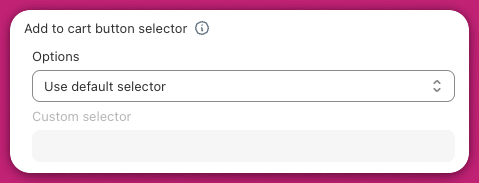
How to Use the “Custom Selector” Option (No Coding Needed)
If you need to use the Custom Selector option, follow these simple steps:- Go to your store’s product page.
- Right-click on the “Add to Cart” button. This is the button customers use to add products to their cart.
- Click “Inspect.” A panel with code will appear. You will not need to change anything.
- In the panel, look for a word starting with a dot (.) or a hash (#) in the button’s code. For example:
.product-form__add-buttonor#add-to-cart. - Copy that part. For example:
.product-form__add-button. - Go back to the Upcart Editor, select “Use Custom Selector,” and paste what you copied into the input box.
- Try the Default Selector first. Only use a custom selector if Upcart is not detecting your “Add to Cart” buttons.
- If your store has multiple “Add to Cart” buttons, such as on product pages and collection pages, use Add Additional Selector and repeat the steps above for each button.
- You do not need to write any code. Just copy and paste the selector.
- Some buttons added by custom features, such as bundle apps and upsell apps, may not work even when using this feature.
- You can use any AI tools you prefer to check your work.
Need Help? If you need help, you can ask your theme developer to find the correct selector. You do not need to write any code. Just copy and paste the selector as explained above.