

How a replacement is processed
When a customer accepts a Replacement Upsell:- The original one-time line item is refunded in Shopify.
- The replacement line item is added to the same order, either as a one-time purchase or a subscription (depending on what you configured).
- The customer pays for the replacement on the same order.
- Their statement shows two transactions: the refund of the original, and the charge for the replacement. The displayed Accept Offer button reflects the net difference between the two prices.
- For a one-time replacement (different variant, quantity, or product), Aftersell sends an
add_variantchangeset. - For a subscription replacement, Aftersell sends an
add_subscriptionchangeset. - The original line item is removed via Shopify’s refund API.
Supported scenarios
Replacement Upsell supports four scenarios. In each case, the original line item must be a one-time purchase. The replacement can be either one-time or subscription.- One-time to one-time, same product, different variant. For example, swap the Twin size for the Queen size.
- One-time to one-time, same product, different quantity. For example, swap a single bottle for a 3-pack of the same item. Enable Override quantity on the replacement to set the quantity that ships.
- One-time to one-time, completely different product. For example, swap a starter bottle for a full-size version of a different SKU.
- One-time to subscription. For example, swap the one-time bottle for a monthly subscription of the same bottle, or for a subscription version of a different product. This is the most common use case.
Blocked scenarios
These scenarios are blocked by Aftersell at offer-display time. The offer silently skips if the customer’s order matches any of them.- Subscription to one-time. Removing the subscription line item does not cancel the subscription contract in Recharge, Skio, Loop, or Stay AI. The customer would still be billed and also receive the replacement.
- Subscription to a different subscription. Same root cause as above, plus Shopify’s “one subscription per order” rule blocks adding a new subscription to an order that already contains one.
- Subscription to subscription variant or frequency swap. Same root cause.
What the customer sees
Understanding the customer’s view prevents the most common support ticket: “Why was I double-charged?”In the post-purchase offer
The Accept Offer button shows the net difference between the original and the replacement. For example, if the customer bought a $30 bottle and you offer a $45 3-pack, the Accept button reads “Add $15.00 to your order.” If the replacement is cheaper than the original, the button reads as a credit. The offer card shows the replacement product’s image, title, and price. The offer card uses the variant-specific image when one is tagged on the variant in Shopify. If the variant has no image tagged, the offer card falls back to the parent product’s first image. This means swapping between two variants of the same product may or may not change the image, depending on whether each variant has its own image set up in Shopify.On the Shopify order after acceptance
The order ends up showing both:- The original line item with a refund applied to it.
- The new line item for the replacement, charged at full price.
- Include a line in the offer copy that explicitly describes the refund-and-replace mechanic. For example: “When you accept, we will refund the original item and charge for the replacement. You will see two line entries on your statement, the net is the upgrade price shown on this button.”
- Enable Aftersell’s automatic refund-notification email for replacement upsells, which sends the customer a confirmation explaining the refund.
In the subscription provider portal (when replacement is a subscription)
If the replacement is a subscription, the customer will see the new subscription in your subscription provider’s customer portal (Recharge, Skio, Loop, Appstle, Smartrr, Stay AI). The portal is owned by your subscription provider, not by Aftersell. Make sure your subscription provider’s welcome email is configured to send within minutes of acceptance.Compatible subscription platforms
When the replacement is a subscription, Replacement Upsell works with any subscription app that uses Shopify’s native Subscription API. Aftersell does not call provider APIs directly for this flow; the subscription is created by Shopify and your subscription app picks it up via its own Shopify integration. Compatible providers include Recharge, Skio, Loop, Stay AI, Appstle, Smartrr, Bold Subscriptions (when running on Shopify’s native subscriptions API), and Shopify’s native selling plans. If your replacement target has a prepaid subscription plan configured (for example, every 3 months charged upfront), confirm with your subscription provider that prepaid is supported as a replacement destination. Prepaid handling varies by provider.Payment method requirements
Aftersell explicitly blocks Replacement Upsell on some payment gateways because they cannot reliably support the refund-and-recharge pattern in the post-purchase window:- Authorize.net (
authorize_net). Authorize.net requires transactions to settle before refunds can be issued, and settlement has a delay, so Aftersell cannot reliably refund the original and add the replacement on the same Shopify order. If Authorize.net is your payment processor, route those customers to Thank-You-page offers instead. - Manual payment gateways (
manual). This covers cash on delivery, custom payment methods, draft-order checkouts, and any other manual payment processor that does not capture a vaulted authorization. Replacement Upsell needs an active vaulted payment to issue a follow-up charge, which manual gateways do not provide.
Discount handling
Replacement Upsell has specific behaviour around discounts that catches partners off guard.Discounts on the original line do not carry to the replacement
When Aftersell refunds the original line item, any discount that was applied to it goes with it. The replacement line is charged at the full price (or at your replacement-offer discount, if you configured one), but the customer’s original discount does not transfer. If you want the customer to keep an equivalent discount, configure it on the replacement offer directly.Allow replacement when target has a discount
By default, Replacement Upsell skips the offer if the trigger line carries an order-level discount. This is a protective default to avoid refund-amount mismatches. To allow the offer to fire even when the trigger has a discount, enable the Allow replacement when target has a discount toggle in the offer’s advanced settings. When enabled, the refund covers the discounted price (not the full price), and the replacement is charged according to your offer configuration.First-cycle discount on subscription replacements
When the replacement is a subscription, the discount you configure on the offer applies to the first billing cycle only. Future recurring orders charge at the regular subscription price. The customer sees the recurring price under Recurring subtotal in the offer.Per-variant funnels
A single Replacement Upsell offer targets one specific product and variant on each side. If your subscription plans differ per variant (different sizes, flavours, or prices), you cannot configure one offer that says “swap whichever variant the customer bought to its matching subscription variant.” Each variant pairing needs its own funnel. For example, if you sell a serum in three sizes (Small / Medium / Large) and want each one to swap to its subscription counterpart, you would build three funnels:- Funnel 1: trigger = Small one-time, replacement = Small subscription.
- Funnel 2: trigger = Medium one-time, replacement = Medium subscription.
- Funnel 3: trigger = Large one-time, replacement = Large subscription.
Analytics and reporting
Refunds generated by a Replacement Upsell carry the note “AfterSell Post-Purchase Replacement Upsell” in Shopify, which makes replacement-related refunds easy to identify. Aftersell analytics do not subtract the refunded amount from the upsell value. Replacing a $100 product with a $200 product is reported as a $200 upsell, not a $100 net.The Beta failsafe
While Replacement Upsell is in Beta, Aftersell tracks errors on each offer and stops showing the offer to new customers once the error count crosses a threshold. This protects you from a widespread misconfiguration silently impacting many customers.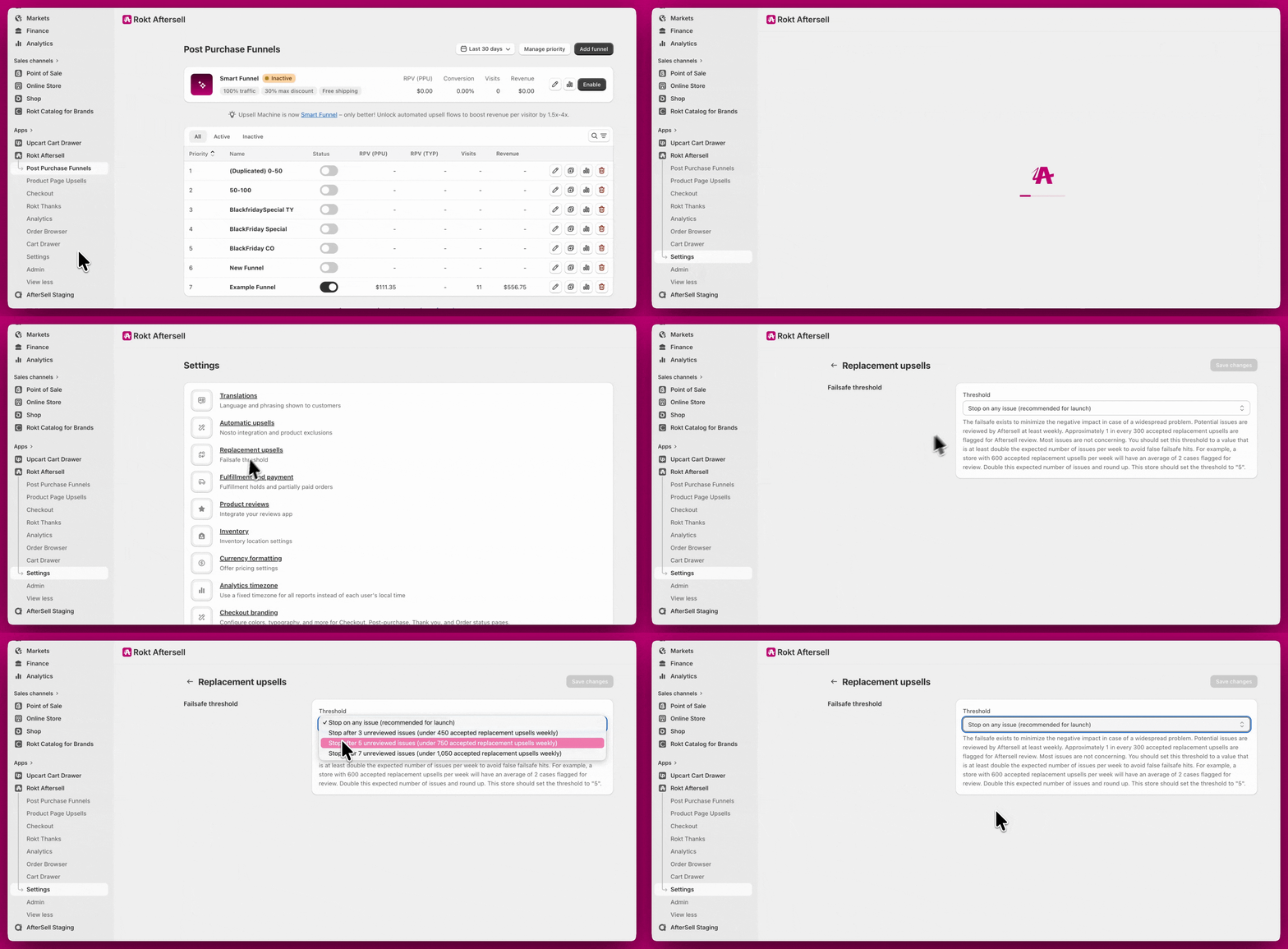
Configuring the failsafe threshold
The failsafe threshold is configurable in Settings → Replacement Upsells. It counts replacement errors over a rolling 7-day window and pauses replacement upsells once your chosen threshold is reached within that window. You can pick from:- Stop on any issue in the past 7 days (recommended, and the default). The offer stops as soon as the first replacement fails within the rolling window.
- Stop after 3 issues in the past 7 days.
- Stop after 5 issues in the past 7 days.
- Stop after 7 issues in the past 7 days (most permissive).
- Custom reveals a number field where you can enter any whole number from 1 to 100. Use this if your store processes high order volumes and the presets trip too quickly.
What trips the failsafe
Any exception in the replacement flow counts as an error within the rolling 7-day window. The most common causes:- Shopify rejects the changeset because the checkout has already completed.
- The replacement product was deleted or unpublished between offer setup and the customer accepting.
- The selling plan on a subscription replacement was deactivated.
- A transient Shopify API or subscription-provider outage.
When the failsafe trips
When the error count within the rolling 7-day window reaches your threshold, the offer stops being shown to new customers. You’ll know in two places:- Home page banner. A warning banner titled “Replacement upsells are paused” appears on your Aftersell home page, with a Review failsafe button linking to Settings → Replacement Upsells.
- Failsafe status card (Settings → Replacement Upsells). A status card shows a Failsafe tripped (amber) or Not tripped (green) badge, plus your current rolling count and threshold, for example “4 of 5 errors in the past 7 days”.
How to reset
You can reset the failsafe yourself from Settings → Replacement Upsells. Once you’ve resolved the underlying issue, click Reset failsafe and confirm in the modal. The rolling error count clears immediately and replacement upsells resume for new orders. (The button is disabled when your current error count is already zero.) Only reset after fixing the root cause, otherwise the failsafe will trip again once the threshold is reached. If you’re unsure what caused the errors, contact support via the in-app chat before resetting.Troubleshooting
The Replacement Upsell offer type does not appear in my funnel editor
The Replacement Upsell offer type does not appear in my funnel editor
The offer is not showing on test orders
The offer is not showing on test orders
- Funnel trigger mismatch. Confirm the trigger product is the same product that is in the test order’s cart.
- Order already contains a subscription. Replacement Upsell skips any order where the trigger line is a subscription. Use Subscription Upgrade instead in that case.
- Original line has a discount. By default, Replacement Upsell skips lines with an order-level discount. Enable Allow replacement when target has a discount in the offer’s advanced settings.
The offer shows but the replacement doesn't actually happen (or the customer received the original product)
The offer shows but the replacement doesn't actually happen (or the customer received the original product)
- Funnel trigger. Set at the funnel level. Determines which orders see the offer.
- Upsell product. Set in the offer’s Upsell Products section. The product that gets added to the order when the customer accepts.
- Edit product to replace. Set inside the Replace item in original order with upsell section, by clicking the Edit product to replace button. This is the exact product and variant in the customer’s cart that will be refunded and removed.
- Open the Replacement Upsell offer.
- Click Edit product to replace and confirm the selected product and variant exactly match the product+variant the customer should have purchased (per the funnel trigger).
- If you are swapping between variants of the same product (Small → Large), the “product to replace” must point to the Small variant specifically. If you point it to Large or to any variant the customer did not buy, the offer will skip.
- Save and test with a real low-price order that includes the exact variant you want to swap from.
My customer thinks they were double-charged
My customer thinks they were double-charged
- Add a sentence to the offer copy explaining the refund-and-replace mechanic.
- Enable Aftersell’s automatic refund-notification email for replacement upsells.
- Train your support team to explain the two-line-entry pattern when a customer reaches out.
I see "Partial refunds are not allowed until the transaction is settled"
I see "Partial refunds are not allowed until the transaction is settled"
The original order's discount disappeared after the replacement
The original order's discount disappeared after the replacement
Can Replacement Upsell swap a subscription for another subscription?
Can Replacement Upsell swap a subscription for another subscription?
My Replacement Upsell offer suddenly stopped firing
My Replacement Upsell offer suddenly stopped firing
The replacement product image is wrong or generic
The replacement product image is wrong or generic
I want to configure Replacement Upsell across many product variants
I want to configure Replacement Upsell across many product variants
The customer accepted but the new subscription is not in my subscription app
The customer accepted but the new subscription is not in my subscription app
I want to cancel the new subscription after the customer accepted
I want to cancel the new subscription after the customer accepted
My cash-on-delivery or draft-order customers don't see the offer
My cash-on-delivery or draft-order customers don't see the offer