

Overview
When neither Aftersell’s native surfaces (post-purchase, checkout, Upcart) nor a packaged integration fits, you can call the Strategies API yourself from your Shopify theme and render the returned products however you like. The pattern is the same in every case: build a context payload from Liquid (so Shopify attributes like the current product, cart contents, and customer fields are filled in at render time),POST it to /api/public/strategy/evaluate, and render the response.
This page covers two implementation patterns:
- PDP context - drop a section onto product pages that calls the API with the currently-viewed product and renders a carousel of returned recommendations.
- Cart context - render an upsell block inside a custom cart that calls the API with all current cart line items and renders the returned products.
What You’ll Need
- Your Strategy API key. In Aftersell, go to Settings → Product Strategy and, in the Security Token card, copy your token (this is your Strategy API key).
- The Strategy ID. Open the Strategy you want to run in the Aftersell Strategy editor and copy its ID.
- Theme code access. You’ll be adding a Liquid section (PDP) or block (custom cart) to your Shopify theme - Online Store → Themes → … → Edit code.
PDP Context: Section Snippet
This pattern adds a Shopify section to your product page. When the page renders, Liquid embeds the current product, cart, and customer attributes into the payload, then JavaScript posts to the Strategies API and renders the returned products in a Splide carousel.Installing
- In your Shopify admin, go to Online Store → Themes, click … on your theme, and select Edit code.
- Under the Sections folder, create a new file named
aftersell-upsell-carousel.liquid. - Paste the snippet below into the new file and replace
YOUR_STRATEGY_API_KEYwith the API key from Aftersell. - Save.
- Open your product template (typically
templates/product.jsonorsections/main-product.liquid) and add the Aftersell Carousel section where you want the carousel to appear. From the theme editor, you can also drag it onto the product page directly. - In the section’s settings, paste your Strategy ID.
What the section sends
For each PDP view, the payload includes:- products - a single-element array containing the currently-viewed product (productId, variantId, quantity, price, handle, title, vendor, productType, tags, collections, sellingPlan).
- cart - subtotal, item count, line count of the shopper’s current cart (omitted if the cart is empty).
- cartToken - so the API can stitch this evaluation into the same session.
- customer - tags, country, province, locale, order count, total spent, and accepts-marketing flag, but only if the shopper is logged in.
- session - currency code from
shop.currency.
session object before the fetch.
The snippet
Customizing
The section schema exposes four merchant-editable settings: Strategy ID, Heading, CTA Button Label, and Max Products to Show. Add or remove settings in the{% schema %} block to expose more knobs to the theme editor.
The CSS is scoped under .aftersell-* class names and includes a Splide-driven 4-up carousel that drops to 2-up at 768px and 1-up at 480px. Edit it freely to match your theme - none of it is required for the API call to work.
Cart Context: Custom Cart Upsell Block
This pattern is structurally the same as the PDP one, with one key difference: the product context array is built from the cart’s line items instead of the currently-viewed product. The Strategy then receives every item the shopper has added and returns recommendations based on the cart as a whole. The implementation lives wherever your custom cart code lives - a Liquid section that renders the cart drawer, a custom block in a headless storefront, or a theme template likecart.liquid. The shape of the API call and the response handling are identical to the PDP example - only the products array differs.
The structure looks like:
fetch call to /api/public/strategy/evaluate are unchanged from the PDP pattern above - only the products array swaps from [productContext] to the cart-derived array.
What Happens When the Strategy Returns
The response shape is the same regardless of which context you sent:evaluationId is a unique id for this evaluation. If you capture it and attach it to the products you render, you can attribute the resulting order back to the exact recommendation that produced it - see Attribution below.
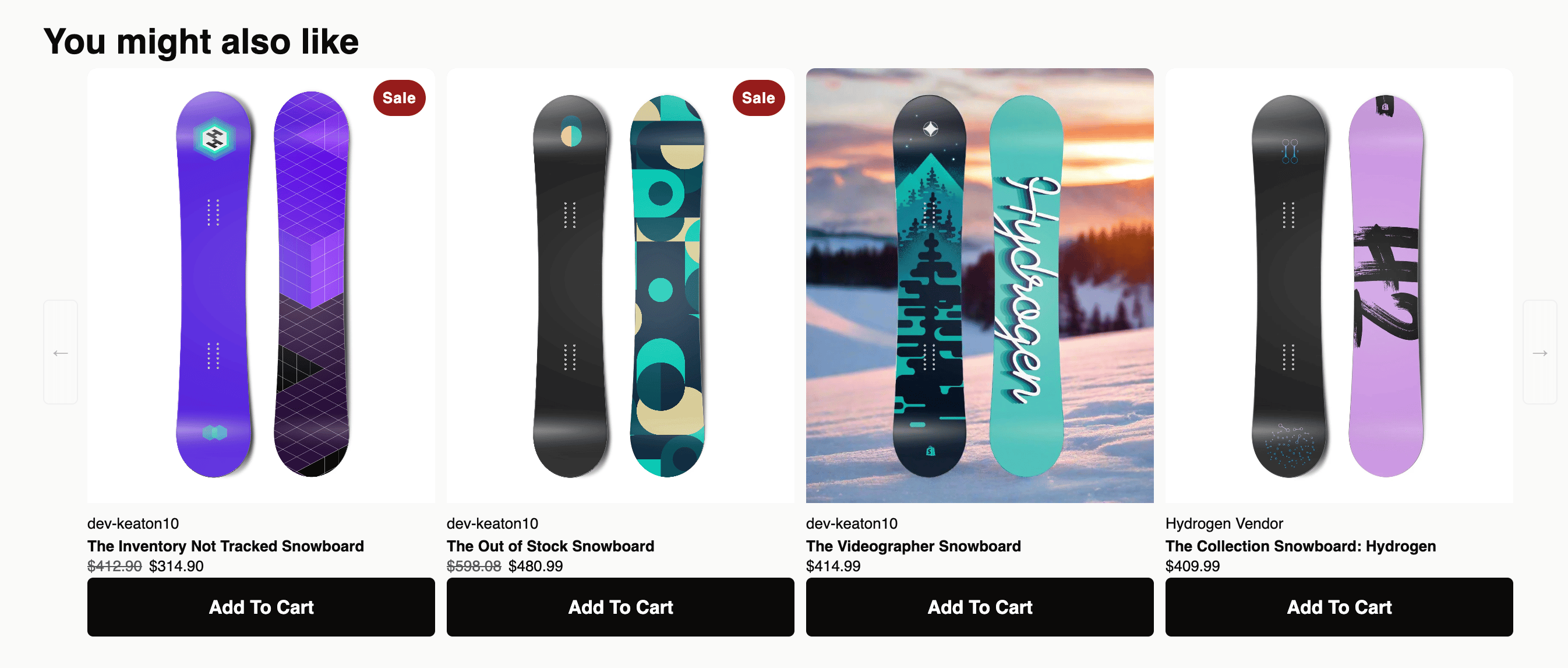
How you render the products array is entirely up to your theme code. The PDP snippet above renders them as a carousel of cards with variant pickers and add-to-cart buttons; a custom cart block might render them as a vertical list inside the drawer.
For the full request and response schema, see the Evaluate Strategy API reference.
When No Product Is Returned
If the Strategy returns no products (products: []), it’s up to your code how to handle it. The PDP snippet above hides the carousel entirely. A custom cart block might fall back to the cart’s default upsell list, or simply render nothing.
To avoid an empty response, configure a Catch all in the Strategy so there is always a fallback product to return. See the Building Strategies page for how to set up a Catch all.
Tips for Custom Integrations
- Build context in Liquid. Liquid runs at render time and has access to the full Shopify object graph - product, cart, customer, shop, request. Use it to populate the payload server-side rather than reaching for client-side calls.
- Keep the API key out of public repos. It will end up in your theme code, which is shipped to the browser - that’s fine. But don’t paste the same theme into a public repository or share the bundle externally.
- Use a Catch all. Storefront experiences look broken when a slot disappears. A Catch all with a small set of safe defaults keeps the UI consistent.
- Cache where it makes sense. The Strategies API does light caching server-side (
meta.servedFromCache), but for high-traffic PDPs you may also want to debounce or memoize calls on the client (e.g. don’t re-call when the same product is rendered twice in a session).
Attribution
When a shopper clicks the add-to-cart button in the snippet, the/cart/add.js call attaches line item properties to the cart item:
Attributing back to the evaluation
To tie an order back to the exact evaluation that recommended the product - rather than just “came from a Strategy” - capture theevaluationId from the response and attach it to the line item under the __as_offer_id property. AfterSell reads this key, so orders tagged with it attribute to the specific evaluation in reporting.
In the evaluate() handler, hold onto the id from the response:
__as_offer_id - it’s the key AfterSell looks for, and the underscore prefix keeps it hidden from shoppers. If evaluationId is absent (for example, no products were returned), skip the property rather than sending an empty value.