> ## Documentation Index
> Fetch the complete documentation index at: https://docs.aftersell.com/llms.txt
> Use this file to discover all available pages before exploring further.
# 为什么我的 upsell 没有显示?
> 本文介绍当你的 upsell 产品没有出现在 cart drawer 中时如何排查问题。
# 概述
Upcart 中的 upsell 依赖多项 Shopify 及应用特定条件才能正确显示。如果你的 upsell 没有出现在店面上,本指南将带你逐步定位并解决问题。
***
## Upsell 缺失的常见原因
upsell 不显示的最常见原因包括:
* Shopify 中的库存问题或产品状态
* 产品或渠道配置不正确
* Upcart 中 Upsell 模块的设置(如触发条件或数量限制)
* AI 推荐 upsell 缺少 collection 关联
我们来逐一详细了解。
***
## Shopify 产品配置
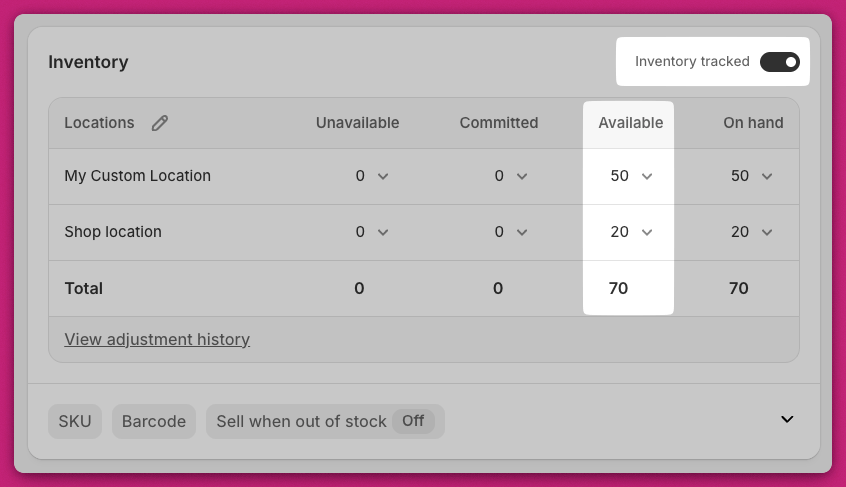
## 库存设置
有两项库存设置会影响产品的可见性:
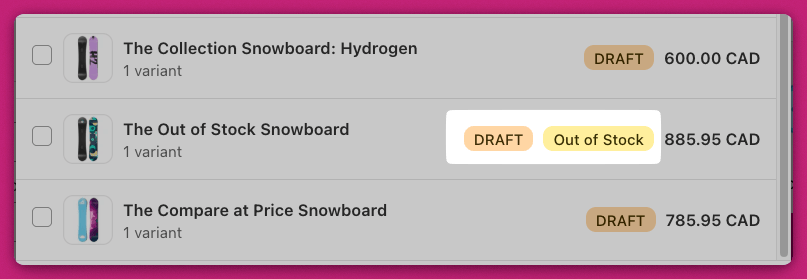
* \*\*Track quantity:\*\*如果启用,产品必须有可用库存才会显示。
* 如果禁用了 **Track quantity**,产品不会售罄,无论库存水平如何,upsell 都会显示。
💡 **验证方法:**
1. 前往 **Shopify Admin > Products > Inventory**。
2. 对于单变体产品,滚动到 **Inventory** 部分。
3. 对于多变体产品,滚动到 **Variants** 并检查每个变体的库存。
 📘 了解更多:Shopify 库存管理文档
***
📘 了解更多:Shopify 库存管理文档
***
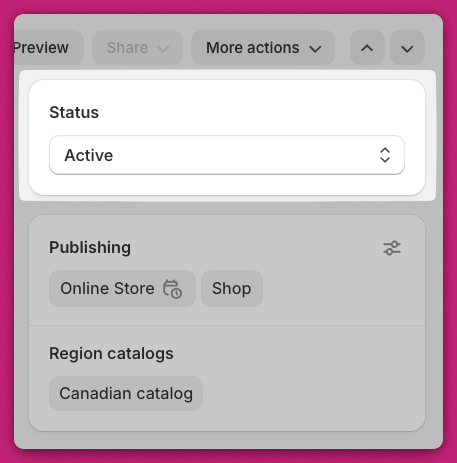
## 产品状态:Active 与 Draft
确保 upsell 产品标记为 **Active** 而不是 **Draft**。\
草稿产品不会出现在 cart drawer 中。
💡 **检查方法:**
* 前往 **Shopify Admin > Products**,或打开产品并查看右上角的状态徽章。
 📘 更多信息:Shopify 产品状态文档
***
📘 更多信息:Shopify 产品状态文档
***
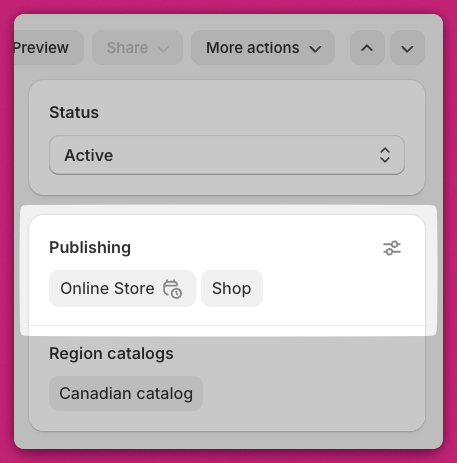
## 销售渠道:Online Store
upsell 产品必须发布到 **Online Store** 销售渠道。
💡 **验证方法:**
1. 在 Shopify 中打开该产品。
2. 找到 **Publishing** 部分,确认已选择 **Online Store**。
3. 如果没有,点击**三点菜单 > Manage sales channels**,勾选 **Online Store**,然后保存。
## 产品类型的限制
Upcart 不支持将某些产品类型用作 upsell:
* ❌ 仅限订阅的产品
* ❌ 捆绑产品(除非是按标准 Shopify 产品创建的)
***
## Upcart 模块设置
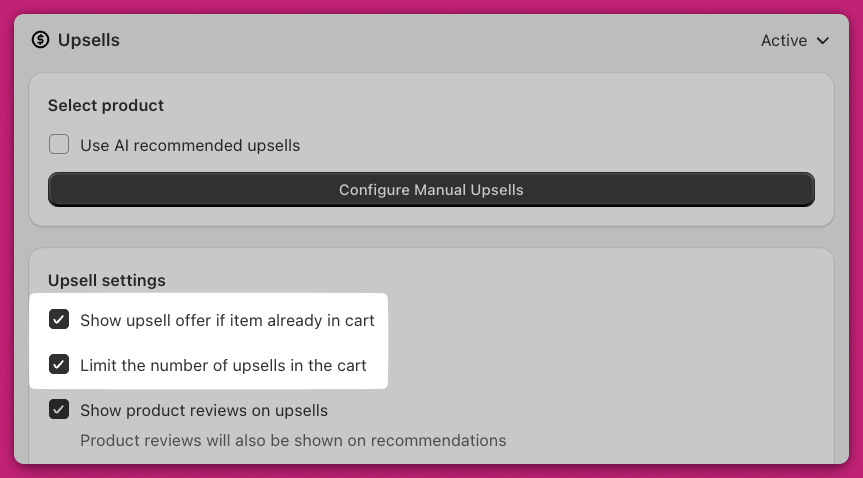
## “Show upsell offer if item already in cart”
此设置决定当产品已在购物车中时是否显示 upsell。
* ✅ \*\*勾选:\*\*upsell 始终显示。
* ❌ \*\*未勾选:\*\*如果产品已在购物车中,upsell 将隐藏。
***
## “Limit the number of upsells in the cart”
如果启用此设置,会出现 **Maximum number of upsells to display** 字段,且只会显示该数量的 upsell。
Upsells 模块按列表**从上到下**的顺序读取。\
如果购物车中已包含最大数量的 upsell,任何优先级较低的 upsell 都不会显示。
🧠 **示例:**\
如果最大 upsell 数量设置为 **2**,且前两个 upsell 已被触发,那么任何额外的 upsell(即使符合条件)都不会显示。
 ***
***
## Upsell 触发条件
手动 upsell 需要一个**触发产品**才能生效。
✅ 触发产品必须:
* 有库存
* 处于 Active 状态
* 已发布到 **Online Store** 渠道
✅ 必须在 **Upsell 设置**中选择至少一个触发产品。
⚠️ 如果触发产品列表为空,即使满足所有其他条件,upsell 也不会显示。请注意,取消勾选产品的最后一个变体会将该产品从列表中完全移除——需要留意的是这种状态,而不是产品仍在列表中但没有勾选任何变体。
不带变体限制的触发条件会匹配该产品的**每一个**变体,因此除非你想缩小范围,否则无需逐个勾选变体。
此外,请确保 upsell 产品本身也满足同样的条件。
 ***
***
# AI 推荐的 Upsell
如果你使用 **AI 推荐的 upsell**,需要检查一些特定条件:
## 相关(Related)算法
只有当购物车中的商品与商店中的其他产品共享同一个 **collection** 时,upsell 才会显示。
✅ \*\*解决方法:\*\*将两款产品添加到同一个 Shopify collection。
## 互补(Complementary)算法
这类 upsell 基于 **Shopify 的购买行为数据**。
* Shopify 必须有足够的数据来识别产品搭配。
* 确保你商店的数据设置允许基于 AI 的推荐。
📘 了解如何设置互补 upsell:\
[Shopify 互补产品指南](https://help.shopify.com/en/manual/online-store/themes/customizing-themes/common-customizations/add-product-recommendations#complementary-products)
***
## 总结
如果你的 upsell 没有显示,请检查以下几点:
* upsell 产品处于 **Active** 状态、**有库存**,并已**发布**到 **Online Store** 渠道。
* 你的 **Upsell 模块设置**配置正确(没有阻止显示的限制条件)。
* 你的**触发产品**和 upsell 产品满足 Shopify 的可见性要求。
* 针对基于 AI 的 upsell,collection 和 AI 配置设置正确。
***
## 需要帮助?
如果按照这些步骤检查后 upsell 仍未显示,请通过应用内聊天联系 **Upcart 支持团队**。请附上:
* upsell 产品名称
* 你的模块设置截图
* 问题的简要描述
我们的团队将帮助你快速定位并解决问题。
***
## 需要设置 Upsell 方面的帮助?
有关完整的设置说明和最佳实践,请访问我们的 [Upsells 模块指南](/zh/upcart/upsells_module)。