> ## Documentation Index
> Fetch the complete documentation index at: https://docs.aftersell.com/llms.txt
> Use this file to discover all available pages before exploring further.
# 为什么 Upcart 一直处于打开状态?
> 本文概述用于确定 Upcart 为何一直打开的故障排查步骤。
如果你在 Upcart 中遇到 cart drawer 始终可见的问题——无论是在屏幕左侧,还是出现在商店界面的右侧或下方——根据你是否使用翻译应用,可能有两种原因。
# 购物车出现在右侧或覆盖产品页面界面。
此问题在桌面端通常如下所示(右侧高亮部分):
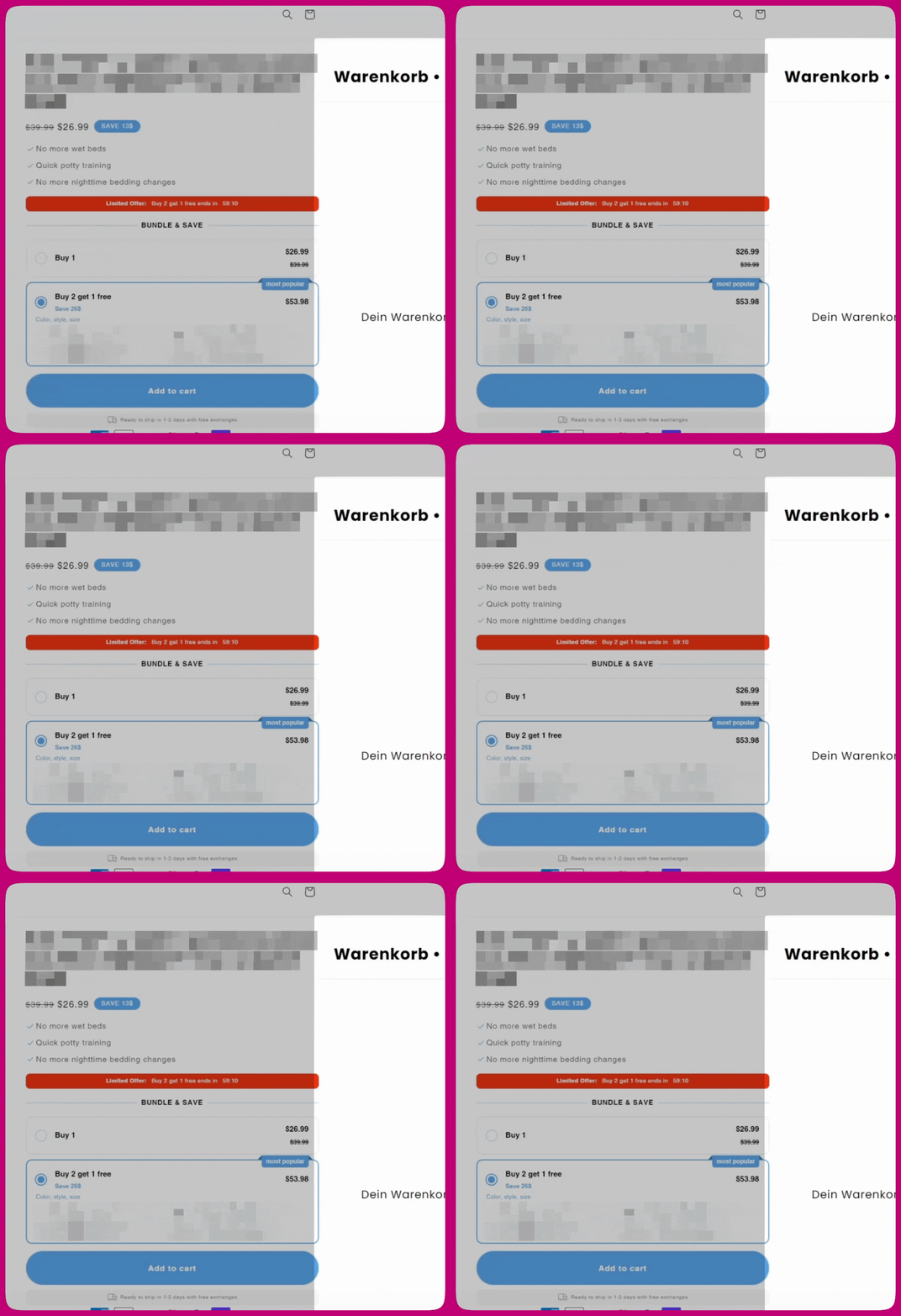 你需要在 Upcart 的 HTML 设置中插入一段简短的脚本来解决此问题。
请按照以下步骤操作:
1. 在你的 Shopify 后台,前往 **Upcart > Cart Editor > Settings**
2. 在 Custom HTML 下,**选择 HTML Location 下拉菜单 > Scripts (Before load)**
你需要在 Upcart 的 HTML 设置中插入一段简短的脚本来解决此问题。
请按照以下步骤操作:
1. 在你的 Shopify 后台,前往 **Upcart > Cart Editor > Settings**
2. 在 Custom HTML 下,**选择 HTML Location 下拉菜单 > Scripts (Before load)** 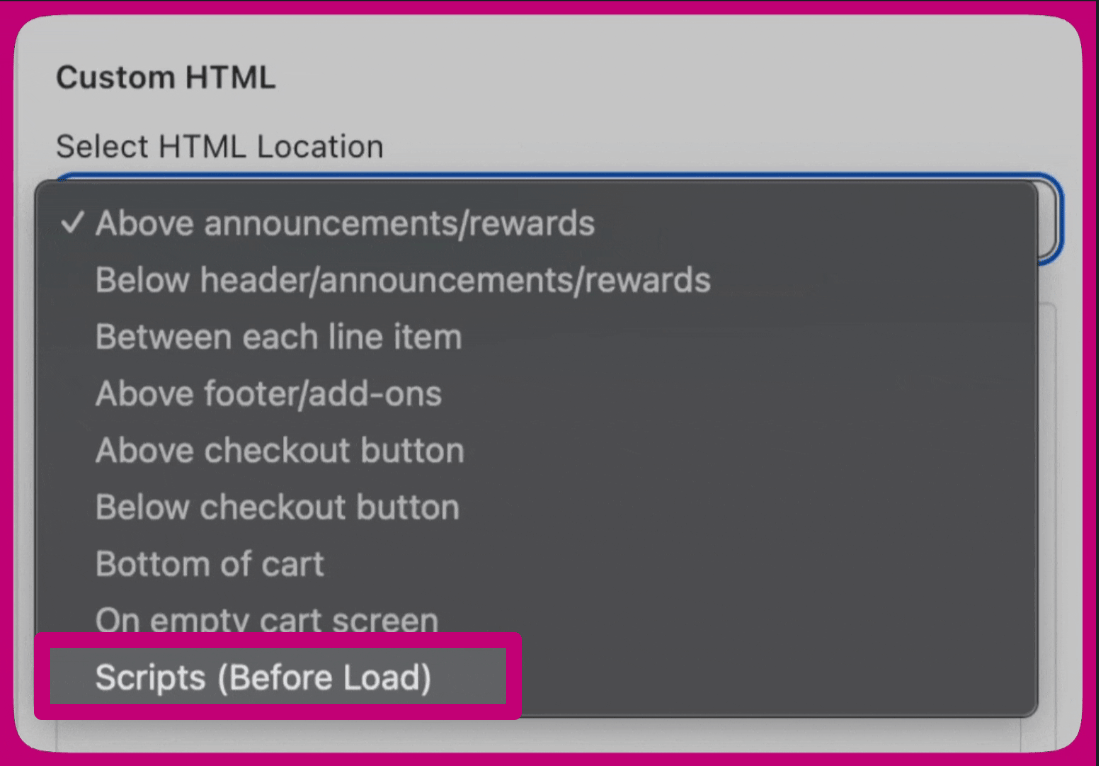 3. 复制并粘贴以下代码:
```text theme={"theme":{"light":"snazzy-light","dark":"github-dark"}}
```
你在 Upcart 中的自定义 HTML 设置应如下所示:
3. 复制并粘贴以下代码:
```text theme={"theme":{"light":"snazzy-light","dark":"github-dark"}}
```
你在 Upcart 中的自定义 HTML 设置应如下所示: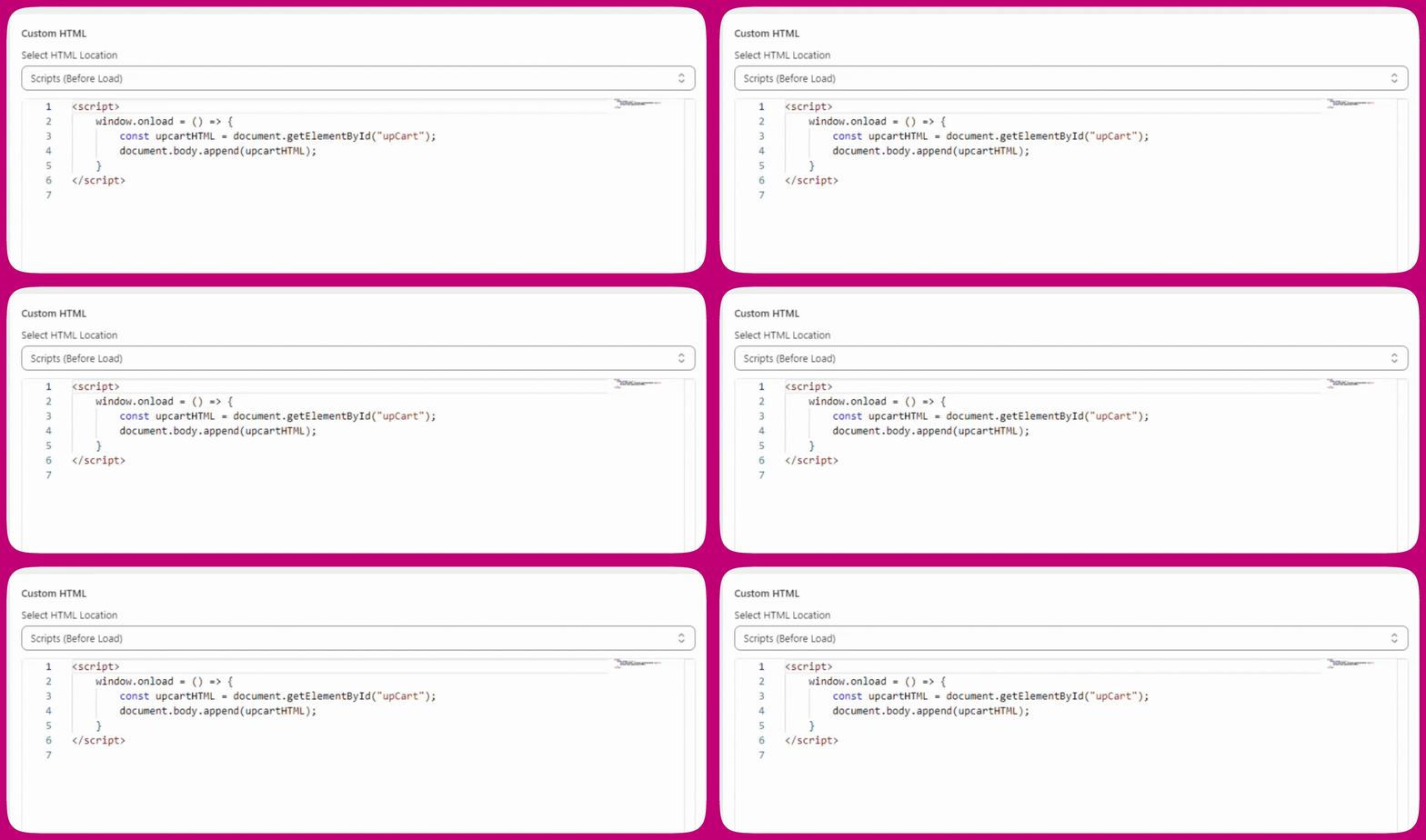 4. 滚动到顶部并点击 **Save**。保存 Upcart 更改后,最多需要一分钟才能生效。
### 为什么会出现这种情况?
Upcart 加载时,我们预期它出现在商店页面右侧的屏幕外。但是,某些商店主题和第三方 Shopify 应用可能会改变页面布局,包括 Upcart 的位置。因此,Upcart 可能会加载到不同的位置,导致其始终可见的视觉问题。应用上述代码更改会重新定位 Upcart,恢复其原有行为。
## **附加步骤**
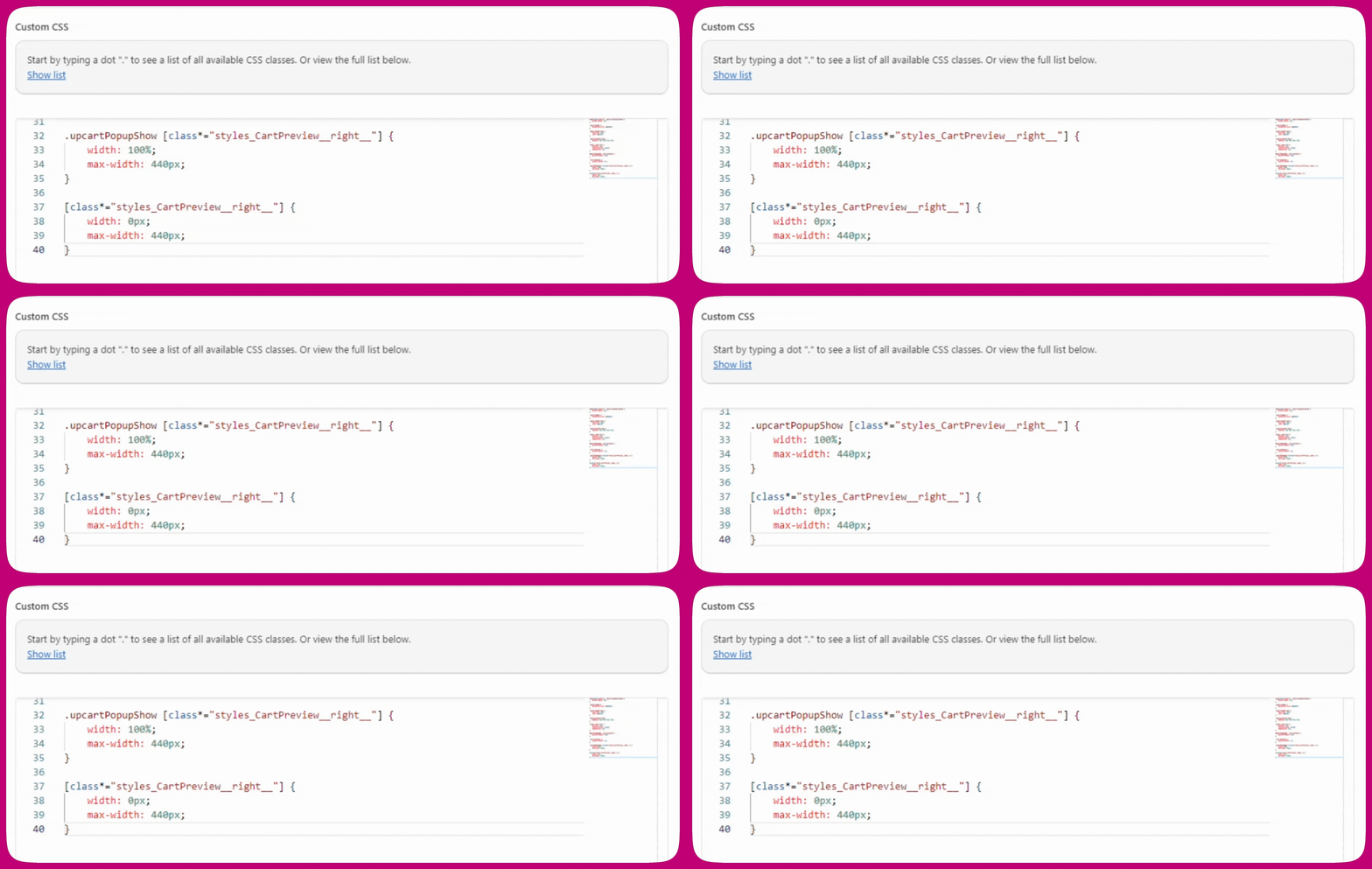
如果在 Upcart 加载页面的阶段出现闪烁,你还可以尝试应用一些 CSS 更改来隐藏 cart drawer。请注意,**这也会在预览页面上隐藏 Upcart**。
```text theme={"theme":{"light":"snazzy-light","dark":"github-dark"}}
.upcartPopupShow [class*="styles_CartPreview__right__"] {
width: 100%;
max-width: 440px;
}
[class*="styles_CartPreview__right__"] {
width: 0px;
max-width: 440px;
}
```
你可以在 **Settings** 下的 **Custom CSS** 选项卡中找到编辑器(如果选项卡行放不下,它会在 **More settings** 里)。将上述代码粘贴到那里:
# 购物车卡在左侧
这通常是因为翻译应用翻译了本应保持英文的 Upcart 设置。
Upcart 将某些设置以英文单词的形式存储在 Shopify metafields 中。例如,购物车位置设置存储为“right”或“left”。如果翻译应用将“right”翻译成法语的“droite”,Upcart 就无法理解该指令,从而默认显示在屏幕左上角并一直保持打开状态。
**并非所有 metafields 都应被翻译**
Upcart 的 metafields 有两种类型:
* **文本字段**,如按钮标签或奖励消息,可以安全地翻译
* **行为设置**,如购物车位置或 upsell 方向,必须保持英文
翻译行为设置会导致 Upcart 无法正常工作。
**解决方法**
1. 打开你的翻译应用,找到 **store metadata** 或 **metafields** 部分
2. 检查 Upcart 的 metafields,删除对 `cartPosition` 和 `upsellsDirection` 等行为相关字段的任何翻译
3. 刷新你的店面,购物车应会恢复到正确位置
\*\*注意:\*\*Upcart 现已内置翻译支持,可以完全避免此问题。如果你还没有设置翻译,我们建议改用该功能。详情请参阅[购物车翻译](/zh/upcart/cart_translations)。