> ## Documentation Index
> Fetch the complete documentation index at: https://docs.aftersell.com/llms.txt
> Use this file to discover all available pages before exploring further.

# Upsells 模块：设置

> 本文介绍如何微调购物车内 upsell 的行为

<div id="overview">
  # 概述
</div>

在 Upcart 的 upsells 部分选好 upsell 产品后，接下来要确保它们按照你的预期方式展示。本文介绍 **Cart Editor > Upsells > Upsell Settings** 下每项功能的用途，是之前 [**Upsell 模块**](/zh/upcart/upsells_module)文档的第二部分。
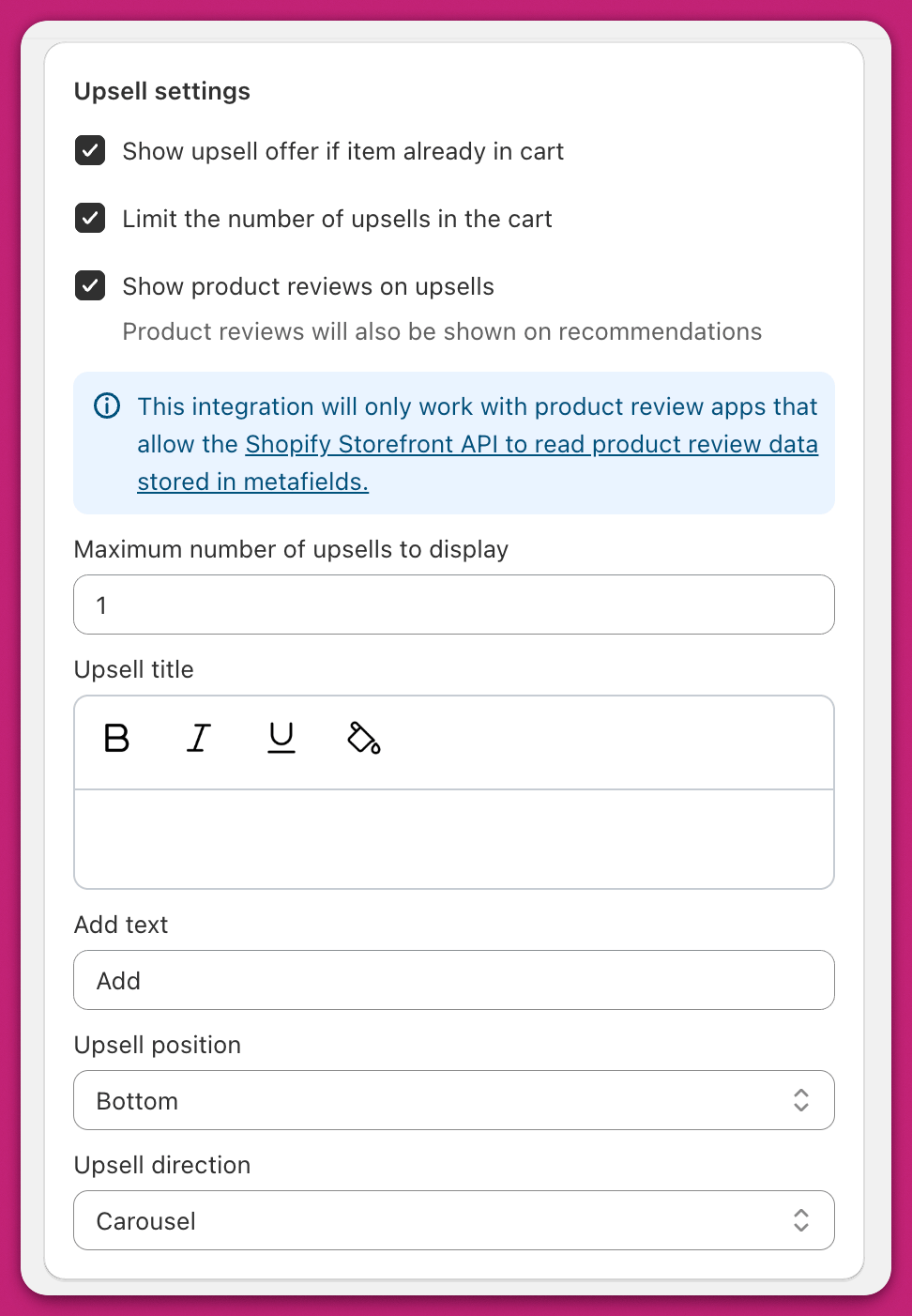
<img src="https://mintcdn.com/aftersell/uVGuDiyXpd6WOLO4/images/upcart/upsells-settings-upsell-panel-checkboxes-title.png?fit=max&auto=format&n=uVGuDiyXpd6WOLO4&q=85&s=eb98ed62162dff23ecbcdab36ecbb0e8" alt="Upcart 的 Upsell Settings 面板，包含复选框、upsell 标题、位置和方向选项" width="500" data-path="images/upcart/upsells-settings-upsell-panel-checkboxes-title.png" />

<div id="show-upsell-offer-if-item-already-in-cart">
  ## 商品已在购物车中时仍显示 upsell 优惠
</div>

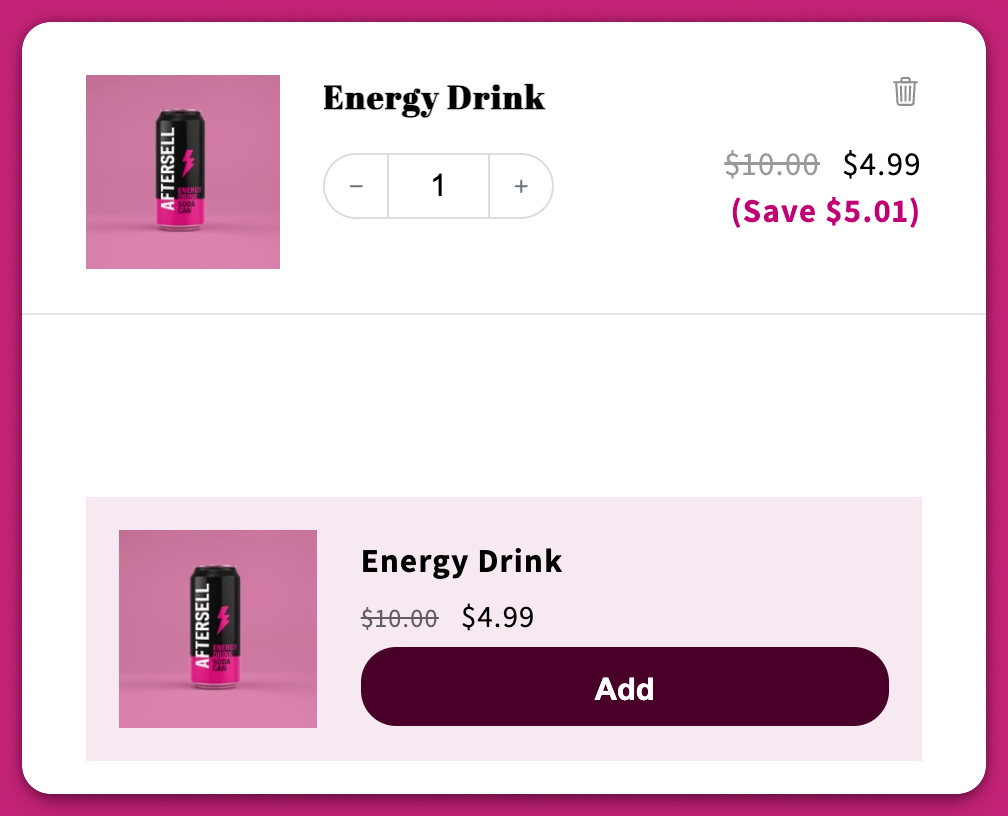
如果启用此设置，即使 upsell 产品已在购物车中，upsell 优惠仍会显示。

<img src="https://mintcdn.com/aftersell/uVGuDiyXpd6WOLO4/images/upcart/upsells-settings-energy-drink-already-in-cart.png?fit=max&auto=format&n=uVGuDiyXpd6WOLO4&q=85&s=2862077a2d8f4be4dc558f35b0ee3358" alt="即使购物车中已有同款商品，Energy Drink upsell 仍在展示" width="500" data-path="images/upcart/upsells-settings-energy-drink-already-in-cart.png" />

<div id="limit-the-number-of-upsells-in-the-cart">
  ## 限制购物车中的 upsell 数量
</div>

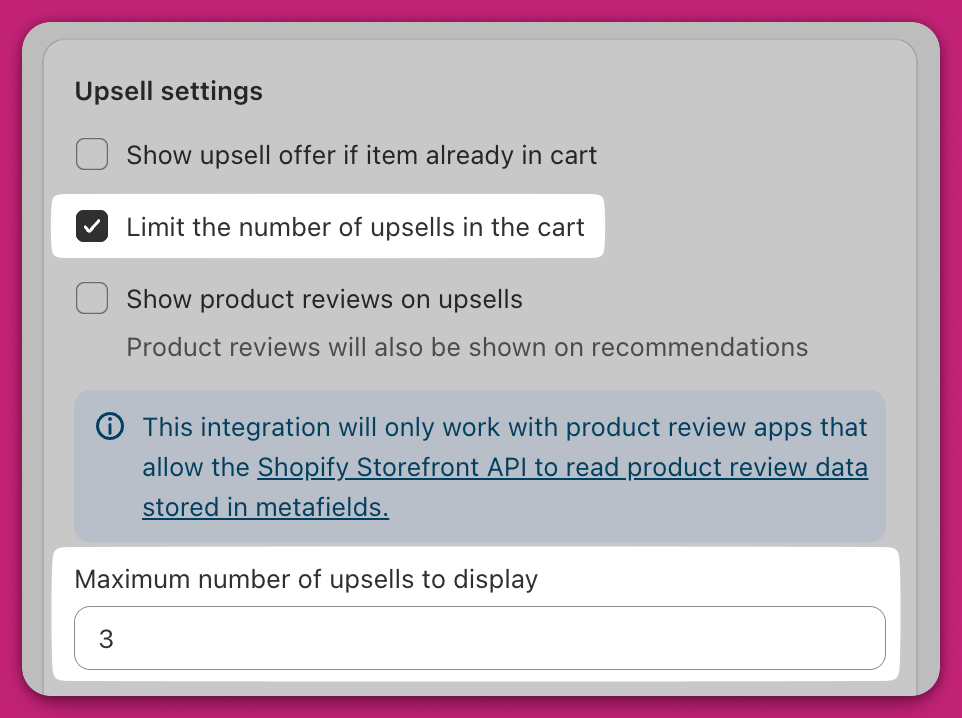
允许你设置一次最多显示多少个 upsell。勾选后会出现 **Maximum number of upsells to display** 数字字段（最小值为 1）：

<img src="https://mintcdn.com/aftersell/uVGuDiyXpd6WOLO4/images/upcart/upsells-settings-limit-number-checkbox-enabled.png?fit=max&auto=format&n=uVGuDiyXpd6WOLO4&q=85&s=ab01338f54b9001414e6dc422ee564d3" alt="启用限制 upsell 数量的复选框，最大显示数设为 3" width="500" data-path="images/upcart/upsells-settings-limit-number-checkbox-enabled.png" />

<div id="upsell-title">
  ## Upsell 标题
</div>

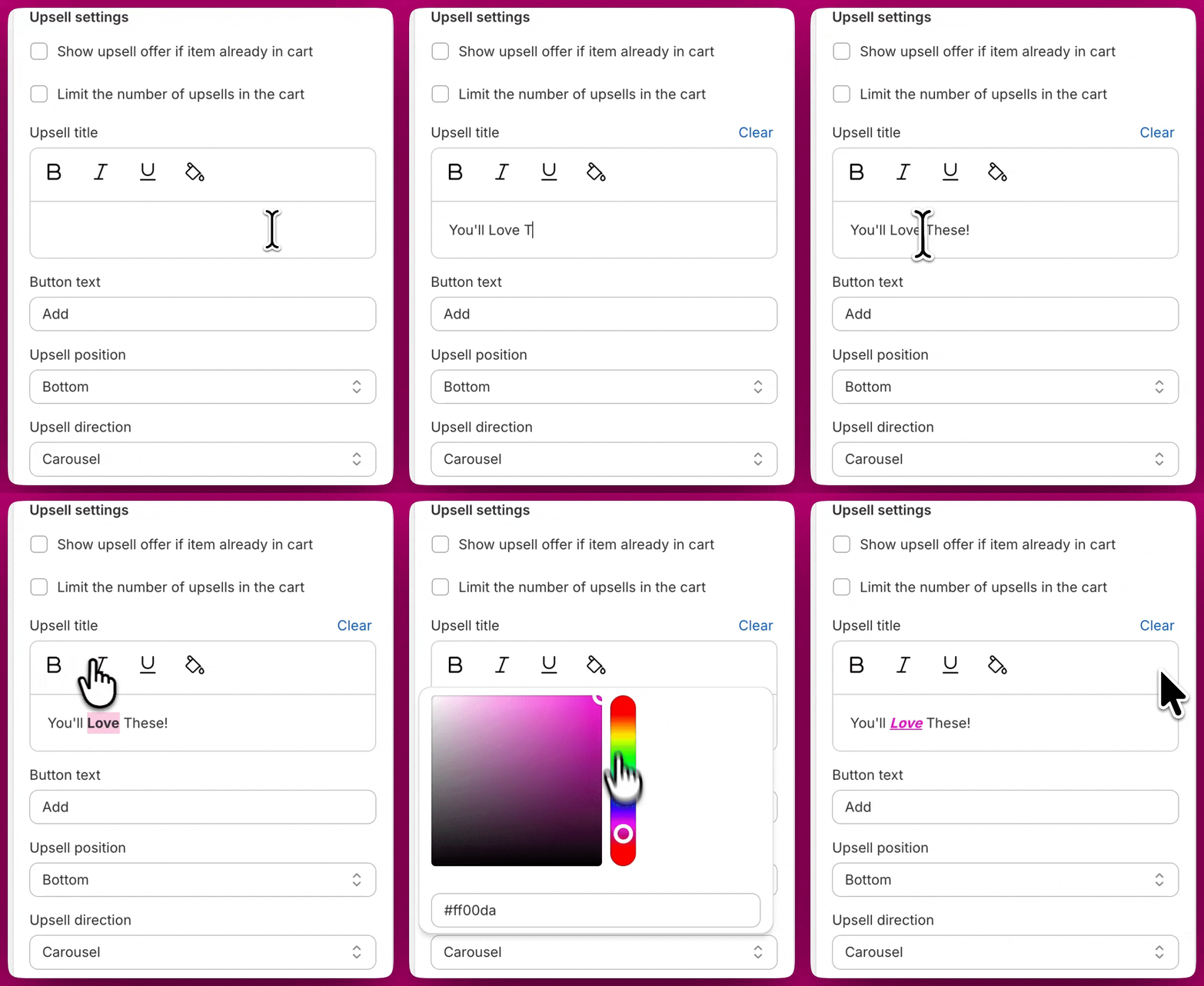
这是显示在 **upsells 模块上方**的文本。

你可以为文本设置样式：先选中要设置样式的文本，然后使用文本框上方的按钮应用**加粗、斜体、下划线**和**颜色：**

<img src="https://mintcdn.com/aftersell/uVGuDiyXpd6WOLO4/images/upcart/upsells-settings-title-formatting.gif?s=9639dc015283db1f756af205ef68dcad" alt="编辑 Upsell 标题时为文本应用加粗、斜体和颜色格式" width="880" height="1080" data-path="images/upcart/upsells-settings-title-formatting.gif" />

<div id="button-text">
  ## 按钮文本
</div>

你可以自定义 upsell 加入购物车按钮上显示的文本，改为你偏好的措辞或语言。

<div id="upsell-position">
  ## Upsell 位置
</div>

此下拉菜单允许你选择将 upsell 放在购物车的顶部还是底部。

如果你使用的是 [Block](#block) upsell 方向，我们通常建议选择 Bottom，以最大程度提升顾客产品的可见性。

<div id="upsell-direction">
  ## Upsell 方向
</div>

此下拉菜单允许你更改 **upsells 模块的样式**。

目前有两个可选项：

<div id="carousel">
  ## Carousel（轮播）
</div>

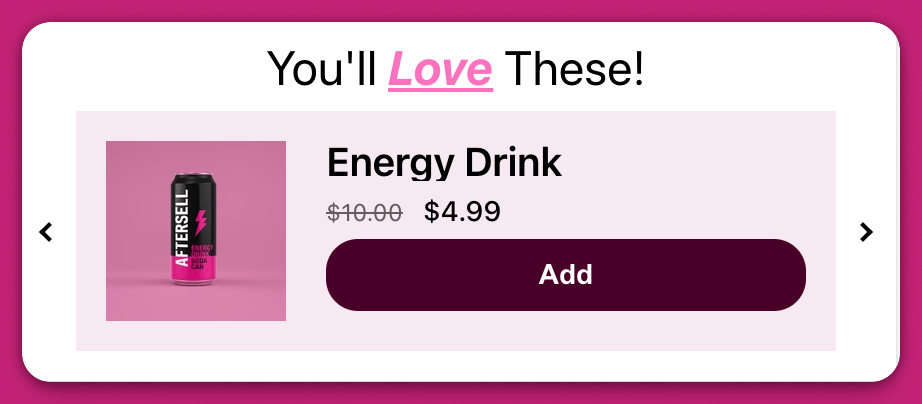
Carousel 会以从左到右的滑动条形式展示所有 upsell 产品。

滑动条左右两侧带有箭头，方便顾客在产品之间切换。

<img src="https://mintcdn.com/aftersell/uVGuDiyXpd6WOLO4/images/upcart/upsells-settings-carousel-layout-arrows.png?fit=max&auto=format&n=uVGuDiyXpd6WOLO4&q=85&s=1c3a0c5d0f4c150e2db07d5c0553ca6f" alt="轮播式 upsell 布局，显示一件产品及左右导航箭头" width="500" data-path="images/upcart/upsells-settings-carousel-layout-arrows.png" />

<div id="block">
  ## Block（块状）
</div>

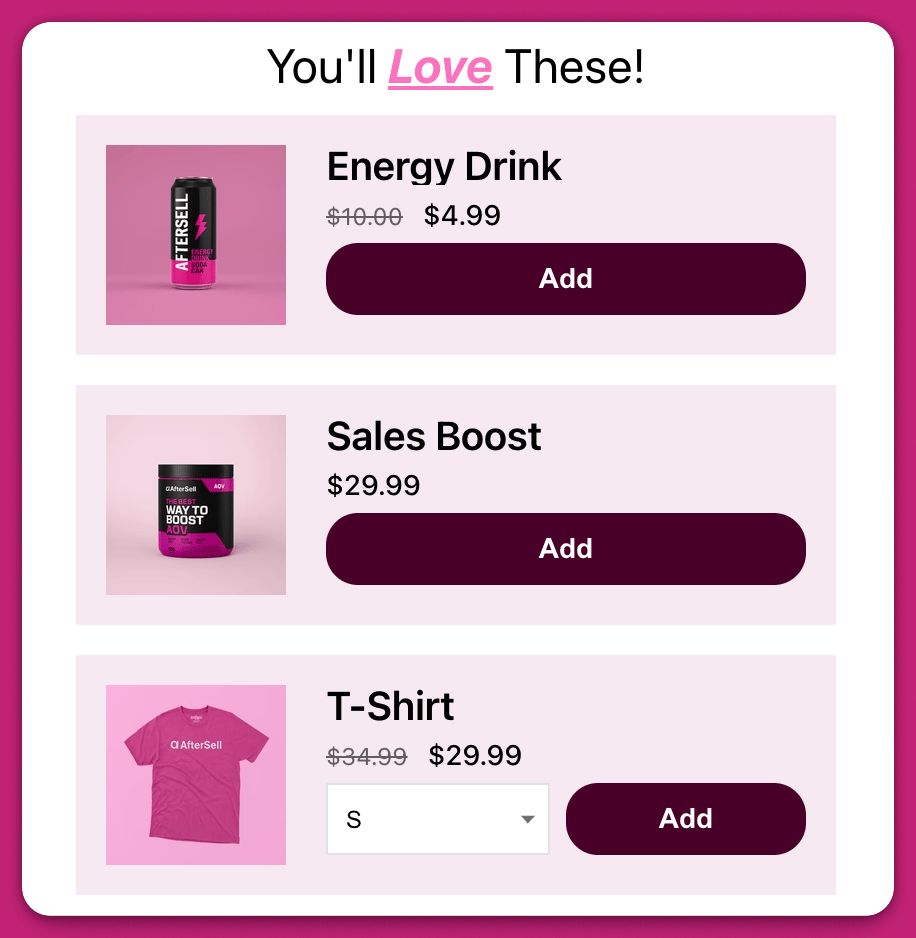
Block 会将所有 upsell 产品垂直堆叠展示：

<img src="https://mintcdn.com/aftersell/uVGuDiyXpd6WOLO4/images/upcart/upsells-settings-block-layout-three-products.png?fit=max&auto=format&n=uVGuDiyXpd6WOLO4&q=85&s=a22d3a82a9f1e03148d65c08922debcd" alt="块状 upsell 布局，购物车中垂直堆叠三件产品" width="500" data-path="images/upcart/upsells-settings-block-layout-three-products.png" />

这种样式占用的空间更大，但优点是顾客无需先与模块交互就能看到所有 upsell。