> ## Documentation Index
> Fetch the complete documentation index at: https://docs.aftersell.com/llms.txt
> Use this file to discover all available pages before exploring further.
# Upsells 模块
> 本指南介绍如何在 Upcart 中配置 Upsells 模块
Upsells 模块让顾客只需一次点击,即可将相关或互补产品加入购物车。
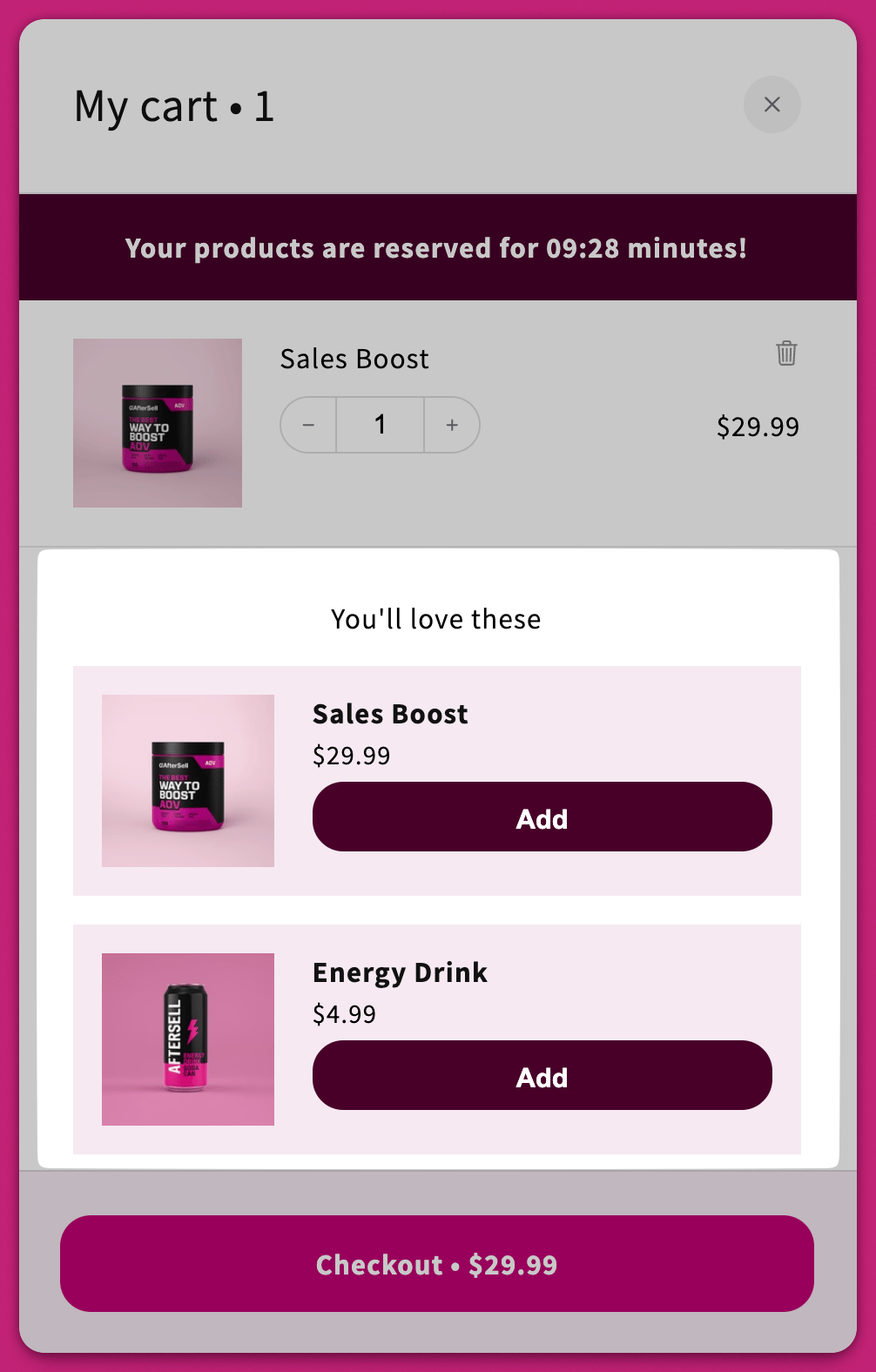
# 产品选择
## AI 推荐 Upsell
启用此设置可使用 [Shopify 的产品推荐算法](https://shopify.dev/docs/themes/product-merchandising/recommendations)自动推荐 upsell。
### 推荐算法
此选项仅在启用 AI 推荐后出现。选择你需要的**推荐意图(Recommendation Intent)**:[Recommendation Intent](https://shopify.dev/docs/themes/product-merchandising/recommendations#recommendation-intents)。
推荐意图会改变 Shopify 返回*哪些*产品,但不会改变区块标题。无论如何设置,upsell 都会显示在你的 **Upsell 标题**(默认为“You'll love these”)之下。
#### **相关产品**
显示相似或可替代的产品。
* \*\*重要提示:\*\*产品必须属于同一个 collection 才会被视为“相关”。
#### **互补产品**
显示附加产品或配件。
* \*\*注意:\*\*互补意图必须在 [Shopify Search & Discovery 应用](https://apps.shopify.com/search-and-discovery)中手动配置。算法只会为“相关(Related)”产品自动生成推荐。\
详情请参阅 [Shopify 的文档](https://help.shopify.com/en/manual/online-store/search-and-discovery/product-recommendations)。
## 智能变体匹配
此复选框仅在启用 **Use AI recommended upsells** **且**推荐算法设置为 **Related** 时才会出现。它不适用于手动 upsell 或互补(Complementary)意图。
启用后,Upcart 会在 upsell 产品上预先选中与顾客购物车中现有商品匹配的变体,而不是默认选中列表中的第一个变体。
例如,如果顾客将一件黑色衬衫加入购物车,upsell 会在搭配的裤装产品上自动预选黑色变体。如果顾客加入的是蓝色衬衫,则会预选蓝色变体。
即使各产品的选项名称不完全相同,智能变体匹配也能正常工作。如果找不到匹配的变体,顾客仍然可以手动选择。
## 手动 Upsell 配置
只有在禁用 **AI Recommended Upsells** 时才能设置手动 upsell。
点击 **Configure Manual Upsells**。
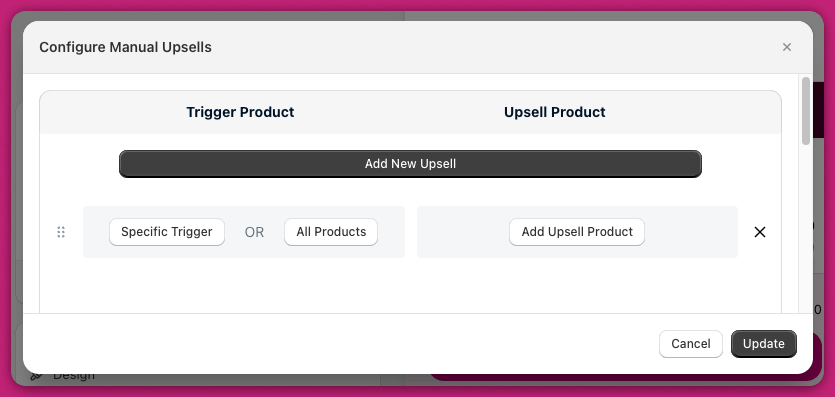
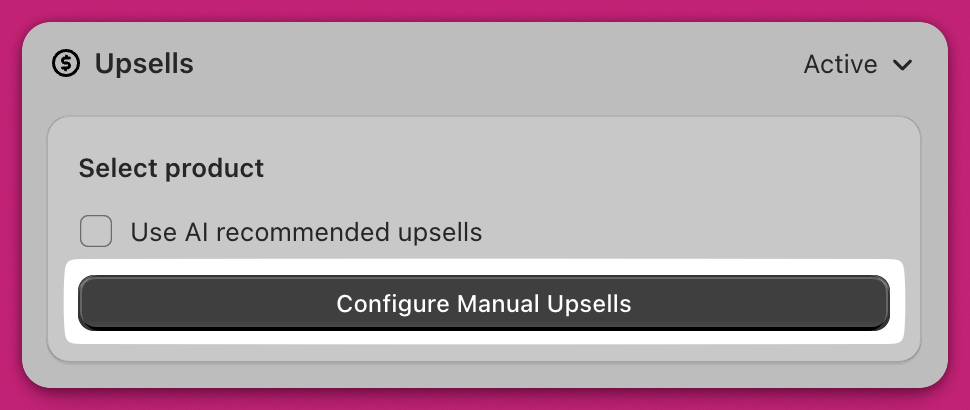 点击 **Add New Upsell** 添加一行,其中包含:
1. **触发条件(Trigger)**\
\*\*Specific Trigger:\*\*选择至少一个必须位于购物车中的产品。\
\*\*Collection:\*\*当购物车中任意商品属于所选 collection 时触发——请在选择弹窗的 **Collection** 选项卡中选取。\
\*\*All Products:\*\*只要购物车中有*任意*产品就显示该 upsell。
2. **Upsell**\
选择触发条件匹配时要展示的产品——也可以选择一个 **collection**,系统会拉取其中的产品。
点击 **Add New Upsell** 添加一行,其中包含:
1. **触发条件(Trigger)**\
\*\*Specific Trigger:\*\*选择至少一个必须位于购物车中的产品。\
\*\*Collection:\*\*当购物车中任意商品属于所选 collection 时触发——请在选择弹窗的 **Collection** 选项卡中选取。\
\*\*All Products:\*\*只要购物车中有*任意*产品就显示该 upsell。
2. **Upsell**\
选择触发条件匹配时要展示的产品——也可以选择一个 **collection**,系统会拉取其中的产品。
## Upsell 的显示顺序
Upsell 按从上到下的顺序进行评估。要调整各行的优先级,请在 Cart Editor 的 **Configure Manual Upsells** 部分拖放排序。系统会按照 Cart Editor 中从上到下的排列顺序显示 upsell。
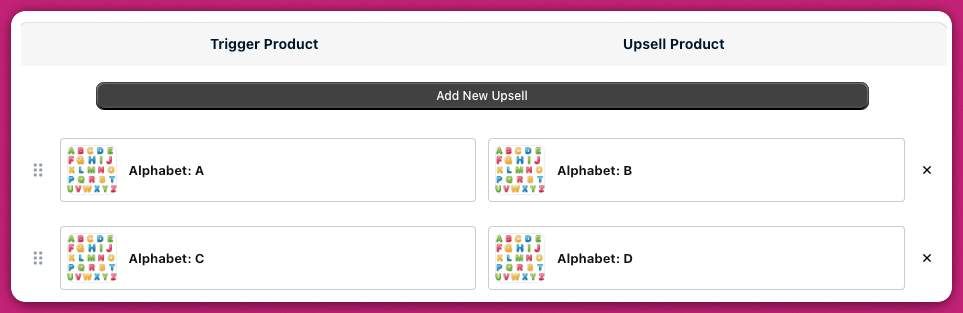 如果购物车中同时有产品 A 和 C,并且你为二者都设置了 upsell,那么 B 和 D 都会显示。
在单个 upsell 行中选择多个 upsell 产品时,产品的选择顺序将决定它们在购物车中从上到下的显示顺序。
***
如果购物车中同时有产品 A 和 C,并且你为二者都设置了 upsell,那么 B 和 D 都会显示。
在单个 upsell 行中选择多个 upsell 产品时,产品的选择顺序将决定它们在购物车中从上到下的显示顺序。
***
## 显示评价
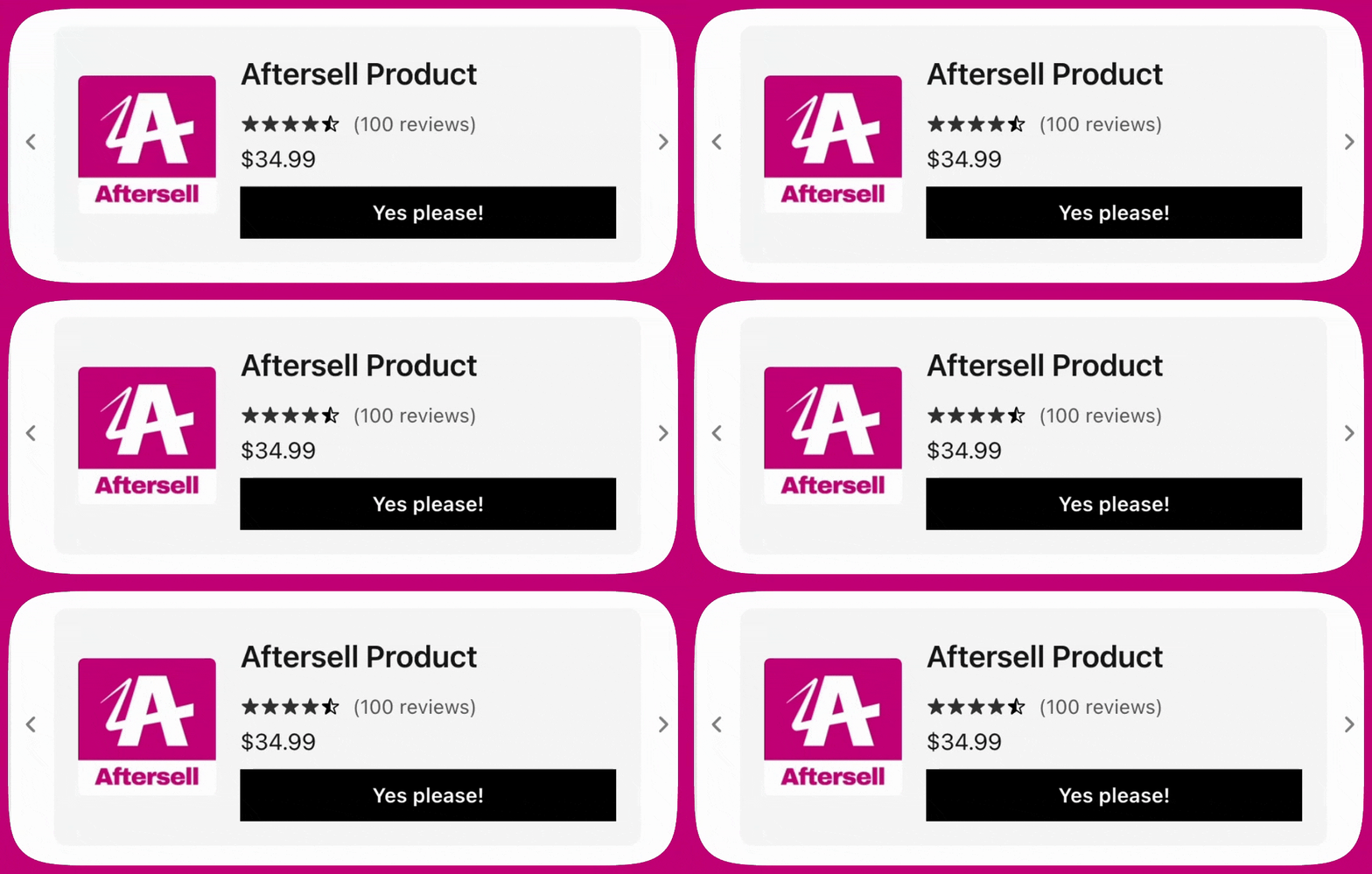
Upcart 可以在 **upsell 和产品推荐**上显示产品评价,帮助顾客做出明智的购买决策。标准购物车商品行不会显示评价。
Upcart 使用 **[Shopify Storefront API](https://shopify.dev/docs/storefronts/headless/building-with-the-storefront-api/products-collections/metafields)** 读取存储在产品 metafields 中的评价数据。因此,只有当你的评价应用以 Storefront API 可访问的格式暴露产品评价数据时,评价才会显示。
### 支持的评价应用
目前,Upcart 支持来自以下应用的评价:
1. **Shopify Product Reviews**\
[https://apps.shopify.com/product-reviews](https://apps.shopify.com/product-reviews)
2. **Junip**\
[https://apps.shopify.com/junip](https://apps.shopify.com/junip)
3. **Okendo**\
[https://apps.shopify.com/okendo-reviews](https://apps.shopify.com/okendo-reviews)
4. **Growave**\
[https://apps.shopify.com/growave](https://apps.shopify.com/growave)
5. **Fera**\
[https://apps.shopify.com/fera](https://apps.shopify.com/fera)
6. **Yotpo**
7. **Stamped**
8. **Loox**
9. **REVIEWS.io**
10. **Automizely**
11. **Judge.me**
12. **Ali Reviews**
13. **Trustoo**
14. **Rivo**
15. **Rivyo**
16. **Vitals**
如果评价没有显示,请确认你使用的是受支持的应用之一,并且 upsell 或推荐中展示的产品有可用的评价。
***
## 故障排查
如果你的 upsell 没有显示,请查看我们 [FAQ](/zh/upcart/adding_code_to_your_shopify_theme_for_accelerated_checkout_buttons) 中的[“为什么我的 upsell 没有显示?”](/zh/upcart/why_isnt_my_upsell_showing)文章,了解常见的解决方法。
#### **后续步骤**
要微调 upsell 在 cart drawer 中的行为,请继续阅读下一篇指南:
[**Upsell 模块:设置**](https://aftersell.mintlify.app/upcart/upsells_module_settings#upsells-module-settings)