> ## Documentation Index
> Fetch the complete documentation index at: https://docs.aftersell.com/llms.txt
> Use this file to discover all available pages before exploring further.
# 流量分配
> 控制商店中看到 Upcart 的访客百分比
# **概览**
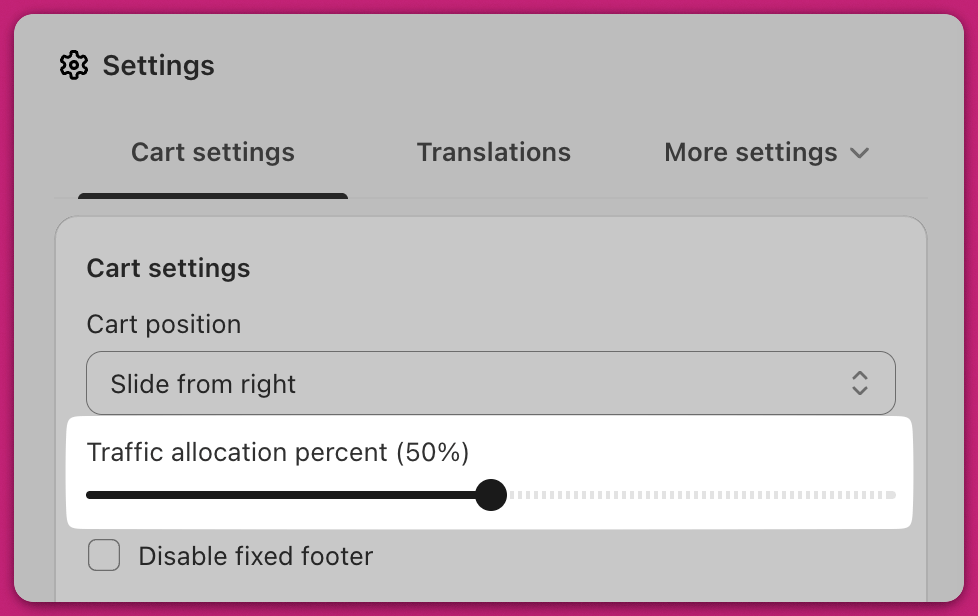
Upcart 提供一个 **Traffic Allocation Percentage**(流量分配百分比)滑块,让你定义商店访客中有多大比例会看到 cart drawer。
* **100%**(默认):所有客户都会看到 Upcart。
* **50%**:只有一半的客户会看到。
* **0%**:对所有客户禁用 Upcart。
此设置位于 **Settings → Cart settings → Traffic Allocation Percent**。
# **工作原理**
客户首次访问你的商店时,Upcart 会生成一个随机值来决定他们是否会看到购物车。该值保存在客户浏览器的 **local storage** 中——这是有意为之,这样某天看到购物车的顾客第二天不会突然看不到它。
由于它保存在 local storage 而非 cookie 中,仅清除 cookie 并不会重置它。客户需要清除该站点的 local storage,或使用隐私窗口。
## **预览模式下的行为**
来自 Cart Editor 和 Carts 页面的预览链接会**完全跳过流量分配**——购物车会被强制启用,因此无论你的分配百分比设置为多少,你始终都能看到它。
这意味着预览无法向你展示被排除的那一部分体验。要查看被排除的顾客看到的内容,请在尚未被分配 local storage 的浏览器中正常访问你的店面(使用隐私窗口即可)。
## **如何调整流量分配**
1. 在 Upcart Cart Editor 中导航至 **Settings**。
2. 使用 **Traffic Allocation Percent** 滑块设置所需的百分比。
3. 点击 **Save** 以应用更改。
### 示例:
* 设置为 **75%**:每 4 位新访客中有 3 位会看到 Upcart。
* 设置为 **0%**:适用于在不卸载应用的情况下临时禁用。