> ## Documentation Index
> Fetch the complete documentation index at: https://docs.aftersell.com/llms.txt
> Use this file to discover all available pages before exploring further.
# 阶梯奖励模块 - 奖励设置
> 使用 Upcart 的奖励进度条展示多个优惠层级,鼓励客户提升购物车金额。
本指南介绍如何配置和管理奖励层级、设置不同的奖励类型,以及自定义面向客户的消息文案。
📘 *这是配置奖励模块的三篇指南中的第二篇。*\
另请参阅:\
[常规设置](/zh/upcart/tiered_rewards_module_general_settings) | [高级设置](/zh/upcart/tiered_rewards_module_advanced_settings)
# 管理奖励层级
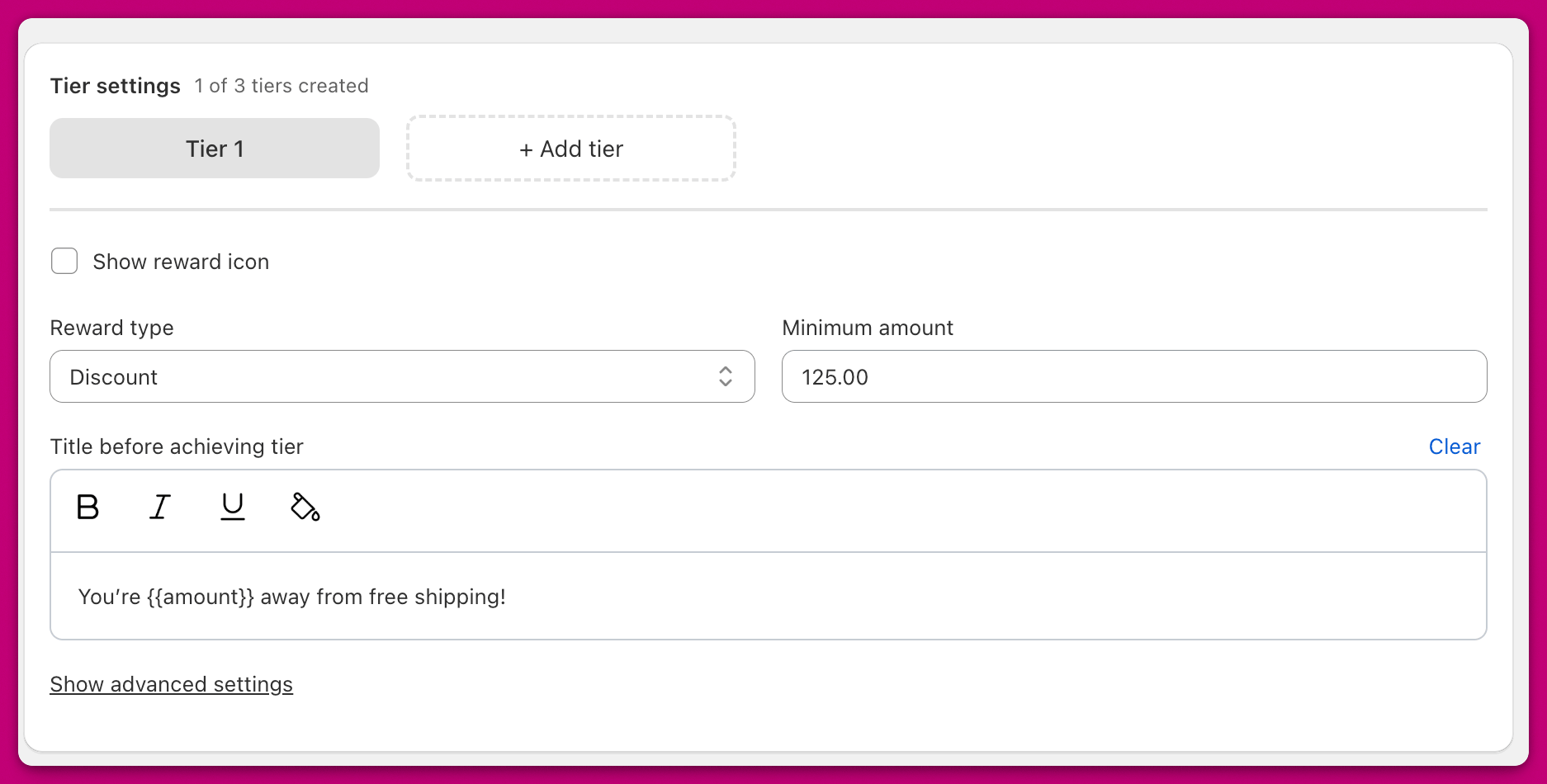 默认情况下,你可以在 Upcart 的奖励进度条中配置**最多四个奖励层级**。(部分商店的上限会高于四个——顶部标题会告诉你自己的上限。)层级设置部分显示一个选项卡式界面,你可以在其中单独管理每个层级。
顶部标题会显示你已创建的层级数量(例如 "2 of 4 tiers created")。默认情况下会显示一个层级。点击 **+ Add tier** 按钮可创建更多层级(最多可达你的上限)。
要在层级之间切换,请点击设置面板顶部的层级选项卡。要删除层级,请点击当前层级选项卡上的 **X** 图标。
默认情况下,你可以在 Upcart 的奖励进度条中配置**最多四个奖励层级**。(部分商店的上限会高于四个——顶部标题会告诉你自己的上限。)层级设置部分显示一个选项卡式界面,你可以在其中单独管理每个层级。
顶部标题会显示你已创建的层级数量(例如 "2 of 4 tiers created")。默认情况下会显示一个层级。点击 **+ Add tier** 按钮可创建更多层级(最多可达你的上限)。
要在层级之间切换,请点击设置面板顶部的层级选项卡。要删除层级,请点击当前层级选项卡上的 **X** 图标。
### 显示奖励图标
启用此开关可在奖励层级旁边显示图标。如果你有**多个层级**,图标会自动显示。
# **奖励类型**
**Reward Type** 下拉菜单决定你提供的奖励类型。Tiered Rewards 模块只是一个可视化进度条,本身不会应用底层的折扣或运费优惠。要在客户达到某个层级时激活实际奖励,请在 Upcart 内的 Discounts 模块中创建匹配的规则(最简单的方式)、在 Shopify 后台设置自动折扣,或使用 Abra 等折扣管理应用。
## 运费
 在 cart drawer 中显示一个**卡车图标**。需要一条匹配的免运费规则,可以在 Discounts 模块中创建(**Free Shipping** 奖励,**Cart total** 触发条件)、在 Shopify 后台作为自动折扣创建,或通过 Abra 等折扣管理应用创建。
## 折扣
 显示一个**折扣标签图标**。需要一条匹配的折扣规则,可以在 Discounts 模块中创建(**购物车折扣**奖励,**Cart total** 触发条件)、在 Shopify 后台作为自动折扣创建,或通过 Abra 等折扣管理应用创建。
### 高级折扣码选项
使用 **Discount** 奖励类型时,你可以选择指定一个**手动折扣码**,在达到该层级时自动应用。
* 这会覆盖任何手动应用的折扣码
* 即使不再满足该层级条件,折扣码仍会保持应用状态
* 触发后,其行为与标准 Shopify 折扣相同
**启用阶梯奖励后手动折扣码失效**
如果在阶梯奖励生效期间,你的手动折扣码在结账时无法应用,这通常是 Shopify 折扣组合问题。奖励进度条不会为免运费或免费产品层级创建 Shopify 折扣——这些需要单独的规则。但它也并非完全无操作:带有**手动折扣码**的 **Discount** 层级会让 Upcart 将该折扣码应用到购物车本身。无论哪种情况,该折扣码都是真实的 Shopify 折扣,因此如果它未设置为可与你的其他折扣组合使用,Shopify 就会阻止它。
**解决方法:** 在 Shopify 后台中,打开该折扣码并启用 **"Combine with other discounts"**(与其他折扣组合)。之后,手动折扣码应能按预期与生效中的奖励层级同时应用。
## 产品
 显示一个**礼品盒图标**
### *复制产品设置法*
1. 在 Shopify 中[**复制该产品**](https://help.shopify.com/en/manual/sell-in-person/shopify-pos/inventory-management/products/duplicate-product)
2. 将复制版本的价格设置为 **\$0**
3. 在标题中添加 "Free" 以作区分
4. 在 Upcart 中将该产品用作奖励
### ***折扣设置法***
你也可以在 Shopify 中创建一个**自动折扣**,对奖励产品应用 **100% 折扣**。
这种方式支持库存跟踪,但请注意,每次结账**只能应用一个自动折扣**。如果已有其他自动折扣生效,它可能会覆盖产品奖励折扣。更多信息请参阅 [Shopify 折扣文档](https://help.shopify.com/en/manual/discounts/discount-combinations#considerations-for-discount-combinations)。
🛍️ **多产品奖励**:\
你可以在单个奖励层级中添加最多**三个产品**。\
达到该层级时,**所有产品都会被添加到购物车**,客户无法只选择其中一个。
# **奖励配置字段**
### **奖励描述**
设置在 cart drawer 中奖励图标下方显示的标题。
### **最低金额**
(当 *Rewards calculation = Cart total (\$)* 时显示)\
解锁奖励所需的购物车总额(以商店的主要货币计)。
### **最低数量**
(当 *Rewards calculation = Cart quantity (#)* 时显示)\
解锁奖励所需的购物车商品数量。
### **达成层级前的标题**
自定义客户尚未达到奖励条件时显示在奖励进度条上方的消息。
* 可使用**加粗**、*斜体*、下划线或颜色来设置文本格式
* 可通过变量插入剩余**金额**(Cart total 计算方式)或剩余**数量**(Cart quantity 计算方式)
变量语法取决于你的购物车所使用的奖励模块版本——字段自带的帮助文本会显示正确的语法:
| 奖励模块 | 剩余金额 | 剩余数量 |
| ---- | ------------ | ----------- |
| 版本 1 | `{AMOUNT}` | `{COUNT}` |
| 版本 2 | `{{amount}}` | `{{count}}` |