> ## Documentation Index
> Fetch the complete documentation index at: https://docs.aftersell.com/llms.txt
> Use this file to discover all available pages before exploring further.

# 显示继续购物按钮

> 在 cart drawer 中的 Checkout 按钮下方添加“继续购物”链接。

<div id="overview">
  # 概述
</div>

此功能会添加一个简单的文本链接，点击后关闭购物车。这对**移动端用户**尤其有帮助，因为在移动端点按顶角的关闭图标可能不太方便。

<div id="where-to-find-it">
  ## **位置**
</div>

前往：\
**Upcart > Editor > Design** \
在设计模块中找到 'buttons' 部分，然后找到标记为 **"Show continue shopping button"** 的复选框。
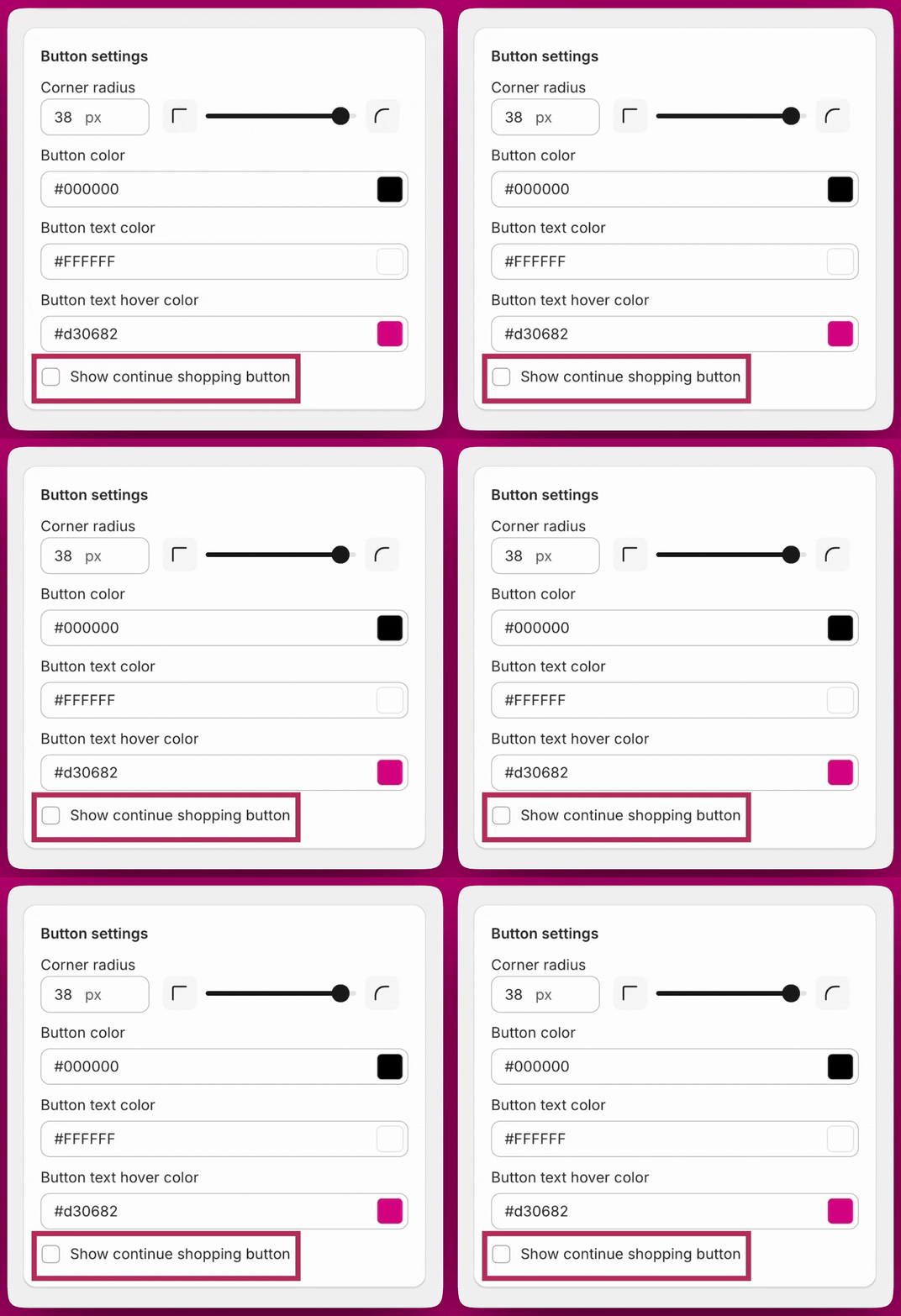
<img src="https://mintcdn.com/aftersell/uxKAdY-e0h16xa48/images/upcart/continue-shopping-button-setting-checkbox.gif?s=72a03bd35cfea76440be8d1b59e74e06" alt="Upcart 按钮设置，高亮显示 Show continue shopping button 复选框" width="1108" height="1080" data-path="images/upcart/continue-shopping-button-setting-checkbox.gif" />

<div id="how-it-works">
  ## **工作原理**
</div>

<div id="enabled-box-checked">
  ## ✅ 启用（勾选复选框）
</div>

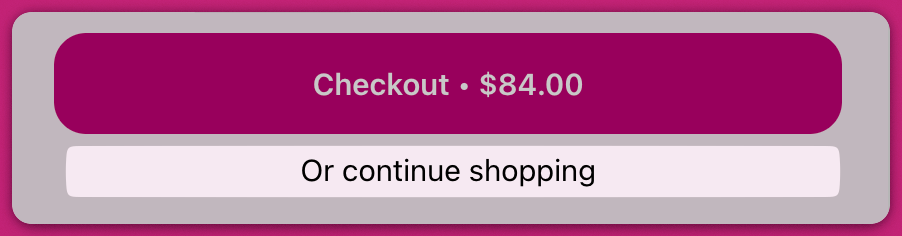
* **"Continue Shopping"** 链接会出现在 cart drawer 的底部。
* 点击后，抽屉关闭，客户返回店面。

你可以通过 **Settings > Edit copy** 中的 **Continue shopping button text** 字段自定义链接文本。
<img src="https://mintcdn.com/aftersell/uxKAdY-e0h16xa48/images/upcart/continue-shopping-cart-footer-checkout-button.png?fit=max&auto=format&n=uxKAdY-e0h16xa48&q=85&s=450c1c579d49b3a0e4570bac69343a4c" alt="购物车页脚，带有 Checkout 按钮及其下方的 Or continue shopping 链接" width="600" data-path="images/upcart/continue-shopping-cart-footer-checkout-button.png" />

<div id="disabled-box-unchecked">
  ## ⬜ 禁用（未勾选复选框）
</div>

* 该链接不会出现在购物车中。
* 客户需要使用 "X" 按钮手动关闭购物车。
