> ## Documentation Index
> Fetch the complete documentation index at: https://docs.aftersell.com/llms.txt
> Use this file to discover all available pages before exploring further.

# Upcart 快速入门指南

> 了解如何激活 Upcart、启用核心功能并将你的 cart drawer 发布上线。

本指南将引导你完成 Upcart 及其主要模块的设置，从视觉自定义到在店面上激活。

Upcart 在视觉上替换你的主题 cart drawer，但它**不会与主题的 cart drawer 或购物车页面集成**。Shopify 购物车页面仍然可以访问。

<div id="managing-modules">
  # **管理模块**
</div>

每个 Upcart 模块都可以**轻松启用或禁用**。只需点击右上角的 **Enable/Disable** 按钮，即可随时打开或关闭模块。保存后，更改会立即生效。

<img src="https://mintcdn.com/aftersell/uVGuDiyXpd6WOLO4/images/upcart/quickstart-announcements-module-row-disabled.png?fit=max&auto=format&n=uVGuDiyXpd6WOLO4&q=85&s=454a834d8ea953a99ba987dfdb80499a" alt="标记为 Disabled 的 Announcements 模块行，箭头指向 Enable 按钮" width="1548" height="210" data-path="images/upcart/quickstart-announcements-module-row-disabled.png" />

<div id="cart-design">
  # 购物车设计
</div>

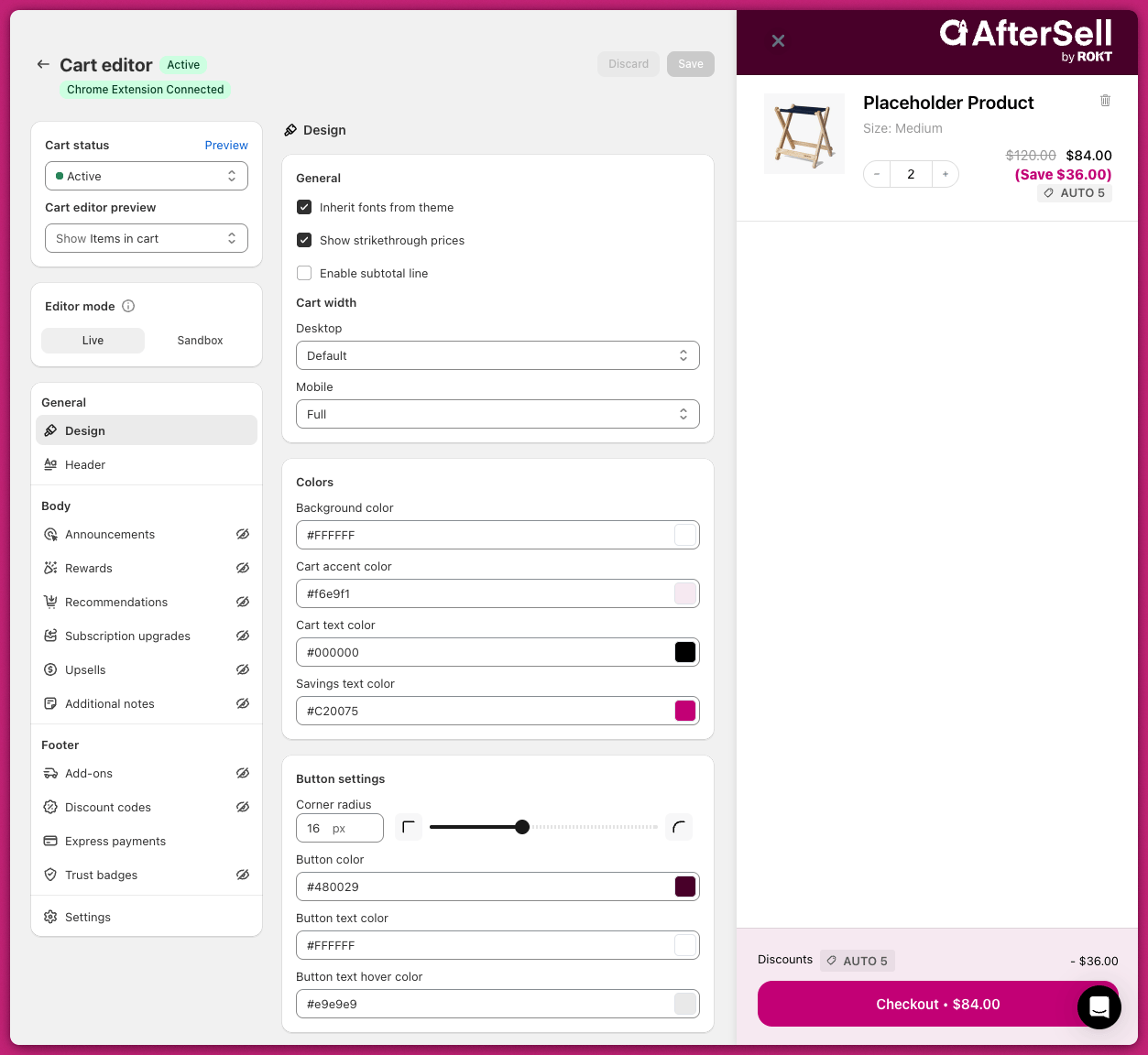
首次打开 Upcart 的 Cart Editor 时，你会进入 [Design 模块](/zh/upcart/design_module)。你可以在这里自定义抽屉的基础颜色，使其与商店品牌相匹配。

<img src="https://mintcdn.com/aftersell/uVGuDiyXpd6WOLO4/images/upcart/quickstart-cart-editor-design-module.png?fit=max&auto=format&n=uVGuDiyXpd6WOLO4&q=85&s=e15c4d0893916f9200cf1884c1d0adfe" alt="Upcart Cart Editor Design 模块，颜色设置旁边是实时 cart drawer 预览" width="600" data-path="images/upcart/quickstart-cart-editor-design-module.png" />

<div id="announcements">
  # 公告
</div>

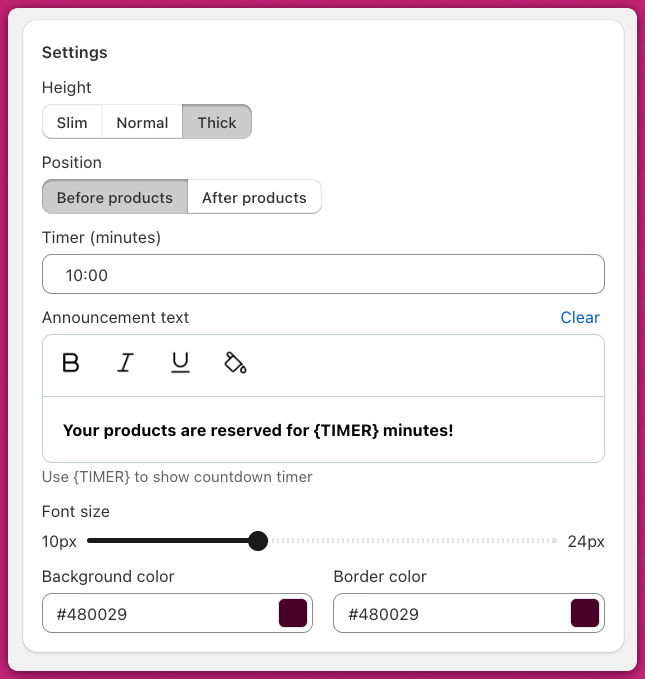
要显示购物车消息或倒计时器，请前往 **Body > [Announcements](/zh/upcart/announcements_module)**。

在右上角点击 **Enable**。模块名称旁边的标记会从 **Disabled** 变为 **Active**。

在 **Announcement Text** 字段中输入你的消息，并在需要时配置计时器。

<img src="https://mintcdn.com/aftersell/uVGuDiyXpd6WOLO4/images/upcart/quickstart-announcement-settings-timer-text.png?fit=max&auto=format&n=uVGuDiyXpd6WOLO4&q=85&s=2a726b39f6ea92d5899e2aae2968c2d1" alt="带有计时器、公告文本字段和颜色选项的公告设置" width="645" height="679" data-path="images/upcart/quickstart-announcement-settings-timer-text.png" />

请务必在公告文本中使用 `{TIMER}` 变量来实现倒计时，以确保功能正常（例如："This offer is only available for {TIMER}."）。避免直接从第三方工具复制带格式的文本。

完成后，请务必点击右上角的**保存**。

<div id="theme-level-issues">
  #### 主题层面的问题
</div>

* \*\*CSS 或应用冲突：\*\*确保 `display: none;` 等 CSS 属性没有隐藏公告栏。同时检查第三方应用是否覆盖了这些设置。
* \*\*文本可见性：\*\*确认公告栏文本颜色与背景形成对比，必要时在主题设置中调整。

<div id="advanced-debugging-steps">
  #### 高级调试步骤
</div>

对于持续存在的问题，请检查浏览器控制台错误，查找影响公告栏的脚本问题，并临时禁用第三方应用以定位冲突。

<div id="rewards">
  # 奖励
</div>

要显示鼓励客户消费更多的进度条，请启用 Rewards 模块。

<div id="general-settings">
  ### **常规设置**
</div>

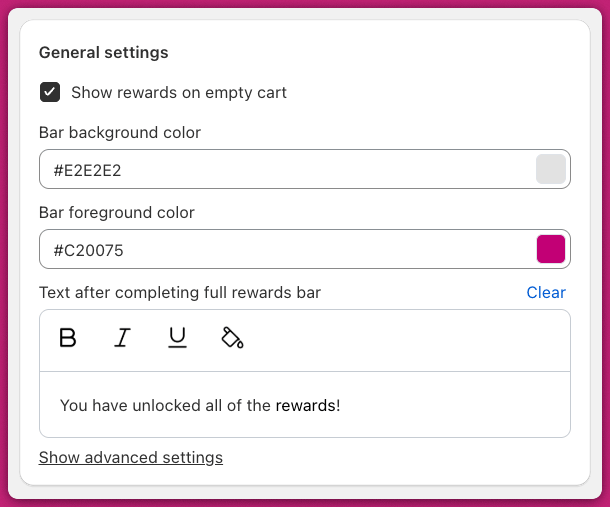
设置你的品牌颜色，以及达到最终奖励等级后显示的消息。

在 General settings 下方的 **Rewards calculation** 卡片中选择奖励计算依据：

* **Cart total (\$)**：跟踪购物车总价值
* **Cart quantity (#)**：跟踪商品数量

<img src="https://mintcdn.com/aftersell/uVGuDiyXpd6WOLO4/images/upcart/quickstart-rewards-module-general-settings.png?fit=max&auto=format&n=uVGuDiyXpd6WOLO4&q=85&s=d702c06541f1304d2d2e742f79d62140" alt="Rewards 模块 General settings，包含进度条颜色和完成消息字段" width="600" data-path="images/upcart/quickstart-rewards-module-general-settings.png" />

<div id="tier-settings">
  ### **等级设置**
</div>

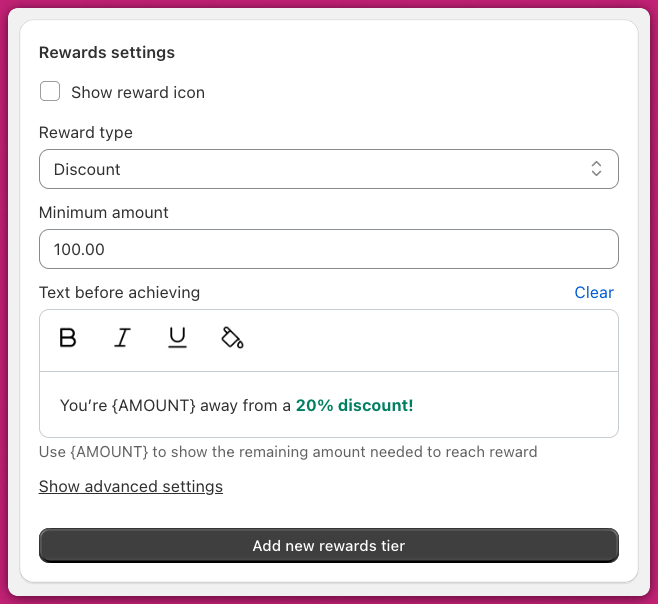
选择你的奖励类型：

* [**Shipping**](https://help.shopify.com/en/manual/fulfillment/setup/shipping-rates/flat-shipping-rates)：在该等级解锁免运费
* [**Discount**](https://help.shopify.com/en/manual/discounts/discount-types)：在该等级解锁折扣
* [**Product**](/zh/upcart/set_up_a_free_product_reward_tier_in_upcart)：将商品添加到购物车

等级进度是在折扣前还是折扣后计算，是通过 **Rewards calculation** 中的 **Use pre-discounted prices for cart total** 复选框对整个进度条统一设置的——它不是奖励类型的属性。

设置触发奖励的最低门槛，并自定义 **Title before achieving tier** 字段。你最多可以创建**四个奖励等级**。
<img src="https://mintcdn.com/aftersell/uVGuDiyXpd6WOLO4/images/upcart/quickstart-rewards-settings-reward-type.png?fit=max&auto=format&n=uVGuDiyXpd6WOLO4&q=85&s=2085093e9f85cdd42ed163fab7d726db" alt="等级设置，包含奖励类型选择、最低金额和等级标题字段" width="600" data-path="images/upcart/quickstart-rewards-settings-reward-type.png" />

<Note>
  此截图早于当前的标签名称：截图中该部分显示为 "Rewards settings"，字段显示为 "Text before achieving"。控件是相同的——现在它们的名称为 **Tier settings** 和 **Title before achieving tier**。
</Note>

<div id="upsells">
  # Upsells
</div>

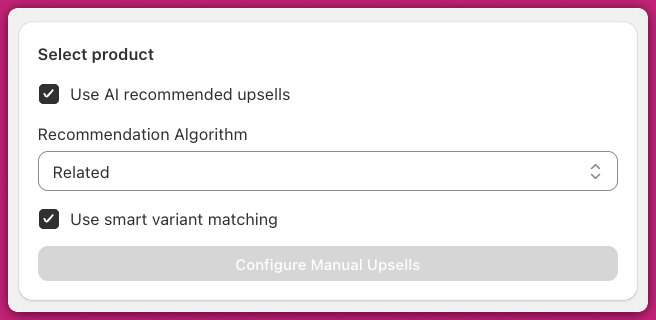
启用 **Use AI Recommended Upsells**，选择 **Related** 算法，并打开 **Smart Variant Matching**，以根据购物车内容预先选择匹配的商品变体。

<img src="https://mintcdn.com/aftersell/uVGuDiyXpd6WOLO4/images/upcart/quickstart-upsells-settings-ai-recommended.png?fit=max&auto=format&n=uVGuDiyXpd6WOLO4&q=85&s=65cddd8e07bfe9e9805ce76e43377ab3" alt="Upsells 设置，已启用 AI 推荐 upsell、Related 算法和智能变体匹配" width="600" data-path="images/upcart/quickstart-upsells-settings-ai-recommended.png" />

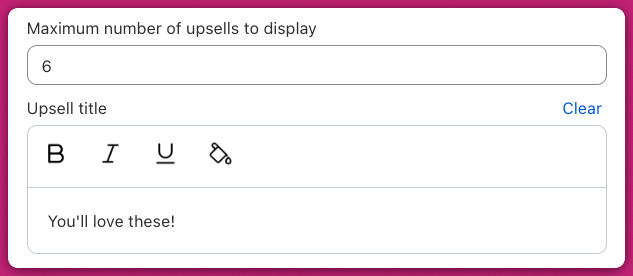
自定义你的区块标题和 **Add** 按钮标签。

<img src="https://mintcdn.com/aftersell/uVGuDiyXpd6WOLO4/images/upcart/quickstart-upsell-fields-maximum-upsells.png?fit=max&auto=format&n=uVGuDiyXpd6WOLO4&q=85&s=58ad7bd0311baa003f3ea5dae376505d" alt="Upsell 字段，包含最多显示的 upsell 数量和区块标题文本" width="600" data-path="images/upcart/quickstart-upsell-fields-maximum-upsells.png" />

<div id="add-ons">
  # 附加项（Add-ons）
</div>

要在页脚显示基于切换开关的附加项，你可以启用以下任一选项：

<div id="shipping-protection">
  ### **运费保险**
</div>

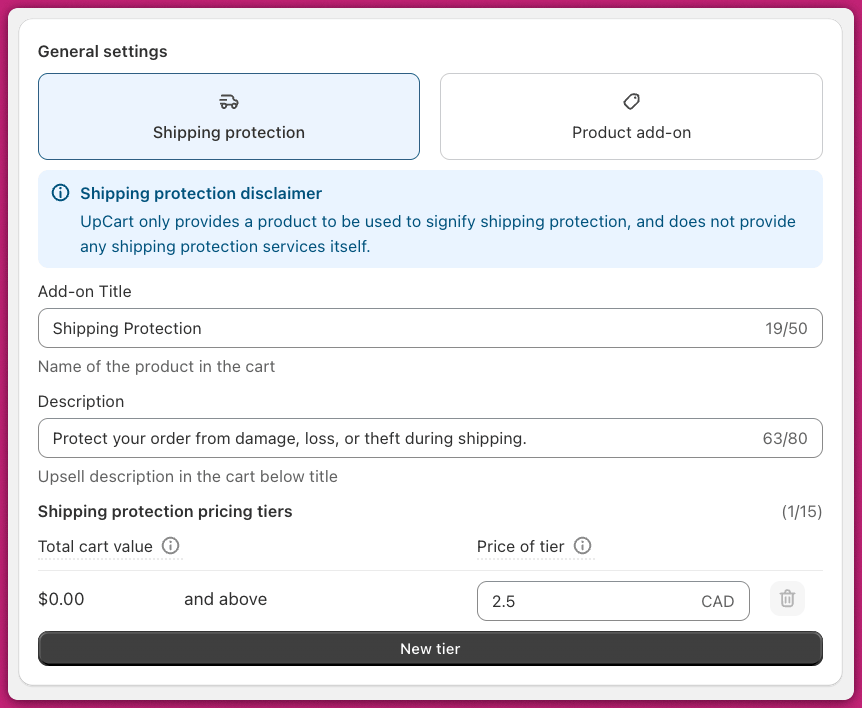
选择 **Shipping Protection**，并根据购物车价值配置动态定价等级。\
这会在你的 Shopify 目录中创建一个真实的商品。
<img src="https://mintcdn.com/aftersell/uVGuDiyXpd6WOLO4/images/upcart/quickstart-shipping-protection-add-settings.png?fit=max&auto=format&n=uVGuDiyXpd6WOLO4&q=85&s=a8432cf06443d21b7c341a0942ef7d7e" alt="Shipping Protection 附加项设置，包含标题、描述和定价等级" width="862" height="708" data-path="images/upcart/quickstart-shipping-protection-add-settings.png" />

<div id="product-add-on">
  ### **商品附加项**
</div>

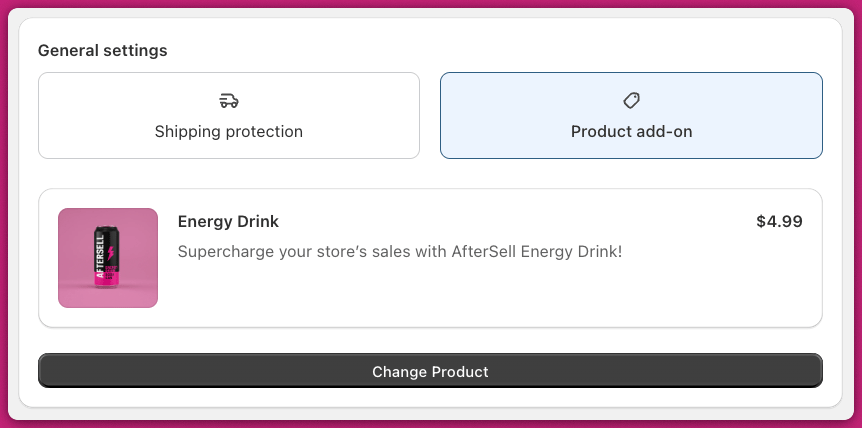
切换到 **Product Add-On** 标签页，选择一个现有商品作为 upsell 提供。

<img src="https://mintcdn.com/aftersell/uVGuDiyXpd6WOLO4/images/upcart/quickstart-product-add-on-energy-drink.png?fit=max&auto=format&n=uVGuDiyXpd6WOLO4&q=85&s=d7eaf37fa102b147636bfae244fef54c" alt="Product add-on 标签页，已选择 Energy Drink 商品并显示 Change Product 按钮" width="862" height="428" data-path="images/upcart/quickstart-product-add-on-energy-drink.png" />

<div id="activating-upcart-on-your-store">
  # 在你的商店中激活 Upcart
</div>

<div id="step-one-make-your-cart-live">
  ### 第一步：使你的购物车上线
</div>

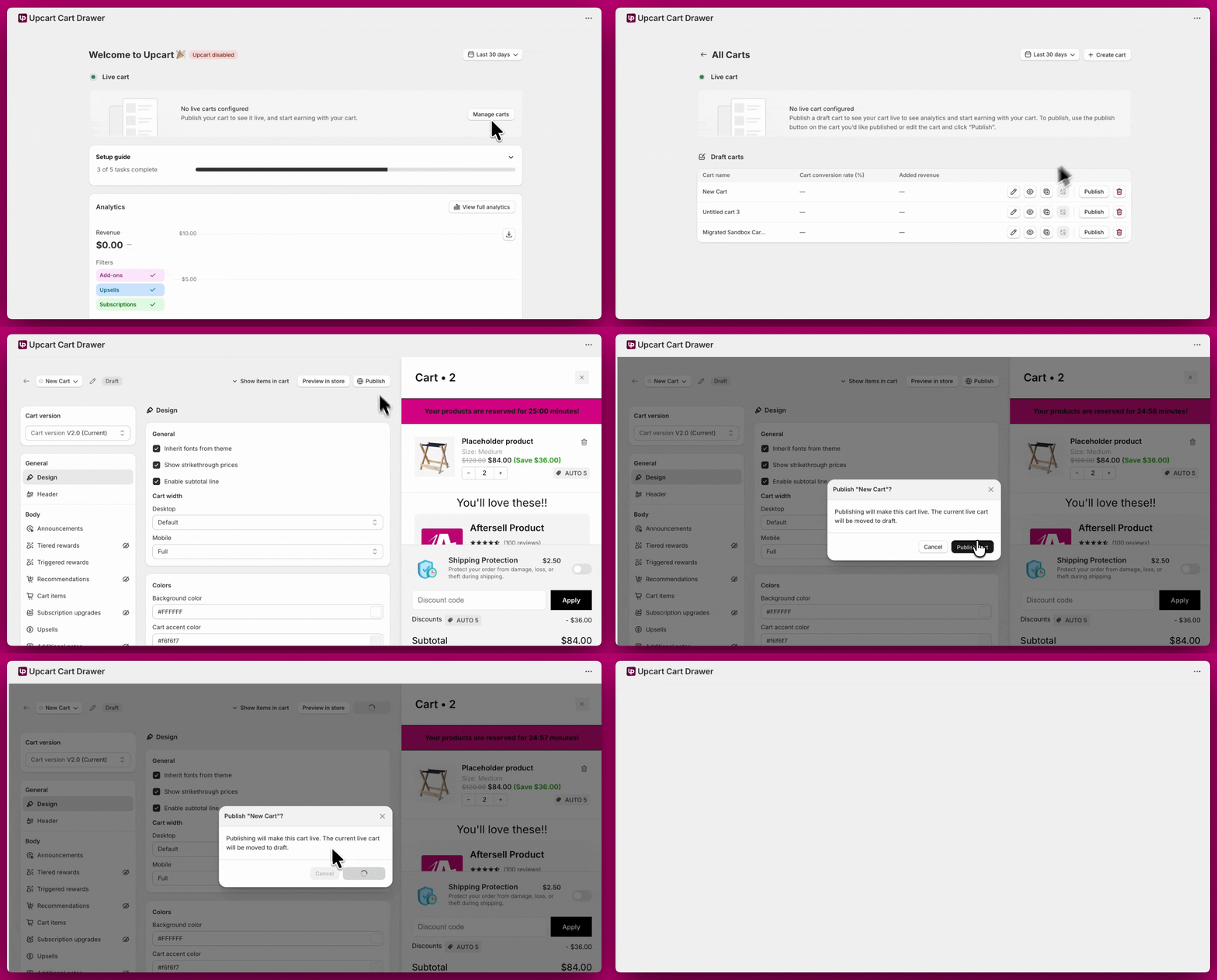
配置完成后，前往 **Manage All Carts** > 选择你想要激活的购物车 > 点击 **Publish**。

发布后，该购物车会移动到购物车表格的 live 区域。在你于主题中启用 Upcart 应用嵌入之前（即下一步），它会显示警告标记 **"App embed off"**。启用嵌入后，该标记会变为绿色的 **"Live"** 标记，确认购物车已在你的店面上显示。

<Note>
  应用嵌入控制 Upcart cart drawer 是否显示在你的店面上。如果你配置了折扣，即使应用嵌入被禁用，这些规则仍会通过 Shopify 的折扣系统保持生效。
</Note>

<img src="https://mintcdn.com/aftersell/uVGuDiyXpd6WOLO4/images/upcart/quickstart-publish-cart-confirmation.gif?s=e8cc3d709577ee5a1ab9848afb9f6269" alt="在 Upcart 中发布购物车，Publish 确认对话框已打开" width="2008" height="1080" data-path="images/upcart/quickstart-publish-cart-confirmation.gif" />

<div id="step-two-enable-theme-app-embed">
  ### **第二步：启用主题应用嵌入**
</div>

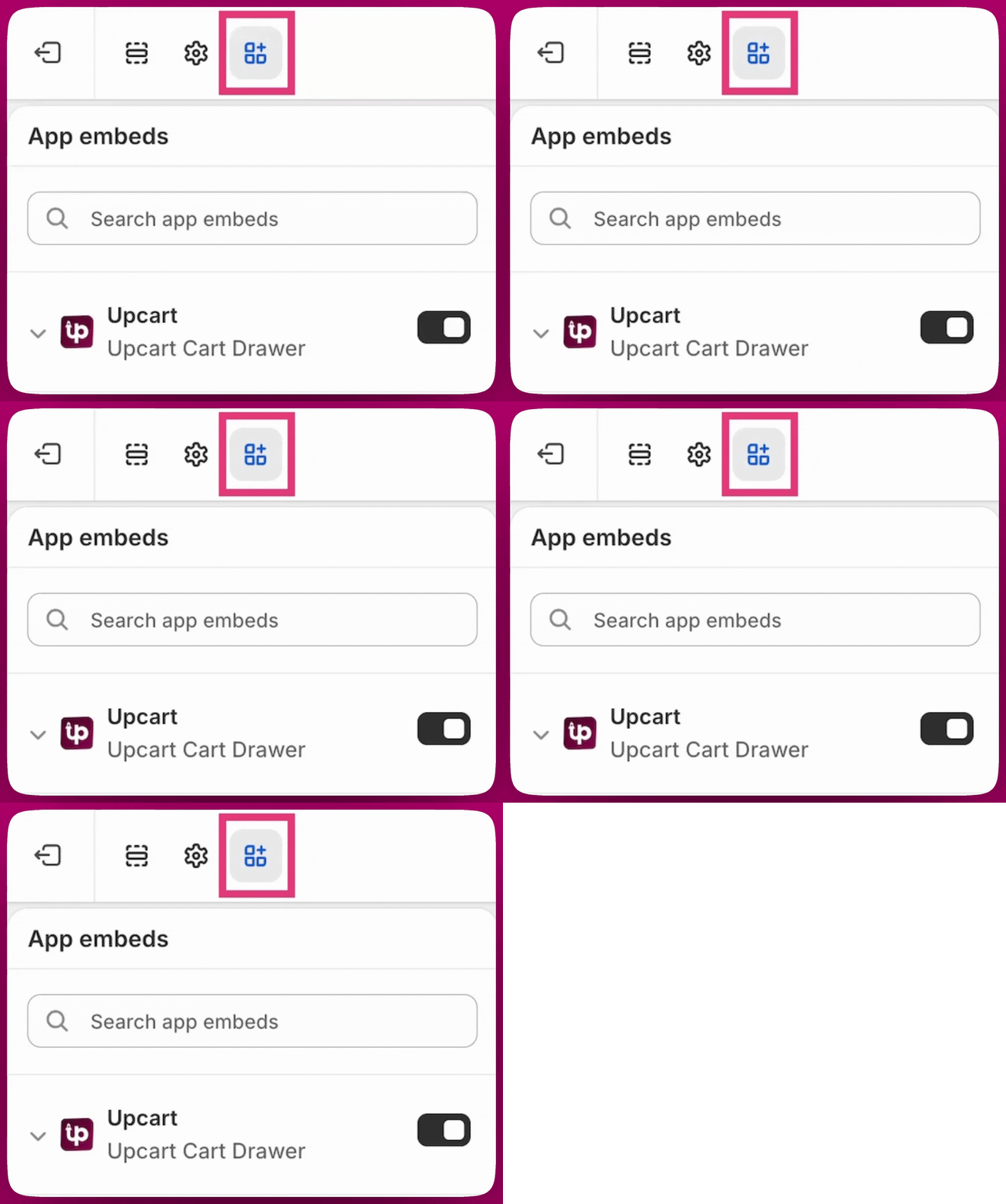
要在主题上激活 Upcart，请前往 **Shopify Admin → Online Store → Themes → Customize → App embeds**，启用 **Upcart** 应用嵌入，然后点击**保存**。

<img src="https://mintcdn.com/aftersell/uVGuDiyXpd6WOLO4/images/upcart/quickstart-app-embed-toggle.gif?s=9244c8509f67622ebb4e1cc2af7ecebb" alt="在 Shopify 主题 App embeds 面板中启用 Upcart Cart Drawer 切换开关" width="1352" height="1080" data-path="images/upcart/quickstart-app-embed-toggle.gif" />

如果你遇到任何问题或兼容性故障，欢迎联系我们的**支持聊天**寻求帮助。