> ## Documentation Index
> Fetch the complete documentation index at: https://docs.aftersell.com/llms.txt
> Use this file to discover all available pages before exploring further.
# 附加备注模块
> 让客户直接在购物车抽屉中为订单留下特殊说明。
# 概述
附加备注(Additional Notes)模块会显示一个可折叠的备注区域,允许客户在进入 checkout 前留言。这些备注会显示在你的 Shopify 后台的订单详情中。
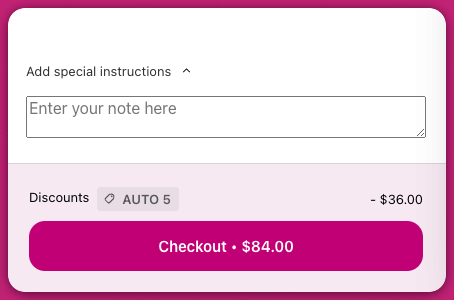 💬 你可以在 Shopify 后台的 Orders 页面或单个订单详情页面查看备注。\
了解更多:[Shopify – 管理订单详情](https://help.shopify.com/en/manual/fulfillment/managing-orders/managing-order-details#notes-comments)
💬 你可以在 Shopify 后台的 Orders 页面或单个订单详情页面查看备注。\
了解更多:[Shopify – 管理订单详情](https://help.shopify.com/en/manual/fulfillment/managing-orders/managing-order-details#notes-comments)
# 自定义附加备注
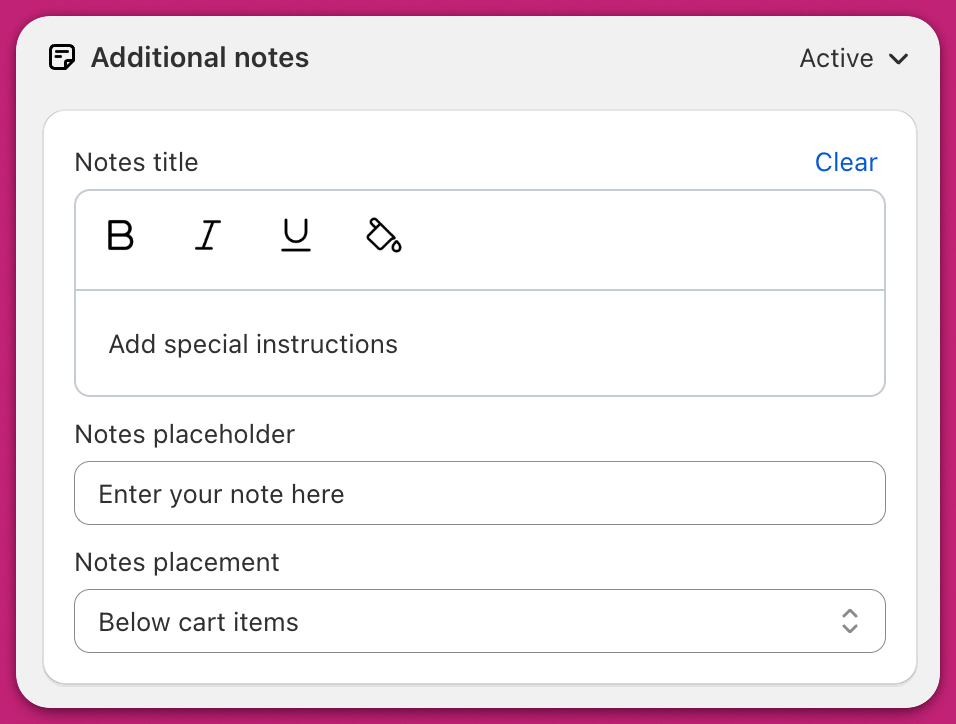
# **备注标题**
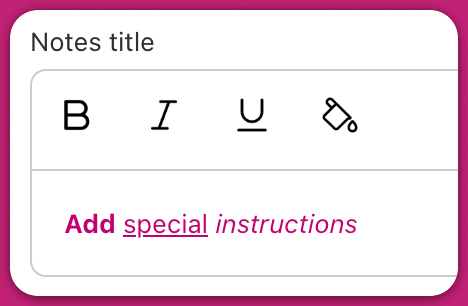
标题是提示客户留言的文本。它可以点击,并且可以使用加粗、斜体、下划线和颜色等格式选项进行自定义。
⚠️ 如果标题文本设置为白色,根据背景不同,它可能会变得不可见。请选中整个字段以检查其是否可读。
## 工作原理
备注区域默认处于折叠状态。当客户点击标题或旁边的箭头时,备注输入框会展开。客户输入备注后,备注会自动保存。
标题旁边会出现一个状态图标,显示保存状态:
* **加载图标** — 备注正在保存
* **对勾图标** — 备注已成功保存
# **备注占位符**
这是客户在输入任何内容之前显示在输入框内的占位符文本。例如,"Special instructions for your order."
客户开始输入后,其留言会替换占位符。提交的备注会传递给 Shopify 并包含在订单中。
# **备注位置**
你可以选择备注字段在购物车布局中显示的位置:
#### **购物车商品下方**
* 备注区域位于购物车中所有商品的下方。
* 客户可能需要滚动才能找到它,尤其是当购物车包含很多商品时。
* Upsell 和附加项可能会显示在备注字段下方。
* 备注字段显示在 Upcart 固定底部区域的顶部。
* 除非固定底部区域被停用,否则它会始终保持可见。
* 在此布局中:
* Upsell 位于备注区域上方
* 附加项位于备注区域下方
"购物车商品下方"这一位置在 metafield 中内部存储为 bottomOfCart。