> ## Documentation Index
> Fetch the complete documentation index at: https://docs.aftersell.com/llms.txt
> Use this file to discover all available pages before exploring further.
# 为你的 Upcart checkout 按钮添加或更新锁形图标
# 简介
在 checkout 按钮上添加锁形图标是一种简单而有效的方式,可以通过表明支付信息是安全的来增强客户信心。这个人们熟悉的符号能让客户对数据保护感到放心,使他们在 checkout 过程中更加安心。在本教程中,我将指导你如何使用 CSS 为 checkout 按钮添加锁形图标,从而增强安全感并改善整体用户体验。
这些步骤非常适合对 CSS 有基本了解的店主或开发者。通过添加这个小而有影响力的视觉提示,你可以让 Upcart checkout 按钮与网站设计保持一致,帮助建立信任并鼓励客户完成购买。
让我们开始吧!
## 开始:选择一个锁形图标
首先,你需要选择一个要添加到商店的锁形图标。我们在下方提供了一些可供使用的图标,但你也可以使用自己的图标。要使用自己的图标,请在 **Settings > Files** 下将其上传到 Shopify 商店的 Files 区域,并复制其 URL。
Upcart 中没有针对 checkout 按钮的图标字段。你需要将一个 HTML 图片标签粘贴到 **Checkout button text** 字段中(该字段会渲染 HTML)— 取用下方的任一代码片段,并将其 `src` 替换为你自己的 URL。
### 以下是我们提供的可选锁形图标:
要添加的 HTML:
 ```text theme={"theme":{"light":"snazzy-light","dark":"github-dark"}}
 ```
要添加的 HTML:
```
要添加的 HTML:
 ```text theme={"theme":{"light":"snazzy-light","dark":"github-dark"}}
 ```
要添加的 HTML:
```
要添加的 HTML:
 ```text theme={"theme":{"light":"snazzy-light","dark":"github-dark"}}
 ```
要添加的 HTML:
```
要添加的 HTML:
 ```text theme={"theme":{"light":"snazzy-light","dark":"github-dark"}}
 ```
要添加的 HTML:
```
要添加的 HTML:
 ```text theme={"theme":{"light":"snazzy-light","dark":"github-dark"}}
 ```
```
## 放置锁形图标:
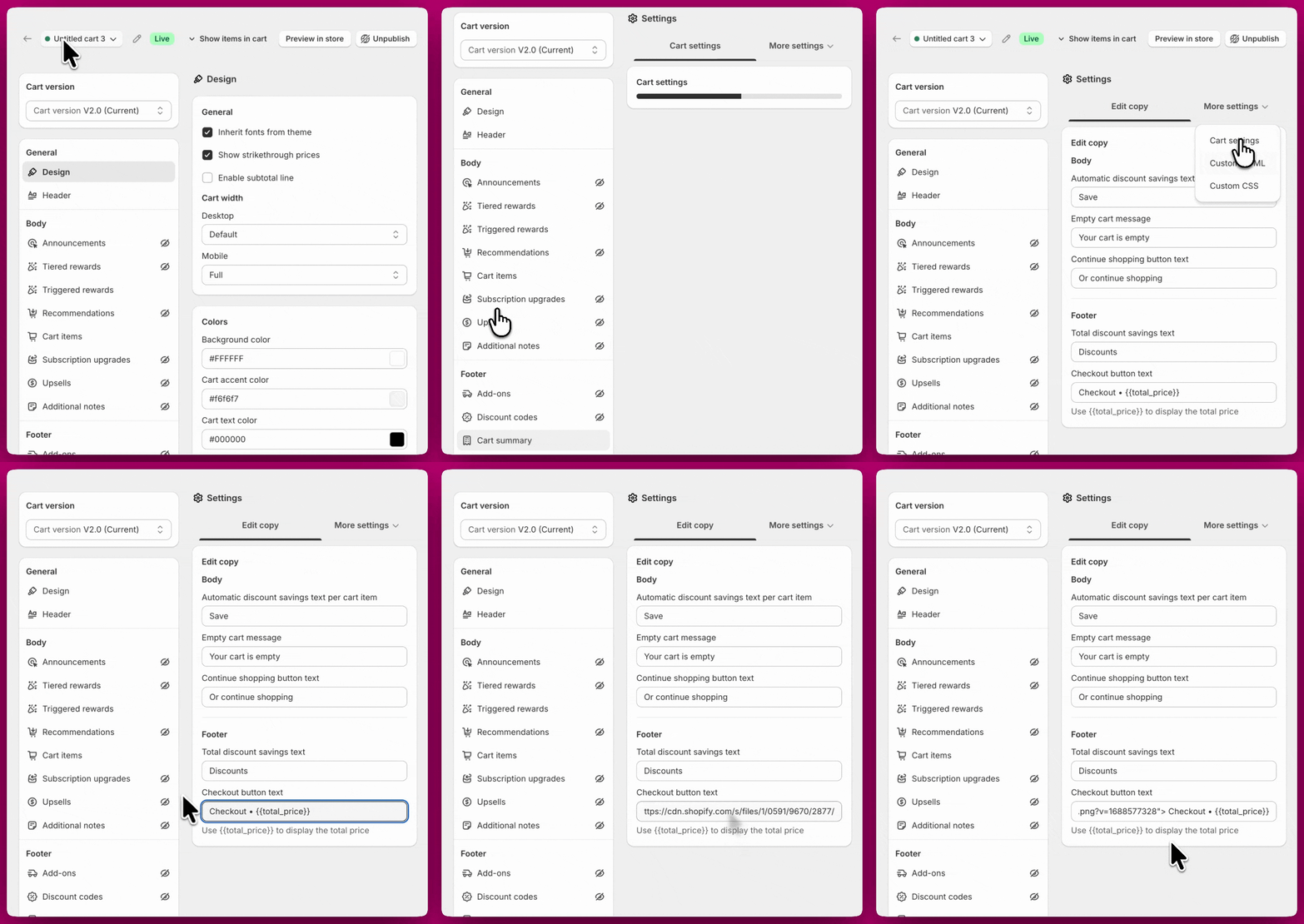
选好锁形图标后,前往 Manage All Carts > Edit > Settings > Edit copy,找到 **Checkout button text** 字段。你可以将其粘贴在"Checkout"一词之前或之后。此外,你还可以在这里将"Checkout"改为其他文字,例如"Secure Checkout"或类似内容。
## **访问自定义 CSS 设置**
要开始自定义 Upcart 的 CSS,请按以下步骤操作:
1. 在后台中打开 **Upcart 应用**。
2. 前往 **Cart Editor**。
3. 打开 **Settings** 并选择 **Custom CSS** 标签页。Settings 是一行标签页而不是一个长页面 — 如果你没有看到 Custom CSS,它位于 **More settings** 之后。
### **应用自定义 CSS 以显示锁形图标:**
进入 Custom CSS 区域后,复制并粘贴以下代码来显示和放置锁形图标。请注意,padding 数值越大,图标就越小。
1. 找到 CSS 输入区域。
2. 将以下代码复制并粘贴到 CSS 输入区域:
3. 调整 `.upcart-custom-lock-icon` 下的 `height` 以改变图标大小。若想要更大的锁形图标,建议使用 `16px` 或 `20px`
```text theme={"theme":{"light":"snazzy-light","dark":"github-dark"}}
.upcart-custom-lock-icon {
height: 12px;
margin-right: 6px;
}
.upcart-checkout-button {
display: flex !important;
align-items: center;
justify-content: center;
}
```
## **结语**
按照这些步骤操作后,你已成功为 checkout 按钮添加了锁形图标,让客户在购买过程中感到更安全、更有信心。这个小小的改动可以显著改善你商店给人的印象,帮助建立信任并提升整体购物体验。
## 仍需帮助?
如果你在定制方面需要任何协助,我们建议就在购物车抽屉中添加 HTML、CSS 甚至 JavaScript 的问题咨询 Shopify 专家。
[查看 Shopify 专家](https://www.shopify.com/partners/directory)