> ## Documentation Index
> Fetch the complete documentation index at: https://docs.aftersell.com/llms.txt
> Use this file to discover all available pages before exploring further.
# 结账品牌设置
> 本文带你了解结账品牌(Checkout Branding)设置,以及如何使用各部分来自定义你的结账页。
品牌设置让你自定义结账页的观感,从颜色和排版到按钮、表单字段和页面布局。这些工具让你的结账设计轻松与品牌形象保持一致。
# 如何进入
在 Aftersell 中打开 **Checkout** 仪表盘,点击页面顶部的 **Edit branding**。
在此处编辑品牌设置需要 **Shopify Plus** 套餐。Shopify 仅允许应用在 Plus 上读写结账品牌设置,因此在其他套餐上这些设置无法保存。如果你的商店不在 Plus 上,请改为在 Shopify 结账编辑器中进行相同的更改:在 Shopify 后台前往 **Settings → Checkout → Customize**。
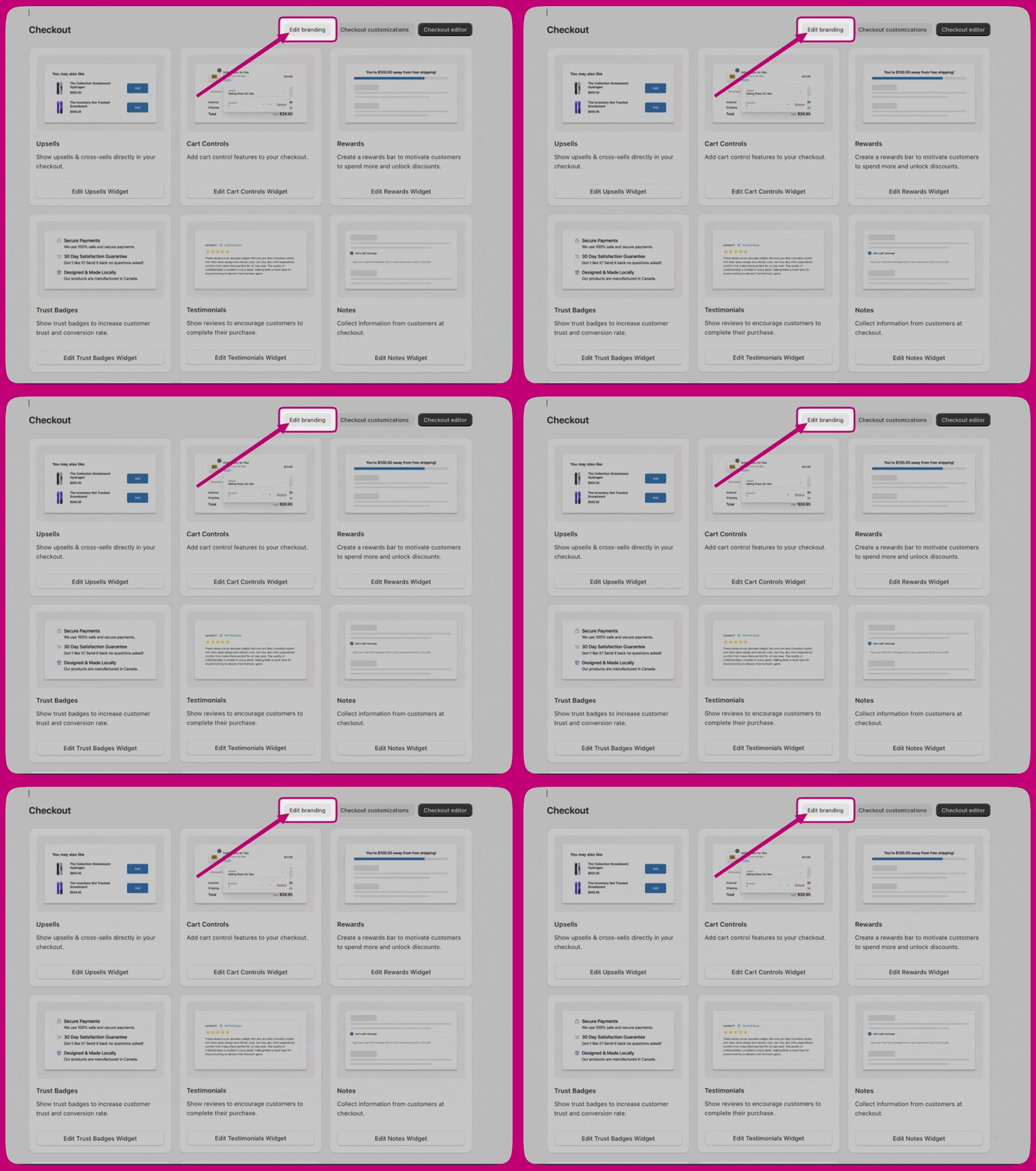 编辑器分为三组:**Design system**、**Customizations** 和 **Advanced**。
***
编辑器分为三组:**Design system**、**Customizations** 和 **Advanced**。
***
# Design system
Design system 设置是基础。结账页中的各个组件都从它们继承样式,除非有更具体的设置覆盖。
## 全局颜色
你的品牌颜色和系统颜色,在你的商店和购后体验中通用。未设置配色方案时,组件使用这些颜色。
**品牌颜色**
* **Brand**——你的主品牌色。
* **Accent**——用于可交互和高亮元素。
* **Decorative**——用于辅助性装饰元素。
**状态和系统颜色**
* **Success**——确认状态。
* **Warning**——警示信息。
* **Critical**——错误和警报。
* **Info**——提示信息。
表面颜色和按钮颜色不在这里设置。它们位于 **Advanced > Color schemes** 下。
## 排版
* **Font size**——设置 **Base size** 和用于推导其余字号阶梯的 **Scale ratio**。
* **Primary font**——用于大多数组件,如正文文本、按钮和表单控件。选择 **Font family**、**Base weight** 和 **Bold weight**。
* **Secondary font**——用于标题组件,具有相同的三个控件。
## 圆角
设置按钮、表单字段、容器和其他组件引用的共享圆角值。你可以定义三种尺寸:**Small**、**Medium** 和 **Large**。
***
# Customizations
## 按钮
**Primary buttons**(页面上的主操作)和 **Secondary buttons**(辅助操作)分别配置。每种都有:
* **Corner radius**——Small、Medium、Large 或 None(直角)。
* **Background**——Solid 或 None。
* **Vertical padding** 和 **Horizontal padding**。
* **Show border**。
按钮颜色继承自配色方案。如果没有设置方案值,则使用全局颜色。
## 表单字段
适用于所有受支持的字段类型:
* **Corner radius**
* **Label position**——Inside 或 Outside。
* **Show border**
**字段级覆盖设置**让你可以为特定字段类型偏离上述共享样式:**Text field borders**、**Dropdown borders**、**Choice list group spacing** 和 **Checkbox corner radius**。
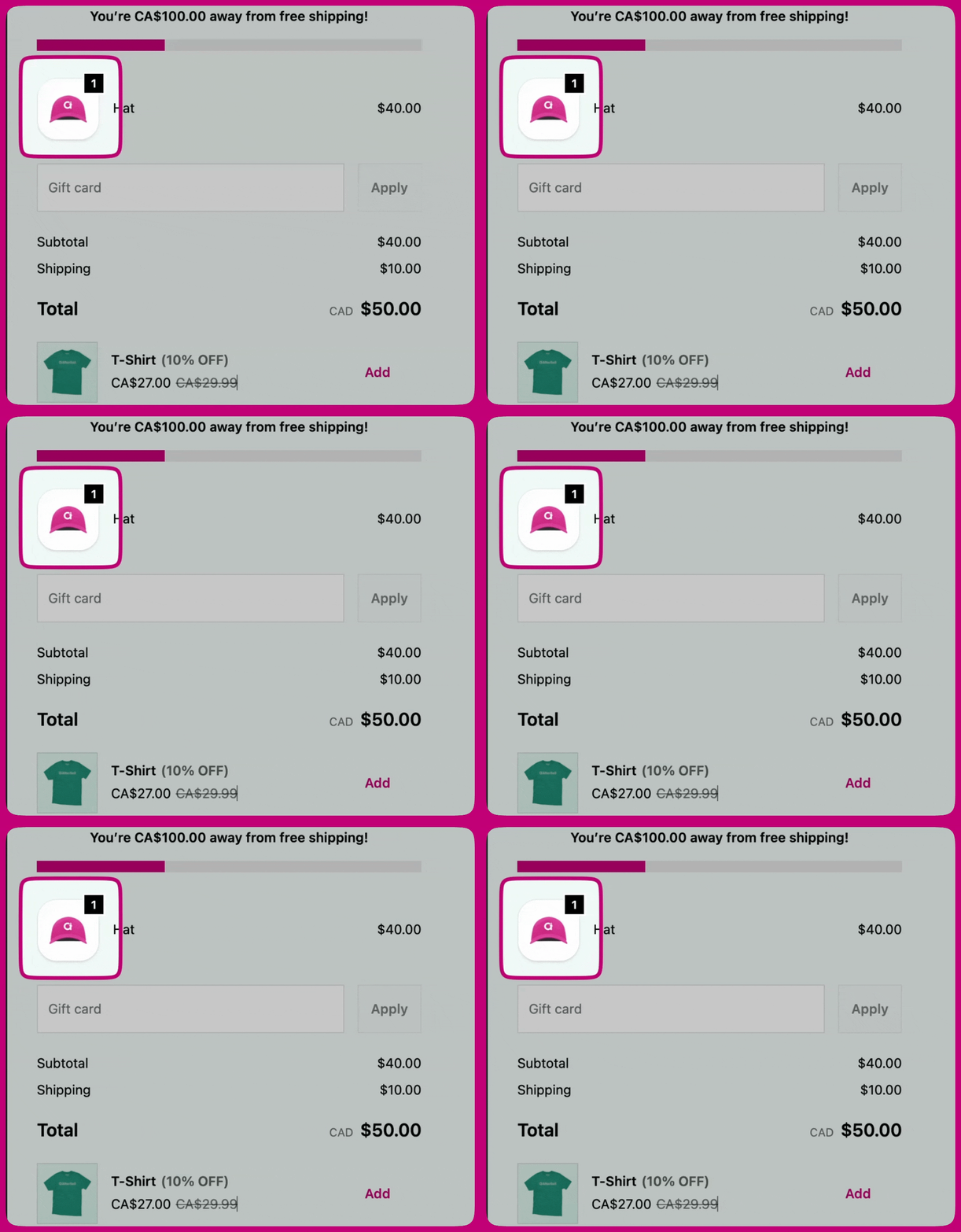
## 产品缩略图
控制产品图片在页面上的显示方式:
* **Show border**
* **Border radius**
* **Fit**
* **Badge background color**——Accent(方案强调色)或 Base(方案基础色)。
* **Layout**——**Placement**(Top bar、Left section 或 Right section)和 **Alignment**(Left、Center 或 Right)。
* **Container**——**Padding**、**Color scheme** 和 **Show divider**。
## 内容区域
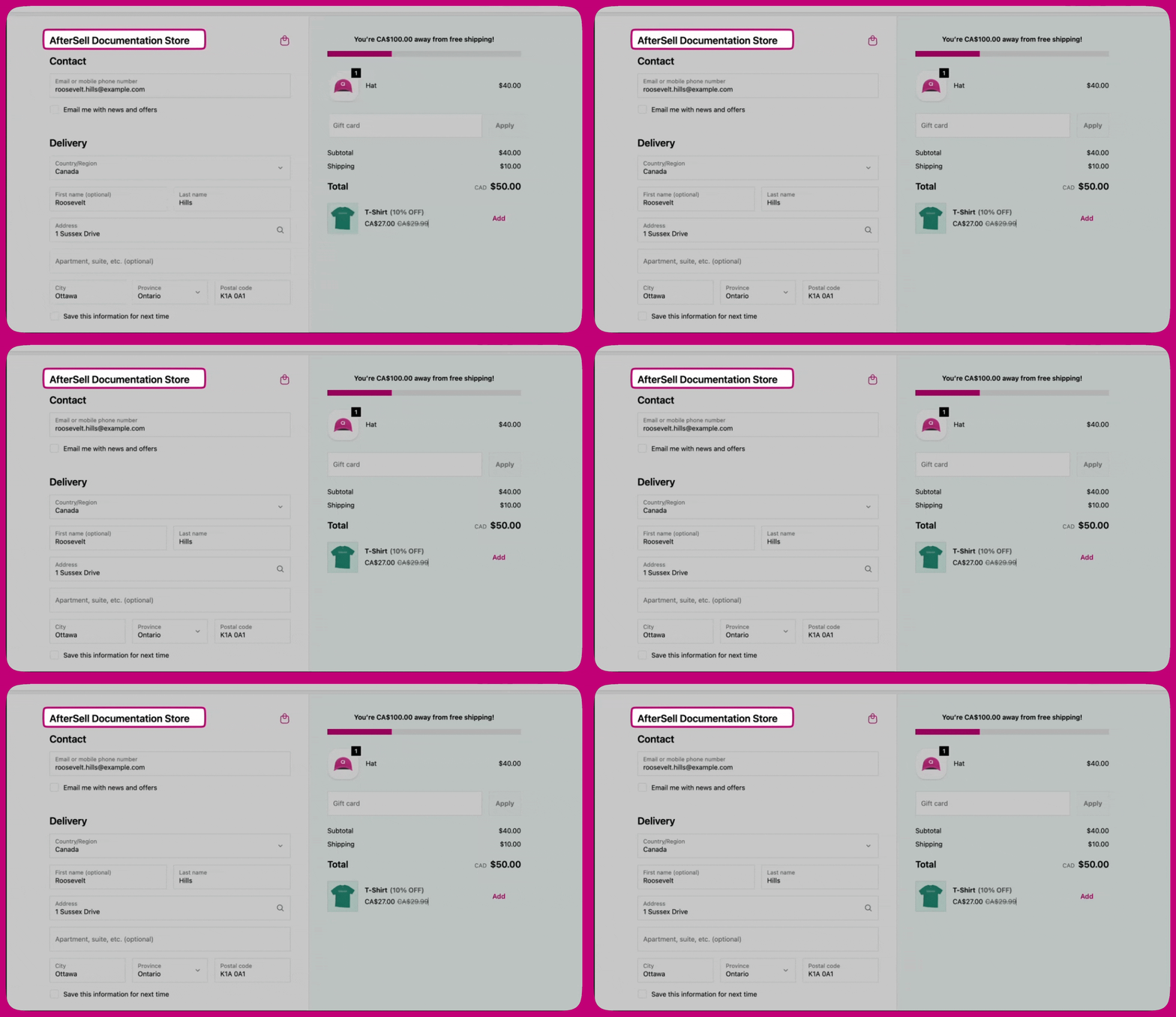
控制主区域和订单摘要区域之间的**分隔线**:**Show divider**、**Border style** 和 **Border weight**。
## 主区域
* **Section containers**——每个区块外围的背景和边框:**Background**、**Show border**、**Border style**、**Border weight**。
* **Section dividers**——区块之间显示的分隔线。
## 订单摘要
* **Container**——应用到整个订单摘要容器的 **Color scheme**。
* **Section dividers**——**Show divider**、**Border style**、**Border weight**。
* **Section containers**——每个区块周围的背景和边框:**Show border**、**Background**、**Border style**、**Border weight**、**Color scheme**、**Corner radius**、**Padding** 和 **Shadow**。
 * **Layout**——**Placement** 和 **Alignment**。
* **Container**——**Show footer content**、**Padding**、**Color scheme** 和 **Show divider**。
***
* **Layout**——**Placement** 和 **Alignment**。
* **Container**——**Show footer content**、**Padding**、**Color scheme** 和 **Show divider**。
***
# Advanced
## 配色方案
配色方案是可复用的一组表面、文本和按钮颜色,供其他部分引用。有两个方案可用:
* **Scheme 1 - Main area**
* **Scheme 2 - Supporting areas**
每个方案分为三组:
* **Buttons**——用于主支付按钮和辅助操作。**Primary button** 和 **Secondary button** 分别配置,各自拥有默认状态和悬停状态。
* **Form controls**——用于文本字段、下拉菜单和选择列表。
* **Base surfaces**——表面背景、正文文本以及辅助角色:边框、强调(链接和焦点)、装饰(微妙高亮)和图标颜色。
凡是提供 **Color scheme** 控件的部分,你都可以将其指向 **Scheme 1**、**Scheme 2** 或 **Transparent**。