> ## Documentation Index
> Fetch the complete documentation index at: https://docs.aftersell.com/llms.txt
> Use this file to discover all available pages before exploring further.

# Aftersell 与 Nosto 集成

> 本文介绍如何设置 Aftersell 与 Nosto 的集成。

Nosto 是一款被超过 2,500 家商家使用的第三方产品推荐引擎，可与你的 Automatic Upsells（自动追加销售）集成。Aftersell 可以连接到你的 Nosto 账户，并利用其算法提供产品推荐。

如果你对他们所采用的产品推荐算法有任何疑问，建议访问他们的[网站](https://www.nosto.com/)。

<div id="steps-to-setup-the-integration">
  ## 设置集成的步骤
</div>

如果你有兴趣，请按照以下步骤通过 Aftersell 设置 Nosto：

1. 在 Shopify App Store 中搜索 [Nosto](https://apps.shopify.com/nosto-personalization-for-shopify) 并**安装该应用。**
2. 进入 Nosto 应用的"**Settings**"（设置）部分，然后点击"**Authentication Tokens**"（身份验证令牌）。
   * 如果你没有看到任何 API 令牌，则需要先联系 Nosto 支持团队获取一个，然后再继续。
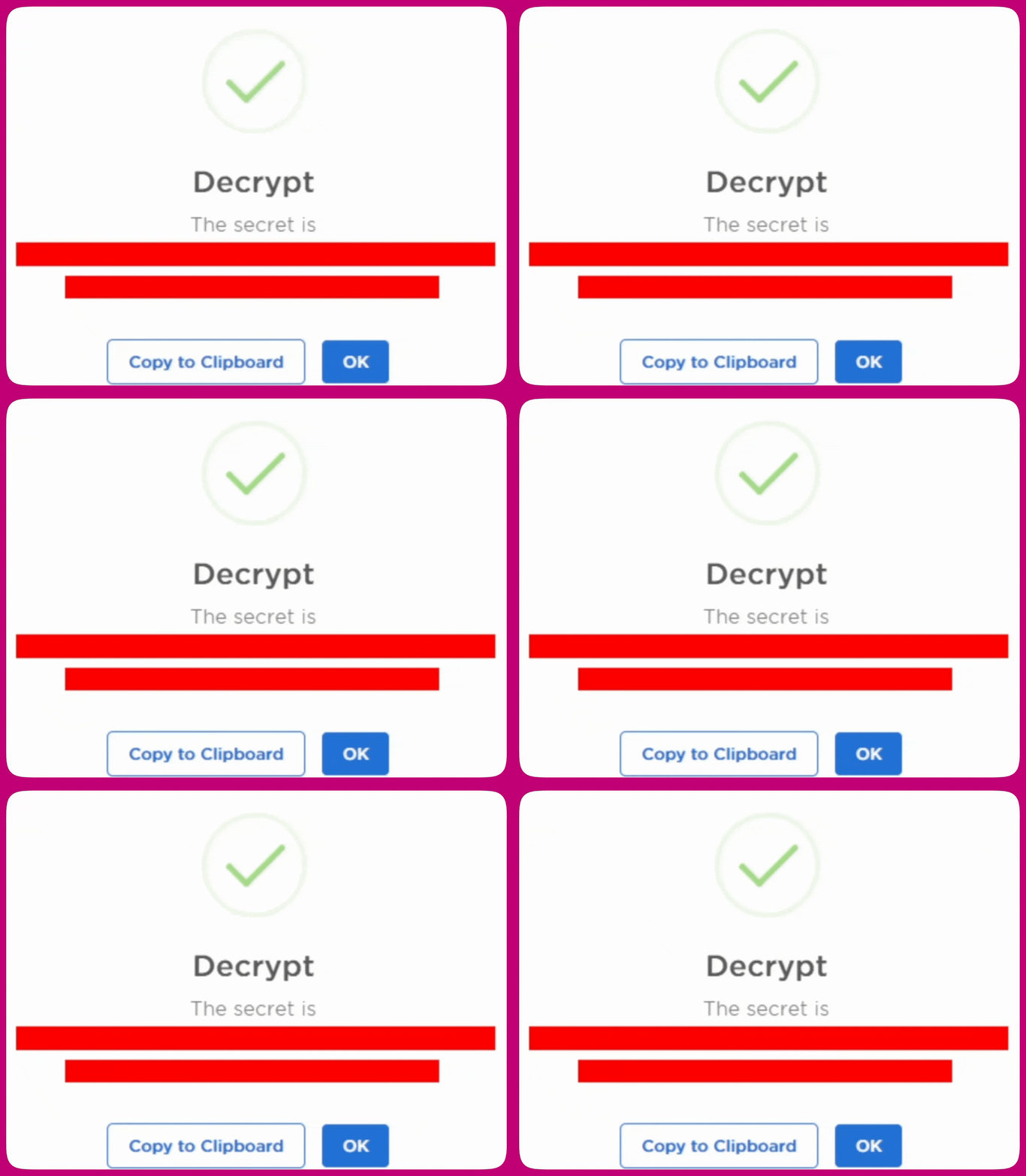
3. 获取 API 令牌后，点击蓝色的"Decrypt"（解密）按钮：
   <Frame>
     <img src="https://mintcdn.com/aftersell/1Y3gBpUfxv16VGSW/images/aftersell/nosto-authentication-tokens-api-apps.png?fit=max&auto=format&n=1Y3gBpUfxv16VGSW&q=85&s=cc46a1d25d35ecbeb92fffc43d99b65a" alt="Nosto 身份验证令牌页面，显示 API_APPS 角色的 Decrypt 按钮" width="1346" height="137" data-path="images/aftersell/nosto-authentication-tokens-api-apps.png" />
   </Frame>
   此时会打开一个显示 API 密钥的窗口。请务必点击"**Copy to Clipboard**"（复制到剪贴板）来复制 API 密钥，并记得**妥善保密**。 <img src="https://mintcdn.com/aftersell/1Y3gBpUfxv16VGSW/images/aftersell/nosto-decrypt-popup-api-secret.gif?s=539700d7a918a15fc41fba9cddf7e935" alt="Nosto 解密弹窗显示 API 密钥，带有 Copy to Clipboard 按钮" width="1412" height="1080" data-path="images/aftersell/nosto-decrypt-popup-api-secret.gif" />
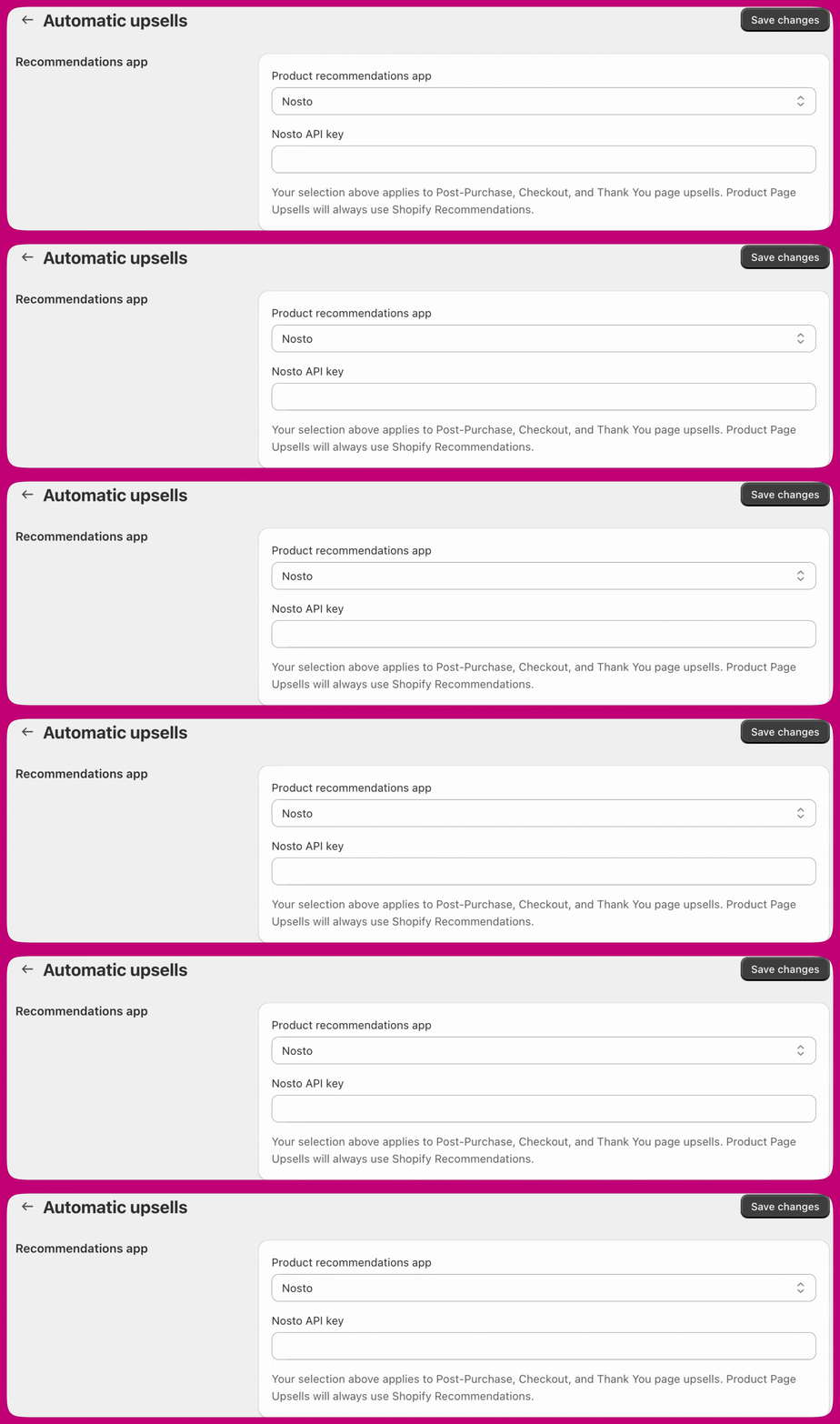
4. 现在你已获得 API 密钥，返回 Aftersell 并进入应用左侧的"**Settings**"（设置）标签页。然后进入 Automatic Upsells 部分。
5. 确保已选择"**Nosto**"作为你的产品推荐应用，并将之前的 API 令牌粘贴到 Nosto API key 字段中： <img src="https://mintcdn.com/aftersell/1Y3gBpUfxv16VGSW/images/aftersell/nosto-automatic-upsells-api-key.gif?s=d94f0c7662f88db86fb41a27462618af" alt="Aftersell 自动 upsell 设置，已选择 Nosto 并显示 Nosto API key 字段" width="3820" height="1080" data-path="images/aftersell/nosto-automatic-upsells-api-key.gif" />
6. **保存更改**，Nosto 现已连接完成。接下来，我们需要设置一些 Automatic Upsells 供其使用。
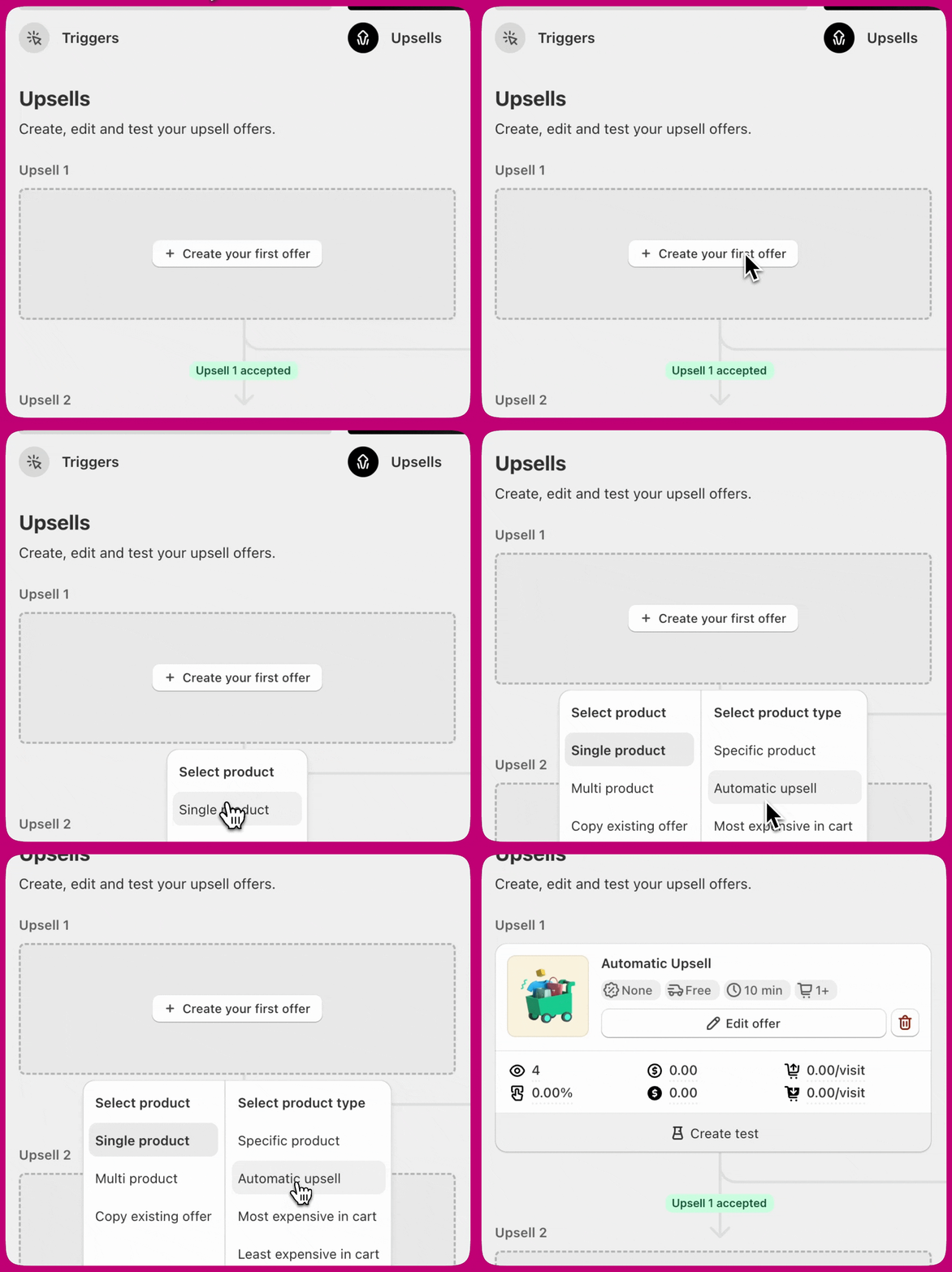
7. 进入漏斗编辑器并创建一个 Automatic Upsell。
   * 你可以选择创建单个或多个 Automatic Upsell；设置数量没有限制。 <img src="https://mintcdn.com/aftersell/1Y3gBpUfxv16VGSW/images/aftersell/nosto-funnel-editor-upsells-step.gif?s=8652a74eda6313f0bcbc8628b28c0f25" alt="漏斗编辑器的 Upsells 步骤，显示 Create your first offer 按钮" width="1212" height="1080" data-path="images/aftersell/nosto-funnel-editor-upsells-step.gif" />
8. 如果你准备好进行测试，请确保包含 Automatic Upsells 的漏斗处于激活状态。激活后，在你的商店中下一笔满足漏斗触发条件的订单。这样你就可以检查产品推荐是否正常运作。
   * 如果你最近才安装 Nosto，我们建议等待几个小时，让其产品推荐算法在你的商店中生效。否则，它可能还没有为你的顾客生成推荐。

***

<div id="choosing-a-nosto-algorithm">
  ## 选择 Nosto 算法
</div>

选择 Nosto 作为产品推荐应用后，每个 Automatic Upsell 在漏斗编辑器中都会新增一个 **Nosto Algorithm**（Nosto 算法）部分。你可以在此选择由 Nosto 的哪种算法为该优惠提供推荐：

| 算法                                       | 返回内容                              |
| ---------------------------------------- | --------------------------------- |
| **Bought Together（一起购买）**                | 与推荐所基于的商品经常一起购买的产品。               |
| **Viewed Together (smart)（一起浏览·智能）**     | 在同一会话中经常被一起浏览的产品，由 Nosto 的智能模型排序。 |
| **Relationship Score Based（基于关联分数）**     | 与源产品整体关联分数最高的产品。                  |
| **Best Sellers — Most Buys（畅销·购买最多）**    | 按购买次数排名的畅销产品。                     |
| **Best Sellers — Most Views（畅销·浏览最多）**   | 按产品浏览次数排名的畅销产品。                   |
| **Best Sellers — Most Revenue（畅销·收入最高）** | 按总收入排名的畅销产品。                      |
| **Browsing History（浏览历史）**               | 来自顾客本人浏览历史的产品。                    |

该设置按优惠单独生效，因此同一漏斗中的不同 Automatic Upsell 可以使用不同的算法。此部分仅在选择 Nosto 作为提供方时显示。

***