> ## Documentation Index
> Fetch the complete documentation index at: https://docs.aftersell.com/llms.txt
> Use this file to discover all available pages before exploring further.
# Upsells module
> This guide shows how to configure the Upsells module in Upcart
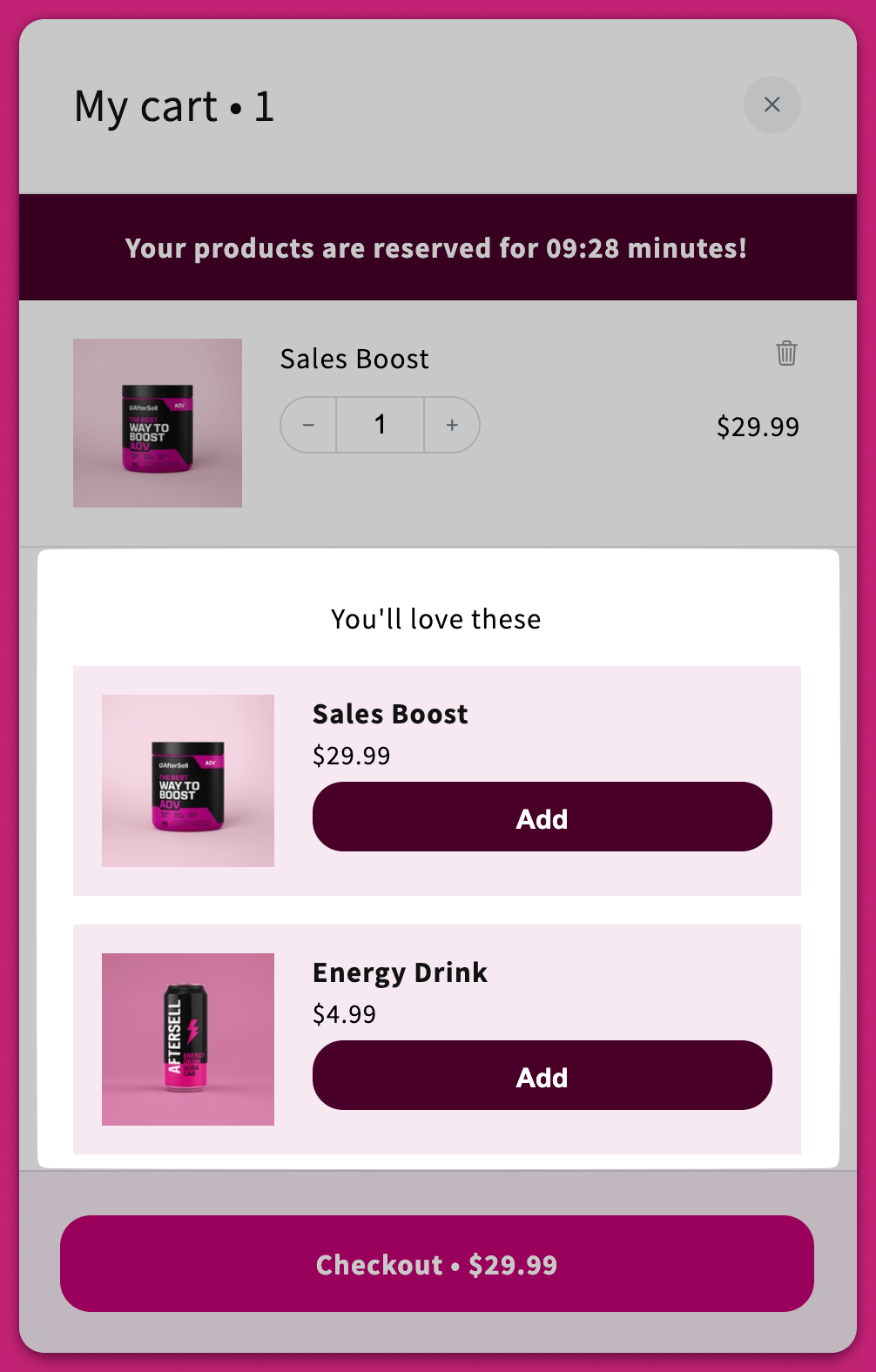
The Upsells module enables customers to add related or complementary products to their cart with a single click.
 # Product Selection
## AI Recommended Upsells
Enable this setting to use [Shopify's Product Recommendation Algorithm](https://shopify.dev/docs/themes/product-merchandising/recommendations) to suggest upsells automatically.
### Recommendation Algorithm
This option appears only if AI recommendations are enabled. Choose your desired **Recommendation Intent**: [Recommendation Intent](https://shopify.dev/docs/themes/product-merchandising/recommendations#recommendation-intents):
#### **Related products**
Displays similar or substitutable products under a *"You might also like"* section.
* **Important:** Products must share a collection to be considered "related."
#### **Complementary products**
Displays add-ons or accessories under a *"Pair it with"* section.
* **Note:** Complementary intent must be manually configured in the [Shopify Search & Discovery app](https://apps.shopify.com/search-and-discovery). The algorithm only auto-generates for “Related” products.\
Learn more in [Shopify's documentation](https://help.shopify.com/en/manual/online-store/search-and-discovery/product-recommendations).
## Smart Variant Matching
When enabled, Upcart uses AI to automatically pre-select a variant on an upsell product that matches what the customer already has in their cart, rather than defaulting to the first variant in the list.
For example, if a customer adds a black shirt to their cart, the upsell will automatically pre-select the black variant on a paired pants product. If they added a blue shirt instead, the blue variant would be pre-selected instead.
Smart variant matching works even when option names aren't identical across products. If no matching variant is found, the customer can still select one manually.
## Manual Upsells Configuration
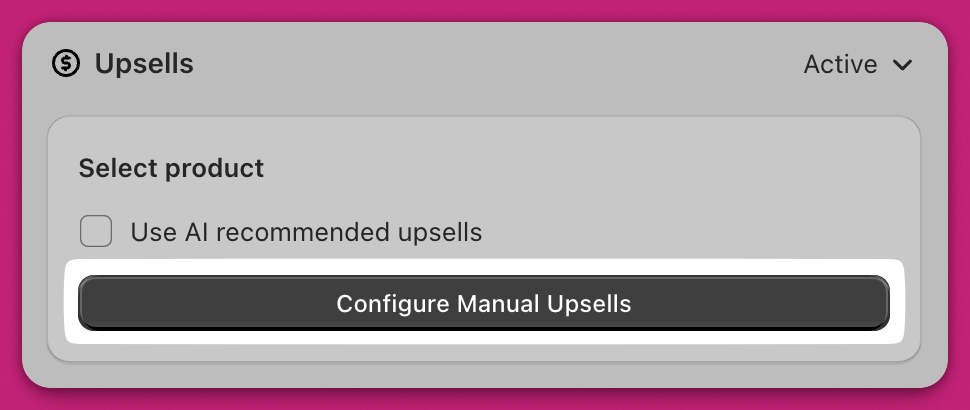
Manual upsells can be set up only when **AI Recommended Upsells** is disabled.
Click **Configure Manual Upsells**.
# Product Selection
## AI Recommended Upsells
Enable this setting to use [Shopify's Product Recommendation Algorithm](https://shopify.dev/docs/themes/product-merchandising/recommendations) to suggest upsells automatically.
### Recommendation Algorithm
This option appears only if AI recommendations are enabled. Choose your desired **Recommendation Intent**: [Recommendation Intent](https://shopify.dev/docs/themes/product-merchandising/recommendations#recommendation-intents):
#### **Related products**
Displays similar or substitutable products under a *"You might also like"* section.
* **Important:** Products must share a collection to be considered "related."
#### **Complementary products**
Displays add-ons or accessories under a *"Pair it with"* section.
* **Note:** Complementary intent must be manually configured in the [Shopify Search & Discovery app](https://apps.shopify.com/search-and-discovery). The algorithm only auto-generates for “Related” products.\
Learn more in [Shopify's documentation](https://help.shopify.com/en/manual/online-store/search-and-discovery/product-recommendations).
## Smart Variant Matching
When enabled, Upcart uses AI to automatically pre-select a variant on an upsell product that matches what the customer already has in their cart, rather than defaulting to the first variant in the list.
For example, if a customer adds a black shirt to their cart, the upsell will automatically pre-select the black variant on a paired pants product. If they added a blue shirt instead, the blue variant would be pre-selected instead.
Smart variant matching works even when option names aren't identical across products. If no matching variant is found, the customer can still select one manually.
## Manual Upsells Configuration
Manual upsells can be set up only when **AI Recommended Upsells** is disabled.
Click **Configure Manual Upsells**.
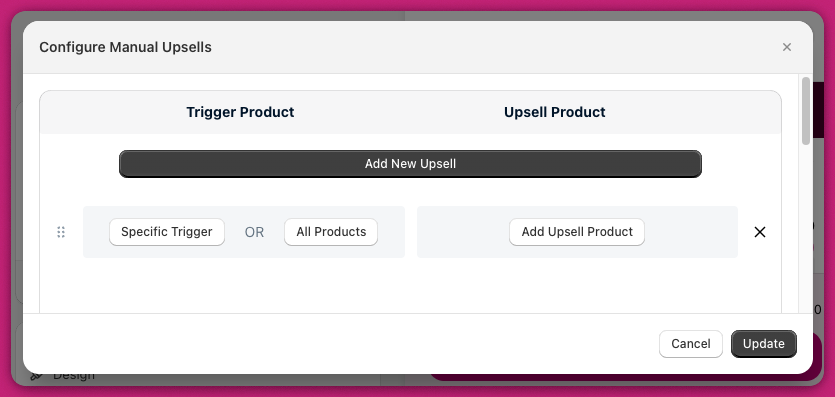
 Click **Add New Upsell** to add a row with:
1. **Trigger Product(s)**\
**Specific Trigger:** Choose at least one product that must be in the cart.\
**All Products**: Display the upsell when *any* product is in the cart.
2. **Upsell Product(s)**\
Select the product(s) to show when a trigger product is in the cart.
Click **Add New Upsell** to add a row with:
1. **Trigger Product(s)**\
**Specific Trigger:** Choose at least one product that must be in the cart.\
**All Products**: Display the upsell when *any* product is in the cart.
2. **Upsell Product(s)**\
Select the product(s) to show when a trigger product is in the cart.
 ## Order of Upsell Appearance
Upsells are evaluated from top to bottom. To arrange the priority of rows, drag and drop them in the Cart Editor under the **Configure Manual Upsells** section. The system displays upsells based on their top-to-bottom arrangement in the Cart Editor.
## Order of Upsell Appearance
Upsells are evaluated from top to bottom. To arrange the priority of rows, drag and drop them in the Cart Editor under the **Configure Manual Upsells** section. The system displays upsells based on their top-to-bottom arrangement in the Cart Editor.
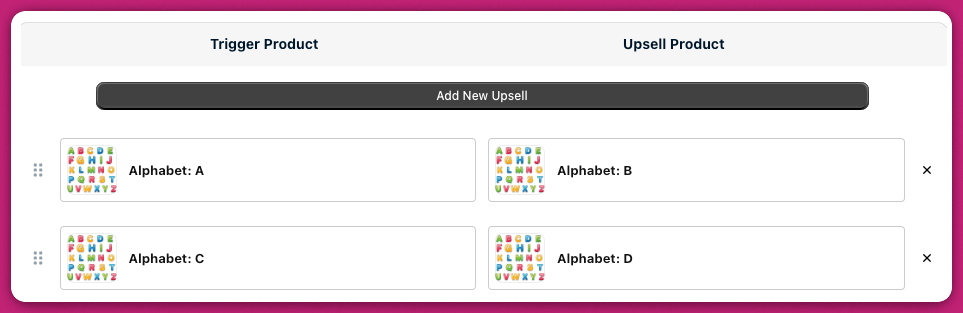 If Products A and C are in the cart, and you’ve set upsells for each, both B and D will be shown.
When selecting multiple upsell products in a single upsell row, the order of product selection will determine the order of their appearance in the cart, top to bottom.
***
## Displaying Reviews
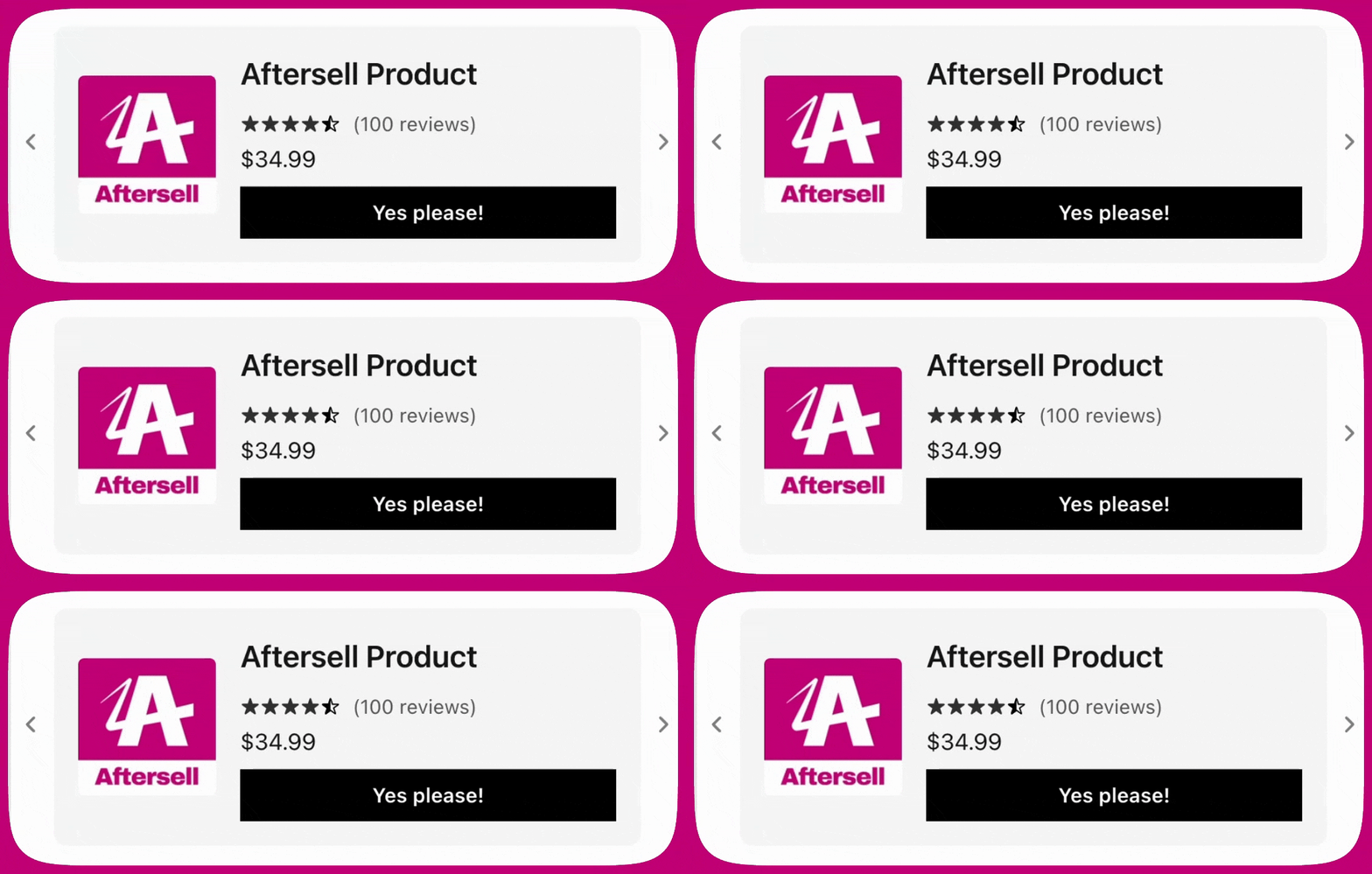
Upcart can display product reviews on **upsells and product recommendations** to help customers make informed purchase decisions. Reviews are not shown on standard cart line items.
Upcart uses the \*\*[Shopify Storefront API](https://shopify.dev/docs/storefronts/headless/building-with-the-storefront-api/products-collections/metafields)\*\*to read review data stored in product metafields. Because of this, reviews will only appear if your review app exposes product review data in a format the Storefront API can access.
If Products A and C are in the cart, and you’ve set upsells for each, both B and D will be shown.
When selecting multiple upsell products in a single upsell row, the order of product selection will determine the order of their appearance in the cart, top to bottom.
***
## Displaying Reviews
Upcart can display product reviews on **upsells and product recommendations** to help customers make informed purchase decisions. Reviews are not shown on standard cart line items.
Upcart uses the \*\*[Shopify Storefront API](https://shopify.dev/docs/storefronts/headless/building-with-the-storefront-api/products-collections/metafields)\*\*to read review data stored in product metafields. Because of this, reviews will only appear if your review app exposes product review data in a format the Storefront API can access.
 ### Supported review apps
At this time, Upcart supports reviews from the following apps:
1. **Shopify Product Reviews**\
[https://apps.shopify.com/product-reviews](https://apps.shopify.com/product-reviews)
2. **Junip**\
[https://apps.shopify.com/junip](https://apps.shopify.com/junip)
3. **Okendo**\
[https://apps.shopify.com/okendo-reviews](https://apps.shopify.com/okendo-reviews)
4. **Growave**\
[https://apps.shopify.com/growave](https://apps.shopify.com/growave)
5. **Fera**\
[https://apps.shopify.com/fera](https://apps.shopify.com/fera)
6. **Yotpo**
7. **Stamped**
8. **Loox**
9. **REVIEWS.io**
10. **Automizely**
11. **Judge.me**
12. **Ali Reviews**
13. **Trustoo**
14. **Rivo**
15. **Rivyo**
16. **Vitals**
If reviews aren’t appearing, make sure you’re using one of the supported apps and that the products shown in upsells or recommendations have reviews available.
***
## Troubleshooting
If your upsell isn’t displaying, check out the [“Why Isn’t My Upsell Showing?”](/upcart/why_isnt_my_upsell_showing) article in our [FAQ](/upcart/adding_code_to_your_shopify_theme_for_accelerated_checkout_buttons) for common fixes.
#### **Next Steps**
To fine-tune how upsells behave in the cart drawer, continue to the next guide:
[**Upsell Module: Settings**](https://aftersell.mintlify.app/upcart/upsells_module_settings#upsells-module-settings)
### Supported review apps
At this time, Upcart supports reviews from the following apps:
1. **Shopify Product Reviews**\
[https://apps.shopify.com/product-reviews](https://apps.shopify.com/product-reviews)
2. **Junip**\
[https://apps.shopify.com/junip](https://apps.shopify.com/junip)
3. **Okendo**\
[https://apps.shopify.com/okendo-reviews](https://apps.shopify.com/okendo-reviews)
4. **Growave**\
[https://apps.shopify.com/growave](https://apps.shopify.com/growave)
5. **Fera**\
[https://apps.shopify.com/fera](https://apps.shopify.com/fera)
6. **Yotpo**
7. **Stamped**
8. **Loox**
9. **REVIEWS.io**
10. **Automizely**
11. **Judge.me**
12. **Ali Reviews**
13. **Trustoo**
14. **Rivo**
15. **Rivyo**
16. **Vitals**
If reviews aren’t appearing, make sure you’re using one of the supported apps and that the products shown in upsells or recommendations have reviews available.
***
## Troubleshooting
If your upsell isn’t displaying, check out the [“Why Isn’t My Upsell Showing?”](/upcart/why_isnt_my_upsell_showing) article in our [FAQ](/upcart/adding_code_to_your_shopify_theme_for_accelerated_checkout_buttons) for common fixes.
#### **Next Steps**
To fine-tune how upsells behave in the cart drawer, continue to the next guide:
[**Upsell Module: Settings**](https://aftersell.mintlify.app/upcart/upsells_module_settings#upsells-module-settings)