> ## Documentation Index
> Fetch the complete documentation index at: https://docs.aftersell.com/llms.txt
> Use this file to discover all available pages before exploring further.
# Troubleshooting Upcart not opening or redirecting to cart page
> Troubleshooting guide for cart drawer issues in Upcart including the drawer not opening, redirecting to the cart page, two carts appearing at the same time, cart not loading, or Upcart not responding when adding items to cart.
If Upcart is not opening when customers add items to their cart, opens and then redirects to the cart page, a double cart appears, or one does not appear at all, this guide will help you identify and fix the issue.
## What are you experiencing?
Start here to jump straight to the right solution:
* [**Upcart opens briefly, then redirects to the cart page**](#issue-1--2-upcart-redirecting-to-the-cart-page)
* [**Customers are taken directly to the cart page instead of seeing Upcart**](#issue-1--2-upcart-redirecting-to-the-cart-page)
* [**Two carts are appearing at the same time (Upcart and the theme cart)**](#3-change-theme-cart-type-to-page)
* [**Upcart is not opening at all**](#issue-4-upcart-is-not-opening-at-all)
Not sure which applies? Start with [Step 1](#step-1-make-sure-upcart-is-fully-active) to confirm Upcart is fully enabled before diving into a specific issue.
Most Upcart cart drawer issues are caused by:
* Upcart not being fully enabled
* Theme cart settings conflicting with Upcart
* Enhanced AJAX API Compatibility configuration
* Third-party apps overriding cart behavior
* Theme cart drawers conflicting with Upcart
Follow the steps below in order and test after each change.
***
## Step 1: Make Sure Upcart Is Fully Active
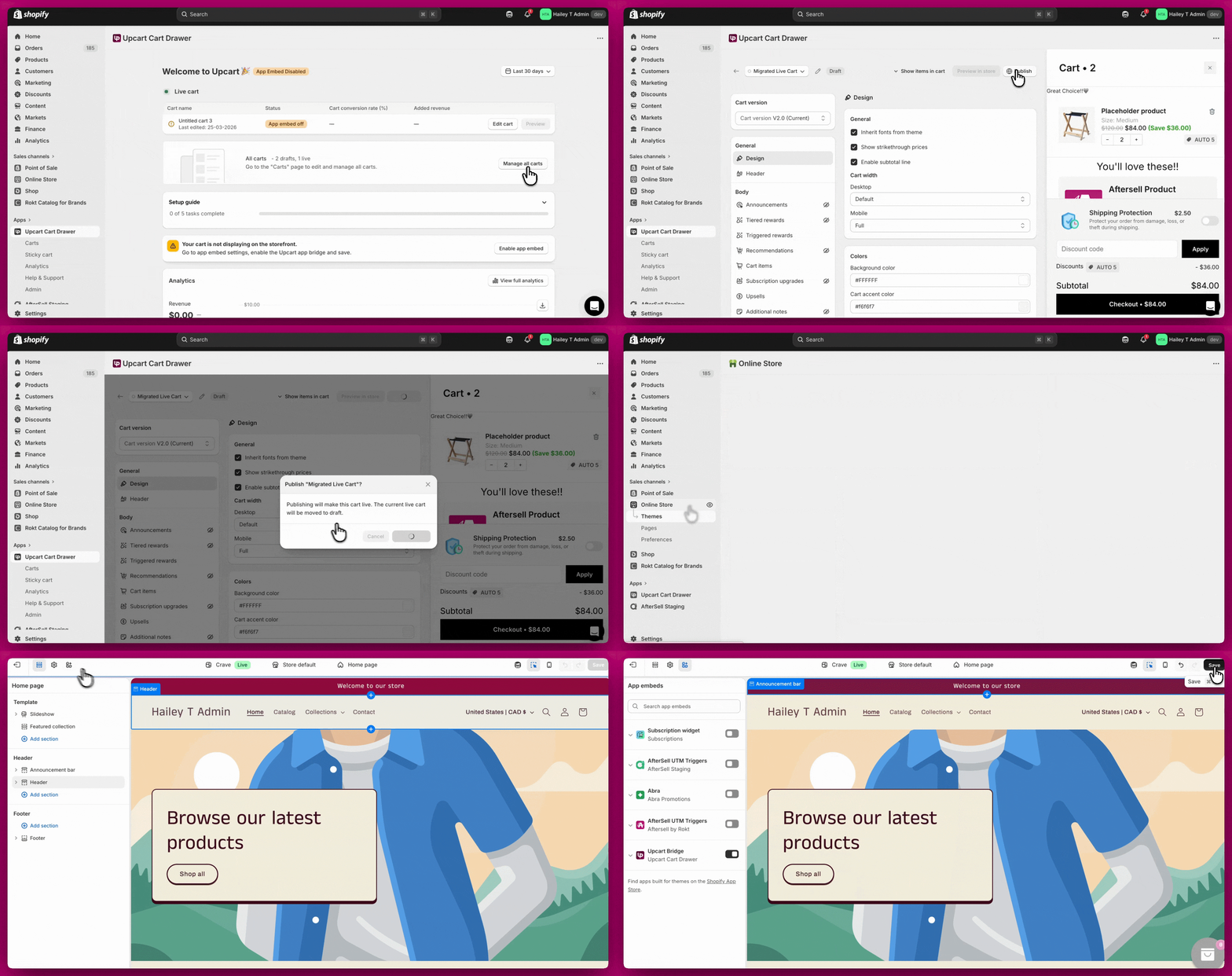
Before troubleshooting anything else, confirm Upcart is properly enabled.
### 1. Ensure the Cart Is Activated
If the cart is disabled inside the Upcart editor, it will not appear on your storefront.
* Open Upcart
* Go to **Manage all carts**
* Confirm the cart is published
### 2. Enable the App Embed
If the app embed is disabled, Upcart will not load.
* Go to **Shopify Admin > Online Store > Themes > Customize**
* Open **App Embeds**
* Toggle **Upcart ON**
* Save
Test your cart after enabling these settings.
 ***
## Issue 1 & 2: Upcart Redirecting to the Cart Page
If Upcart briefly opens and then redirects, or customers are taken directly to the cart page, this is usually caused by one of the following. Work through each step and test after every change.
### 1. Check Checkout Button Setting in Upcart
If customers click Checkout and are sent back to the cart page:
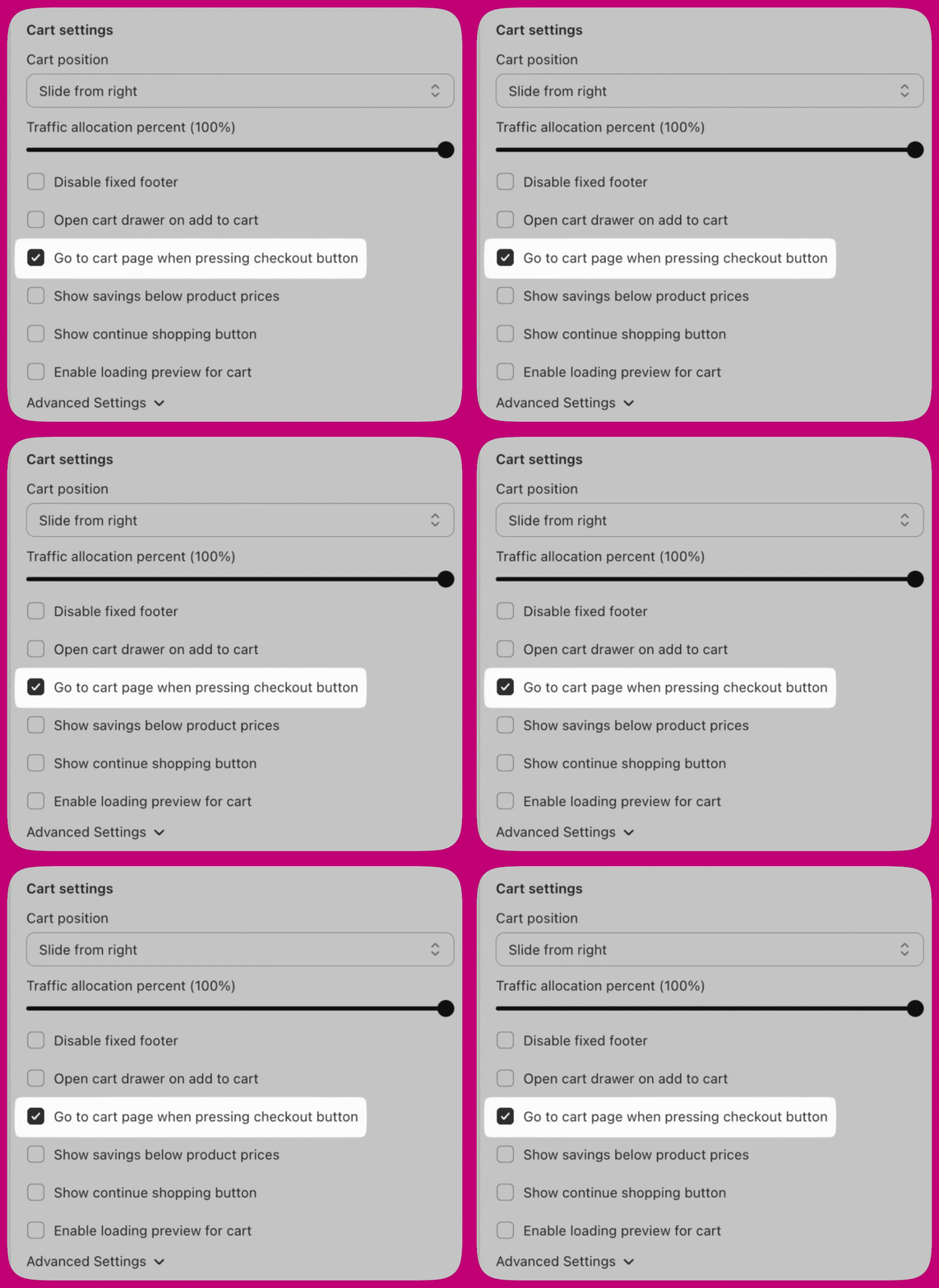
1. Go to **Upcart > Editor > Settings > Cart Settings**
2. Locate **"Go to cart page when pressing checkout button"**
3. Turn this **OFF**
4. Save and test
When enabled, this forces the checkout button to redirect to the cart page instead of proceeding to checkout.
***
## Issue 1 & 2: Upcart Redirecting to the Cart Page
If Upcart briefly opens and then redirects, or customers are taken directly to the cart page, this is usually caused by one of the following. Work through each step and test after every change.
### 1. Check Checkout Button Setting in Upcart
If customers click Checkout and are sent back to the cart page:
1. Go to **Upcart > Editor > Settings > Cart Settings**
2. Locate **"Go to cart page when pressing checkout button"**
3. Turn this **OFF**
4. Save and test
When enabled, this forces the checkout button to redirect to the cart page instead of proceeding to checkout.
 ### 2. Check Enhanced AJAX API Compatibility
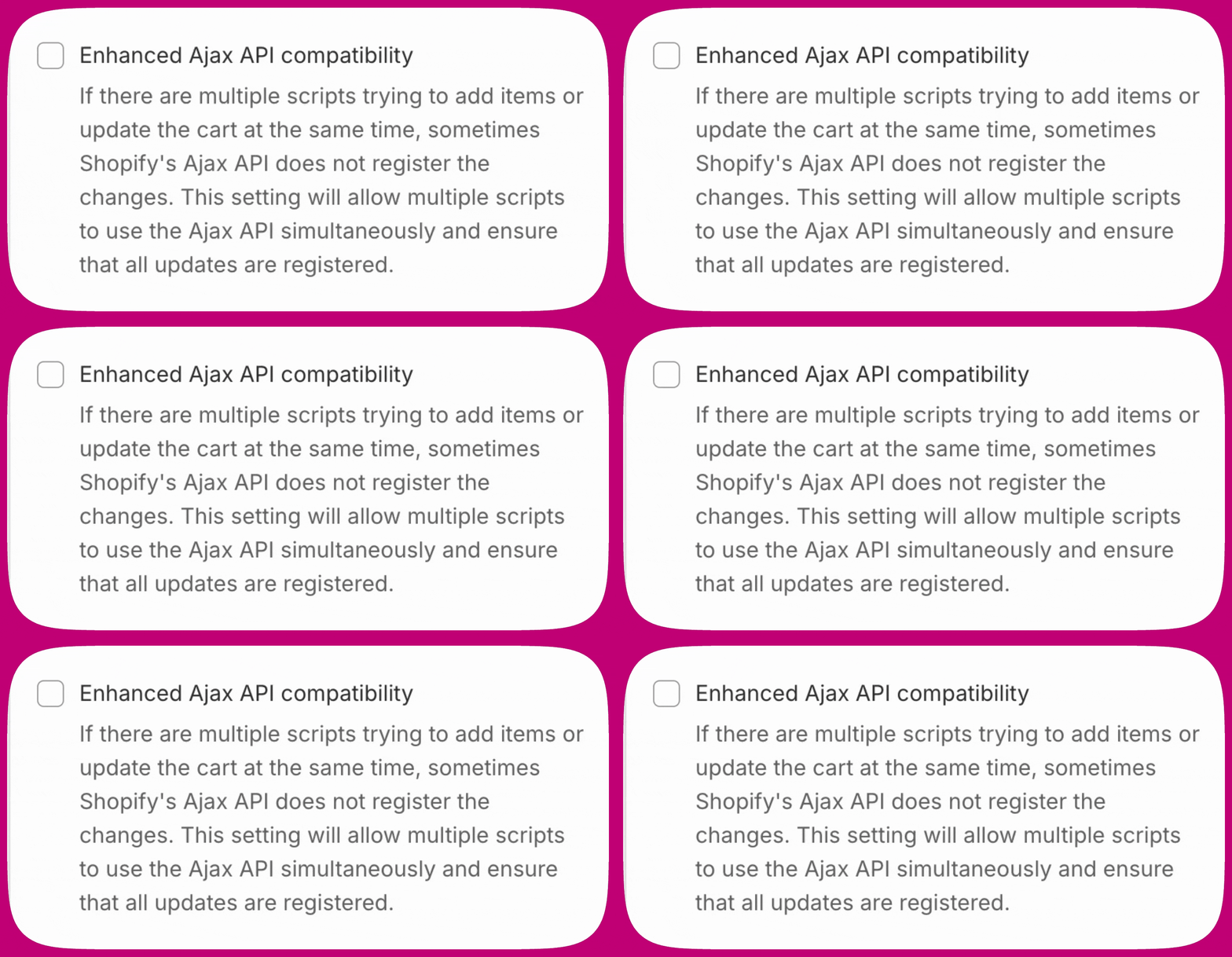
Go to **Upcart > Cart Editor > Settings > Advanced Settings** and locate **Enhanced AJAX API Compatibility**.
This setting changes how Upcart handles Add to Cart events:
* **Disabled (recommended for most stores)** - Upcart intercepts Add to Cart calls and prevents redirects
* **Enabled** - Upcart stops intercepting Add to Cart calls, allowing other apps to control cart behavior including redirects
This setting is **disabled by default**. Enable it ONLY if your store uses a non-standard AJAX cart API and Upcart is not intercepting add-to-cart events. If enabling this setting causes redirects, disable it and use the manual Upcart API (`upcartRegisterAddToCart`) instead.
For complete guidance, see [Enhanced AJAX API Compatibility](/upcart/enhanced_ajax_api_compatibility).
### 2. Check Enhanced AJAX API Compatibility
Go to **Upcart > Cart Editor > Settings > Advanced Settings** and locate **Enhanced AJAX API Compatibility**.
This setting changes how Upcart handles Add to Cart events:
* **Disabled (recommended for most stores)** - Upcart intercepts Add to Cart calls and prevents redirects
* **Enabled** - Upcart stops intercepting Add to Cart calls, allowing other apps to control cart behavior including redirects
This setting is **disabled by default**. Enable it ONLY if your store uses a non-standard AJAX cart API and Upcart is not intercepting add-to-cart events. If enabling this setting causes redirects, disable it and use the manual Upcart API (`upcartRegisterAddToCart`) instead.
For complete guidance, see [Enhanced AJAX API Compatibility](/upcart/enhanced_ajax_api_compatibility).
 ### 3. Change Theme Cart Type to "Page"
Your theme's cart drawer or popup may be overriding Upcart.
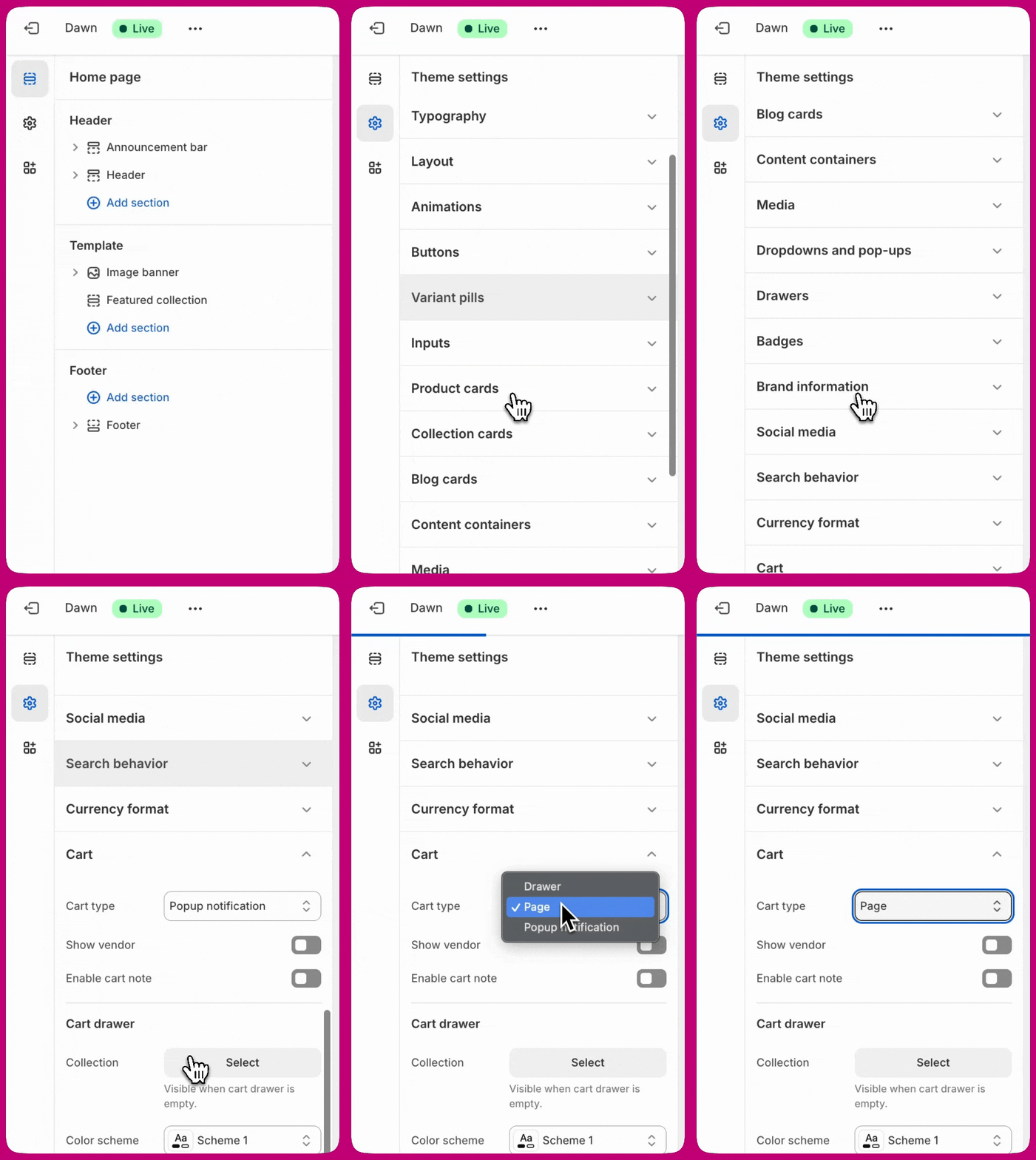
1. Go to **Shopify Admin > Online Store > Themes**
2. Click **Customize**
3. Open **Theme Settings > Cart**
4. Change **Cart Type** to **Page**
5. Save and test
Setting the cart to "Page" prevents the theme's native drawer from opening instead of Upcart.
### 3. Change Theme Cart Type to "Page"
Your theme's cart drawer or popup may be overriding Upcart.
1. Go to **Shopify Admin > Online Store > Themes**
2. Click **Customize**
3. Open **Theme Settings > Cart**
4. Change **Cart Type** to **Page**
5. Save and test
Setting the cart to "Page" prevents the theme's native drawer from opening instead of Upcart.
 If your theme does not include a "Cart Type" (or equivalent) setting, contact your theme developer to locate or add the correct option. Upcart cannot modify theme settings directly.
### 4. Disable Theme Cart Redirect Settings
Some themes automatically redirect customers to the cart page after adding a product, bypassing Upcart entirely.
1. Go to **Shopify Admin > Online Store > Themes > Customize**
2. Open **Theme Settings > Products** (or Cart)
3. Look for settings like:
* Enable cart redirection
* Redirect to cart after add
* Go to cart after add
4. Turn these **OFF**, save, and test
### 5. Check for Conflicts With Other Apps
Many third-party apps override cart behavior. Open the settings of any cart-related apps and look for options such as:
* Redirect to cart
* Go to cart after add
* Automatically open cart page
* Action after product is added
Change these to **Stay on page** or **Do nothing** and test after each adjustment.
**Common app-specific fixes:**
* **Globo Product Options** - Disable "Redirect to the shopping cart page after adding a product"
* **Zepto Product Personalizer** - Go to Zepto > Settings > Add to Cart Settings and change "Action after a product is added to the cart" to "Stay on the product page and show a success message"
* **PageFly** - Disable any cart redirect or redirection rules in PageFly settings
* **Replo** - Adjust "go to page" settings to allow the cart drawer to open
If you are unsure which app is causing the conflict, disable cart-related apps one at a time and test after each until Upcart starts working.
***
## Issue 4: Upcart Is Not Opening at All
If nothing happens when customers add to cart or click the cart icon, this is usually caused by a theme conflict or Upcart not detecting the correct buttons.
### Disable Theme's Native Cart Drawer
1. Go to **Shopify Admin > Online Store > Themes > Customize**
2. Open **Theme Settings > Cart**
3. Set cart type to **Page**
4. Save
Make sure Drawer or Popup modes are disabled.
### Upcart Not Detecting Your Buttons?
Some themes use custom code that prevents Upcart from automatically detecting the Add to Cart button or Cart icon. If that's the case, you can manually specify the button selectors.
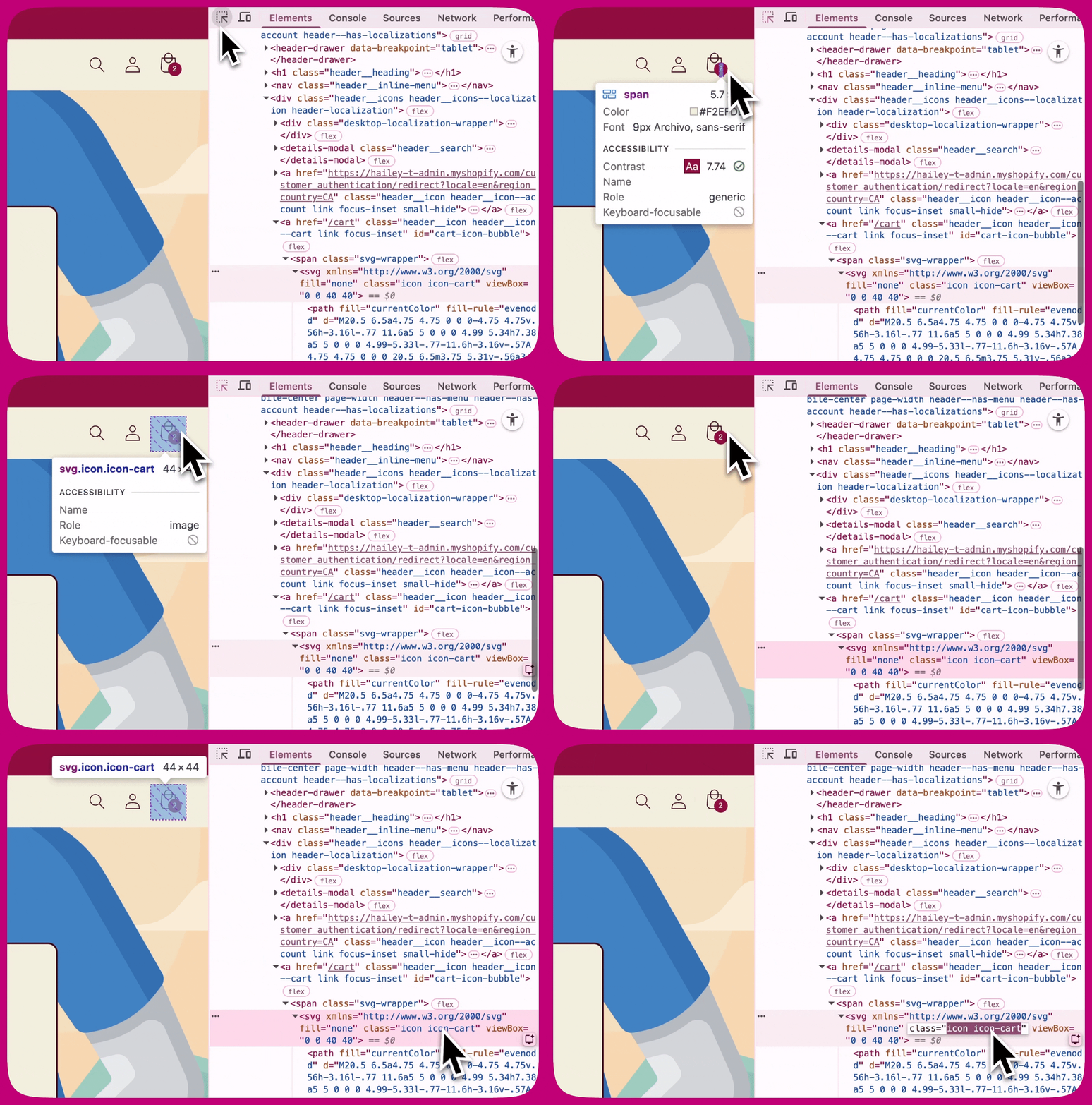
**Step 1: Find the class name**
1. Open your store in **Google Chrome**
2. Right-click the **Add to Cart button** or **Cart icon**
3. Click **Inspect**
4. In the highlighted code, look for something like:
```text theme={"theme":{"light":"snazzy-light","dark":"github-dark"}}
class="icon icon-cart"
```
or
```text theme={"theme":{"light":"snazzy-light","dark":"github-dark"}}
class="product-form__submit button"
```
Copy just **one class name** (for example: `icon-cart`). Do not copy `class=` or the quotation marks.
If your theme does not include a "Cart Type" (or equivalent) setting, contact your theme developer to locate or add the correct option. Upcart cannot modify theme settings directly.
### 4. Disable Theme Cart Redirect Settings
Some themes automatically redirect customers to the cart page after adding a product, bypassing Upcart entirely.
1. Go to **Shopify Admin > Online Store > Themes > Customize**
2. Open **Theme Settings > Products** (or Cart)
3. Look for settings like:
* Enable cart redirection
* Redirect to cart after add
* Go to cart after add
4. Turn these **OFF**, save, and test
### 5. Check for Conflicts With Other Apps
Many third-party apps override cart behavior. Open the settings of any cart-related apps and look for options such as:
* Redirect to cart
* Go to cart after add
* Automatically open cart page
* Action after product is added
Change these to **Stay on page** or **Do nothing** and test after each adjustment.
**Common app-specific fixes:**
* **Globo Product Options** - Disable "Redirect to the shopping cart page after adding a product"
* **Zepto Product Personalizer** - Go to Zepto > Settings > Add to Cart Settings and change "Action after a product is added to the cart" to "Stay on the product page and show a success message"
* **PageFly** - Disable any cart redirect or redirection rules in PageFly settings
* **Replo** - Adjust "go to page" settings to allow the cart drawer to open
If you are unsure which app is causing the conflict, disable cart-related apps one at a time and test after each until Upcart starts working.
***
## Issue 4: Upcart Is Not Opening at All
If nothing happens when customers add to cart or click the cart icon, this is usually caused by a theme conflict or Upcart not detecting the correct buttons.
### Disable Theme's Native Cart Drawer
1. Go to **Shopify Admin > Online Store > Themes > Customize**
2. Open **Theme Settings > Cart**
3. Set cart type to **Page**
4. Save
Make sure Drawer or Popup modes are disabled.
### Upcart Not Detecting Your Buttons?
Some themes use custom code that prevents Upcart from automatically detecting the Add to Cart button or Cart icon. If that's the case, you can manually specify the button selectors.
**Step 1: Find the class name**
1. Open your store in **Google Chrome**
2. Right-click the **Add to Cart button** or **Cart icon**
3. Click **Inspect**
4. In the highlighted code, look for something like:
```text theme={"theme":{"light":"snazzy-light","dark":"github-dark"}}
class="icon icon-cart"
```
or
```text theme={"theme":{"light":"snazzy-light","dark":"github-dark"}}
class="product-form__submit button"
```
Copy just **one class name** (for example: `icon-cart`). Do not copy `class=` or the quotation marks.
 **Step 2: Add it in Upcart**
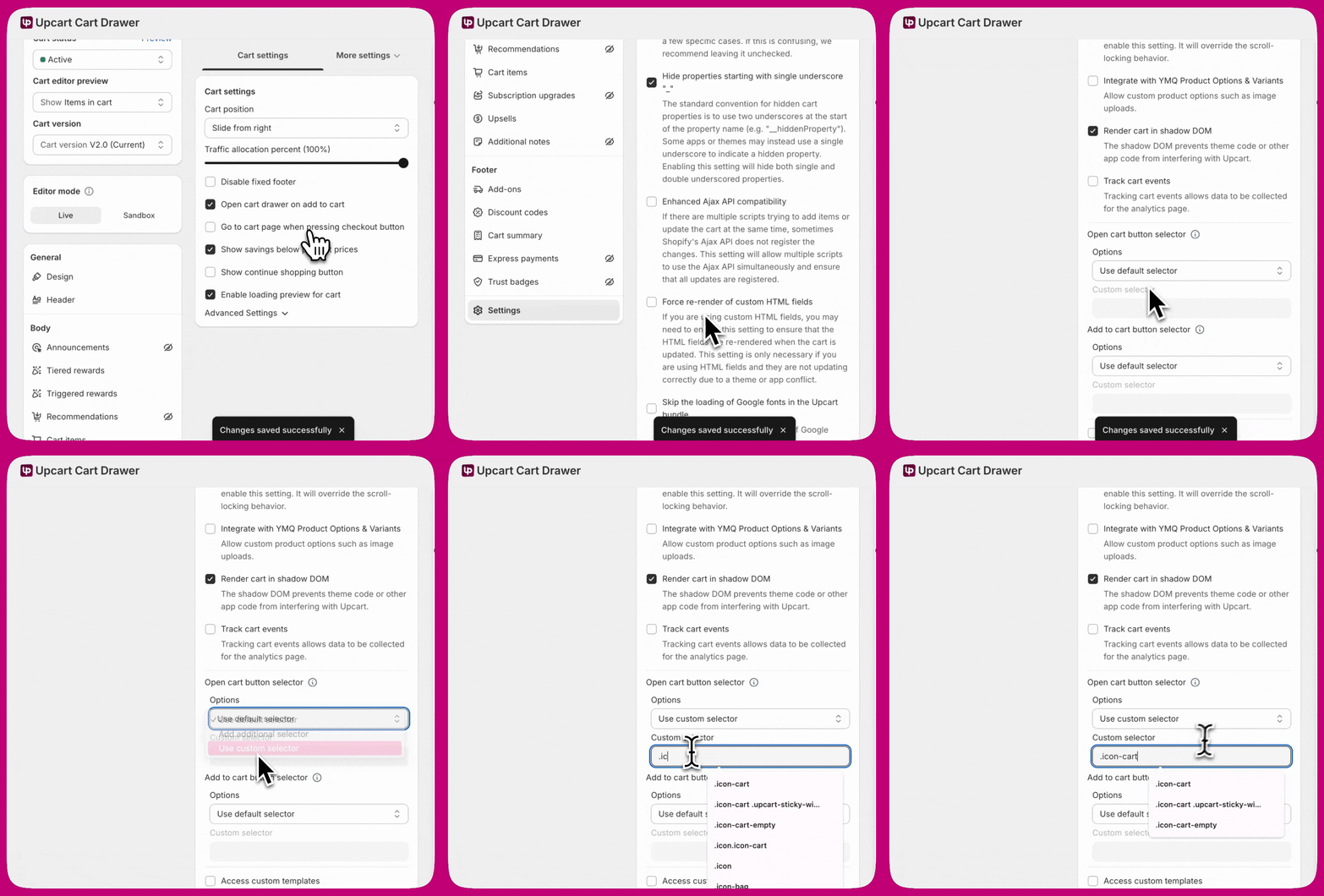
You must add a **dot (.)** before the class name when entering it in Upcart. For example: `.icon-cart`
1. Open **Upcart**
2. Go to **Cart Editor > Settings > Advanced Settings**
3. Scroll to **Selector Settings**
4. Paste `.icon-cart` into the correct field:
* **Open Cart Button Selector** - for the cart icon
* **Add to Cart Button Selector** - for the add to cart button
5. Use **Add Additional Selector** or **Use Custom Selector** if needed
**Step 2: Add it in Upcart**
You must add a **dot (.)** before the class name when entering it in Upcart. For example: `.icon-cart`
1. Open **Upcart**
2. Go to **Cart Editor > Settings > Advanced Settings**
3. Scroll to **Selector Settings**
4. Paste `.icon-cart` into the correct field:
* **Open Cart Button Selector** - for the cart icon
* **Add to Cart Button Selector** - for the add to cart button
5. Use **Add Additional Selector** or **Use Custom Selector** if needed
 ***
## Additional Troubleshooting
If the issue persists after working through the steps above, try the following one at a time, testing after each change.
### Toggle Shadow DOM (ON/OFF)
In some themes, the Shadow DOM setting affects how Upcart detects buttons and cart events.
1. Go to **Upcart > Cart Editor > Settings > Advanced Settings**
2. Locate **Shadow DOM** (if available)
3. Toggle **ON**, save, and test
4. Toggle **OFF**, save, and test again
Use whichever setting produces consistent behavior.
### Toggle AJAX Setting (ON/OFF)
Some stores behave better with AJAX handling switched, depending on theme and app setup.
1. Go to **Upcart > Cart Editor > Settings > Advanced Settings**
2. Locate the **AJAX** setting (if available)
3. Toggle **ON**, save, and test
4. Toggle **OFF**, save, and test again
### Clear Browser Cache
Old cached scripts can retain previous cart behavior and prevent Upcart from loading correctly.
1. Open browser settings
2. Go to **Privacy & Security**
3. Select **Clear Browsing Data**
4. Clear cached images, files, and cookies
5. Refresh and test
### Test With a Default Shopify Theme
1. Go to **Shopify Admin > Online Store > Themes**
2. Add a free theme such as Dawn
3. Enable it temporarily
4. Test Upcart
If Upcart works with Dawn, the issue is specific to your custom theme. Contact your theme developer for assistance.
### Disable Apps One by One
1. Go to **Shopify Admin > Apps**
2. Disable one cart-related app at a time
3. Test after each
When Upcart starts working, you have identified the conflicting app.
### Check Browser Console for Errors
1. Open your store
2. Press **F12** (or right-click > Inspect)
3. Open the **Console** tab
4. Add a product to cart
5. Look for errors, especially anything related to add.js or cart events
6. Screenshot any errors to share with support
***
## When to Contact Support
If you have completed all steps and Upcart still is not working, reach out to support with:
* Theme name and version
* List of cart-related apps installed
* Console error screenshots
* Steps you have already tried
You can reach Upcart Support through the in-app chat or by emailing [support@upcart.app](mailto:support@upcart.app).
***
## Additional Troubleshooting
If the issue persists after working through the steps above, try the following one at a time, testing after each change.
### Toggle Shadow DOM (ON/OFF)
In some themes, the Shadow DOM setting affects how Upcart detects buttons and cart events.
1. Go to **Upcart > Cart Editor > Settings > Advanced Settings**
2. Locate **Shadow DOM** (if available)
3. Toggle **ON**, save, and test
4. Toggle **OFF**, save, and test again
Use whichever setting produces consistent behavior.
### Toggle AJAX Setting (ON/OFF)
Some stores behave better with AJAX handling switched, depending on theme and app setup.
1. Go to **Upcart > Cart Editor > Settings > Advanced Settings**
2. Locate the **AJAX** setting (if available)
3. Toggle **ON**, save, and test
4. Toggle **OFF**, save, and test again
### Clear Browser Cache
Old cached scripts can retain previous cart behavior and prevent Upcart from loading correctly.
1. Open browser settings
2. Go to **Privacy & Security**
3. Select **Clear Browsing Data**
4. Clear cached images, files, and cookies
5. Refresh and test
### Test With a Default Shopify Theme
1. Go to **Shopify Admin > Online Store > Themes**
2. Add a free theme such as Dawn
3. Enable it temporarily
4. Test Upcart
If Upcart works with Dawn, the issue is specific to your custom theme. Contact your theme developer for assistance.
### Disable Apps One by One
1. Go to **Shopify Admin > Apps**
2. Disable one cart-related app at a time
3. Test after each
When Upcart starts working, you have identified the conflicting app.
### Check Browser Console for Errors
1. Open your store
2. Press **F12** (or right-click > Inspect)
3. Open the **Console** tab
4. Add a product to cart
5. Look for errors, especially anything related to add.js or cart events
6. Screenshot any errors to share with support
***
## When to Contact Support
If you have completed all steps and Upcart still is not working, reach out to support with:
* Theme name and version
* List of cart-related apps installed
* Console error screenshots
* Steps you have already tried
You can reach Upcart Support through the in-app chat or by emailing [support@upcart.app](mailto:support@upcart.app).