> ## Documentation Index
> Fetch the complete documentation index at: https://docs.aftersell.com/llms.txt
> Use this file to discover all available pages before exploring further.
# Tiered rewards module - advanced settings
> Fine-tune how your rewards bar behaves across international storefronts.
This guide explains optional advanced settings such as reward product linking, automatic currency conversion, and geolocation-based reward thresholds.
📘 *This is the third of three guides on configuring the Rewards Module.*\
See also:\
[General Settings](/upcart/tiered_rewards_module_general_settings) | [Rewards Settings](/upcart/tiered_rewards_module_rewards_settings)
⚠️ *If your store only sells in one currency or market, you may skip this guide.*
## **Accessing advanced settings**
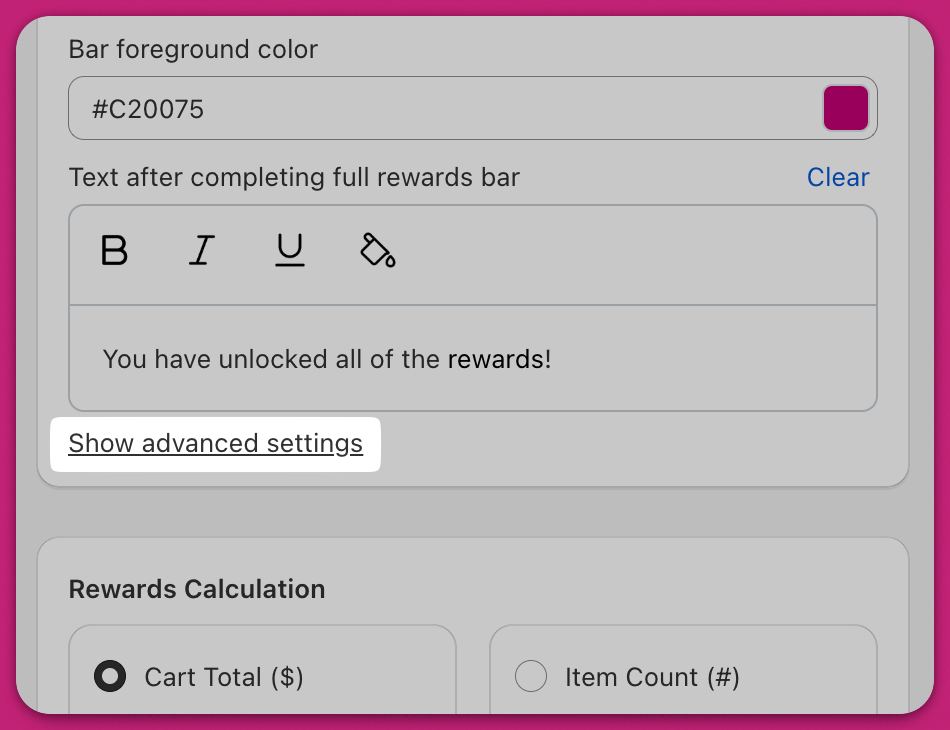
In the Cart Editor, go to:\
**Rewards > General settings > Enable use of pre-discounted cart total > Show advanced settings**
 # **Allow Reward Product Page Access from Cart**
Enable this to let customers **click on reward products** directly from the cart drawer.\
They will be redirected to the product's Shopify page, which is useful when additional information (e.g. sizing, ingredients, or reviews) is available on the product detail page.
## **Enable Automatic Currency Conversion**
Upcart will automatically convert reward thresholds using **Shopify’s real-time exchange rates** based on the customer’s location.
For example, a reward set at **\$100 USD** will appear in the local equivalent, such as **€91 EUR** or **¥14,000 JPY**, depending on the exchange rate at the time.
⚠️ If **Geolocation Pricing Override** is also enabled, Shopify’s exchange rate will apply to any custom values you’ve defined, which may lead to unintended pricing behavior. **We recommend enabling only one** of these settings at a time.
# **Enable Geolocation Pricing Override**
Use this setting to define **custom reward minimums per country** instead of relying on currency conversion.
For example, you may want customers in the US to qualify for a reward at **\$75**, while customers in Japan need to reach **¥1,000**, regardless of exchange rate fluctuations.
This feature works best if your store uses **Shopify Markets** with multiple currencies enabled.
## **What Happens When You Click “Configure Geolocation Pricing”**
# **Allow Reward Product Page Access from Cart**
Enable this to let customers **click on reward products** directly from the cart drawer.\
They will be redirected to the product's Shopify page, which is useful when additional information (e.g. sizing, ingredients, or reviews) is available on the product detail page.
## **Enable Automatic Currency Conversion**
Upcart will automatically convert reward thresholds using **Shopify’s real-time exchange rates** based on the customer’s location.
For example, a reward set at **\$100 USD** will appear in the local equivalent, such as **€91 EUR** or **¥14,000 JPY**, depending on the exchange rate at the time.
⚠️ If **Geolocation Pricing Override** is also enabled, Shopify’s exchange rate will apply to any custom values you’ve defined, which may lead to unintended pricing behavior. **We recommend enabling only one** of these settings at a time.
# **Enable Geolocation Pricing Override**
Use this setting to define **custom reward minimums per country** instead of relying on currency conversion.
For example, you may want customers in the US to qualify for a reward at **\$75**, while customers in Japan need to reach **¥1,000**, regardless of exchange rate fluctuations.
This feature works best if your store uses **Shopify Markets** with multiple currencies enabled.
## **What Happens When You Click “Configure Geolocation Pricing”**
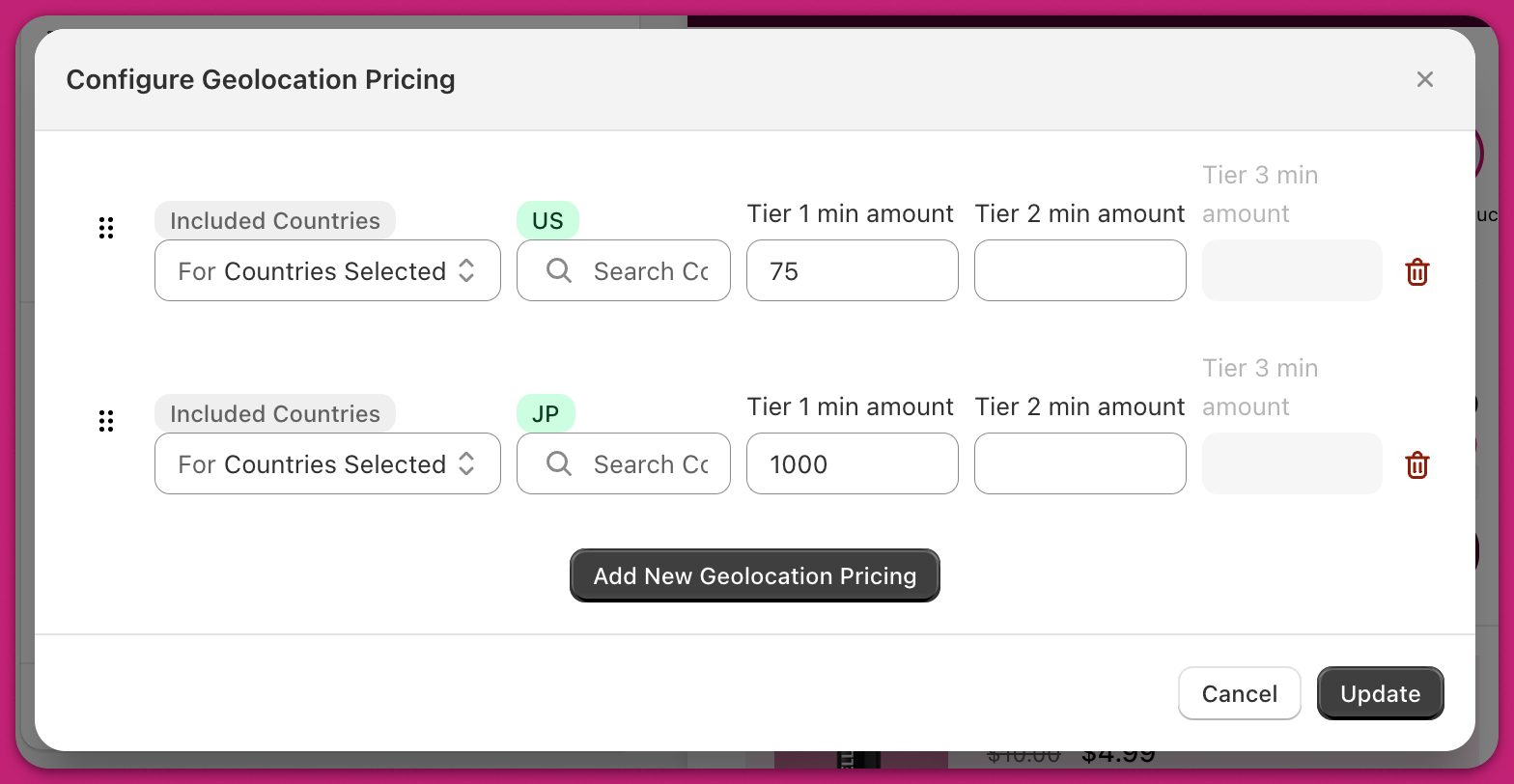 Clicking **“Configure Geolocation Pricing”** opens a setup window where you can create and manage location-specific reward rules.
Each rule lets you define a **target group of countries** and set custom **minimum amounts** for each reward tier. You can choose whether the rule applies **only to the countries selected** or **to all countries except** those listed.
To specify countries, enter the two-letter country codes (e.g., `US` for the United States, `JP` for Japan) into the country selector. Then, enter the desired minimum amounts for **Tier 1**, **Tier 2**, and **Tier 3**. You can fill in any or all of the tiers depending on your reward setup.
**[Shopify List of Country Codes](https://shopify.dev/docs/api/storefront/latest/enums/CountryCode)**
You can add multiple rows to target different markets. For instance, one row might apply a rule to US customers, while another targets Japan.
📌 **Tip on Rule Order:**\
Upcart processes these rules **from top to bottom**. To prevent conflicts, place broad rules (like “All Countries”) **at the bottom**, and more specific ones (e.g. “Only US and JP”) **above** them.
When finished, click **Update** to apply your changes.
Clicking **“Configure Geolocation Pricing”** opens a setup window where you can create and manage location-specific reward rules.
Each rule lets you define a **target group of countries** and set custom **minimum amounts** for each reward tier. You can choose whether the rule applies **only to the countries selected** or **to all countries except** those listed.
To specify countries, enter the two-letter country codes (e.g., `US` for the United States, `JP` for Japan) into the country selector. Then, enter the desired minimum amounts for **Tier 1**, **Tier 2**, and **Tier 3**. You can fill in any or all of the tiers depending on your reward setup.
**[Shopify List of Country Codes](https://shopify.dev/docs/api/storefront/latest/enums/CountryCode)**
You can add multiple rows to target different markets. For instance, one row might apply a rule to US customers, while another targets Japan.
📌 **Tip on Rule Order:**\
Upcart processes these rules **from top to bottom**. To prevent conflicts, place broad rules (like “All Countries”) **at the bottom**, and more specific ones (e.g. “Only US and JP”) **above** them.
When finished, click **Update** to apply your changes.