> ## Documentation Index
> Fetch the complete documentation index at: https://docs.aftersell.com/llms.txt
> Use this file to discover all available pages before exploring further.
# Show savings below product prices
> Display or hide green savings text beneath product prices in the cart.
# Overview
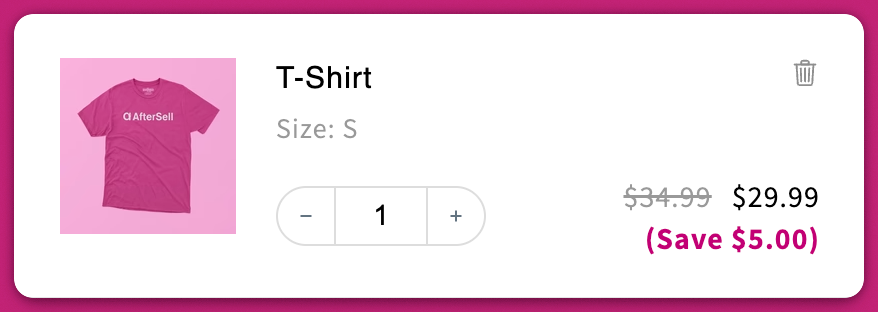
This setting lets you control whether the text `(Save $___)` appears below discounted product prices inside the cart drawer.
## **Where to Find It**
Go to:\
**Upcart > Editor > Settings > Cart Settings**\
Enable or disable the checkbox labeled **“Show savings below product prices.”**
# **How It Works**
## ✅ Enabled (Box Checked)
* Displays a green `(Save $___)` line beneath the product price.
* The savings amount shown is calculated based on your store’s pricing logic.
* Savings can be based on either:
* **Compare at price** (default)
* **Base price** (if you’ve enabled that in advanced pricing settings)
📘 You can learn more about pricing logic here:\
[Show discounts from base price instead of from compare at price?](#)
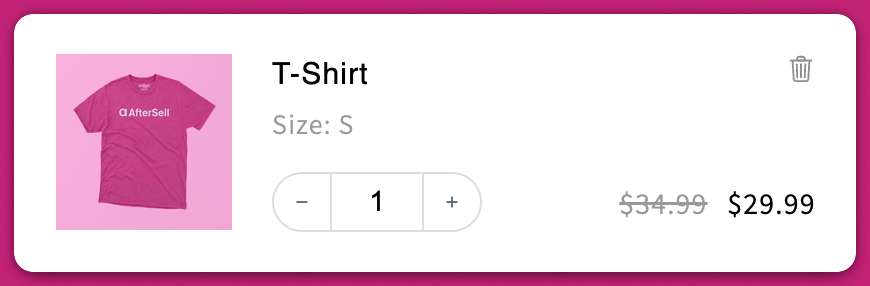
 ## ⬜ Disabled (Box Unchecked)
* Hides the savings text entirely.
* Useful if you prefer a cleaner, minimal cart design
## ⬜ Disabled (Box Unchecked)
* Hides the savings text entirely.
* Useful if you prefer a cleaner, minimal cart design