> ## Documentation Index
> Fetch the complete documentation index at: https://docs.aftersell.com/llms.txt
> Use this file to discover all available pages before exploring further.
# Show continue shopping button
> Add a “Continue Shopping” link below the Checkout button in the cart drawer.
# Overview
This feature adds a simple text link that closes the cart when clicked. It’s especially helpful for **mobile users**, where tapping the close icon in the top corner may be less accessible.
## **Where to Find It**
Go to:\
**Upcart > Editor > Design** \
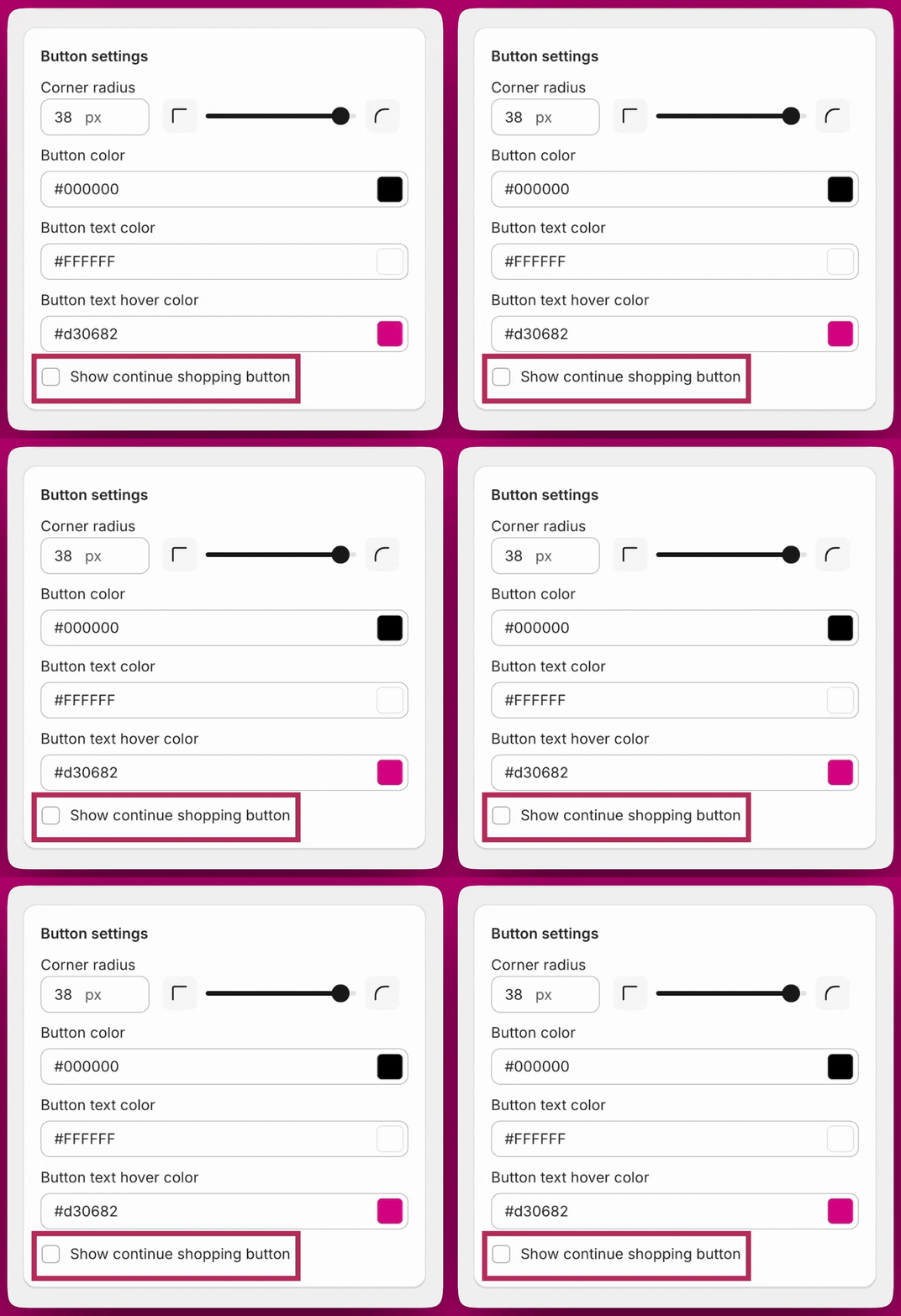
Look for the 'buttons' section in the design module, then a checkbox labeled **“Show continue shopping button.”**
 ## **How It Works**
## ✅ Enabled (Box Checked)
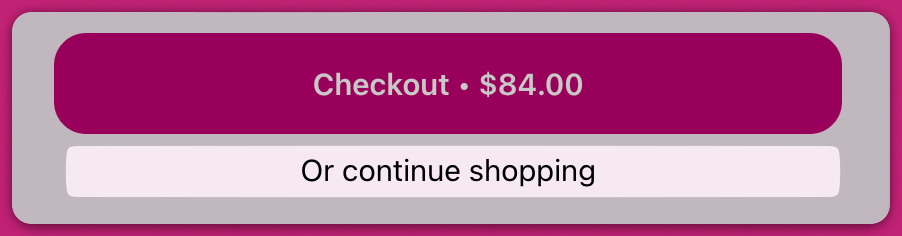
* A **“Continue Shopping”** link appears at the bottom of the cart drawer.
* When clicked, the drawer closes and returns the customer to the storefront.
You can customize the link text in **Settings > Translations**.
## **How It Works**
## ✅ Enabled (Box Checked)
* A **“Continue Shopping”** link appears at the bottom of the cart drawer.
* When clicked, the drawer closes and returns the customer to the storefront.
You can customize the link text in **Settings > Translations**.
 ## ⬜ Disabled (Box Unchecked)
* The link will not appear in the cart.
* Customers will need to manually close the cart using the “X” button.
## ⬜ Disabled (Box Unchecked)
* The link will not appear in the cart.
* Customers will need to manually close the cart using the “X” button.