> ## Documentation Index
> Fetch the complete documentation index at: https://docs.aftersell.com/llms.txt
> Use this file to discover all available pages before exploring further.
# Quickstart guide to Upcart
> Learn how to activate Upcart, enable core features, and publish your cart drawer live.
This guide walks you through setting up Upcart with its main modules, from visual customization to activation on your storefront.
Upcart replaces your theme cart drawer visually, but it **does not integrate with your theme's cart drawer or cart page**. The Shopify cart page will still be accessible.
# **Managing Modules**
Each Upcart module can be **easily enabled or disabled**. Simply click on the **Enable/Disable** button in the top-right corner to turn a module on or off at any time. Your changes take effect immediately once saved.
 # Cart design
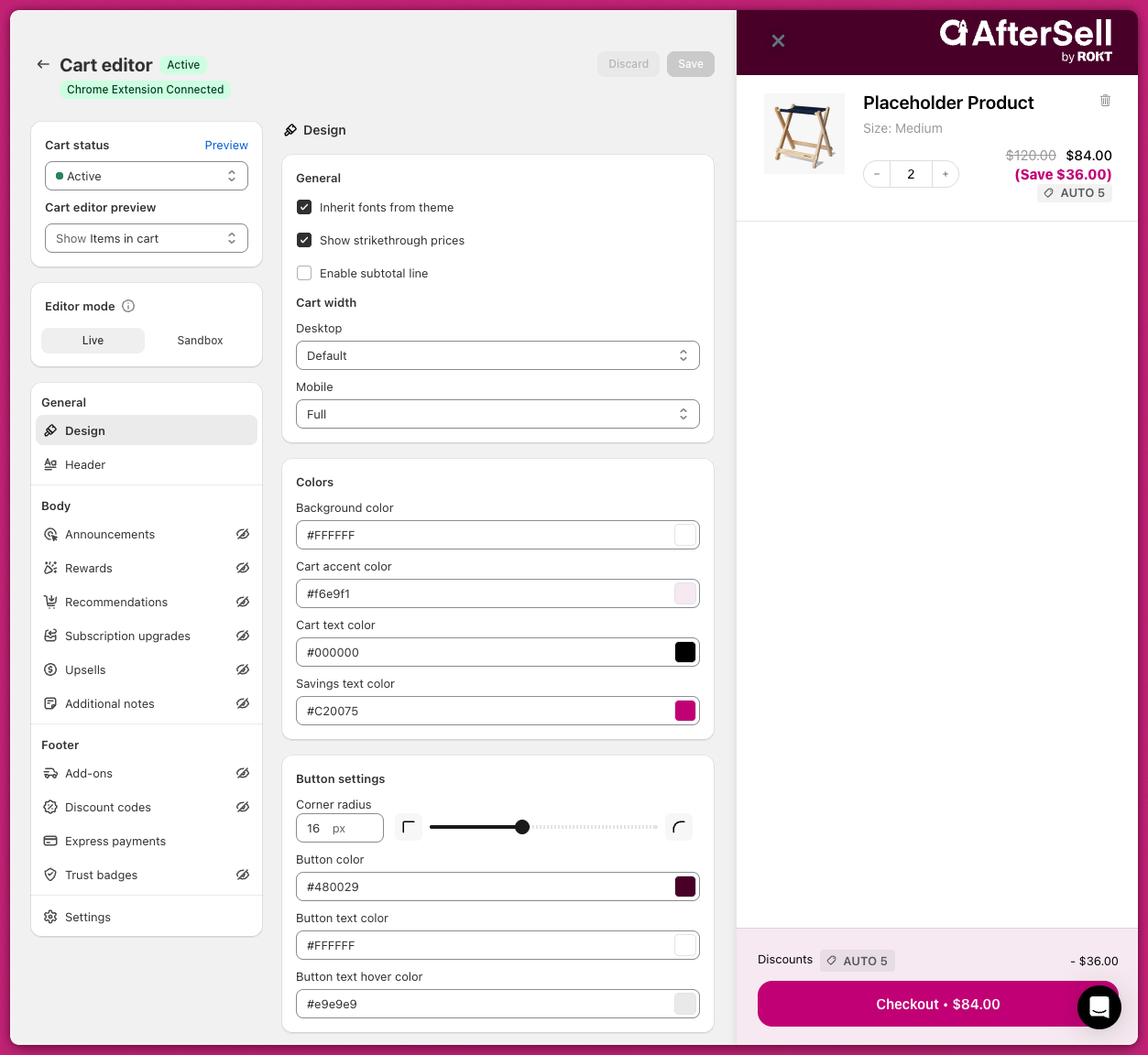
When you first open Upcart's Cart Editor, you'll land in the [Design module](/upcart/design_module). Here you can customize the base colors of the drawer to match your store branding.
# Cart design
When you first open Upcart's Cart Editor, you'll land in the [Design module](/upcart/design_module). Here you can customize the base colors of the drawer to match your store branding.
 # Announcements
To display a cart message or countdown timer, go to **Body > [Announcements](/upcart/announcements_module)**.
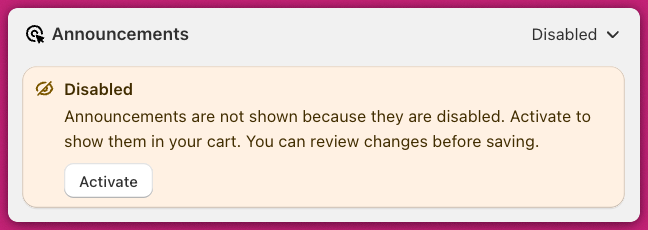
In the top right corner, switch the toggle to **Active**, or click **Activate** in the orange message shown at the top of the page.
# Announcements
To display a cart message or countdown timer, go to **Body > [Announcements](/upcart/announcements_module)**.
In the top right corner, switch the toggle to **Active**, or click **Activate** in the orange message shown at the top of the page.
 Enter your message into the **Announcement Text** field and configure the timer if needed.
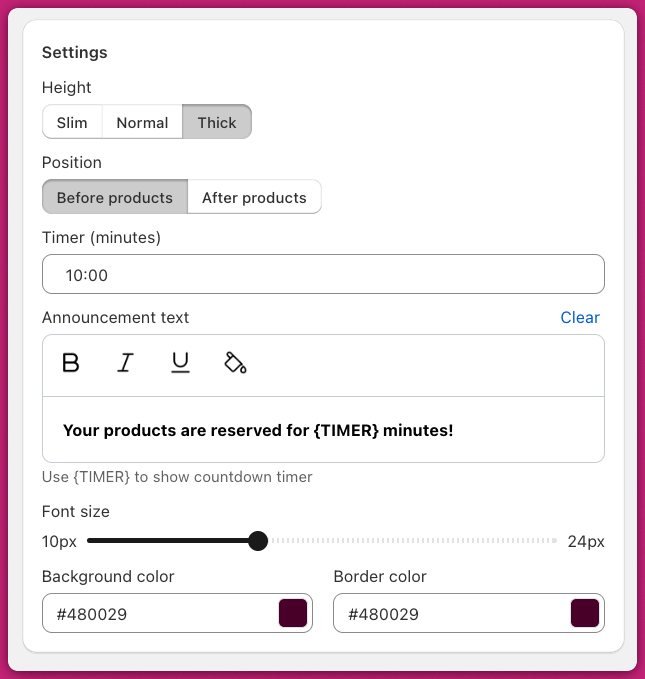 Make sure to use the `{TIMER}` variable for countdowns within your announcement text to ensure proper functionality (e.g., "This offer is only available for {TIMER}.") Avoid copying formatted text directly from third-party tools.
Once you're done, make sure to click **Save** in the top-right corner.
#### Theme-Level Issues
* **CSS or App Conflicts:** Ensure that CSS properties like `display: none;` are not hiding the announcement bar. Also, check that third-party apps are not overriding these settings.
* **Text Visibility:** Confirm the announcement bar text color contrasts with the background and adjust it in your theme settings if necessary.
#### Advanced Debugging Steps
For persistent issues, review browser console errors for script problems affecting the announcement bar and disable third-party apps temporarily to pinpoint conflicts.
# Rewards
To display a progress bar that encourages customers to spend more, enable the Rewards Module.
### **General settings**
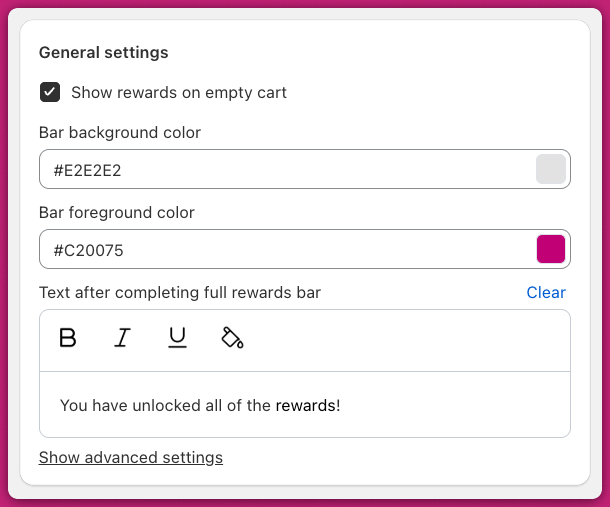
Set your branding colors and the message shown after the final reward tier is reached.\
Choose a reward basis:
* **Cart Total**: Tracks total cart value
* **Item Count**: Tracks quantity of items
Make sure to use the `{TIMER}` variable for countdowns within your announcement text to ensure proper functionality (e.g., "This offer is only available for {TIMER}.") Avoid copying formatted text directly from third-party tools.
Once you're done, make sure to click **Save** in the top-right corner.
#### Theme-Level Issues
* **CSS or App Conflicts:** Ensure that CSS properties like `display: none;` are not hiding the announcement bar. Also, check that third-party apps are not overriding these settings.
* **Text Visibility:** Confirm the announcement bar text color contrasts with the background and adjust it in your theme settings if necessary.
#### Advanced Debugging Steps
For persistent issues, review browser console errors for script problems affecting the announcement bar and disable third-party apps temporarily to pinpoint conflicts.
# Rewards
To display a progress bar that encourages customers to spend more, enable the Rewards Module.
### **General settings**
Set your branding colors and the message shown after the final reward tier is reached.\
Choose a reward basis:
* **Cart Total**: Tracks total cart value
* **Item Count**: Tracks quantity of items
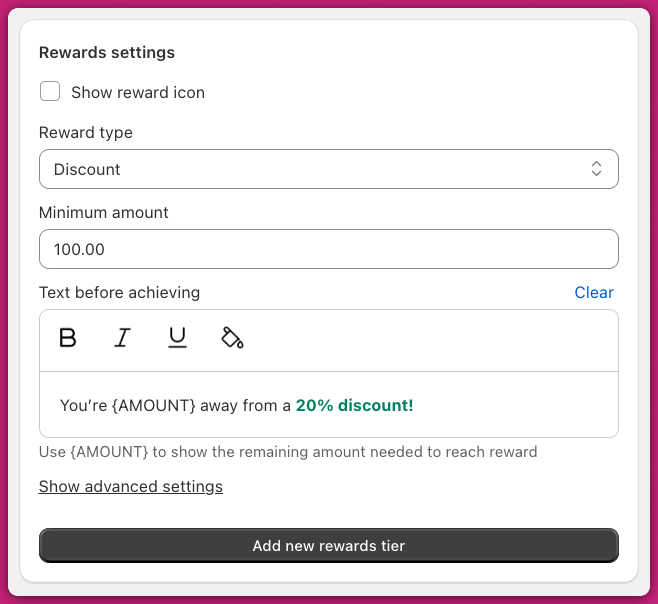
 ### **Rewards settings** Choose your reward type:
* [**Shipping**](https://help.shopify.com/en/manual/fulfillment/setup/shipping-rates/flat-shipping-rates): Considers applied discounts
* [**Discount**](https://help.shopify.com/en/manual/discounts/discount-types): Ignores discounts
* [**Product**](/upcart/set_up_a_free_product_reward_tier_in_upcart): Adds a product to the cart
Set a minimum threshold to trigger the reward and customize the "Text before achieving" field. You can create up to **four reward tiers**.
### **Rewards settings** Choose your reward type:
* [**Shipping**](https://help.shopify.com/en/manual/fulfillment/setup/shipping-rates/flat-shipping-rates): Considers applied discounts
* [**Discount**](https://help.shopify.com/en/manual/discounts/discount-types): Ignores discounts
* [**Product**](/upcart/set_up_a_free_product_reward_tier_in_upcart): Adds a product to the cart
Set a minimum threshold to trigger the reward and customize the "Text before achieving" field. You can create up to **four reward tiers**.
 # Upsells
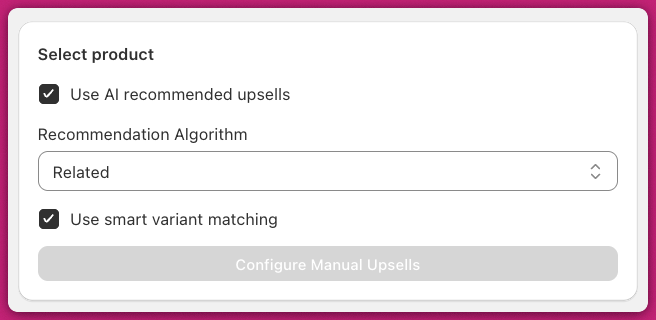
Enable **Use AI Recommended Upsells**, select the **Related** algorithm, and turn on **Smart Variant Matching** to preselect matching product variants based on the cart contents.
# Upsells
Enable **Use AI Recommended Upsells**, select the **Related** algorithm, and turn on **Smart Variant Matching** to preselect matching product variants based on the cart contents.
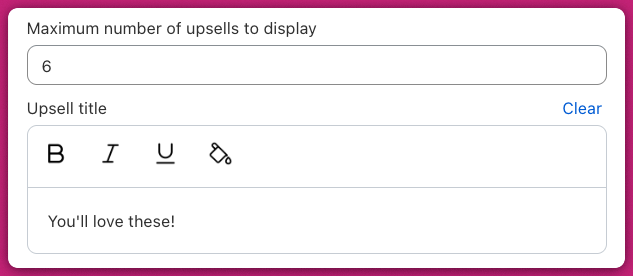
 Customize your section title and the **Add** button label.
 # Add-ons
To show a toggle-based add-on in the footer, you can enable either of these options:
### **Shipping protection**
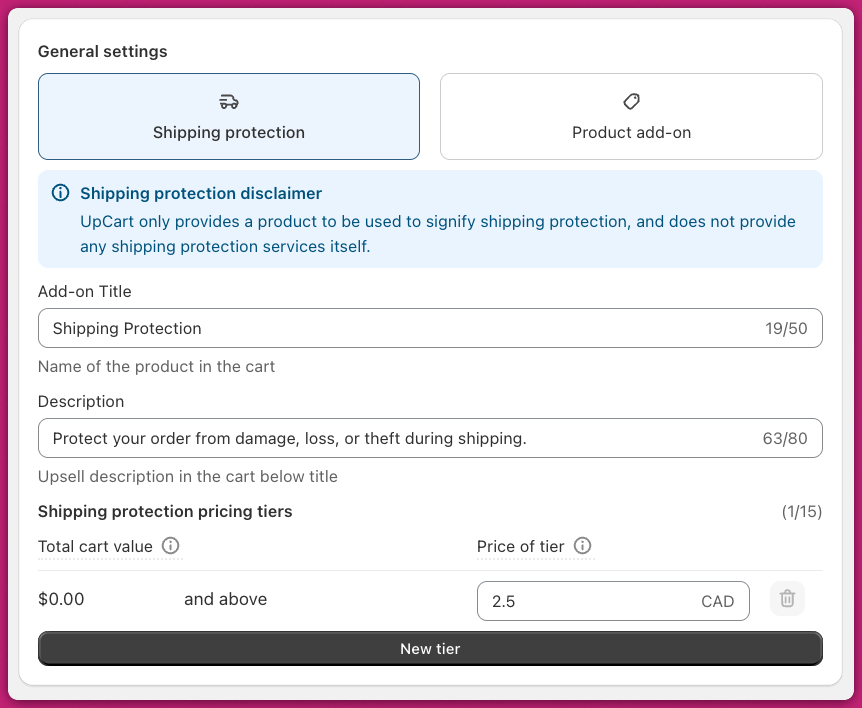
Select **Shipping Protection** and configure dynamic pricing tiers based on cart value.\
This creates a real product in your Shopify catalog.
# Add-ons
To show a toggle-based add-on in the footer, you can enable either of these options:
### **Shipping protection**
Select **Shipping Protection** and configure dynamic pricing tiers based on cart value.\
This creates a real product in your Shopify catalog.
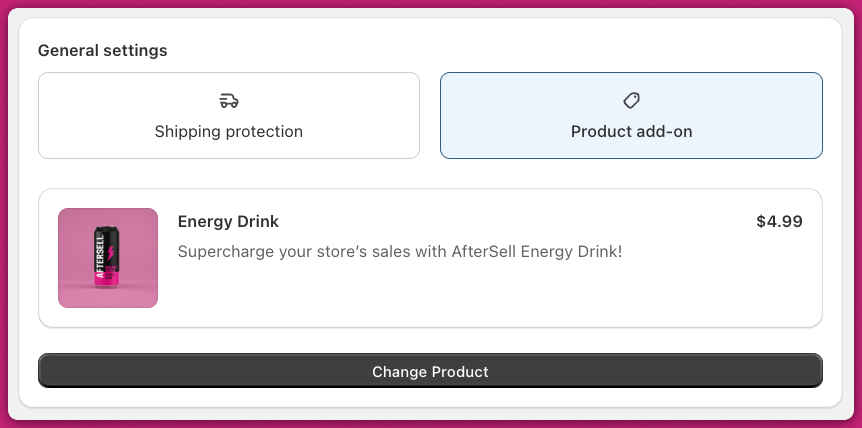
 ### **Product add-on**
Switch to the **Product Add-On** tab and select an existing product to offer as an upsell.
### **Product add-on**
Switch to the **Product Add-On** tab and select an existing product to offer as an upsell.
 # Activating Upcart on your store
### Step one: Make your cart live
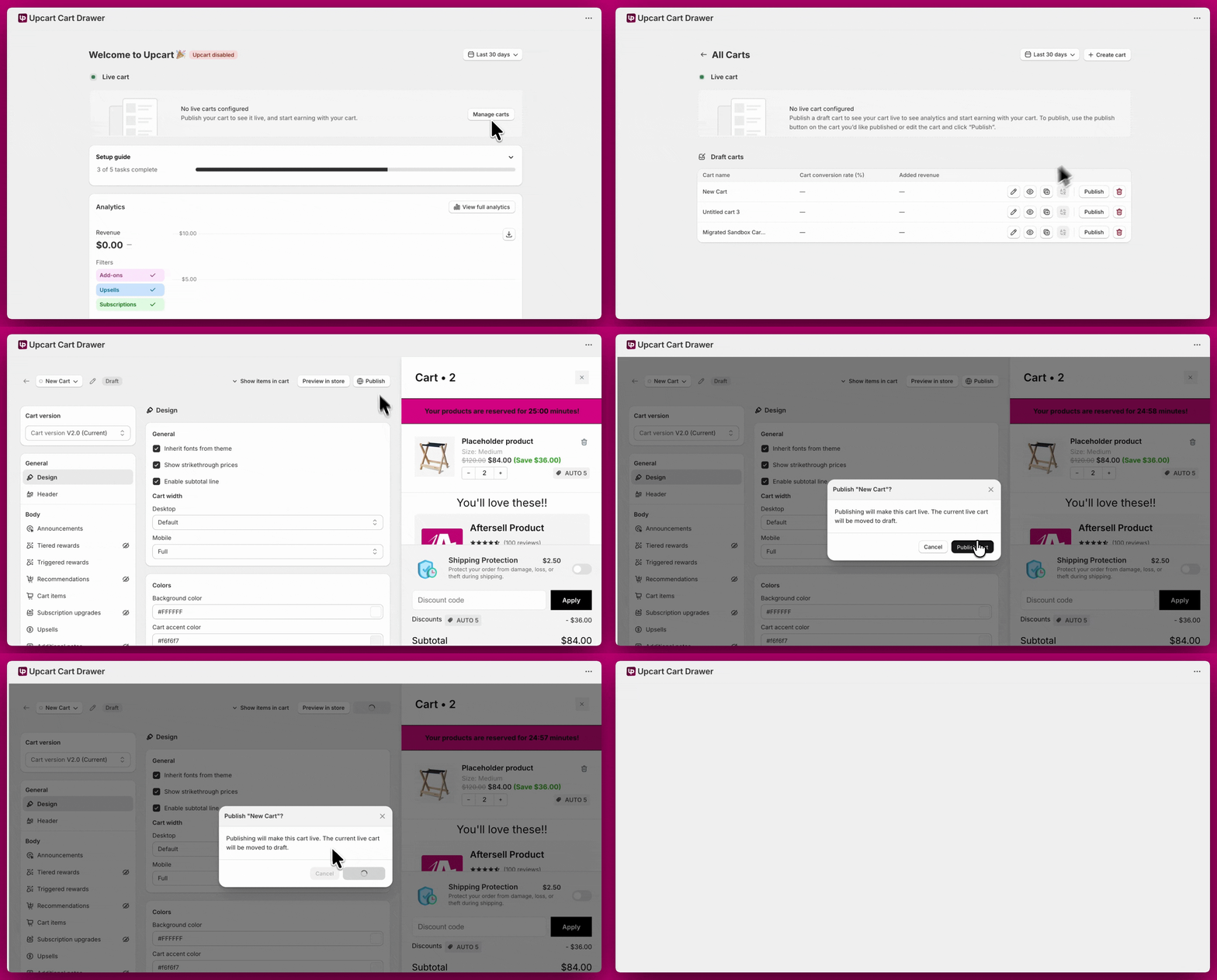
Once everything is configured:
Note: The app embed controls whether the Upcart cart drawer displays on your storefront. If you have Discounts configured, those rules will remain active via Shopify's discount system even when the app embed is disabled.
### **Step 2: Test compatibility**
go to **Manage All Carts** > select the cart you want to make active > click **Publish**.
Once published, a green **"Live"** badge will appear next to the cart name confirming it's active on your store.
# Activating Upcart on your store
### Step one: Make your cart live
Once everything is configured:
Note: The app embed controls whether the Upcart cart drawer displays on your storefront. If you have Discounts configured, those rules will remain active via Shopify's discount system even when the app embed is disabled.
### **Step 2: Test compatibility**
go to **Manage All Carts** > select the cart you want to make active > click **Publish**.
Once published, a green **"Live"** badge will appear next to the cart name confirming it's active on your store.
 ### **Step two: Enable Theme App Embed**
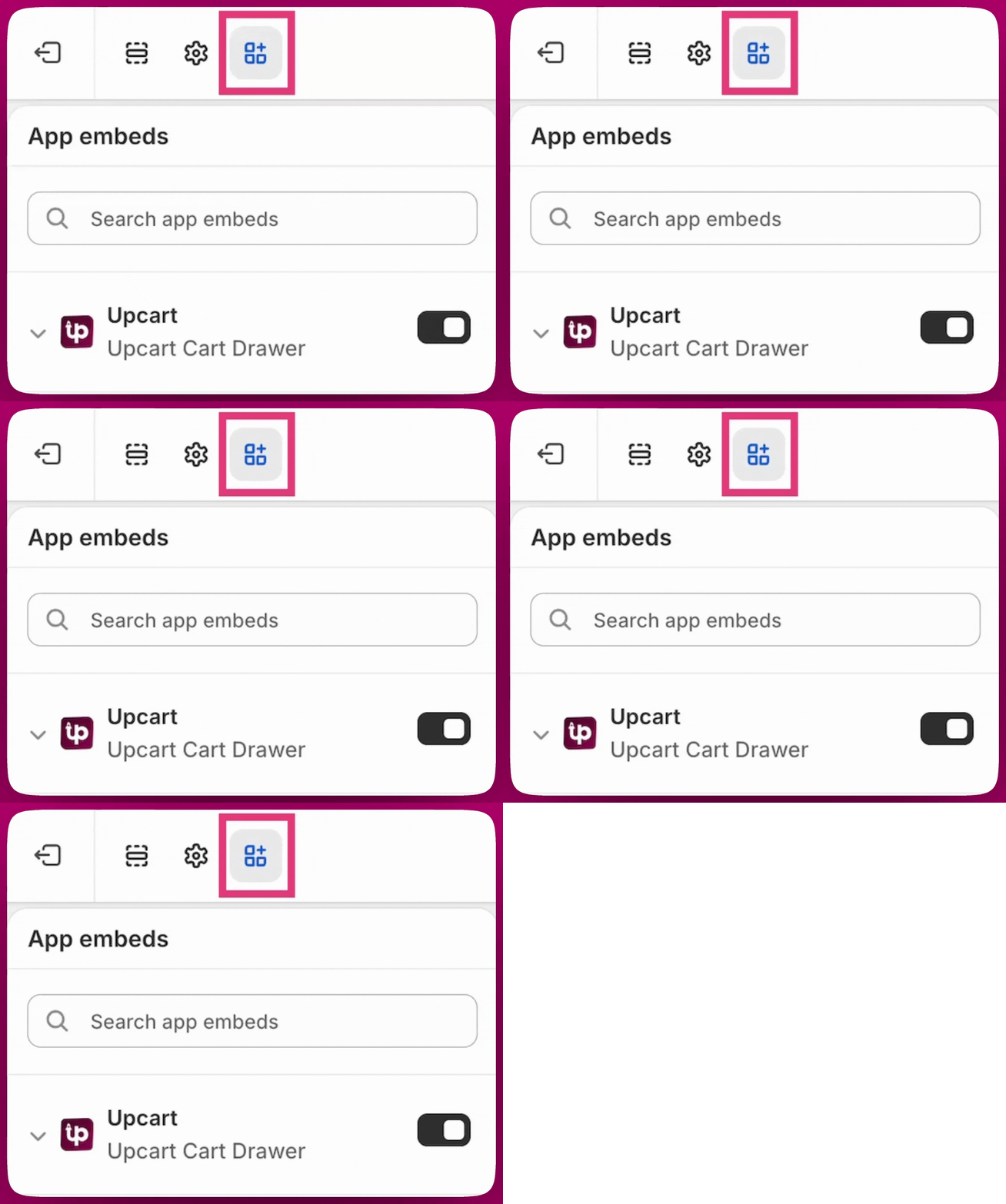
To activate Upcart on your theme, go to **Shopify Admin → Online Store → Themes → Customize → App Embeds**, enable the **Upcart Bridge**, and click **Save**.
### **Step two: Enable Theme App Embed**
To activate Upcart on your theme, go to **Shopify Admin → Online Store → Themes → Customize → App Embeds**, enable the **Upcart Bridge**, and click **Save**.
 If you encounter any issues or experience compatibility problems, feel free to contact our **Support Chat** for assistance.