> ## Documentation Index
> Fetch the complete documentation index at: https://docs.aftersell.com/llms.txt
> Use this file to discover all available pages before exploring further.
# Getting started with Upcart customizations
> Learn how to use HTML, CSS, and JavaScript to build custom features and styling in your cart drawer.
⚠️ **Important notice**
This example customization in this doc only works with V1.0 of the Upcart cart modules. If you recently upgraded your cart to Version 2, these customizations code will not work. You will need to use the new selectors provided for Version 2 in the [migration guide.](/upcart/upcart_v20_migration_guide)
Please review the other customization documentation for V2.0 solutions.
# Overview
Upcart gives you full control to modify the cart’s appearance and behavior using **Custom HTML**, **Custom CSS**, and **JavaScript**. These tools let you add new features, style your cart to match your brand, or introduce logic to improve how your cart works.
This guide covers the basics of each and shows how to get started. Each section includes a quick visual example to help you understand how changes look in practice.
***
Before you start, make sure to review [Upcart’s customization policy](/upcart/upcart_customization_policy) so you know what is and isn’t supported by our team.
## Add content with HTML
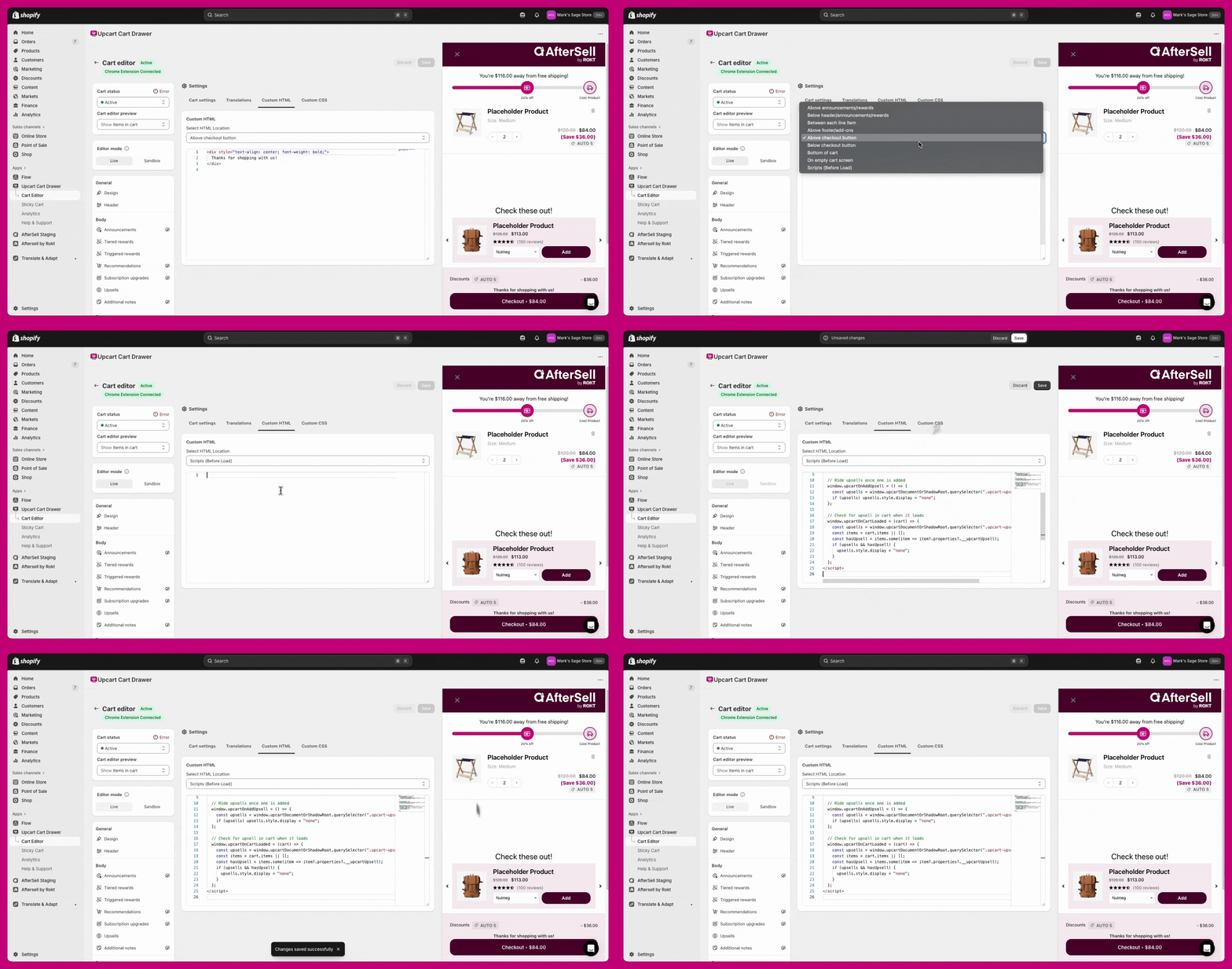
HTML is used to add static content like text, banners, or buttons into your cart. You can choose from multiple HTML locations in the **Custom HTML** editor (e.g., above checkout button, bottom of cart, between items).
Common use cases:
* Add custom messages
* Insert legal disclaimers or policy links
* Highlight shipping deadlines or delivery info
**Example:**
```
Thanks for shopping with us!
***
## Add logic with JavaScript
JavaScript controls cart behavior and logic. You can use it to show or hide elements, conditionally apply styling, or respond to cart changes in real time.
You’ll wrap your code in a `
```
**Legacy note:** `window.upcartOnItemRemoved`, `window.upcartOnAddUpsell`, and `window.upcartOnCartLoaded` callbacks still work but are deprecated and log console warnings. Use `upcartSubscribeItemRemoved`, `upcartSubscribeUpsellsAddedToCart`, and `upcartSubscribeCartLoaded` for all new scripts.
 ***
🔧 **Developer note:**\
Upcart provides a full [Public API documentation](https://aftersell.notion.site/Upcart-Public-API-7a0f6d75cb044871bdb6da5d99cfc755) that lists all functions, variables, and best‑practice patterns available for advanced customizations. We recommend reviewing this when building more complex scripts or integrations.
***
## Style your cart with CSS
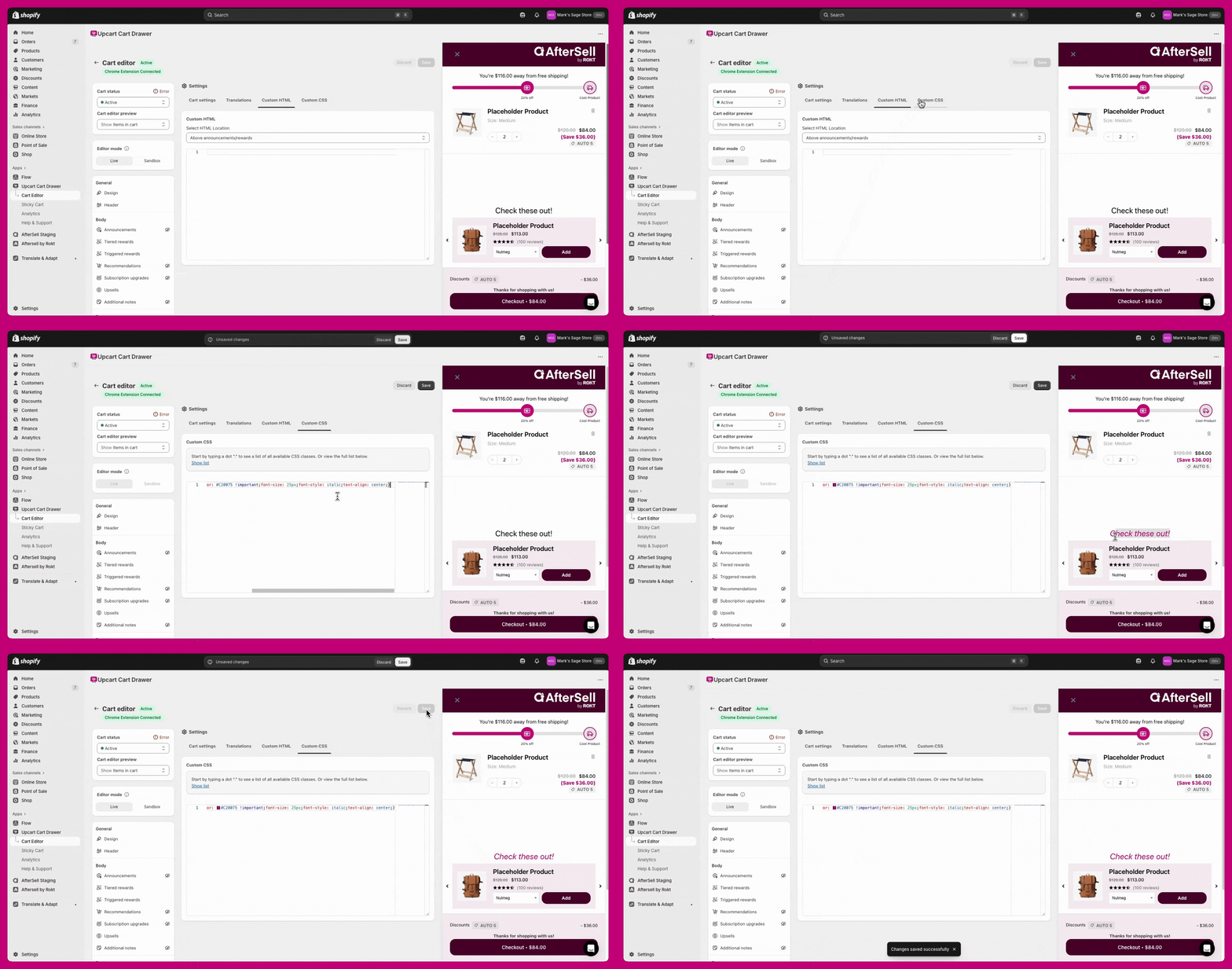
CSS controls the look and feel of elements in your cart. Use it to adjust spacing, colors, font sizes, or hide unwanted elements. The **Custom CSS** section is found at the bottom of the **Settings** tab.
Common use cases:
* Change product title or button colors
* Adjust font size or alignment
* Add spacing between sections
**Example: Change upsell title color in V1.0:**
```
.upcart-upsells-title {
color: #C20075 !important;
font-size: 25px;
font-style: italic;
text-align: center;
}
```
***
🔧 **Developer note:**\
Upcart provides a full [Public API documentation](https://aftersell.notion.site/Upcart-Public-API-7a0f6d75cb044871bdb6da5d99cfc755) that lists all functions, variables, and best‑practice patterns available for advanced customizations. We recommend reviewing this when building more complex scripts or integrations.
***
## Style your cart with CSS
CSS controls the look and feel of elements in your cart. Use it to adjust spacing, colors, font sizes, or hide unwanted elements. The **Custom CSS** section is found at the bottom of the **Settings** tab.
Common use cases:
* Change product title or button colors
* Adjust font size or alignment
* Add spacing between sections
**Example: Change upsell title color in V1.0:**
```
.upcart-upsells-title {
color: #C20075 !important;
font-size: 25px;
font-style: italic;
text-align: center;
}
```
 ***
## Additional resources
Looking to improve your HTML, CSS, or JavaScript skills? Check out these free tools:
* [W3Schools](https://www.w3schools.com/)
* [Codecademy](https://www.codecademy.com/?g_network=g\&g_productchannel=\&g_adid=528849219280\&g_locinterest=\&g_keyword=codecademy\&g_acctid=243-039-7011\&g_adtype=\&g_keywordid=kwd-41065460761\&g_ifcreative=\&g_campaign=account\&g_locphysical=9001394\&g_adgroupid=70492864474\&g_productid=\&g_source=%7Bsourceid%7D\&g_merchantid=\&g_placement=\&g_partition=\&g_campaignid=1726903838\&g_ifproduct=\&utm_id=t_kwd-41065460761:ag_70492864474:cp_1726903838:n_g:d_c\&utm_source=google\&utm_medium=paid-search\&utm_term=codecademy\&utm_campaign=INTL_Brand_Exact\&utm_content=528849219280\&g_adtype=search\&g_acctid=243-039-7011\&gad_source=1\&gad_campaignid=1726903838\&gbraid=0AAAAAon8KZFBIKQJ4KKGpsSVHO3yi2Njl\&gclid=CjwKCAjwx-zHBhBhEiwA7Kjq61-cNVEH2PzXZCcjcqIZS-0mCe8EEyPBJYyj4QRn5bma8OMqd3IJrBoCwjoQAvD_BwE)
* [Mozilla Developer Network (MDN)](https://developer.mozilla.org/en-US/)
## Support for customizations
Upcart’s support team can’t assist with implementing custom code. For more advanced changes, we recommend hiring a [Shopify Expert](https://www.shopify.com/ca/partners/directory).
***
## Additional resources
Looking to improve your HTML, CSS, or JavaScript skills? Check out these free tools:
* [W3Schools](https://www.w3schools.com/)
* [Codecademy](https://www.codecademy.com/?g_network=g\&g_productchannel=\&g_adid=528849219280\&g_locinterest=\&g_keyword=codecademy\&g_acctid=243-039-7011\&g_adtype=\&g_keywordid=kwd-41065460761\&g_ifcreative=\&g_campaign=account\&g_locphysical=9001394\&g_adgroupid=70492864474\&g_productid=\&g_source=%7Bsourceid%7D\&g_merchantid=\&g_placement=\&g_partition=\&g_campaignid=1726903838\&g_ifproduct=\&utm_id=t_kwd-41065460761:ag_70492864474:cp_1726903838:n_g:d_c\&utm_source=google\&utm_medium=paid-search\&utm_term=codecademy\&utm_campaign=INTL_Brand_Exact\&utm_content=528849219280\&g_adtype=search\&g_acctid=243-039-7011\&gad_source=1\&gad_campaignid=1726903838\&gbraid=0AAAAAon8KZFBIKQJ4KKGpsSVHO3yi2Njl\&gclid=CjwKCAjwx-zHBhBhEiwA7Kjq61-cNVEH2PzXZCcjcqIZS-0mCe8EEyPBJYyj4QRn5bma8OMqd3IJrBoCwjoQAvD_BwE)
* [Mozilla Developer Network (MDN)](https://developer.mozilla.org/en-US/)
## Support for customizations
Upcart’s support team can’t assist with implementing custom code. For more advanced changes, we recommend hiring a [Shopify Expert](https://www.shopify.com/ca/partners/directory).