> ## Documentation Index
> Fetch the complete documentation index at: https://docs.aftersell.com/llms.txt
> Use this file to discover all available pages before exploring further.
# Discounts reference
> The full mechanics behind Upcart Discounts: every trigger condition and reward type, how discount combinations stack at checkout, app-embed behavior, storefront display and custom-template props, and FAQs.
This page is the full mechanics reference for Upcart [Discounts](/upcart/discounts): every trigger condition and reward type you can pick, how discount combinations stack at checkout, how discounts behave relative to the app embed, the storefront display and its custom-template props, and the FAQs. For how to create and manage a discount rule, see the [Discounts guide](/upcart/discounts).
## Trigger conditions
Each rule can contain up to **2 triggers**. All conditions use **AND logic** - both must be true for the reward to activate.
Triggers when any selected product or variant is in the cart.
* Supports full products or specific variants
* Multiple selections use OR logic
* Up to **20 variants** per trigger
* Set a minimum quantity match (defaults to 1)
Use this for "Add iPhone 15 Pro" or "Add any featured item" style triggers.
Triggers when any cart item belongs to a selected collection.
* Supports multiple collections, up to **20** per trigger
* OR logic across collections
* Set a minimum quantity match (defaults to 1)
Ideal for collection-based promotions like "Buy from Winter Sale."
Triggers when the pre-discount cart total meets a set dollar amount. The threshold is calculated before any discounts (including other discount rules) are applied.
This trigger only supports your store's main currency. It does not perform automatic currency conversion for international markets. Thresholds are always evaluated in your store's base currency regardless of the customer's checkout currency.
Great for rewards like "Spend \$100, get a free gift."
Triggers when the total number of items (not unique SKUs) in the cart reaches a set number. For example, 2 of one product and 1 of another equals 3 total items.
Perfect for promotions like "Buy 4 or more items, get 20% off."
Triggers when the cart includes any item with a subscription (checks for a Shopify selling plan ID).
Useful for rewards like "Free shipping with any subscription" or "Free gift for subscribers."
Triggers when the customer is logged in. Supports both email/password and social login.
Great for member-only rewards or loyalty perks.
## Reward types
Once your trigger conditions are met, one of the following rewards is automatically applied.
Applies a discount to the entire cart. Supports:
* Percentage discounts (e.g. 20% off)
* Fixed dollar discounts (e.g. \$5 off)
Maximum: 100% or \$9,999.99 per rule.
Automatically adds a specific product to the cart at 100% off when conditions are met.
Requirements:
* The gift product must be **Active** or **Unlisted** and available through your Online Store (not **Draft** or **Archived**)
* The product must be in stock
* The discount applies only to the exact product or variant selected
If the customer removes the free gift from their cart, the discount is also removed.
Removes the shipping cost by discounting the cheapest available shipping method to \$0. No additional configuration needed.
## Discount combinations
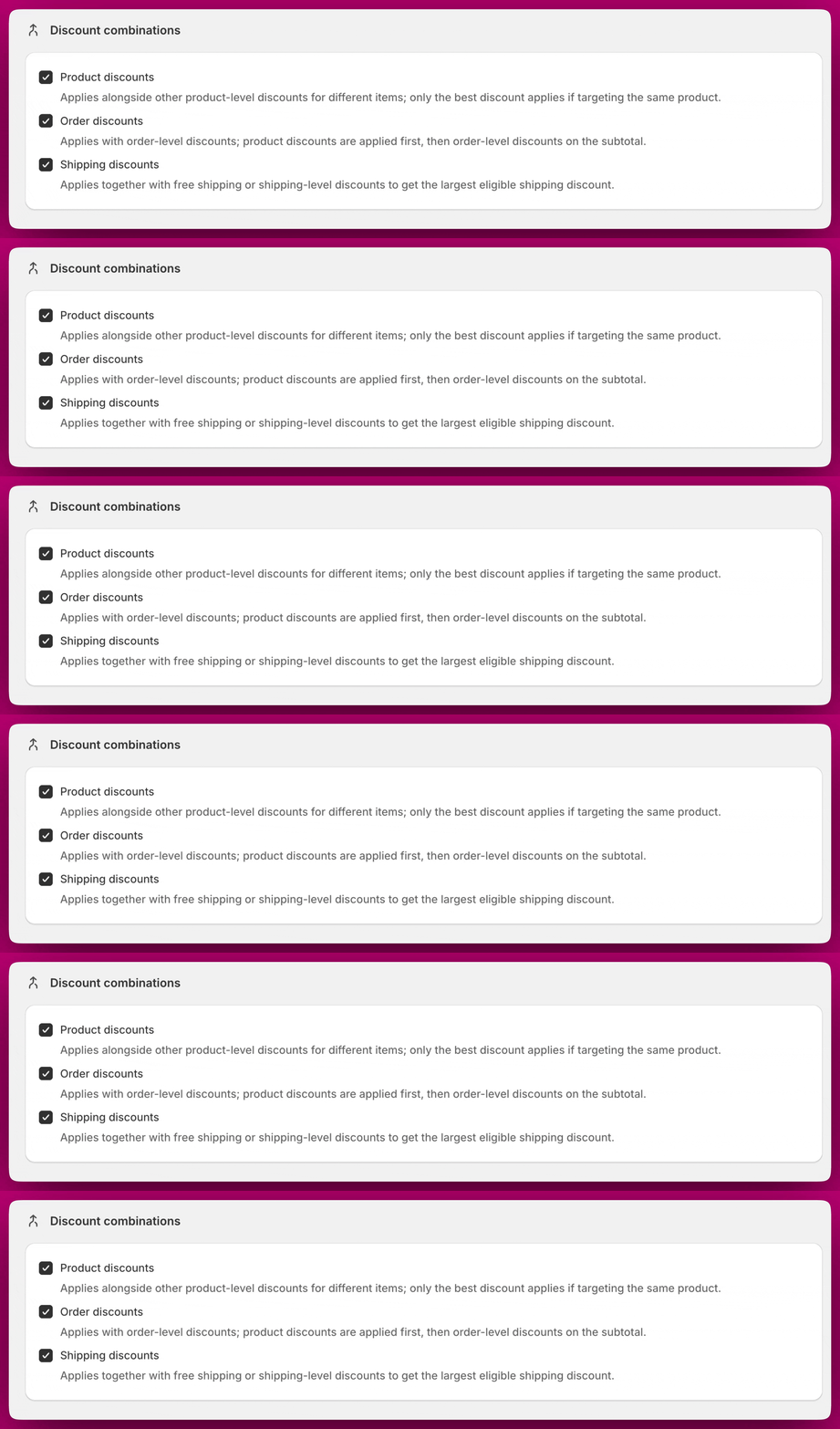
Discount combinations control how Upcart discounts stack with other discounts at checkout. They are set on the **Discounts** page, below the Live and Draft tables - **not** on an individual rule.
This is a single, store-wide setting. Upcart creates one Shopify automatic app discount for your store and these checkboxes configure that one discount, so whatever you choose here applies to **every** Upcart discount rule at once. You cannot allow one rule to combine with order discounts and block another from doing so.
All three are **off** by default. The available combination types are:
* **Product discounts** - Applies alongside other product-level discounts for different items. If two discounts target the same product, only the best discount applies.
* **Order discounts** - Applies with order-level discounts. Product discounts are applied first, then order-level discounts on the subtotal.
* **Shipping discounts** - Applies together with free shipping or other shipping-level discounts to get the largest eligible shipping discount.
 ## Discounts and app embed status
Discounts are applied through Shopify's discount system, not through the Upcart cart drawer. This means:
* **Discounts remain active even when the Upcart app embed is turned off.** Turning off the app embed only hides the cart drawer from your storefront. It does not disable your discount rules.
* **Discounts apply at checkout.** Your customers will see the discount reflected when they reach checkout, regardless of whether the Upcart cart drawer is visible on the page.
To fully stop a discount from applying, click **Unpublish** on the individual rule to move it to Drafts. If you want it gone entirely, delete it from the Drafts table afterwards - a live rule cannot be deleted directly.
## Storefront display and custom templates
The Upcart cart drawer dynamically updates as conditions are met. Rewards appear instantly based on real-time evaluation of the cart.
By default, the cart shows active discount rules using a default display template, showing the rule title and description for each active rule. Discounts are also visible at Shopify checkout where the applied discount amount is reflected.
For full control over the layout, the module supports [**custom templates**](/upcart/setting_up_a_custom_template_in_upcart) using React-based code. To use them, first tick **Access custom templates** under **Settings > Cart settings > Advanced Settings** in the Cart Editor - the setting requires version 2.0 of the module. Once enabled, the Custom Template section appears within the Discounts module. The available top-level props are: `rules`, `showSection`, and `onToggleSection`. Each item within `rules` has its own `id`, `title`, and `description` fields.
Custom template development requires React knowledge. Aftersell supports built-in features but does not provide assistance with custom coding.
## Frequently asked questions
Yes. Discounts operate through Shopify's discount engine independently of the Upcart cart. As long as the discount rule is published, it will apply to qualifying orders even if there is no Upcart cart published on your storefront.
No. Turning off the app embed only hides the Upcart cart drawer from your storefront. Active discount rules will continue to apply at checkout.
No, and this applies to drafts too - there is no edit screen for a discount rule at any point after it is created. To change one, delete it and create a replacement.
Yes. Click **Unpublish** to move the rule to Drafts. This pauses it without deleting the configuration and it can be re-published at any time.
Delete is only offered on draft rules. Click **Unpublish** first to move the rule to Drafts, then delete it from there.
No. Each rule has a required Discount Code field (up to 25 characters), but this is the title/label of the Shopify automatic app discount that gets created, not a code shoppers type at checkout. Rules always fire from the cart conditions (triggers), never from a customer entering a code.
The Cart Total Threshold trigger only supports your store's main currency. It does not perform automatic currency conversion for international markets. Thresholds are always evaluated in your store's base currency regardless of the customer's checkout currency.
The most common causes are:
* The gift product is set to **Draft** or **Archived**, or is not available through your Online Store
* The product is out of stock
* The trigger conditions are not actually being met
Check all three before reaching out to support.
No. The free gift discount is tied to the presence of the gift product in the cart. If the customer removes it, the discount is also removed.
Discounts go through Shopify's native discount system. Compatibility with third-party discount apps depends on those apps and Shopify's stacking rules. If you notice unexpected discount behavior, check for conflicts with other installed discount apps.
They are the same feature. Discounts is the renamed version of Triggered Rewards, now surfaced as a top-level section in the app for clarity. All existing Triggered Rewards have been migrated automatically and the functionality is identical.
## Discounts and app embed status
Discounts are applied through Shopify's discount system, not through the Upcart cart drawer. This means:
* **Discounts remain active even when the Upcart app embed is turned off.** Turning off the app embed only hides the cart drawer from your storefront. It does not disable your discount rules.
* **Discounts apply at checkout.** Your customers will see the discount reflected when they reach checkout, regardless of whether the Upcart cart drawer is visible on the page.
To fully stop a discount from applying, click **Unpublish** on the individual rule to move it to Drafts. If you want it gone entirely, delete it from the Drafts table afterwards - a live rule cannot be deleted directly.
## Storefront display and custom templates
The Upcart cart drawer dynamically updates as conditions are met. Rewards appear instantly based on real-time evaluation of the cart.
By default, the cart shows active discount rules using a default display template, showing the rule title and description for each active rule. Discounts are also visible at Shopify checkout where the applied discount amount is reflected.
For full control over the layout, the module supports [**custom templates**](/upcart/setting_up_a_custom_template_in_upcart) using React-based code. To use them, first tick **Access custom templates** under **Settings > Cart settings > Advanced Settings** in the Cart Editor - the setting requires version 2.0 of the module. Once enabled, the Custom Template section appears within the Discounts module. The available top-level props are: `rules`, `showSection`, and `onToggleSection`. Each item within `rules` has its own `id`, `title`, and `description` fields.
Custom template development requires React knowledge. Aftersell supports built-in features but does not provide assistance with custom coding.
## Frequently asked questions
Yes. Discounts operate through Shopify's discount engine independently of the Upcart cart. As long as the discount rule is published, it will apply to qualifying orders even if there is no Upcart cart published on your storefront.
No. Turning off the app embed only hides the Upcart cart drawer from your storefront. Active discount rules will continue to apply at checkout.
No, and this applies to drafts too - there is no edit screen for a discount rule at any point after it is created. To change one, delete it and create a replacement.
Yes. Click **Unpublish** to move the rule to Drafts. This pauses it without deleting the configuration and it can be re-published at any time.
Delete is only offered on draft rules. Click **Unpublish** first to move the rule to Drafts, then delete it from there.
No. Each rule has a required Discount Code field (up to 25 characters), but this is the title/label of the Shopify automatic app discount that gets created, not a code shoppers type at checkout. Rules always fire from the cart conditions (triggers), never from a customer entering a code.
The Cart Total Threshold trigger only supports your store's main currency. It does not perform automatic currency conversion for international markets. Thresholds are always evaluated in your store's base currency regardless of the customer's checkout currency.
The most common causes are:
* The gift product is set to **Draft** or **Archived**, or is not available through your Online Store
* The product is out of stock
* The trigger conditions are not actually being met
Check all three before reaching out to support.
No. The free gift discount is tied to the presence of the gift product in the cart. If the customer removes it, the discount is also removed.
Discounts go through Shopify's native discount system. Compatibility with third-party discount apps depends on those apps and Shopify's stacking rules. If you notice unexpected discount behavior, check for conflicts with other installed discount apps.
They are the same feature. Discounts is the renamed version of Triggered Rewards, now surfaced as a top-level section in the app for clarity. All existing Triggered Rewards have been migrated automatically and the functionality is identical.