> ## Documentation Index
> Fetch the complete documentation index at: https://docs.aftersell.com/llms.txt
> Use this file to discover all available pages before exploring further.
# Cart translations
> Edit or translate individual text labels across the Upcart interface.
# **Overview**
Upcart's Translations feature lets you change the phrasing and language of your cart's interface elements. Whether you want to adjust default wording or serve customers in multiple languages, everything can be managed directly inside Upcart.
If you need to support multiple languages, you'll first need to set them up in your **Shopify admin language settings**. Once that's done, all translation editing happens inside Upcart.
***
## Step 1 - Add Languages in Shopify Admin
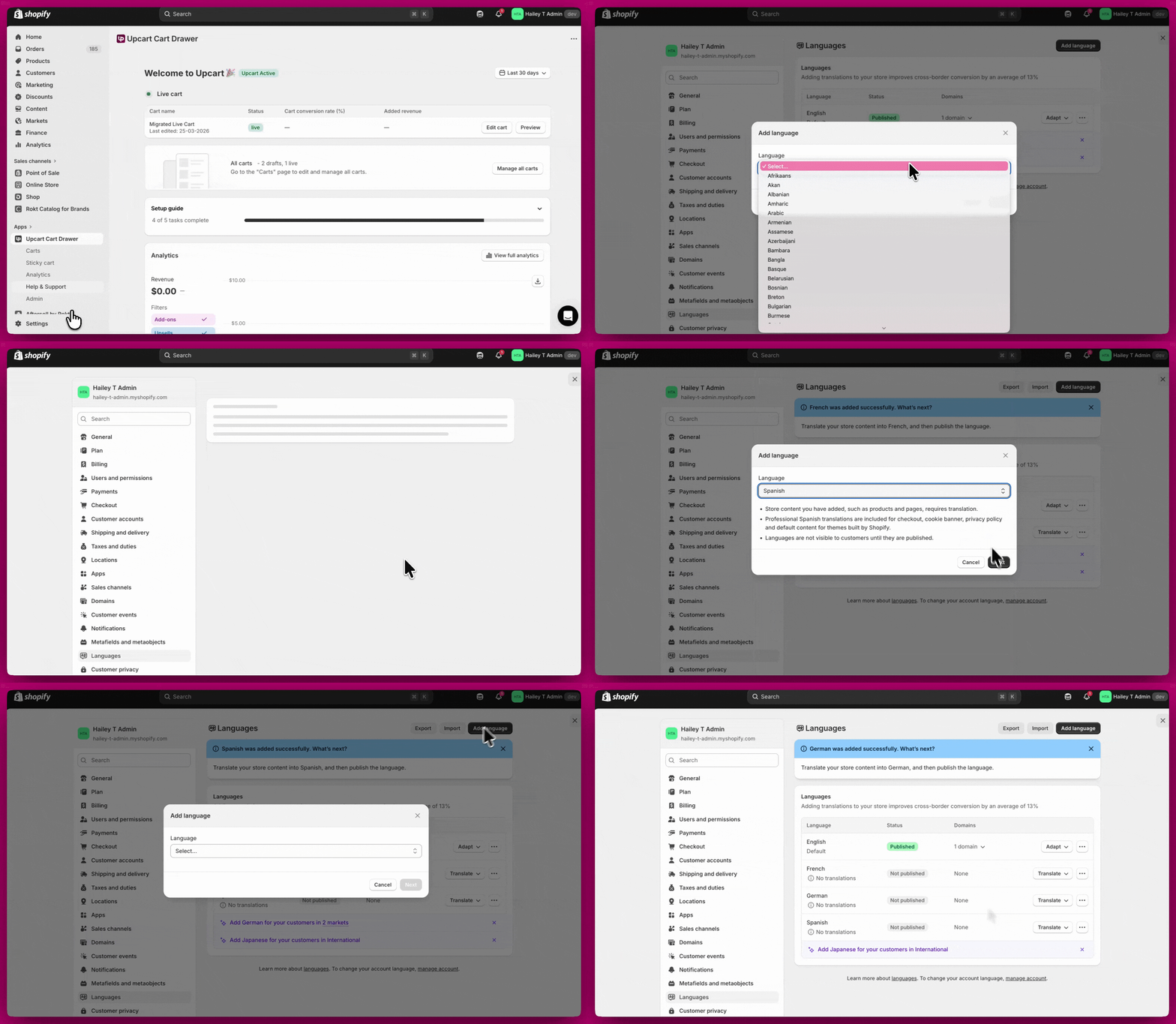
Before a language can be used in Upcart, it must be added in your **Shopify admin settings**.
1. In Shopify, go to **Settings > Languages**
2. Add each language you want your store and cart to support
Important:
* All languages must be added here first if you want your cart to display in multiple languages
* Once added, they will appear in Upcart's language dropdown
Note: If you only want to edit or rephrase your existing cart text, you can skip this step.
 ## Step 2 - Translate Your Cart in Upcart
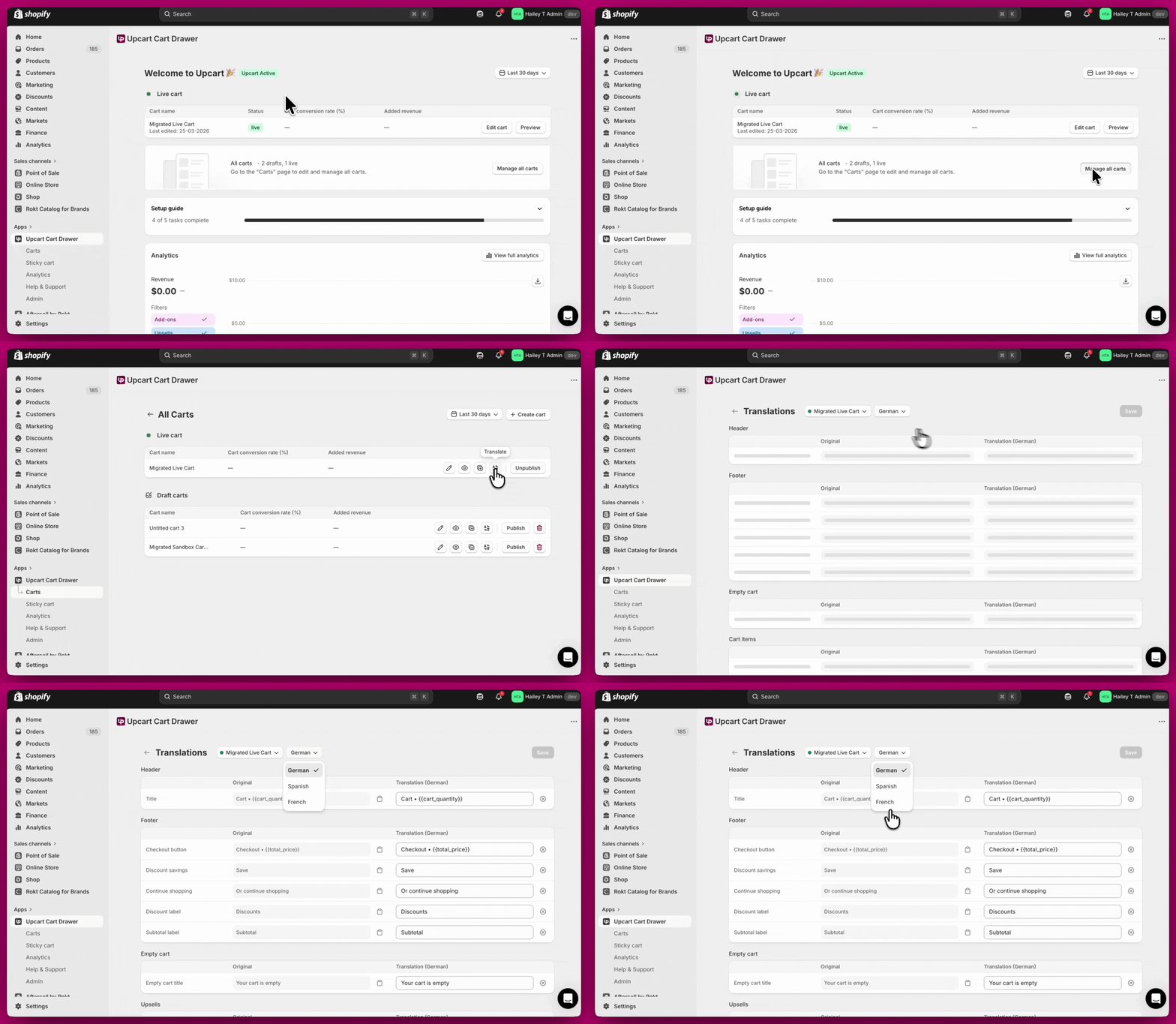
1. Go to **Upcart > Manage all carts**
2. Select the cart you want to translate
3. Click the **Translate** button
4. Choose a language from the dropdown
5. Add or update your translations
Click **Save** in the top right when you are done.
## Step 2 - Translate Your Cart in Upcart
1. Go to **Upcart > Manage all carts**
2. Select the cart you want to translate
3. Click the **Translate** button
4. Choose a language from the dropdown
5. Add or update your translations
Click **Save** in the top right when you are done.
 ***
## How the Translations Editor Works
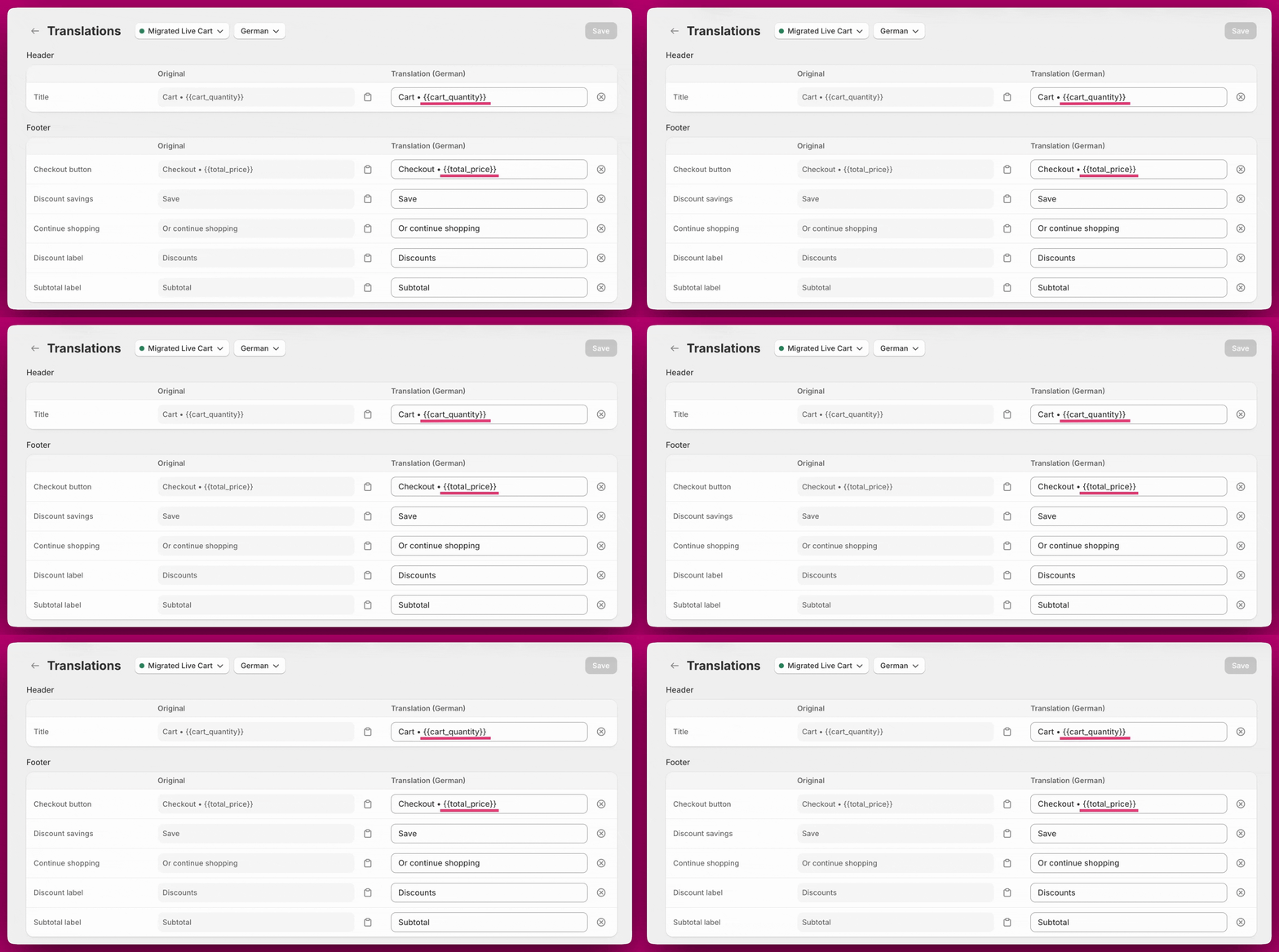
The editor has two columns:
* **Original**\
The default text currently used in your cart
* **Translation**\
Where you enter your translated or customized text
You can edit any field directly.
* Click **Save** to apply changes
* Click the **× icon** to reset a field to its original text
***
What You Can Translate
You can customize all customer-facing text in your cart, including:
* Cart title and header text \*
* Checkout button and footer labels \*
* Empty cart messages
* Upsell content and buttons
* Upsell review count text \*
* Tiered rewards messaging \*
* Tiered rewards tier descriptions (e.g., "Free Shipping", "20% Off")
* Product recommendations
* Notes and special instructions
* Discount code fields
* Subscription options \*
* Announcement banners \*
Note: the fields with a \* next to them support dynamic variables such as `{{cart_quantity}}`, `{{total_price}}`, `{{amount}}`, and `{{review_count}}`.
***
## How the Translations Editor Works
The editor has two columns:
* **Original**\
The default text currently used in your cart
* **Translation**\
Where you enter your translated or customized text
You can edit any field directly.
* Click **Save** to apply changes
* Click the **× icon** to reset a field to its original text
***
What You Can Translate
You can customize all customer-facing text in your cart, including:
* Cart title and header text \*
* Checkout button and footer labels \*
* Empty cart messages
* Upsell content and buttons
* Upsell review count text \*
* Tiered rewards messaging \*
* Tiered rewards tier descriptions (e.g., "Free Shipping", "20% Off")
* Product recommendations
* Notes and special instructions
* Discount code fields
* Subscription options \*
* Announcement banners \*
Note: the fields with a \* next to them support dynamic variables such as `{{cart_quantity}}`, `{{total_price}}`, `{{amount}}`, and `{{review_count}}`.
 ***
## Editing Cart Text for a Single Language
If you only want to rename or rephrase specific cart elements without setting up multiple languages, you can do this through the **Edit Copy** panel.
1. Go to **Manage Carts > Edit**
2. Open **Settings > More Settings**
3. Click **Edit Copy**
**Body**
* **Automatic discount savings text** (e.g. "Save")
* **Empty cart message** (e.g. "Your cart is empty")
* **Continue shopping button text** (e.g. "Or continue shopping")
**Footer**
* **Total discount savings text** (e.g. "Discounts")
* **Subtotal text** (e.g. "Subtotal")
* **Checkout button text** (e.g. `Checkout • {{total_price}}`)
**Example:** To rename the checkout button to "Secure Checkout", update the **Checkout button text** field to `Secure Checkout • {{total_price}}` and click **Save**.
***
## Editing Cart Text for a Single Language
If you only want to rename or rephrase specific cart elements without setting up multiple languages, you can do this through the **Edit Copy** panel.
1. Go to **Manage Carts > Edit**
2. Open **Settings > More Settings**
3. Click **Edit Copy**
**Body**
* **Automatic discount savings text** (e.g. "Save")
* **Empty cart message** (e.g. "Your cart is empty")
* **Continue shopping button text** (e.g. "Or continue shopping")
**Footer**
* **Total discount savings text** (e.g. "Discounts")
* **Subtotal text** (e.g. "Subtotal")
* **Checkout button text** (e.g. `Checkout • {{total_price}}`)
**Example:** To rename the checkout button to "Secure Checkout", update the **Checkout button text** field to `Secure Checkout • {{total_price}}` and click **Save**.
