> ## Documentation Index
> Fetch the complete documentation index at: https://docs.aftersell.com/llms.txt
> Use this file to discover all available pages before exploring further.
# Cart position
> Choose which side of the screen the Upcart drawer appears from.
# Overview
The cart position setting allows you to control whether Upcart slides in from the **right** or **left** side of the screen. This is especially useful for stores that use **right-to-left languages**, or that want to match specific visual layouts.
## **How to Set the Cart Position**
In the **Cart Editor → Settings → Cart Settings**, you'll find a dropdown labeled **Cart position**. You can choose:
* **Slide from right** *(default)*
* **Slide from left**
# **Slide From Right**
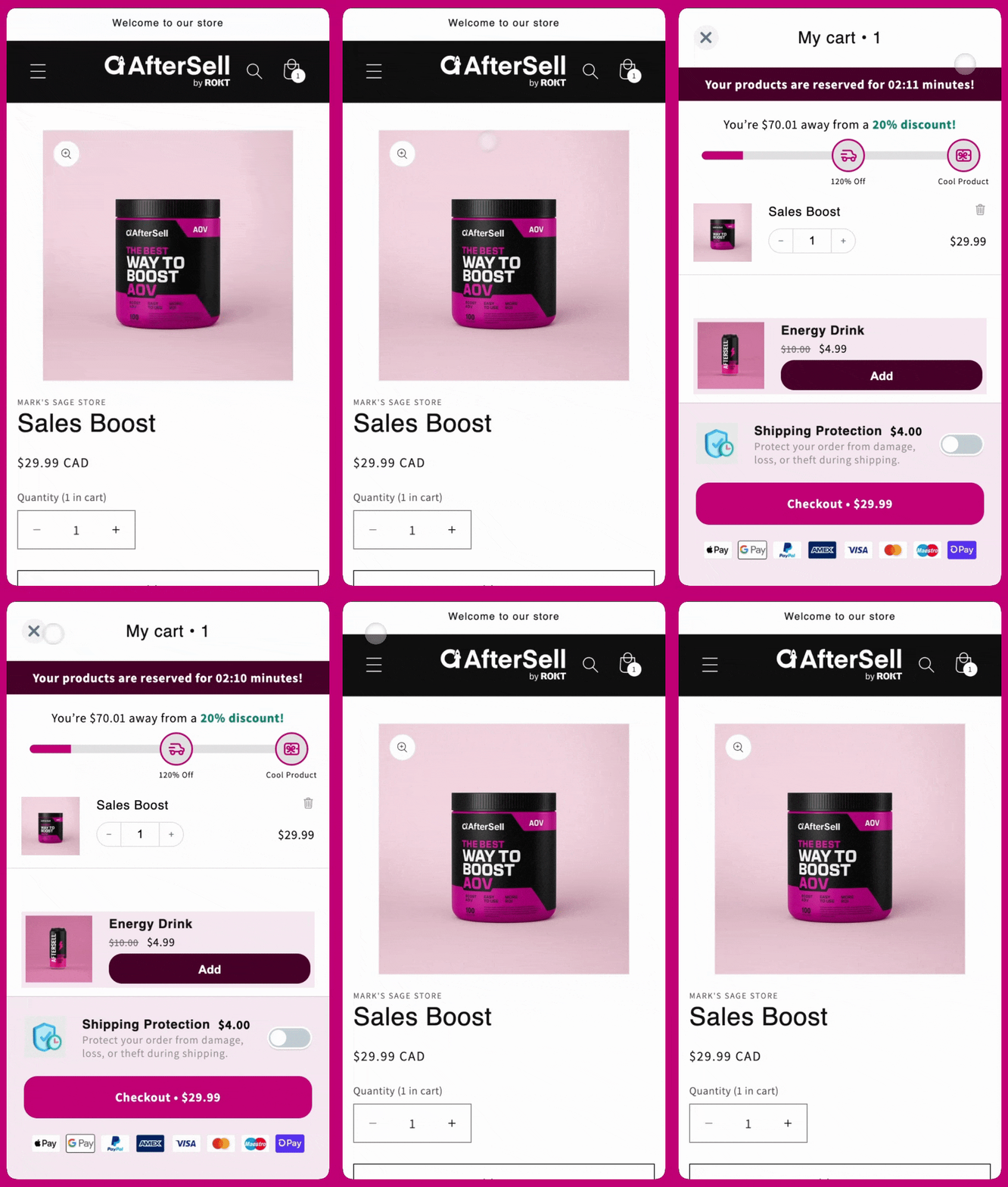
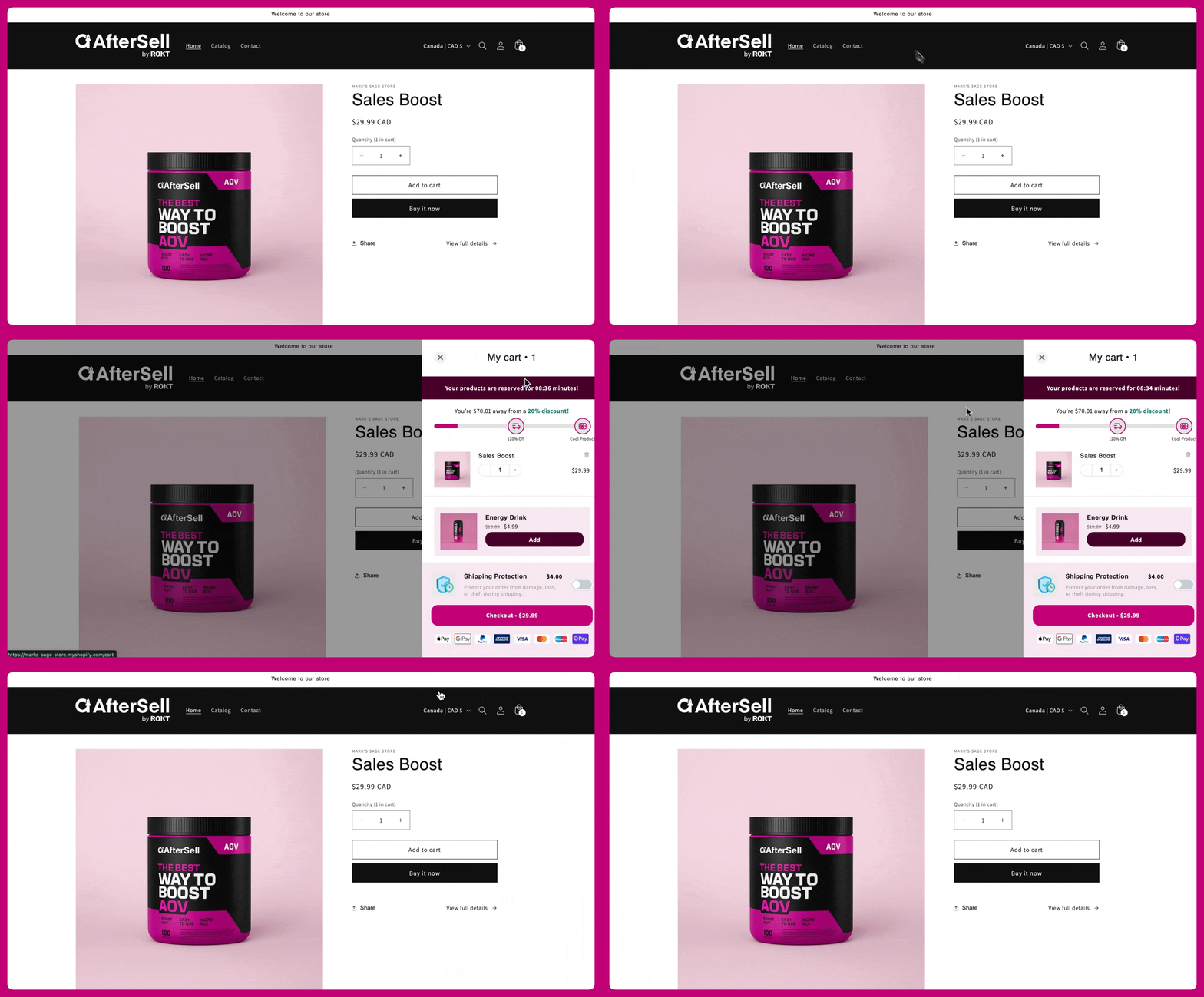
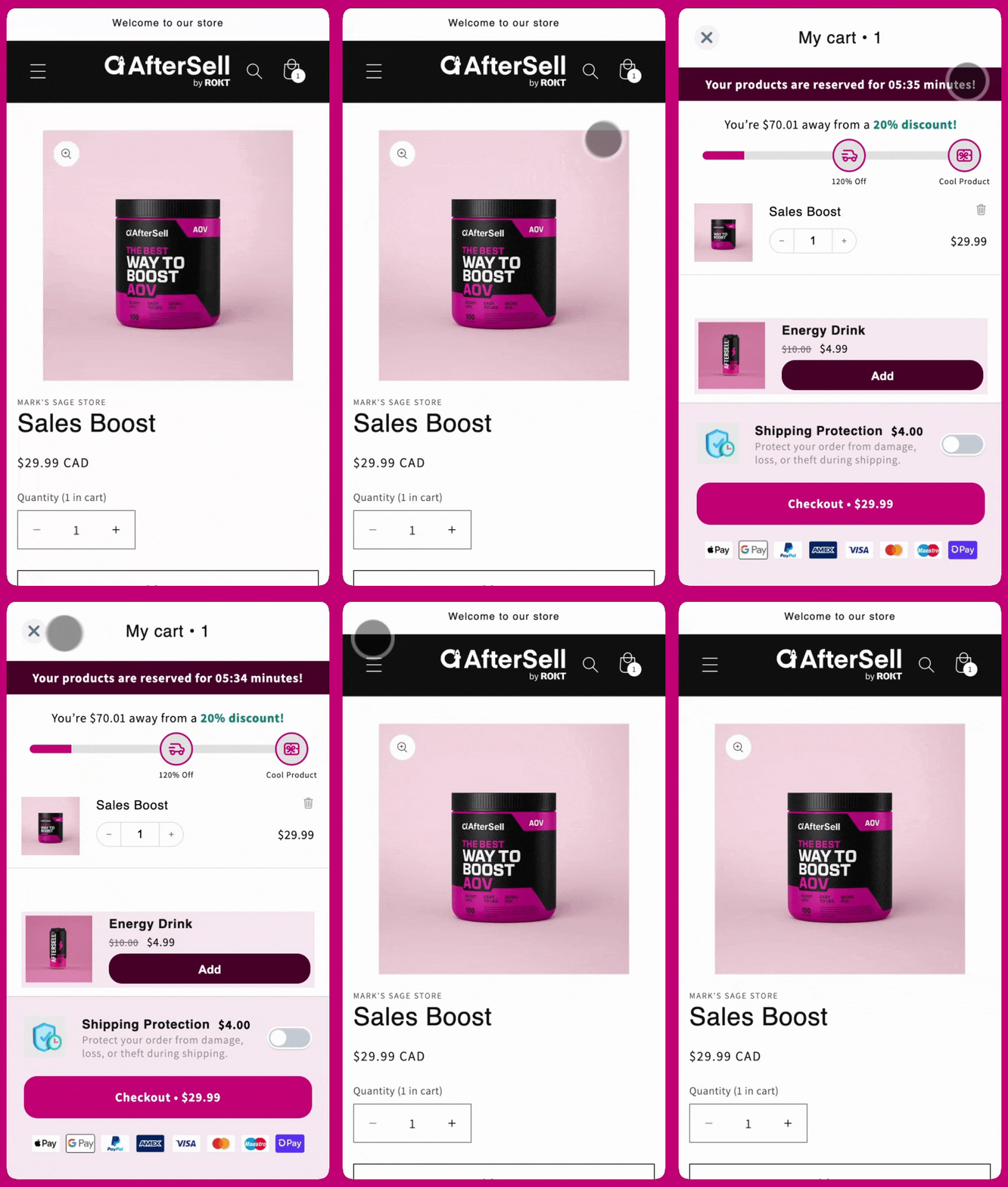
This is the default setting for most stores. The cart drawer slides out from the right-hand side of the screen on both desktop and mobile.
## Desktop Example:
 ## Mobile Example
 # Slide From Left
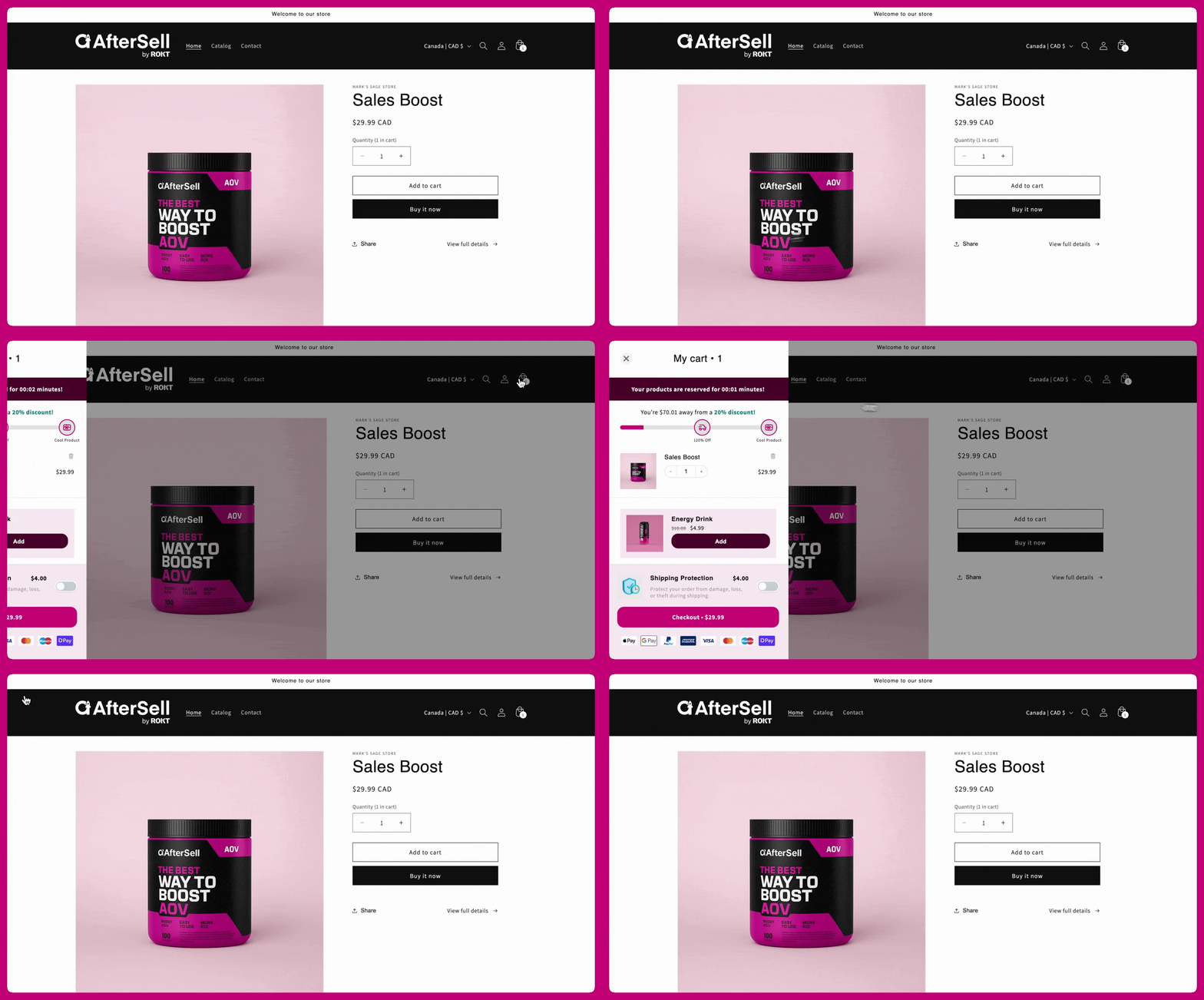
If your store layout or customer base benefits from a left-aligned cart, you can switch the position. The cart will then slide in from the left side of the screen.
## Desktop Example
# Slide From Left
If your store layout or customer base benefits from a left-aligned cart, you can switch the position. The cart will then slide in from the left side of the screen.
## Desktop Example
 ## Mobile Example