> ## Documentation Index
> Fetch the complete documentation index at: https://docs.aftersell.com/llms.txt
> Use this file to discover all available pages before exploring further.
# Cart icon quantity/counter not updating
> This article outlines how to fix your cart icon quantity when not updating in Upcart.
# Overview
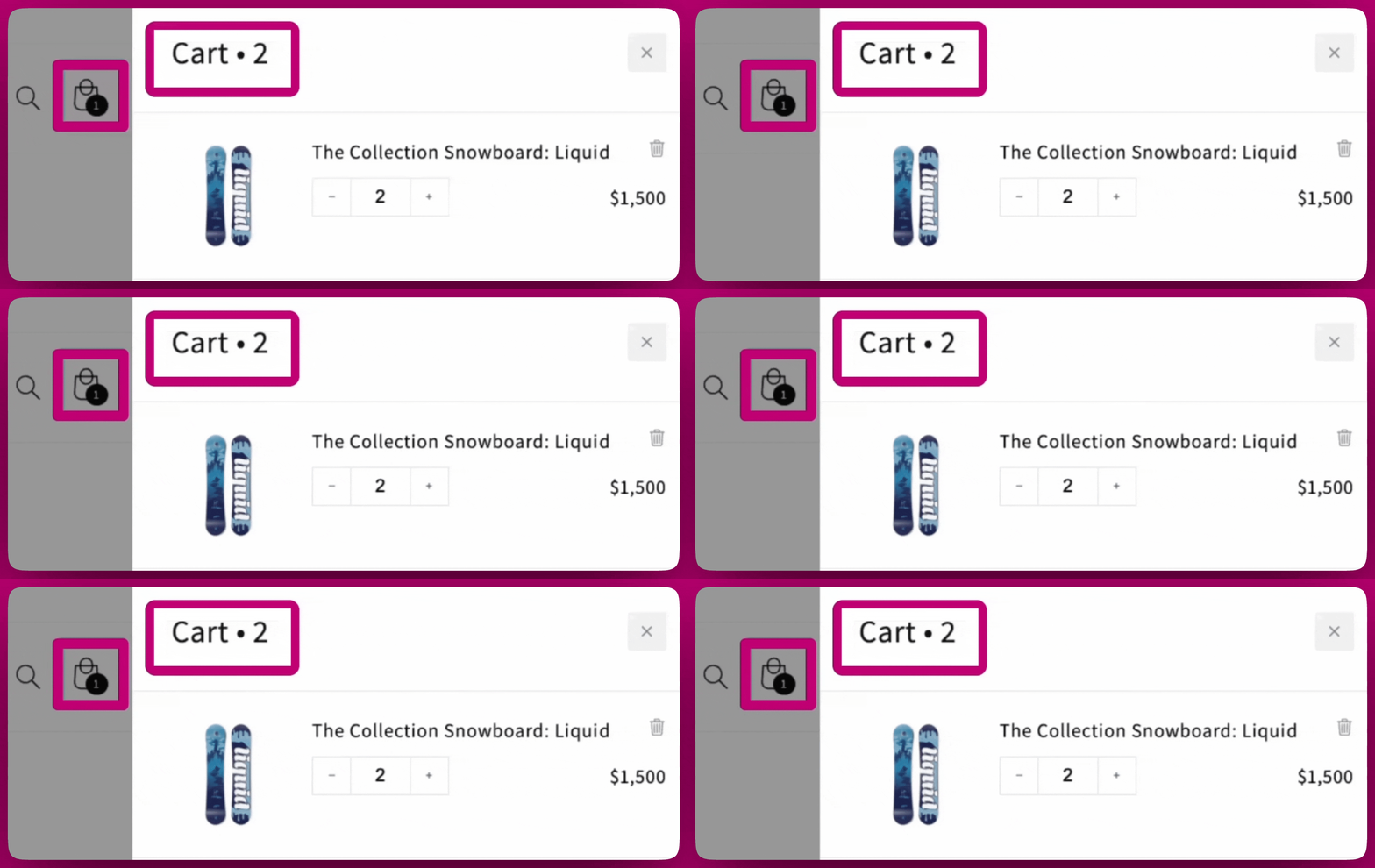
Some themes don't update the icon automatically and this guide will walk you through how to fix it using a bit of custom code. Follow the steps below to get everything syncing correctly.
**Here's an example of what this mismatch looks like:**
 ***
# Important Steps Before You Start!
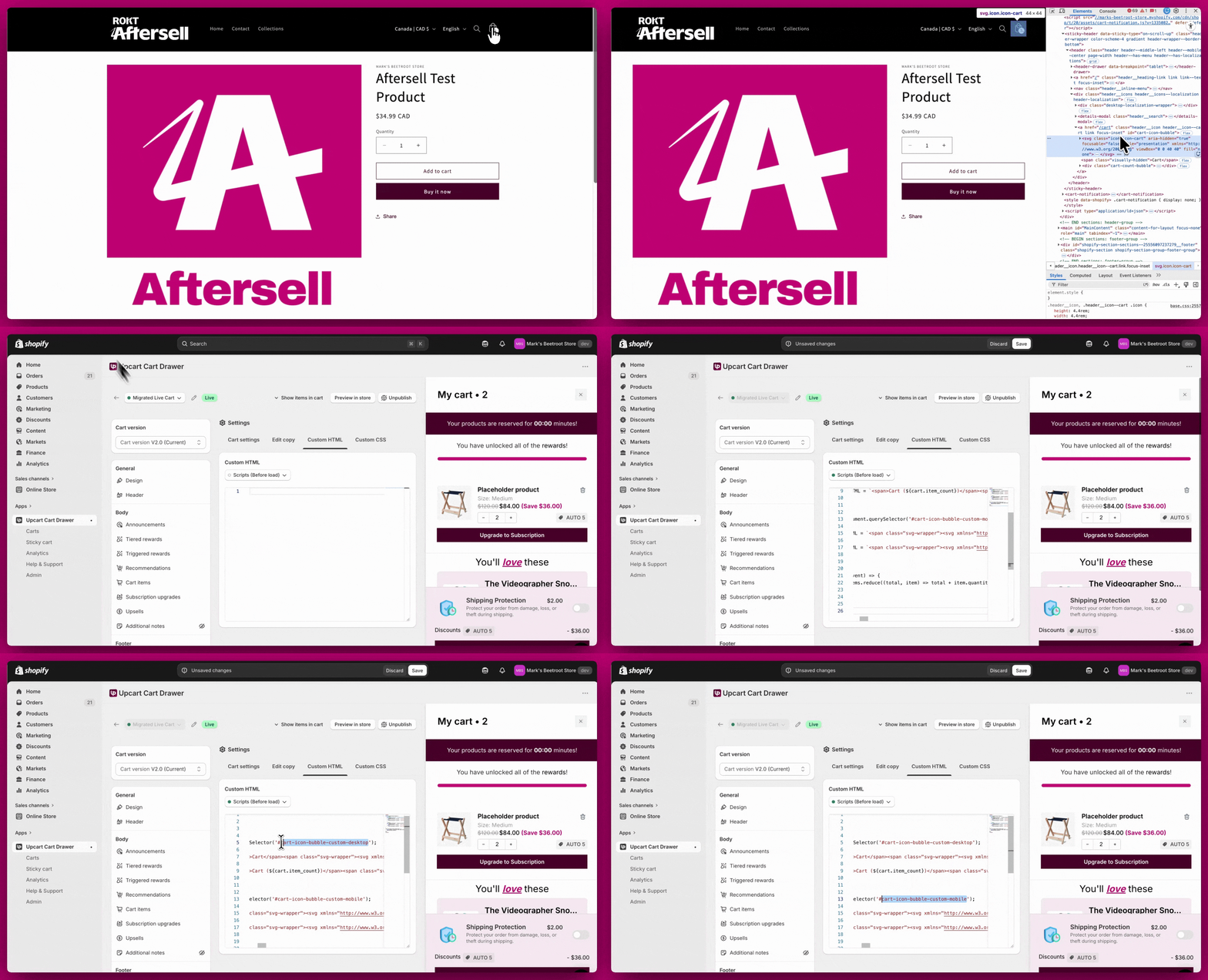
To fix the cart icon issue, you'll need to identify the class name of your cart icon. Every theme is different, and this step ensures the code works specifically for your store.
### **1. Use Chrome Developer Tools**
Every theme is different, so you'll need to use Chrome Developer Tools (Inspect) to identify the class name of your cart icon.
* Right-click your cart icon on your storefront and select **Inspect** in Google Chrome.
* Find the HTML element for your cart icon (e.g., **``**).
* **Need help using Chrome Developer Tools?** Check out [this guide](https://developer.chrome.com/docs/devtools/overview/) for step-by-step instructions.
### **2. Reach Out for Help (Optional)**
If you're unable to locate your cart icon class or feel stuck, don't worry! You have options:
* **Contact Your Theme Developer:** They know your theme best and can help you find the correct class.
* **Hire a Shopify Expert:** If you need additional support, Shopify has a directory of trusted experts who can assist. [Find a Shopify Expert here](https://experts.shopify.com/).
## 🚧 **Custom Code Disclaimer**
The example code provided below is just a template, **it won't work if you copy and paste it directly**. You must replace the placeholder class name (e.g., **`.cart-count-bubble > span`**) with the specific class name for your cart icon.
***
# Step by Step Fix
We've broken this process into three levels of fixes, starting with the simplest solution (Level 1). Each level builds on the previous one, try Level 1 first, then move to Level 2 or 3 only if needed.
## **Step 1: Add Custom Code in Upcart**
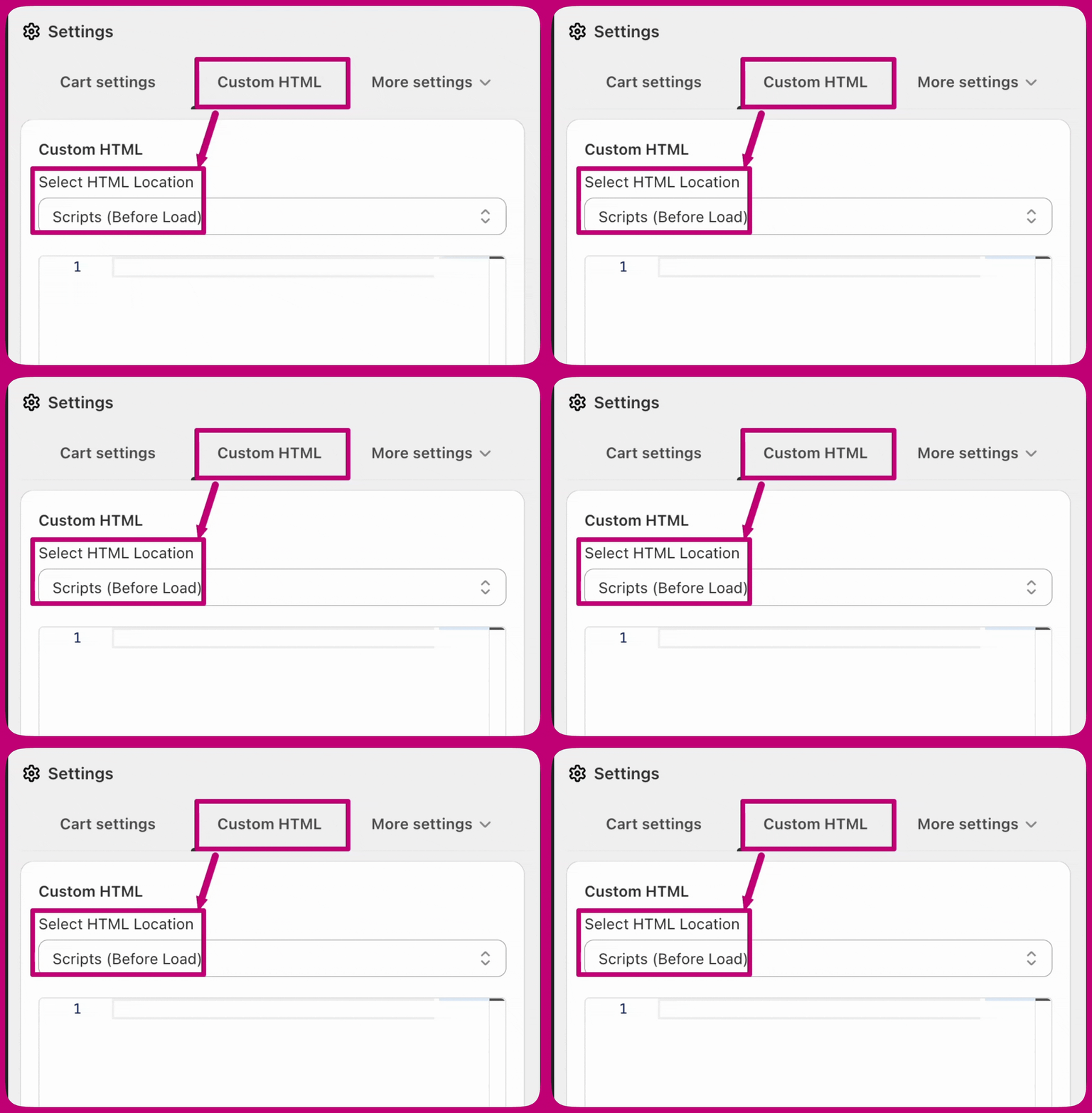
First, since we'll need to add some custom HTML code in the Upcart editor, let's get that section ready:
1. Go to **Upcart Editor > Settings > Cart Settings > Custom HTML**.
2. Set the location as **Scripts (Before Load)**.
3. Paste your edited code here (we'll provide examples for each level below).
Here's what this looks like:
***
# Important Steps Before You Start!
To fix the cart icon issue, you'll need to identify the class name of your cart icon. Every theme is different, and this step ensures the code works specifically for your store.
### **1. Use Chrome Developer Tools**
Every theme is different, so you'll need to use Chrome Developer Tools (Inspect) to identify the class name of your cart icon.
* Right-click your cart icon on your storefront and select **Inspect** in Google Chrome.
* Find the HTML element for your cart icon (e.g., **``**).
* **Need help using Chrome Developer Tools?** Check out [this guide](https://developer.chrome.com/docs/devtools/overview/) for step-by-step instructions.
### **2. Reach Out for Help (Optional)**
If you're unable to locate your cart icon class or feel stuck, don't worry! You have options:
* **Contact Your Theme Developer:** They know your theme best and can help you find the correct class.
* **Hire a Shopify Expert:** If you need additional support, Shopify has a directory of trusted experts who can assist. [Find a Shopify Expert here](https://experts.shopify.com/).
## 🚧 **Custom Code Disclaimer**
The example code provided below is just a template, **it won't work if you copy and paste it directly**. You must replace the placeholder class name (e.g., **`.cart-count-bubble > span`**) with the specific class name for your cart icon.
***
# Step by Step Fix
We've broken this process into three levels of fixes, starting with the simplest solution (Level 1). Each level builds on the previous one, try Level 1 first, then move to Level 2 or 3 only if needed.
## **Step 1: Add Custom Code in Upcart**
First, since we'll need to add some custom HTML code in the Upcart editor, let's get that section ready:
1. Go to **Upcart Editor > Settings > Cart Settings > Custom HTML**.
2. Set the location as **Scripts (Before Load)**.
3. Paste your edited code here (we'll provide examples for each level below).
Here's what this looks like:
 ***
# **Step 2: Apply the fix by level**
## Level 1 (Basic)
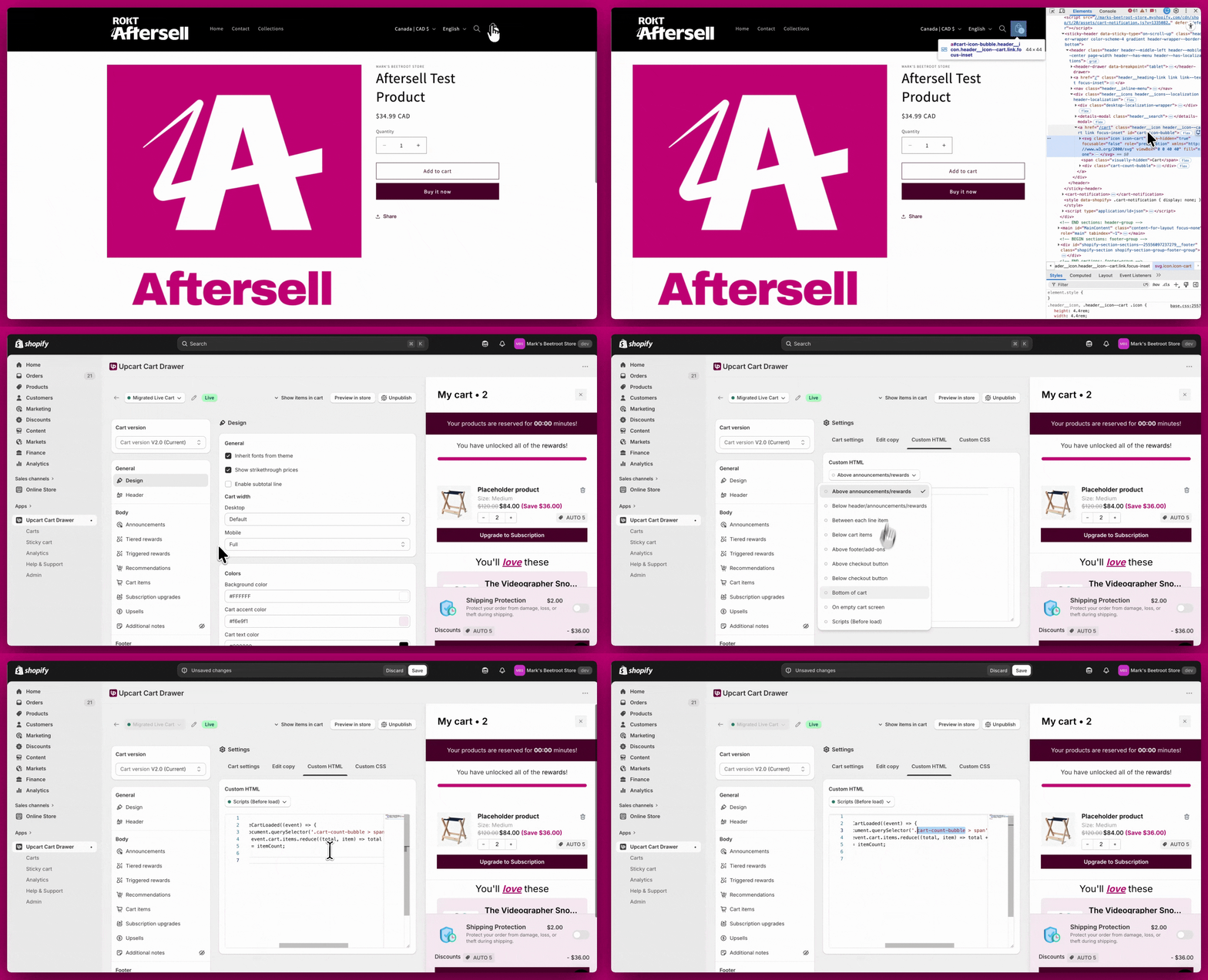
When the cart loads, this script reads `cart.item_count` and writes it into the count element inside your theme's cart bubble. It fits themes where the count lives in a simple nested element (for example, `.cart-count-bubble > span`).
**Don't Forget**
* Replace **`.cart-count-bubble > span`** with your cart icon class.
* Test it on your storefront after adding the code.
***
# **Step 2: Apply the fix by level**
## Level 1 (Basic)
When the cart loads, this script reads `cart.item_count` and writes it into the count element inside your theme's cart bubble. It fits themes where the count lives in a simple nested element (for example, `.cart-count-bubble > span`).
**Don't Forget**
* Replace **`.cart-count-bubble > span`** with your cart icon class.
* Test it on your storefront after adding the code.
 ## Example Code for Level 1
```text theme={"theme":{"light":"snazzy-light","dark":"github-dark"}}
```
**Legacy note:** `window.upcartOnCartLoaded` callbacks still work but are deprecated and log console warnings. Use `upcartSubscribeCartLoaded` for all new scripts. Note that `event.cart` does not have an `item_count` property, use `event.cart.items.reduce((total, item) => total + item.quantity, 0)` to calculate the total item count.
***
## Level 2 (Moderate)
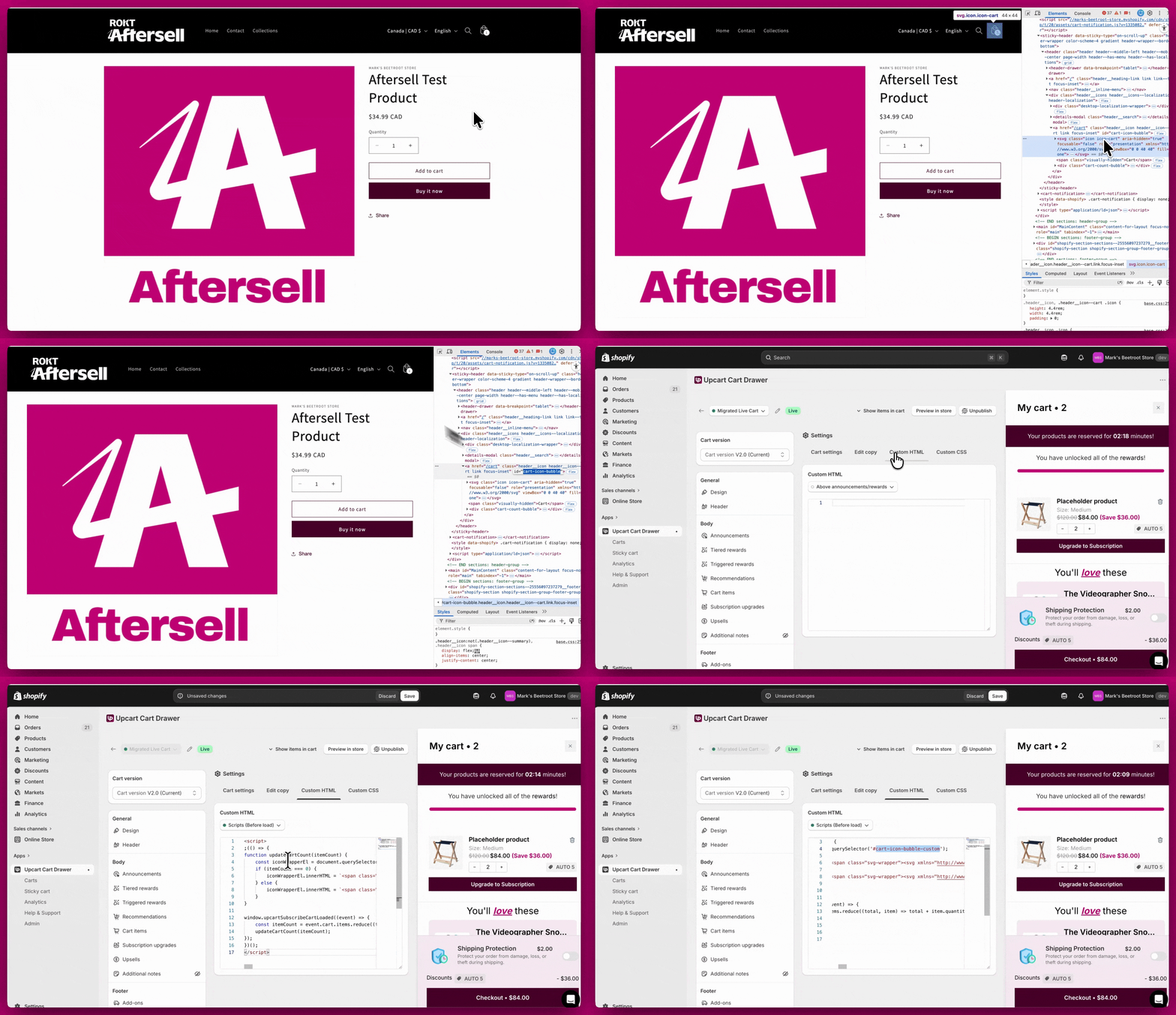
If Level 1 didn't work, your theme may replace the entire cart icon HTML when the count changes. This version rebuilds the icon markup for empty vs. non-empty cart states so the count and icon stay in sync.
**Don't Forget**
* Replace **`#cart-icon-bubble-custom`** with your theme's cart icon wrapper selector.
* Test it after saving.
## Example Code for Level 1
```text theme={"theme":{"light":"snazzy-light","dark":"github-dark"}}
```
**Legacy note:** `window.upcartOnCartLoaded` callbacks still work but are deprecated and log console warnings. Use `upcartSubscribeCartLoaded` for all new scripts. Note that `event.cart` does not have an `item_count` property, use `event.cart.items.reduce((total, item) => total + item.quantity, 0)` to calculate the total item count.
***
## Level 2 (Moderate)
If Level 1 didn't work, your theme may replace the entire cart icon HTML when the count changes. This version rebuilds the icon markup for empty vs. non-empty cart states so the count and icon stay in sync.
**Don't Forget**
* Replace **`#cart-icon-bubble-custom`** with your theme's cart icon wrapper selector.
* Test it after saving.
 ### Example Code for Level 2
```text theme={"theme":{"light":"snazzy-light","dark":"github-dark"}}
```
**Legacy note:** `window.upcartOnCartLoaded` callbacks still work but are deprecated and log console warnings. Use `upcartSubscribeCartLoaded` for all new scripts. Note that `event.cart` does not have an `item_count` property, use `event.cart.items.reduce((total, item) => total + item.quantity, 0)` to calculate the total item count. The modern version would replace `cart.item_count` with `itemCount` calculated from the reduce function, and update the function signature to accept `itemCount` instead of `cart`.
***
## Level 3 (Advanced)
If your theme uses **separate** cart icon markup for desktop and mobile, run the same update logic against two selectors so each viewport gets the correct HTML and count.
**Don't Forget**
* Replace **`#cart-icon-bubble-custom-desktop`** and **`#cart-icon-bubble-custom-mobile`** with your theme's classes.
* Test thoroughly on both desktop and mobile views.
### Example Code for Level 2
```text theme={"theme":{"light":"snazzy-light","dark":"github-dark"}}
```
**Legacy note:** `window.upcartOnCartLoaded` callbacks still work but are deprecated and log console warnings. Use `upcartSubscribeCartLoaded` for all new scripts. Note that `event.cart` does not have an `item_count` property, use `event.cart.items.reduce((total, item) => total + item.quantity, 0)` to calculate the total item count. The modern version would replace `cart.item_count` with `itemCount` calculated from the reduce function, and update the function signature to accept `itemCount` instead of `cart`.
***
## Level 3 (Advanced)
If your theme uses **separate** cart icon markup for desktop and mobile, run the same update logic against two selectors so each viewport gets the correct HTML and count.
**Don't Forget**
* Replace **`#cart-icon-bubble-custom-desktop`** and **`#cart-icon-bubble-custom-mobile`** with your theme's classes.
* Test thoroughly on both desktop and mobile views.
 ### Example Code for Level 3
```text theme={"theme":{"light":"snazzy-light","dark":"github-dark"}}
```
**Legacy note:** `window.upcartOnCartLoaded` callbacks still work but are deprecated and log console warnings. Use `upcartSubscribeCartLoaded` for all new scripts. Note that `event.cart` does not have an `item_count` property, use `event.cart.items.reduce((total, item) => total + item.quantity, 0)` to calculate the total item count. The modern version would replace all `cart.item_count` references with `itemCount` calculated from the reduce function, and update the function signature to accept `itemCount` instead of `cart`.
***
# Still not working?
If none of these levels solve the issue, don't worry, you're not out of options! This likely means your theme requires more advanced customization.
**Here's what you can do next:**
* Reach out to your theme developer for help.
* Hire a [Shopify Expert](https://www.shopify.com/partners/directory) who can create a custom solution tailored to your store.
### Example Code for Level 3
```text theme={"theme":{"light":"snazzy-light","dark":"github-dark"}}
```
**Legacy note:** `window.upcartOnCartLoaded` callbacks still work but are deprecated and log console warnings. Use `upcartSubscribeCartLoaded` for all new scripts. Note that `event.cart` does not have an `item_count` property, use `event.cart.items.reduce((total, item) => total + item.quantity, 0)` to calculate the total item count. The modern version would replace all `cart.item_count` references with `itemCount` calculated from the reduce function, and update the function signature to accept `itemCount` instead of `cart`.
***
# Still not working?
If none of these levels solve the issue, don't worry, you're not out of options! This likely means your theme requires more advanced customization.
**Here's what you can do next:**
* Reach out to your theme developer for help.
* Hire a [Shopify Expert](https://www.shopify.com/partners/directory) who can create a custom solution tailored to your store.