> ## Documentation Index
> Fetch the complete documentation index at: https://docs.aftersell.com/llms.txt
> Use this file to discover all available pages before exploring further.
# Add-ons: shipping protection
> Offer customers peace of mind by letting them add shipping protection at checkout.
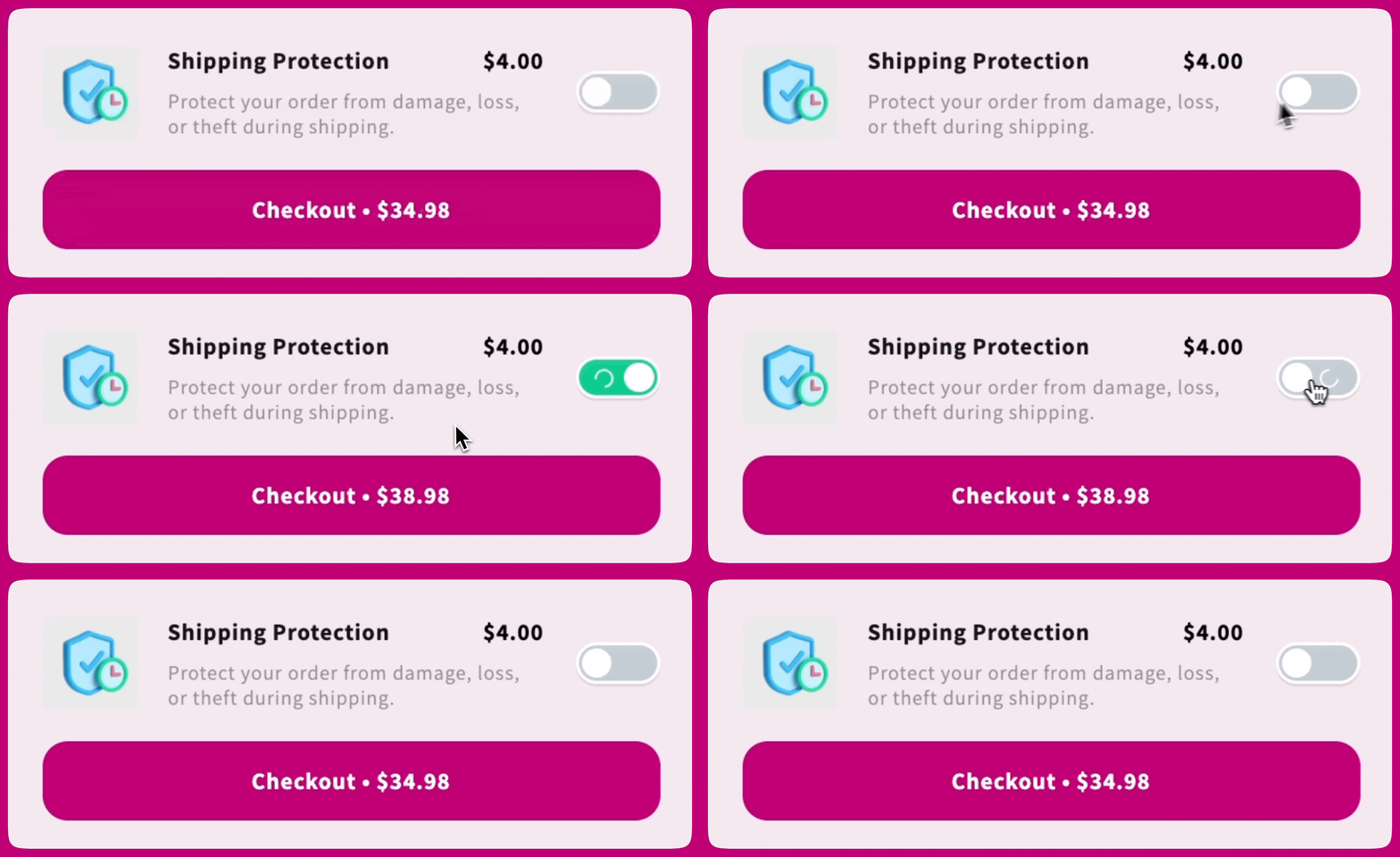
The Shipping Protection add-on is a digital product that appears at the bottom of the cart, allowing customers to protect their order against loss, theft, or damage with a simple toggle.
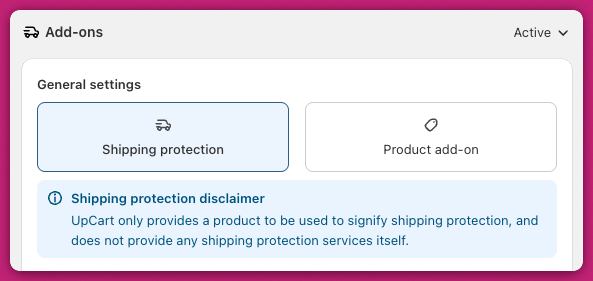
 Upcart does not provide shipping protection services. You are responsible for fulfilling the protection if an issue arises. Customers must contact your support team to resolve claims.
For Product Add-ons, see the [Product Add-on guide](/upcart/add_ons_product_add_on).
***
## General Settings
Shipping Protection is pre-selected when you open the Add-ons module. Click **Add Shipping Protection** to generate and customize the protection product for your store.
Upcart does not provide shipping protection services. You are responsible for fulfilling the protection if an issue arises. Customers must contact your support team to resolve claims.
For Product Add-ons, see the [Product Add-on guide](/upcart/add_ons_product_add_on).
***
## General Settings
Shipping Protection is pre-selected when you open the Add-ons module. Click **Add Shipping Protection** to generate and customize the protection product for your store.
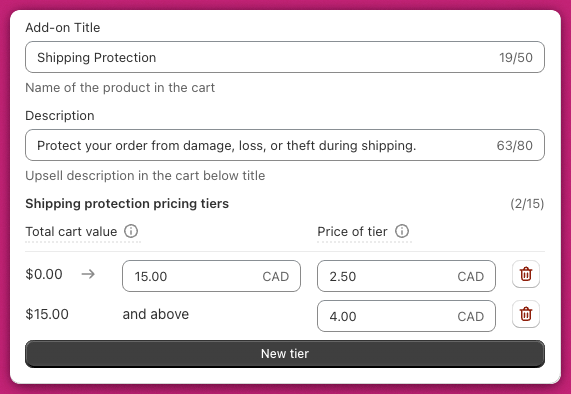
 Once added, you'll be able to configure the following fields:
 ### Add-on Title
This is the name displayed on the add-on in the cart drawer (e.g., "Shipping Protection").
### Description
Displayed below the title, this should explain what the add-on offers (e.g., "Protect your order from damage, loss, or theft during shipping").
### Shipping Protection Pricing Tiers
Set tiered pricing based on the cart's total value. Each row defines:
* **Total cart value range** - the upper bound is inclusive
* **Protection price** for that range, in your store's currency
You can create up to **15 tiers**, allowing you to charge different protection fees depending on cart size.
The first tier covers orders up to your set threshold (for example $0-$50). Any cart value above that threshold automatically falls into the next tier. You do not need to manually define the lower bound of each subsequent tier.
***
## Advanced Settings
These optional settings let you fine-tune how shipping protection behaves in the cart.
### Add-on Title
This is the name displayed on the add-on in the cart drawer (e.g., "Shipping Protection").
### Description
Displayed below the title, this should explain what the add-on offers (e.g., "Protect your order from damage, loss, or theft during shipping").
### Shipping Protection Pricing Tiers
Set tiered pricing based on the cart's total value. Each row defines:
* **Total cart value range** - the upper bound is inclusive
* **Protection price** for that range, in your store's currency
You can create up to **15 tiers**, allowing you to charge different protection fees depending on cart size.
The first tier covers orders up to your set threshold (for example $0-$50). Any cart value above that threshold automatically falls into the next tier. You do not need to manually define the lower bound of each subsequent tier.
***
## Advanced Settings
These optional settings let you fine-tune how shipping protection behaves in the cart.
 ### Include Add-on in Cart Item Count
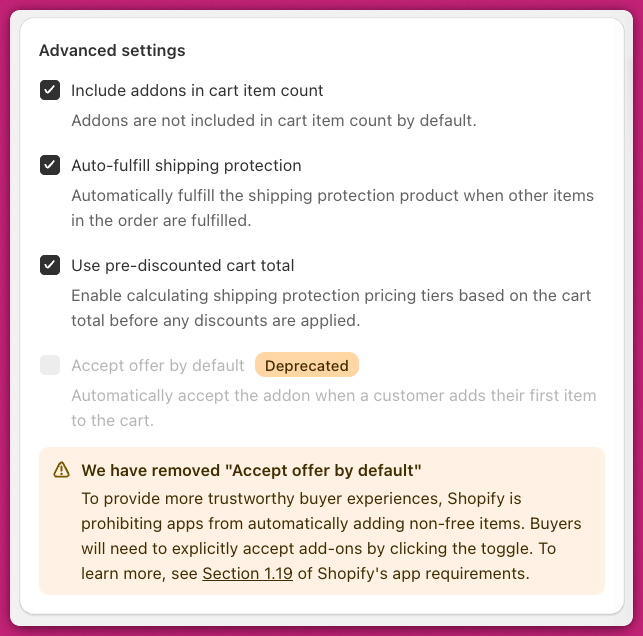
When enabled, the shipping protection product will increase the cart's item count. This is useful if your rewards or discounts are based on item count.
### Auto-Fulfill Shipping Protection
When enabled, the shipping protection product will be automatically fulfilled when the rest of the order is marked as fulfilled.
This respects Shopify's fulfillment settings under Shopify Admin > Settings > Checkout > Order Processing.
### Use Pre-Discounted Cart Total
Enable this setting if you want shipping protection tiers to be based on the cart subtotal before discounts are applied.
### Deprecated Feature: Accept Offer by Default
As of February 17, 2025, this feature has been removed to comply with [Shopify's App Requirements - Section 1.19](https://shopify.dev/docs/store/customize/cart/add-products#automatic-add-to-cart). Apps can no longer automatically add paid items to the cart. Customers must now opt in manually by toggling the add-on. We are unable to implement any customizations or workarounds to re-enable this behaviour, as doing so would violate Shopify's guidelines.
***
## FAQ
Edit the product in your **Shopify Admin > Products** and upload a new image just like any other product. See [Shopify's Product Media Guide](https://help.shopify.com/en/manual/products/product-media/add-media) for instructions.
Yes. Add this custom CSS in **Cart Editor > Settings > CSS**:
```css theme={"theme":{"light":"snazzy-light","dark":"github-dark"}}
.upcart-addons-image-wrapper {
background-color: transparent;
}
```
Since tiered pricing is based on **product variants**, you can configure market-specific prices using Shopify's [Markets features](https://help.shopify.com/en/manual/markets/pricing/set-price-adjustments).
If your shipping protection add-on is not displaying or functioning as expected, work through the following steps:
* **Check Sales Channel Inclusion** - Ensure the shipping protection product is added to your "Online Store" sales channel. Without this, the add-on will not display.
* **Verify Product Activation** - Make sure the product is not in "Draft" mode and is set to "Active." Only active products can appear in your cart.
* **Inventory Settings** - If the product has "Track quantity" enabled, ensure there is sufficient inventory. Alternatively, enable "Continue selling when out of stock."
* **Browser Cache** - Clear your browser cache and refresh the page to rule out syncing issues.
* **Review Product Type** - Ensure the product is not a subscription, does not include multiple variants, and is not a bundle. These configurations can interfere with visibility.
For more detail, see [Why Can't I See My Add-On on the Storefront?](/upcart/why_cant_i_see_my_add_on_on_the_storefront).
***
**Want to go further?**
* [Add-ons Module](/upcart/add_ons_module) - overview of all available add-on types
* [Add-ons: Product Add-on](/upcart/add_ons_product_add_on) - set up a custom product add-on
* [Why Can't I See My Add-On on the Storefront?](/upcart/why_cant_i_see_my_add_on_on_the_storefront) - troubleshoot add-on visibility issues
### Include Add-on in Cart Item Count
When enabled, the shipping protection product will increase the cart's item count. This is useful if your rewards or discounts are based on item count.
### Auto-Fulfill Shipping Protection
When enabled, the shipping protection product will be automatically fulfilled when the rest of the order is marked as fulfilled.
This respects Shopify's fulfillment settings under Shopify Admin > Settings > Checkout > Order Processing.
### Use Pre-Discounted Cart Total
Enable this setting if you want shipping protection tiers to be based on the cart subtotal before discounts are applied.
### Deprecated Feature: Accept Offer by Default
As of February 17, 2025, this feature has been removed to comply with [Shopify's App Requirements - Section 1.19](https://shopify.dev/docs/store/customize/cart/add-products#automatic-add-to-cart). Apps can no longer automatically add paid items to the cart. Customers must now opt in manually by toggling the add-on. We are unable to implement any customizations or workarounds to re-enable this behaviour, as doing so would violate Shopify's guidelines.
***
## FAQ
Edit the product in your **Shopify Admin > Products** and upload a new image just like any other product. See [Shopify's Product Media Guide](https://help.shopify.com/en/manual/products/product-media/add-media) for instructions.
Yes. Add this custom CSS in **Cart Editor > Settings > CSS**:
```css theme={"theme":{"light":"snazzy-light","dark":"github-dark"}}
.upcart-addons-image-wrapper {
background-color: transparent;
}
```
Since tiered pricing is based on **product variants**, you can configure market-specific prices using Shopify's [Markets features](https://help.shopify.com/en/manual/markets/pricing/set-price-adjustments).
If your shipping protection add-on is not displaying or functioning as expected, work through the following steps:
* **Check Sales Channel Inclusion** - Ensure the shipping protection product is added to your "Online Store" sales channel. Without this, the add-on will not display.
* **Verify Product Activation** - Make sure the product is not in "Draft" mode and is set to "Active." Only active products can appear in your cart.
* **Inventory Settings** - If the product has "Track quantity" enabled, ensure there is sufficient inventory. Alternatively, enable "Continue selling when out of stock."
* **Browser Cache** - Clear your browser cache and refresh the page to rule out syncing issues.
* **Review Product Type** - Ensure the product is not a subscription, does not include multiple variants, and is not a bundle. These configurations can interfere with visibility.
For more detail, see [Why Can't I See My Add-On on the Storefront?](/upcart/why_cant_i_see_my_add_on_on_the_storefront).
***
**Want to go further?**
* [Add-ons Module](/upcart/add_ons_module) - overview of all available add-on types
* [Add-ons: Product Add-on](/upcart/add_ons_product_add_on) - set up a custom product add-on
* [Why Can't I See My Add-On on the Storefront?](/upcart/why_cant_i_see_my_add_on_on_the_storefront) - troubleshoot add-on visibility issues