> ## Documentation Index
> Fetch the complete documentation index at: https://docs.aftersell.com/llms.txt
> Use this file to discover all available pages before exploring further.
# Een subtotaalregel toevoegen aan Upcart
> Voor wie liever ook een subtotaalregel boven de checkout-knop laat weergeven
## Introductie
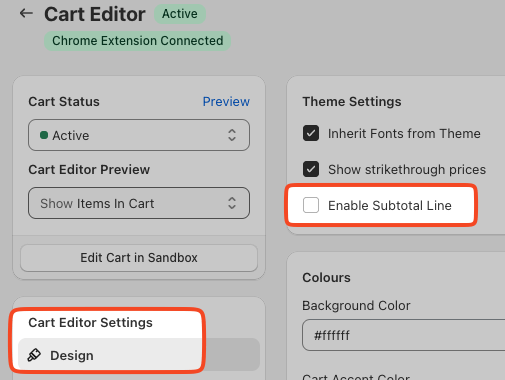
Als de subtotaalinstelling *(hieronder afgebeeld)* niet voor je werkt, is hier een document dat uitlegt hoe je handmatig een subtotaalregel invoegt.
## De subtotaalregel inschakelen
Je kunt de subtotaalregel eenvoudig inschakelen in de Design-instellingen van de winkelwagen.
Hier vind je de instelling:
**Cart Editor > Design > General > Enable subtotal line**
# Subtotaal invoegen via code
## Toegang tot de Custom CSS- en HTML-instellingen
Volg deze stappen om de CSS voor je Upcart aan te passen:
1. Open de Upcart-app in je dashboard.
2. Navigeer naar de Cart Editor.
3. Open **Settings**. Het is een rij tabbladen — kies **Custom HTML** of **Custom CSS** (ze staan achter **More settings** als de rij te vol is).
## HTML
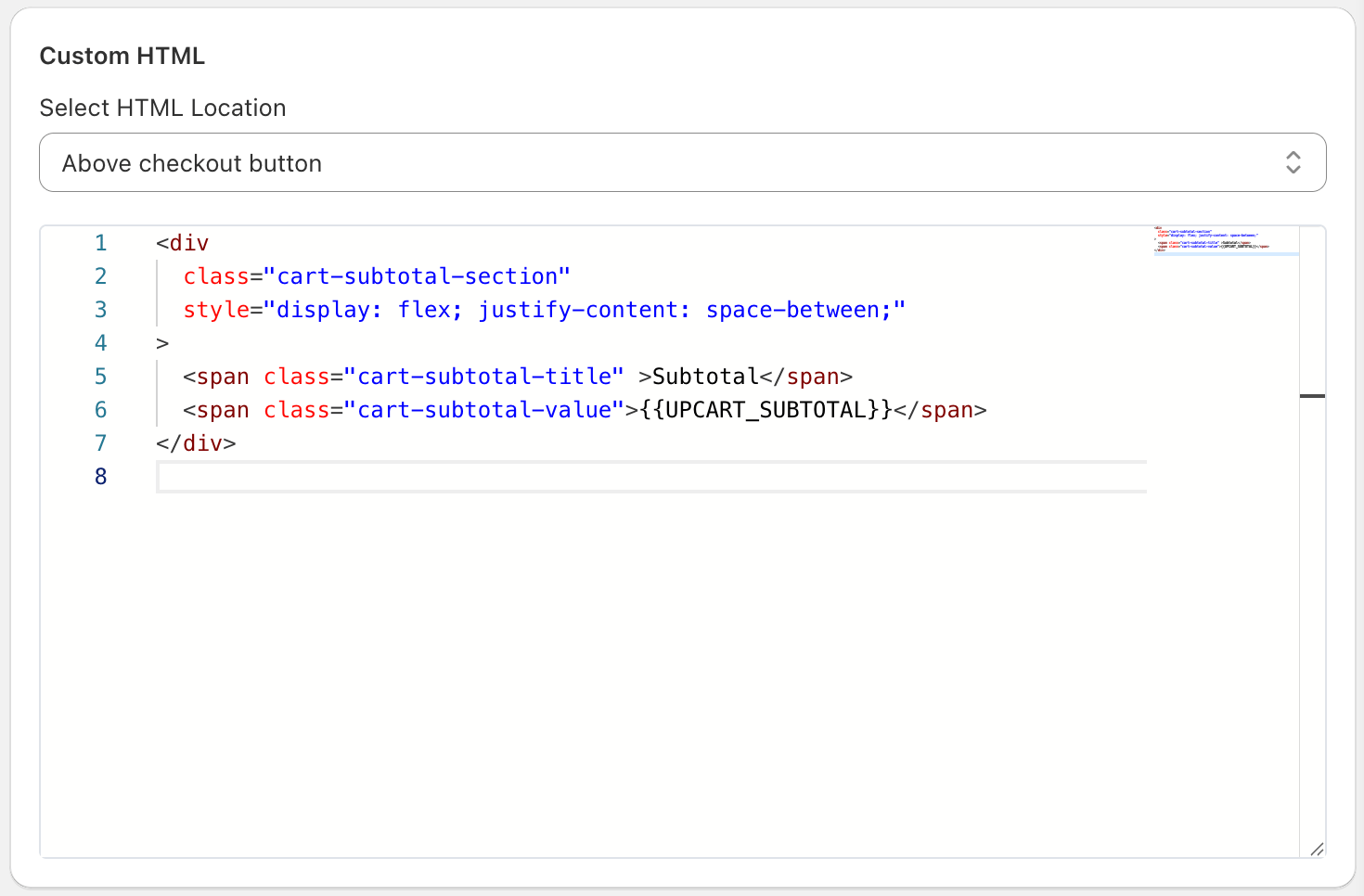
Zorg dat je een HTML-locatie selecteert om de wijzigingen te richten die je in Upcart wilt zien. In ons geval willen we de subtotaalregel "boven de checkout-knop". Pas gerust de tekst "Subtotal" hieronder aan naar je gewenste taal.
```
Subtotal
{{UPCART_SUBTOTAL}}
```
Zo zouden je custom HTML-instellingen er in Upcart uit moeten zien:
## CSS
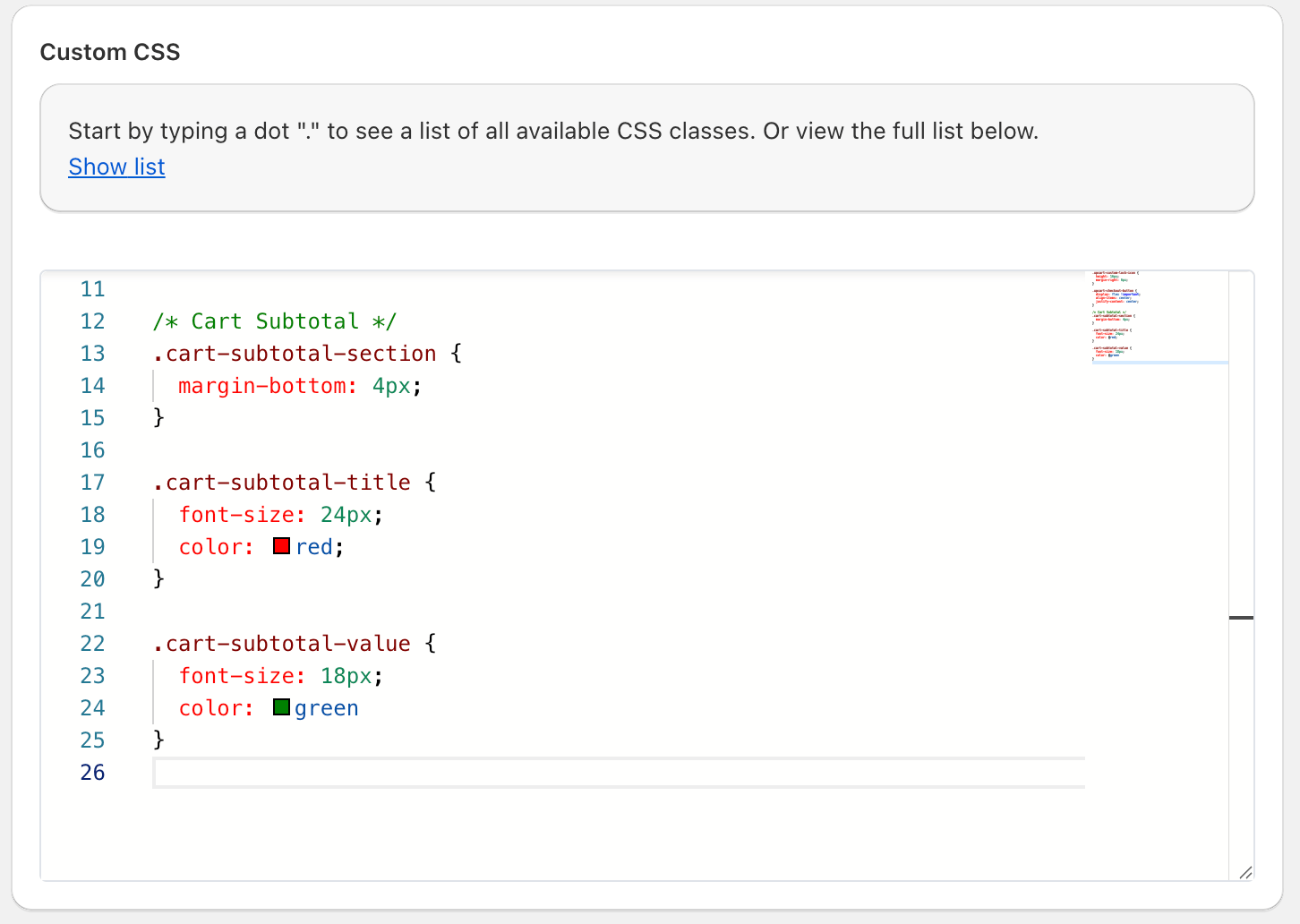
Wijzig in **Settings =>Custom CSS** de lettergrootte en kleuren in de custom CSS naar wens. Vergeet niet op "Save" te klikken als je klaar bent!
```
.cart-subtotal-section {
margin-bottom: 4px;
}
.cart-subtotal-title {
font-size: 24px;
color: red;
}
.cart-subtotal-value {
font-size: 18px;
color: green
}
```
 ***
***
## 🚧 Support voor aanpassingen
Het supportteam van Upcart kan niet helpen bij het implementeren van custom CSS- of HTML-oplossingen in je winkelwagen.
Heb je hulp nodig bij het ontwerpen of stylen van iets op maat, dan raden we aan om [een Shopify Expert te raadplegen](https://www.shopify.com/partners/directory) of te chatten met een LLM [met behulp van onze AI-promptrichtlijnen](https://docs.aftersell.com/upcart/ai_prompt_suggestions_for_adding_custom_code_to_your_upcart_settings#ai-prompt-suggestions-for-adding-custom-code-to-your-upcart-settings).